STAFFCONNECT
IMPORTING SHIFTS

This guide is no longer monitored or updated - please visit the help tab of your StaffConnect login for more up to date support
Getting Started
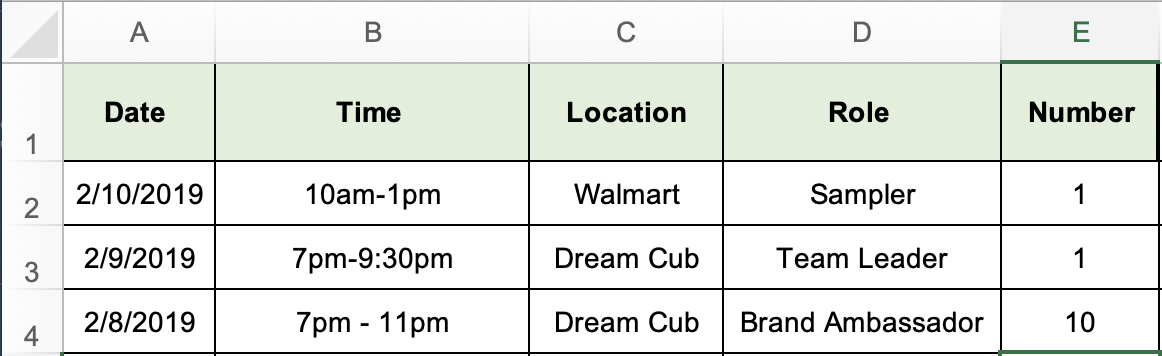
Importing multiple shifts to your StaffConnect system is an easy task.
StaffConnect can import any xls or xlsx spreadsheet file.
To get started, these are the essential columns that StaffConnect requires in order to upload them to your calendar:
If a row has the same Date, Time, Location, Campaign, Work Area etc. as the preceding one - it will be assumed to
be a different role within the same shift.
Date - The date of the shift
Time - The time of the shift
Location - The location of the shift.
Role - The name of the role that needs filled
Number - The number of staff required to work this role
Additional Columns

You can add in additional information to your shifts by using the categories that appear in the Column Map.
Your Excel Column titles need to match the column map within StaffConnect 100%.
If your column map has 'time' as the heading and you put 'times' on your spreadsheet, it will not be able to recognise the heading.
If you prefer using the word 'times' - you can simply edit your column map to reflect this.
If you choose not to enter anything for a particular column, that area will simply appear blank.
SCHEDULE > IMPORT SHIFTS > COLUMN MAPPING
REQUIREMENTS AND PAY ITEMS
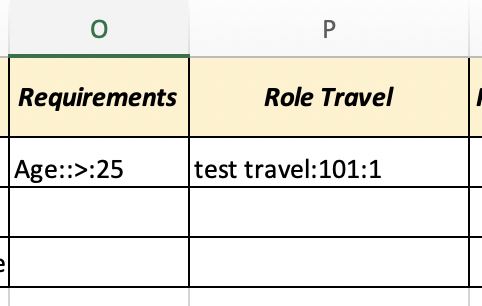
You can also add Role Requirements & Pay Items to your import spreadsheet.
To add Role Requirements:
- Add a column named 'Requirements' (or you can rename it in the Import Column Map)
- In that column, add your requirements separated by colons in the format: {requirement}:{other id}:{operator}:{value}
For example: to add a requirement for age > 25 you add age::>:25
(Other ID is used for setting requirements on things like height or quizzes, in the above case it is unused)
If you want to add these more advanced requirements, please get in contact with us to get the appropriate Other ID)
To add Pay Items:
- Add a column 'Role Travel' (or you can rename it in Import Column Map)
- In that column, add the pay items seperated by colons in the format:
{item name}:{unit rate}:{unit qty}
For example, to add travel of 'fuel allowance' at $10 for 1.5 hours you add:
fuel allowance:10:1.5
Edit Column Map
Change a title by clicking on the word you would like to change, entering a new word. It will save automatically.
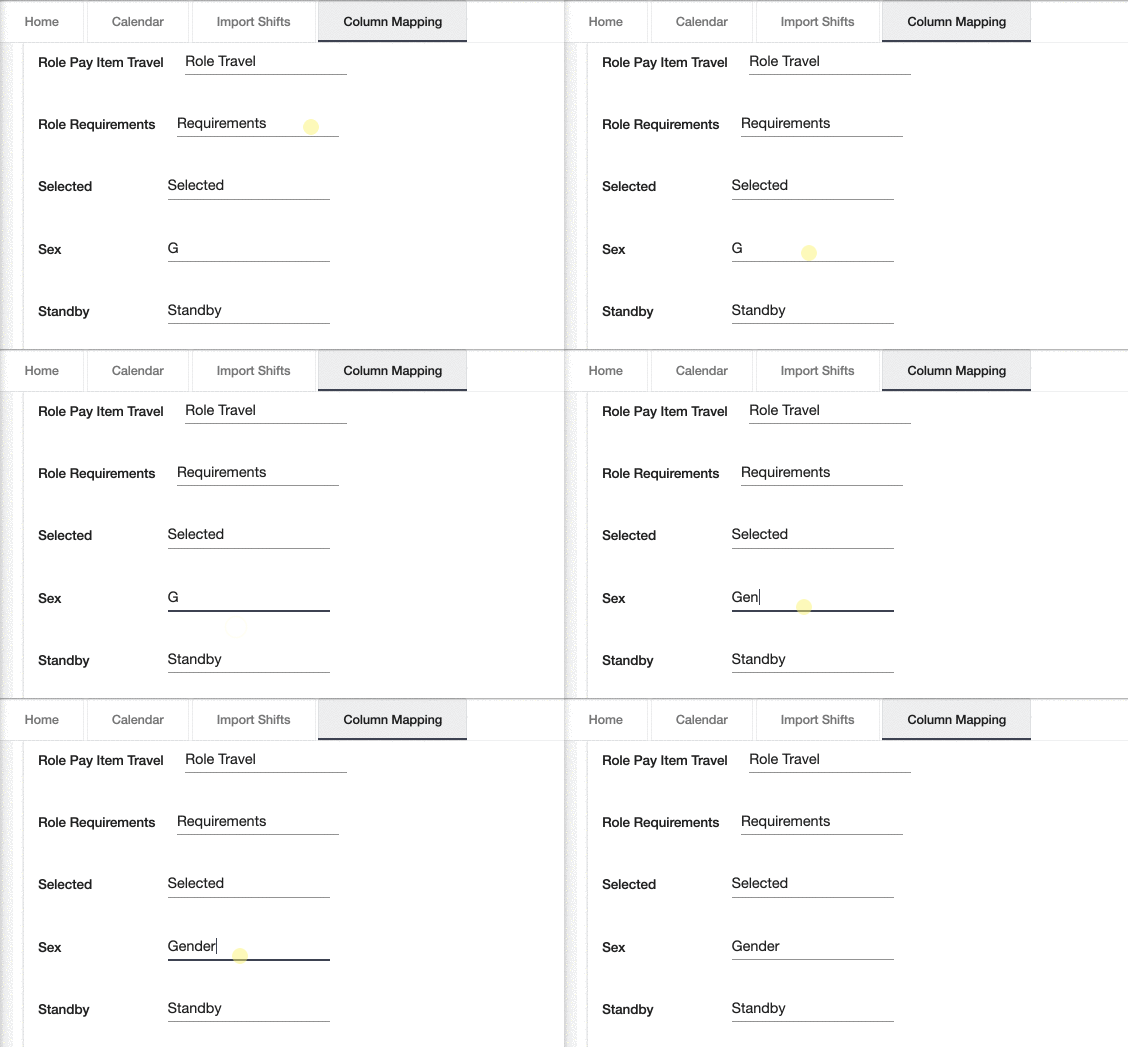
SCHEDULE > IMPORT SHIFTS > COLUMN MAPPING
Tracking Categories
1. Add a Tracking Category name.
Tracking Categories can be added at Settings > Tracking. This will act as your column heading.
2. Add your Tracking Options.
You can add your options under the Tracking Tab. When importing, any tracking option not already in the system will be automatically added and assigned to the category.
3. Tailor your individual options by clicking on them.
From your tracking option, you can add files to all shifts attached to this tracking option & manage your staff or client access.
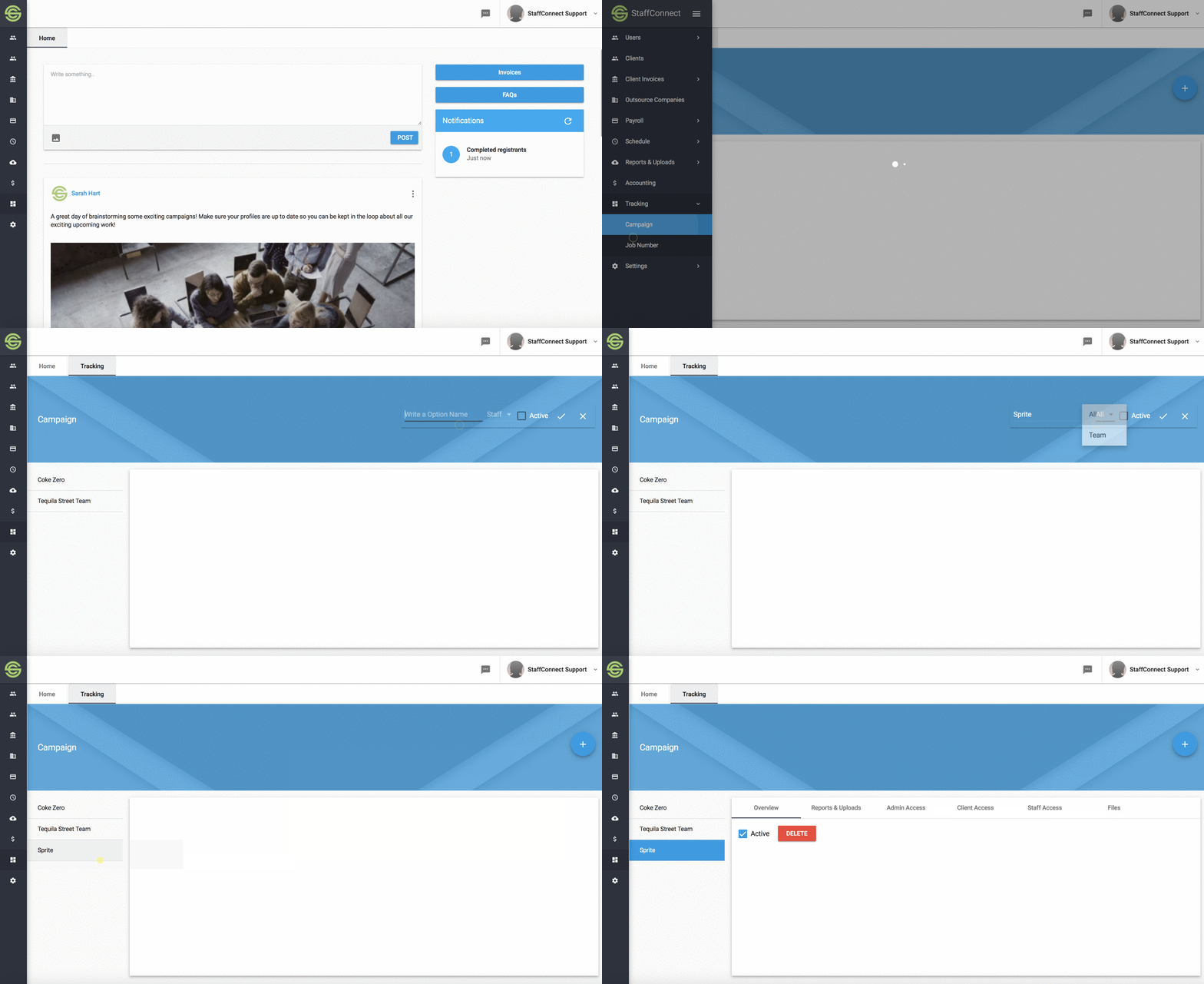
Want to assign a tracking category to a shift? No problem!
To assign multiple Tracking Options or Work Areas, simply seperate these with a comma.
Import
Once your spreadsheet is ready, upload it to the system!
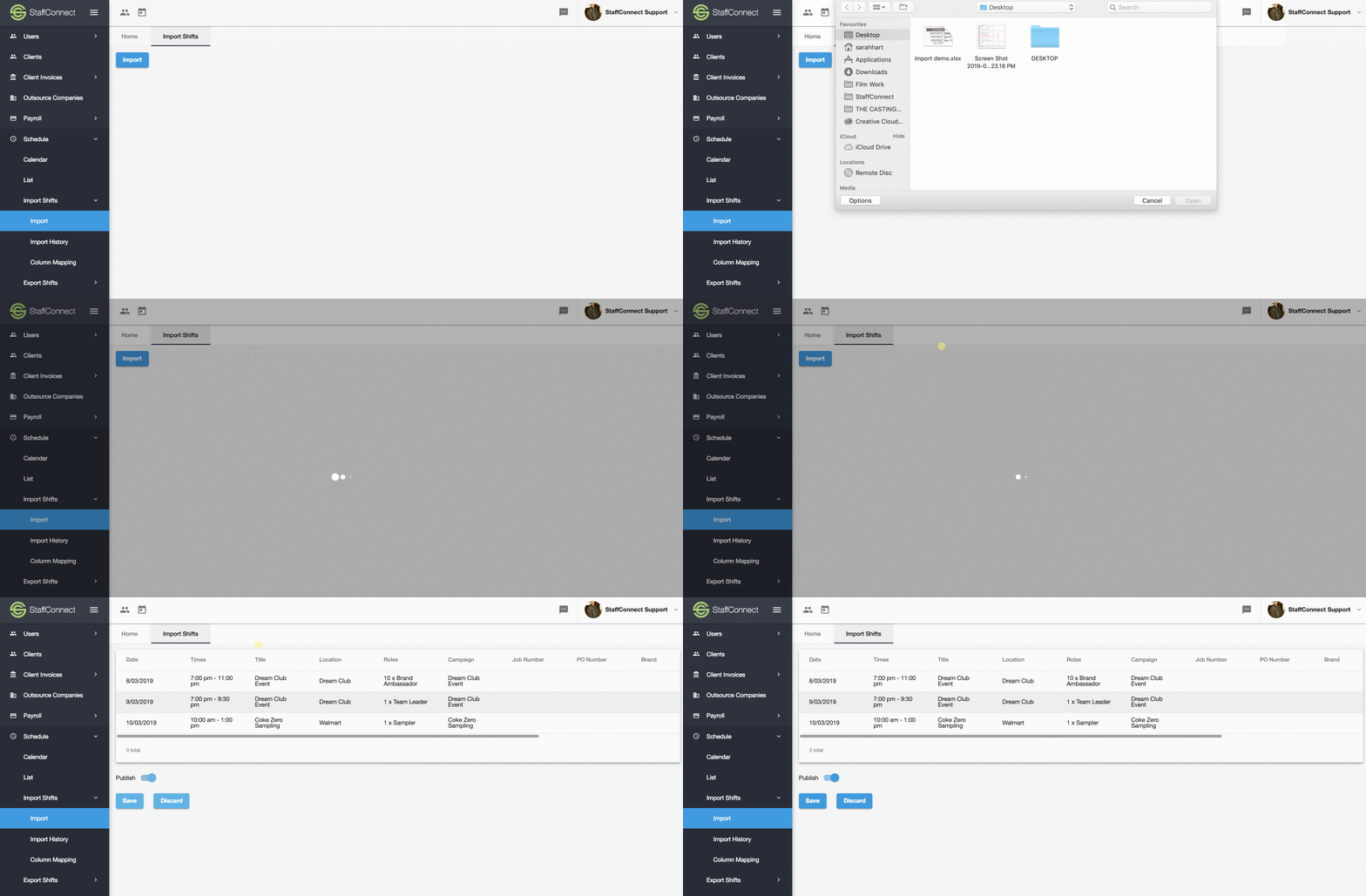
3. Import.
Select Save to import the schedule to your calendar.
1. Add File.
Click Import and select your excel spreadsheet to import.
2. Review your import.
If the system doesn’t recognise something, a warning will appear to alert you.
SCHEDULE > IMPORT
Delete Import
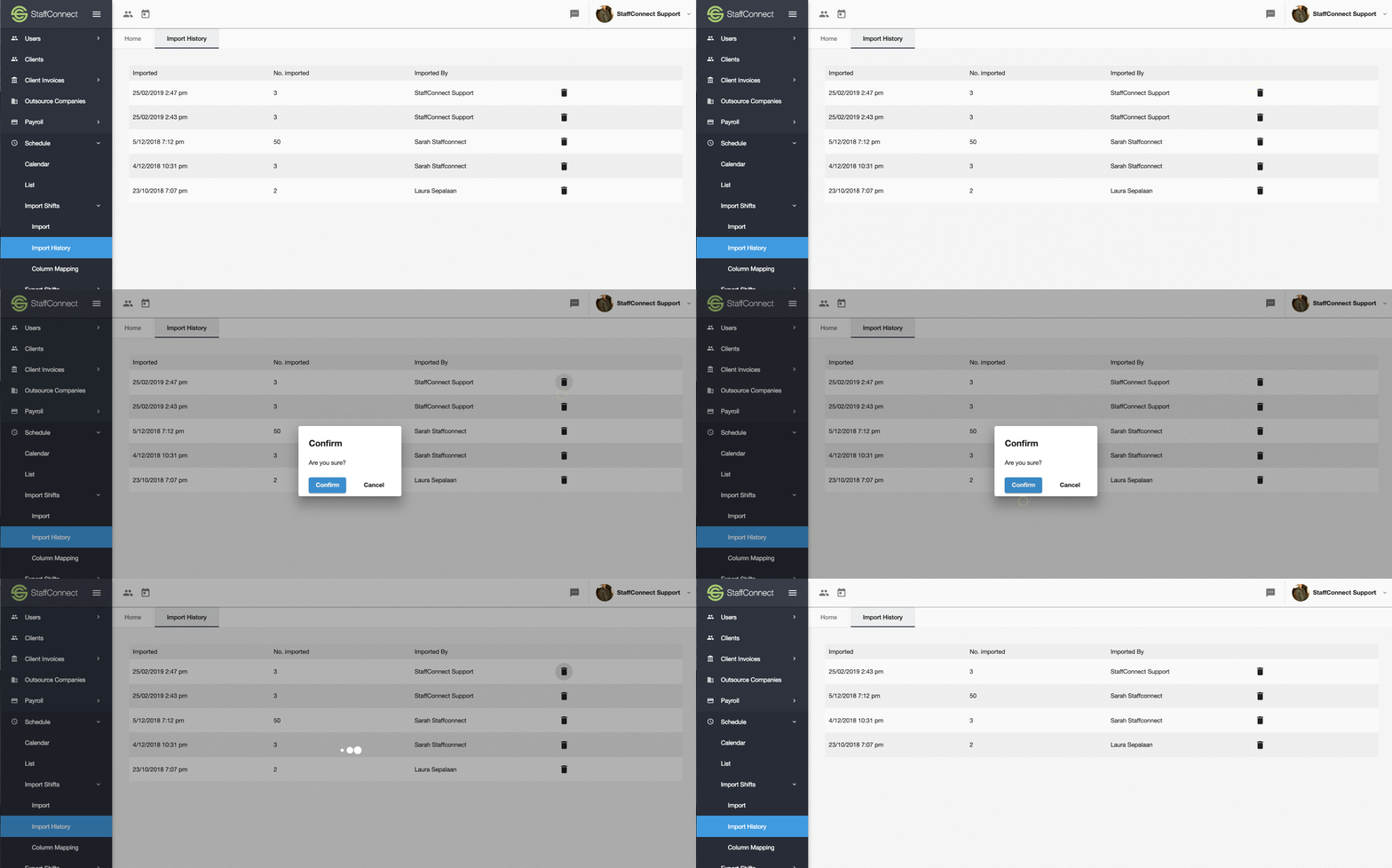
If you need to delete your import, follow these simple steps:
1. Import History is located under the Schedule Tab
2. Select the Trash Can icon beside the import you wish to delete.
3. Select Yes to delete the imported shifts.
This is is a quicker method than deleting each imported shift individually.
DOWNLOAD IMPORT EXAMPLE
Green columns: Compulsory for the system to add shifts.
Blue columns: Need to match the data exactly to the system.
Ie: If your work area is titled "Auckland" in your system, then the spreadsheet needs to match this exactly to be able to import.
Yellow columns: Are optional. Leave these blank if they don't apply.
Make sure your column headings match your Column Map!
V4 Import Shifts Guide
By staffconnect