CSS (Cascading Style Sheets)
HTML Element Types
In HTML, there are 2 types of elements :
- Block-level elements
- Inline elements
Block-level elements allocate the entire space of the parent element (they create blocks!)
<address> <article> <blockquote>
<br> <canvas> <div>
<footer> <form> <h*>
<header> <hr> <li>
<nav> <ol> <p>
<pre> <section> <table>
<ul>
HTML Element Types
In HTML, there are 2 types of elements :
- Block-level elements
- Inline elements
Inline elements allocate only the space bounded by tags that define the inline element.
<a> <b> <i>
<code> <em> <strong>
<img> <object> <script>
<span> <button> <input>
<label> <select> <textarea>
Here is the fiddle : https://jsfiddle.net/erdysson/4r0tyakw/2/
How does CSS works ?
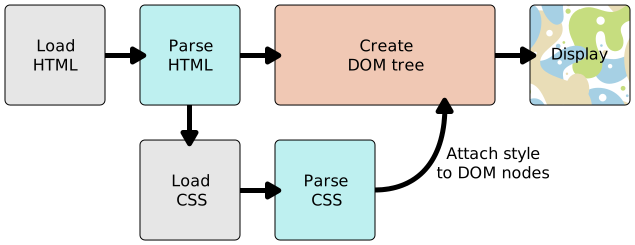
When browser display a document, it combines the document's content with its style information. Then, the browser displays the contents of the DOM.
How to apply your CSS to HTML ?
1 - via <link> tag :
<html>
    <head>
        <meta charset="utf-8">
        <title>My CSS experiment</title>
        <link rel="stylesheet" href="style.css">
        <!-- most common and arguably the best way. change once, use everywhere. -->
    </head>
    <body>
        <h1>Hello World!</h1>
        <p>This is my first CSS example</p>
    </body>
</html>
How to apply your CSS to HTML ?
2 - internal set of rules :
<html>
    <head>
        <meta charset="utf-8">
        <title>My CSS experiment</title>
        <style>
        <!-- inside head section, between style tags. this can be useful in some circumstances,
             but not as efficient as external stylesheets.
        -->
            h1 {
                color: blue;
                background-color: yellow;
                border: 1px solid black;
            }

            p {
                color: red;
            }
    </head>
    <body>
        <h1>Hello World!</h1>
        <p>This is my first CSS example</p>
    </body>
</html>
How to apply your CSS to HTML ?
3 - inline styles :
<html>
    <head>
        <meta charset="utf-8">
        <title>My CSS experiment</title>
    </head>
    <body>
        <!-- bad for maintenance. -->
        <h1 style="color: blue;background-color: yellow; border: 1px solid black;">Hello World!</h1>
        <p style="color:red;">This is my first CSS example</p>
    </body>
</html>
CSS Declaration Blocks
<html>
    <head>
        <meta charset="utf-8">
        <title>My CSS experiment</title>
        <link rel="stylesheet" href="style.css">
    </head>
    <body>
        <h1>Hello World!</h1>
        <p>This is my first CSS example</p>

        <ul>
            <li>This is</li>
            <li>a list</li>
        </ul>
    </body>
</html>
h1 {
/*h1 is called "selector", "{" and "}" defines the "block", color is called "property" and "blue" is called "value". */
color: blue;
background-color: yellow; /* final semi-colon is not necessary, but good practice. */
border: 1px solid black;
}
p {
color: red;
}
p, li {
text-decoration: underline;
}CSS Declaration Blocks
Attention !
- If a property is unknown or if a value is not valid for a given property, the declaration is deemed invalid and is wholly ignored by the CSS engine!
- An element may be matched by several selectors, precedence is defined by Cascade Algorithm!
- If a single basic selector in a chain or group is invalid, the whole group of selectors is invalid and entire rule is ignored!
Here is the fiddle https://jsfiddle.net/erdysson/1u4g7gco/4/
CSS Statements
at-rules :
used to convey metadata, conditional or descriptive information, starting with @ sign, followed by an identifier, then a syntax block, ending with a semi-colon.
@charset, @import (metadata)
@media, @document (conditional & also nested statement)
@font-face (descriptive)
CSS Statements
nested statements :
specific subset of at-rule, the syntax of which is a nested block of CSS rules that will only be applied to the document if a specific condition match
@media is applied only if the device which runs the browser matches the expressed condition
@supports is applied only if the browser actually supports the tested feature
@document is applied only if the current page matches some conditions
Here is the fiddle https://jsfiddle.net/erdysson/7tspu3se/6/
CSS Statements
@charset "UTF-8";

@font-face {
    font-family: "Bitstream Vera Serif Bold";
    src: url("https://mdn.mozillademos.org/files/2468/VeraSeBd.ttf");
}

@document url(http://www.w3.org/),
          url-prefix(http://www.w3.org/Style/),
          domain(mozilla.org),
          regexp("https:.*") {

    /* CSS rules here apply to:
     - The page "http://www.w3.org/".
     - Any page whose URL begins with "http://www.w3.org/Style/"
     - Any page whose URL's host is "mozilla.org" or ends with ".mozilla.org"
     - Any page whose URL starts with "https:"
    */

    /* make the above-mentioned pages really ugly */

    body {
        color: purple;
        background: yellow;
    }
}

@media (min-width: 801px) {
    body {
        margin: 0 auto;
        width: 800px;
    }
}
CSS Selectors
- simple selectors : match one or more based on element type, class or id
- attribute selectors : match one or more based on attributes / attribute values
- pseudo-classes : match one or more that exist in a certain state, e.g. hovered, disabled, checked etc.
- combinators : not exactly selectors, but combination of two or more
- multiple selectors : idea is to apply same css rules on comma-separated different selectors
CSS Selectors
Simple Selectors
/* type selectors */

p {
    color: red;
    text-decoration: underline;
}

div {
    background-color: blue;
    float: left;
}

/* class selectors */

.first {
    border-bottom: solid 1px grey;
}

.done {
    color: green;
}


/* id selectors */

#userForm {
    border: solid 1px black;
    width: 300px;
}

#submitBtn {
    text-transform: uppercase;
    font-size: 14px;
}


/* universal selector -- it allows selecting all elements in a page. */

* {
    display: flex;
    box-sizing: border-box;
}
CSS Selectors
Combinators
/* combinators */

/* all children, grandchildren inside the parent */

.parent_selector .all_children_class {
    font-size: 200%;
}

/* all immediate children inside the parent */

.parent_selector > .immediate_children_class {
    color: red;
}

/* immediate sibling (right next to it) of the parent */

.parent_selector + .immediate_sibling_class {
    text-decoration: underline;
}

/* sibling(s) (at the same level in the hierarchy, but not necessarily right next to it) of the parent */

.parent_selector ~ .sibling_class {
    overflow: hidden;
}
CSS Selectors
Precendence and attribute selectors
[attr] : select all elements with attribute attr
[attr=val] : select all elements with attribute attr, but only if value is val
[attr~=val] : select all elements with attribute attr, but only if the val is one of a space-separated list of values in attr's value
CSS Selectors
Precendence and attribute selectors
<ul>
    <li data-quantity="1kg" data-vegetable>Tomatoes</li>
    <li data-quantity="3" data-vegetable>Onions</li>
    <li data-quantity="3" data-vegetable>Garlic</li>
    <li data-quantity="700g" data-vegetable="not spicy like chili">Red pepper</li>
    <li data-quantity="2kg" data-meat>Chicken</li>
    <li data-quantity="optional 150g" data-meat>Bacon bits</li>
    <li data-quantity="optional 10ml" data-vegetable="liquid">Olive oil</li>
    <li data-quantity="25cl" data-vegetable="liquid">White wine</li>
</ul>
/* All elements with the attribute "data-vegetable" are given green text */
[data-vegetable] {
color: green
}
/* All elements with the attribute "data-vegetable" with the exact value "liquid" are given a golden background color */
[data-vegetable="liquid"] {
background-color: goldenrod;
}
/* All elements with the attribute "data-vegetable", containing the value "spicy", even among others, are given a red text color */
[data-vegetable~="spicy"] {
color: red;
}CSS Selectors
Substring value attribute selectors
Also known as RegExp-like selectors, because they offer flexible matching in a similar fashion to regular exp. (but not true regular exp!)
[attr|=val] : select all elements with attribute attr, whose value exactly starts with val
[attr^=val] : select all elements with attribute attr, whose value starts with val
[attr$=val] : select all elements with attribute attr, whose value ends with val
[attr*=val] : select all elements with attribute attr, whose value contains with val (spaces are not treated as value seperators)
CSS Selectors
Pseudo-classes
preceded by a colon (:) that is added on to the end of selectors to style the selected elements only when they are in certain state
:active :any :checked :default :dir()
:disabled :empty :enabled :first :first-child
:first-of-type :fullscreen :focus :hover :indeterminate
:invalid :lang() :last-child :last-of-type :left
:link :not() :nth-child() :nth-last-child() :nth-last-of-type()
:only-child :only-of-type :optional :out-of-range :read-only
:read-write :required :right :root :scope :target
:valid :visited
CSS Selectors
Pseudo-classes
preceded by a colon (:) that is added on to the end of selectors to style the selected elements only when they are in certain state
/* These styles will style our link in all states */

a {
    color: blue;
    font-weight: bold;
}

/* We want visited links to be the same color as non visited links */

a:visited {
    color: blue;
}

/* We highlight the link when it is hovered (mouse), activated or focused (keyboard) */

a:hover, a:active, a:focus {
    color: darkred;
    text-decoration: none;
}
CSS Selectors
Pseudo-elements
very much like pseudo-classes, but they have differences. they are keywords -- this time preceded by two colons (::) -- that can be added to the end of selectors to select a certain part of an element.
::after ::before ::first-letter
::first-line ::selection ::backdrop
/*
All elements with an attribute "href", which values start with "http",
will be added an arrow after its content (to indicate it's an external link)
*/

[href^=http]::after {
    content: '⤴';
}
here is the fidddle https://jsfiddle.net/erdysson/Lex4quyL/4/
CSS Values and Units
- numerical values : length, width, border thickness, font-size and unitless integers for specifying relative line width or numbers of times to run animations.
- percentages : can also be used to specify size or length as relative to a parent container's width or height, or default font-size.
- colors : for specifying background colors, text-colors, etc.
- coordinate positions : e.g. for specifying the position of a positioned element relative to the top left of the screen.
- functions : for specifying e.g. background images or background image gradients.
CSS Values and Units
Numeric values :
pixels (px) : absolute units because they will always be the same size regardless of any other related settings.
Other absolute units are as follows :
- mm, cm, in : millimeters, centimeters, or inches.
- pt, pc : Points (1/72 of an inch) or picas (12 points);
CSS Values and Units
Numeric values :
- em : 1em is the same size as the font-size of the current element (more specifically, the width of a capital letter M). The default base font-size given to web pages by browsers before CSS styling is applied as 16 pixels, which means the computed value of 1em is 16 pixels for an element by default.
- ex, ch : respectively these are the height of a lowercase x, and the width of the number 0.
- rem : the rem (root em) works exactly the same way as the em, except that it will always equal the size of the default base font-size; inherited font-sizes will have no effect,
- vw, vh : respectively these are 1/100th of the width of the viewport and 1/100th of the height of the viewport. Again, these are not as widely supported as rems.
CSS Values and Units
Unitless values :
Unitless numeric values in CSS -- this is not always an error
For example, if you want to completely remove the margin or padding from an element, just use unitless 0 -- 0 is 0, no matter what units were set before!
Unitless line height : sets how high each line of text in an element is. you can use units to set a specific line height, but it is often easier to use a unitless value, which acts like a simple multiplying factor.
p {
    line-height: 1.5;
}

/* here the font-size is 16px; the line height will be 1.5 x 16px = 24px. */
CSS Values and Units
Percentages :
allows you to create, for example, boxes whose width will always shift to be a certain percentage if their parent container's width.
This can be compared to boxes that have their width set to a certain unit value (like px or emS), which will always stay the same length, even if their parent container's width changes.
div {
    margin: 10px;
    font-size: 200%;
    color: white;
    height: 150px;
    border: 2px solid black;
}

div:nth-child(1) {
    background-color: red;
    width: 650px;
}

div:nth-child(2) {
    background-color: blue;
    width: 75%;
}
CSS Values and Units
Percentages :
font-size as percentage value works a bit differently, this new sizing is relative to the parent's font-size, as it was with emS. In this case, the parent font-size is 16px -- the page default, so the computed value will be 200% of this, or 32px. this actually works in a very similar fashion to ems -- 200% is basically the equivalent of 2ems.
here is the fiddle https://jsfiddle.net/erdysson/nmtfajkx/2/
CSS Colors
- The standard color system available in modern computers is 24bit
- Allows the display of about 16.7 million colors.
- Combination of different red, green, blue channels with 256 different values per channel (256 x 256 x 256).
The simplest, oldest color types in CSS are the color keywords. These are specific strings representing particular color values
p {
    background-color: red;
}

/* There are around 165 different keywords available for use in modern web browsers. */
here is the fiddle https://jsfiddle.net/erdysson/a2mtt7dc/
CSS Colors
Hexadecimal values :
/* equivalent to the red keyword */

p:nth-child(1) {
    background-color: #ff0000;
}

/* equivalent to the blue keyword */

p:nth-child(2) {
    background-color: #0000ff;
}

/* has no exact keyword equivalent */

p:nth-child(3) {
    background-color: #e0b0ff;
}
Consists of a hash/pound symbol (#) followed by six hexadecimal numbers
Numbers can take a value between 0 and F.
Each pair of values represents one of the channels -- red, green. blue (256 available values for each (16 x 16 = 256))
CSS Colors
RGB :
/* equivalent to the red keyword */

p:nth-child(1) {
    background-color: rgb(255,0,0);
}

/* equivalent to the blue keyword */

p:nth-child(2) {
    background-color: rgb(0,0,255);
}

/* has no exact keyword equivalent */

p:nth-child(3) {
    background-color: rgb(224,176,255);
}
rgb() is a function which is given three parameters that represents the red, green, blue channel values of the colors.
The difference is that each channel is represented not by two hex digits, but by a decimal number between 0 and 255.
CSS Colors
HSL :
/* equivalent to the red keyword */

p:nth-child(1) {
    background-color: hsl(0,100%,50%);
}

/* equivalent to the blue keyword */

p:nth-child(2) {
    background-color: hsl(240,100%,50%);
}

/* has no exact keyword equivalent */

p:nth-child(3) {
    background-color: hsl(276,100%,85%);
}


/* three different shades of red*/

background-color: hsl(0,100%,50%);

background-color: hsl(0,100%,60%);

background-color: hsl(0,100%,70%);
instead of red, green and blue values, the hsl() function accepts hue, saturation, and lightness values.
- hue : the base shade of the color. this takes a value between 0 and 360, presenting the angles round a color wheel.
- saturation : how saturated the color? this takes a value from 0-100%, where 0 is no color (it will appear as a shade of grey), and 100% is full color saturation
- lightness : how light, or bright is the color? this takes a value from 0-100%, where 0 is no light (it will appear completely black), and 100% is full light (it will appear completely white)
CSS Colors
RGBA and HSLA :
/* Red with RGBA */

p:nth-child(1) {
    background-color: rgba(255,0,0,0.5);
}

/* Red with opacity */

p:nth-child(2) {
    background-color: rgb(255,0,0);
    opacity: 0.5;
}

/*

Note the difference — the first box that uses the RGBA color only has a semi-transparent background, whereas everything in the second box is transparent, including the text. You'll want to think carefully about when to use each — for example RGBA is useful when you want to create an overlaid image caption where the image shows through the caption box but the text is still readable. opacity on the other hand is useful when you want to create an animation effect where a whole UI element goes from completely visible to hidden.

*/
RGBA and HSLA allow you to set not only what color you want to display, but also what transparency you want that color to have.
Their corresponding functions take the same parameters, plus a fourth value in the range 0–1 — which sets the transparency, or alpha channel. 0 is completely transparent, and 1 is completely opaque.
Cascade and Inheritance
- At some point, multiple css rules will have selectors matching the same element.
- Such cases are controlled by the mechanism called "Cascade", which is also related to inheritance (elements will take some property values from their parents but not others).
- The final style for an element can be specified in may different places, which can interact in complex ways. This complex interaction makes CSS powerful, but it can also make it confusing and difficult to debug.
Cascade and Inheritance
The cascade :
it indicates that the order of CSS rules matter, but it's more complex than that. What selectors win out in the cascade depends on three factors
(listed in order of wight -- earlier ones will overrule later ones)
1 - importance
2 - specificity
3 - source order
Cascade and Inheritance
The cascade : importance
there is a special piece of syntax you can use to make sure that a certain rule will always win over all others: !important.
<p class="better">This is a paragraph.</p>
<p class="better" id="winning">One selector to rule them all!</p>
#winning {
background-color: red;
border: 1px solid black;
}
.better {
background-color: gray;
border: none !important;
}
p {
background-color: blue;
color: white;
padding: 5px;
}
/*
you'll see that the third rule's color and padding values have been applied, but the background-color hasn't.
the reason is that the rules above win, because IDs / class selectors have higher specificity than element selectors
both element have a class of better, but the 2nd one has an id of winning, too.
Since IDs have even higher specificity than classes, the red background color and
the 1 pixel black border should both be applied to 2nd element, with the 1st element getting the gray background color,
and no border, as specified by the class.
the 2nd element does get the red background color, but no border. because of the !important declaration in the second rule
including this after border: none means that this declaration will win over the border value in the previous rule,
even though ID has higher specificity.
*/Cascade and Inheritance
The cascade : importance
the only way to override this !important declaration would be to include another !important declaration of the same specificity, later in the source code.
!important changes the way the cascade normally works, it can make debugging CSS problems really hard to work out, especially in a large stylesheet.
Cascade and Inheritance
Conflicting declarations will be applied in the following order, with later ones overriding earlier ones :
1 - declarations in user agent stylesheets (e.g. browser default styles, used when no other styling is set)
2 - normal declarations in user stylesheets (custom styles set by a user)
3 - normal declarations in author stylesheets (tese are te styles set by us, the web developers).
4 - important declarations in author stylesheets
5 - important declarations in user stylesheets
The cascade : importance
here is the fiddle https://jsfiddle.net/erdysson/o1n5fcv2/
Cascade and Inheritance
basically a measure of how specific a selector is -- how many elements it could match. specificity order is element < class < ID. the only way to win against an ID selector is to use !important.
The cascade : specificity
the amount of specificity a selector has is measured using four different values (or components), which can be thought as thousands, hundreds, tens, and ones -- 4 single digits in four columns :
Cascade and Inheritance
- thousands : score on in this column if the matching selector is inside a <style> element or the declaration is inside a style attribute (such declarations don't have selectors, so their specificity is always simply 1000.) otherwise 0.
- hundreds : score one in this column for each ID selector contained inside the overall selector.
- tens : score one in this column for each class selector, attribute selector, or pseudo-class contained inside the overall selector
- ones : score one in this column for each element selector or pseudo-element contained inside the overall selector.
The cascade : specificity
NOTE : universal selector (*), combinators (+, >, ~, '') and negation pseudo-class (:not) have no effect on specificity.
Cascade and Inheritance
The cascade : specificity
| selector | thousands | hundreds | tens | ones | total spec. |
|---|---|---|---|---|---|
| h1 | 0 | 0 | 0 | 1 | 0001 |
| #important | 0 | 1 | 0 | 0 | 0100 |
| h1 + p::first-letter | 0 | 0 | 0 | 3 | 0003 |
| li > a[href=*en-US] > .inline-war | 0 | 0 | 2 | 2 | 0022 |
| #important div > div > a:hover (inside a <style> element) | 1 | 1 | 1 | 3 | 1113 |
Cascade and Inheritance
The cascade : specificity
<div id="outer" class="container">
    <div id="inner" class="container">
        <ul>
            <li class="nav"><a href="#">One</a></li>
            <li class="nav"><a href="#">Two</a></li>
        </ul>
    </div>
</div>
/* specificity: 0101 */
#outer a {
background-color: red;
}
/* specificity: 0201 */
#outer #inner a {
background-color: blue;
}
/* specificity: 0104 */
#outer div ul li a {
color: yellow;
}
/* specificity: 0113 */
#outer div ul .nav a {
color: white;
}
/* specificity: 0024 */
div div li:nth-child(2) a:hover {
border: 10px solid black;
}
/* specificity: 0023 */
div li:nth-child(2) a:hover {
border: 10px dashed black;
}
/* specificity: 0033 */
div div .nav:nth-child(2) a:hover {
border: 10px double black;
}
a {
display: inline-block;
line-height: 40px;
font-size: 20px;
text-decoration: none;
text-align: center;
width: 200px;
margin-bottom: 10px;
}
ul {
padding: 0;
}
li {
list-style-type: none;
}Cascade and Inheritance
The cascade : source-order
multiple competing selectors have the same importance and specificity, the third factor that comes into play to help decide which rule wins is source order : later rules will win over earlier rules
p {
    color: blue;
}

/* This rule will win over the first one */

p {
    color: red;
}

whereas in this example the first rule wins because source order is overruled by specificity :

/* This rule will win */

.footnote {
    color: blue;
}

p {
    color: red;
}
Cascade and Inheritance
The cascade : source-order
Note on rule mixing : properties override other properties, but you don't get entire rules overriding rules. when several CSS rules match the same element, they are all applied to that element. Only conflicting properties evaluated to see which individual styles will win over others.
<p>I'm <strong>important</strong></p>


/* specificity: 0002 */

p strong {
    background-color: khaki;
    color: green;
}

/* specificity: 0001 */

strong {
    text-decoration: underline;
    color: red;
}
here is the fiddle https://jsfiddle.net/erdysson/7ednbjwp/
Cascade and Inheritance
Inheritance
some property values applied to an element will be inherited by that element's children, and some won't.
for example, it makes sense for font-family and color to be inherited, as that makes it easy for you to set a site-wide base font by applying a font family to <html> element, you can then override fonts on individual elements where needed.
it makes sense for margin, padding, border, and background-image to NOT to be inherited. Imagine the styling/layout mess that would occur if you set these properties on a container element and had them inherited by every single child element, and then had to unset them all on each individual element!
Cascade and Inheritance
Inheritance: Controlling inheritance
css provides three special values to handle inheritance:
- inherit : this value sets the property value applied to a selected element to be the same as that of its parent element.
- initial : this value sets the property value applied to a selected element to be the same as the value set for that element in the browser's default style sheet. if no value is set by the browser's default style sheet, and the property naturally inherited, then the property value is set to inherit instead.
- unset : this value resets the property to its natural value, which means that if the property is naturally inherited it acts like inherit, otherwise it acts like initial.
the inherit allows us to explicitly make an element inherit a property from its parent.
Cascade and Inheritance
Inheritance: Controlling inheritance
 <ul>
    <li>Default <a href="#">link</a> color</li>
    <li class="inherit">Inherit the <a href="#">link</a> color</li>
    <li class="initial">Reset the <a href="#">link</a> color</li>
    <li class="unset">Unset the <a href="#">link</a> color</li>
</ul>
body {
color: green;
}
.inherit a {
color: inherit;
}
.initial a {
color: initial
}
.unset a {
color: unset;
}here is the fiddle https://jsfiddle.net/erdysson/0194xf0q/
End of first Session. Thank you
CSS Challenges
For challenging examples from the beginning, the tasks can be found here https://en.wikiversity.org/wiki/Web_Design/CSS_challenges . For the first session, first 2-3 of the examples are good starters
CSS - Session 1 : Introduction
By erdi taner gökalp