Shell
簡單介紹
GUI vs CLI
Shell是一種命令直譯器
- 解析指令
- 執行指令
- 提供自動化/腳本能力
- bash
- sh
- ash
- zsh
- dash
- ...
常見的Shell
<- 最常用的,對sh向下兼容
<- POSIX standard
終端 (介面)
-> Shell
-> Kernel執行指令
終端 (介面)
-> Shell
- 內部指令
-> Sys call
- 外部指令
-> Kernel 載入/執行程式
-> 外部程式Sys call
內部指令 (Shell提供)
- cd
- pwd
- exit
外部指令 (獨立的可執行檔案)
-
/bin/ls
-
/bin/cp
-
/usr/bin/grep
-
/usr/bin/find
這次上課用的環境
基本上有bash能用就行
- 去搞一個Linux環境出來
- VirtualBox / HyperV 什麼的
- 去雲端租一個
- 使用git bash
- 提供類似Linux終端的介面,在Windows上使用
帳號: student
密碼: verystrongpassword
ssh student@<ip>
輸入密碼時不會顯示
帳號: student
密碼: verystrongpassword
指令
指令結構
command [options] [arguments]
-
options
- 改變指令行為
- 通常以
- 或 -- 開頭
-
arguments
- 指令作用的對象
- 數值、路徑等等
ls -l /home/andy
tar -c -v -z -f archive.tar.gz
tar -cvzf archive.tar.gz
mv volumes /var/lib/docker/
cat myfile
- -h
- -v
- -r
- -f
- -a
- -t
- -l
help 顯示說明
verbose 顯示詳細訊息
recursive 遞迴操作 (目錄)
force 強制執行
all 顯示全部
time 時間
long 長格式
常見的options
man
an interface to the system reference manuals
使用手冊
看到什麼不會的指令,打
man <command>
就對了 !
檔案系統
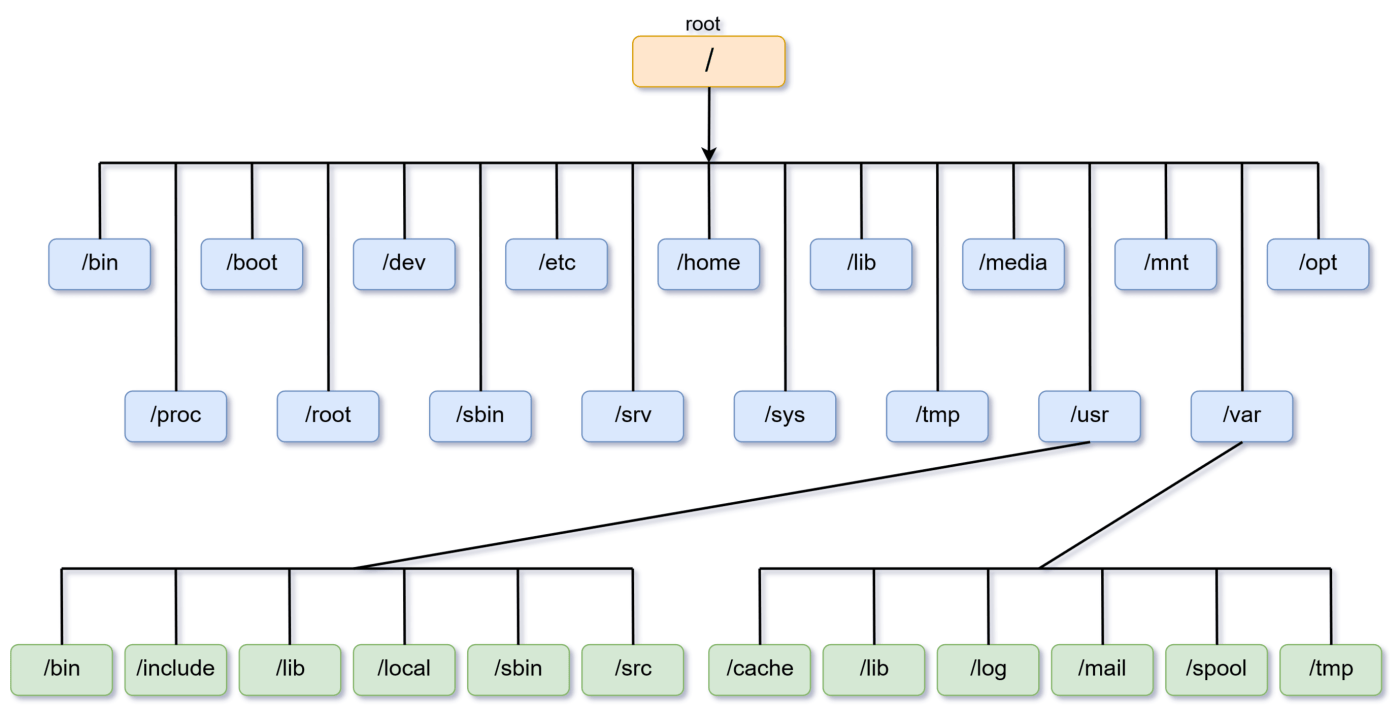
檔案系統以 / 為根目錄
是一個樹狀結構
絕對路徑
- 從 根目錄 / 開始寫
- 完整指向 檔案or目錄 的位置
- 無論工作目錄在哪,都能找到目標
/home/andy/Documents/report.txt
/etc/nginx/nginx.conf
/var/log/syslog
相對路徑
- 從 工作目錄 出發,去定位 檔案or目錄
- 常用符號:
- . -> 當前目錄
- .. -> 上層目錄
../../etc/nginx/nginx.conf
./Documents
Documents
假設你人在 /home/student/
/etc/nginx/nginx.conf
/home/student/Documents
/home/student/Documents
~ 代表目前使用者的家目錄
通常會位於 /home/<user>
常用快捷鍵
-
Ctrl + C
-
Ctrl + D
發送SIGINT (中斷訊號) 給進程
告訴Shell: 輸入結束
常用指令介紹
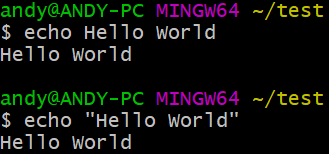
echo
輸出文字
display a line of text
echo <string>...
註: <string>...可以是字串
clear
清空終端
clear the terminal screen
sudo
execute a command as another user
以root或其他用戶的身份執行命令
sudo <command>
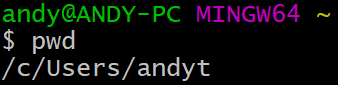
pwd
print name of current/working directory
輸出工作目錄
pwd
ls
列出資料夾內容
list directory contents
ls
列出工作目錄所有內容

ls <dir>
列出<dir>內的所有內容

ls -l [dir]
-l 使用long list格式
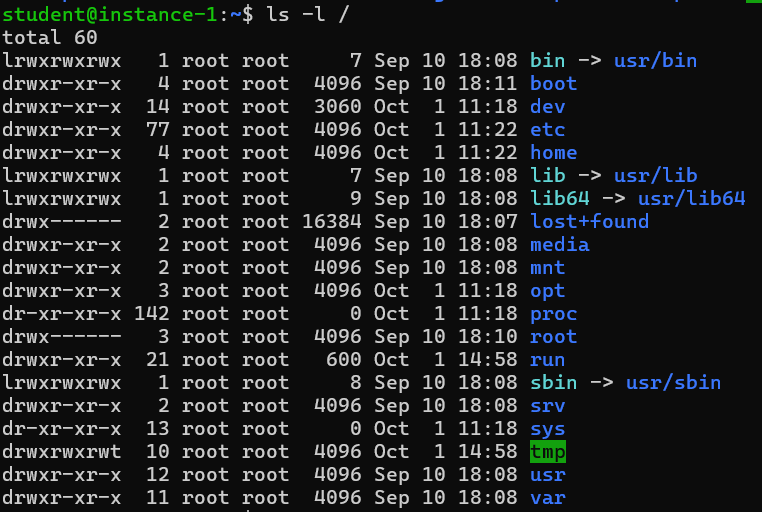
ls -a [dir]
-a 顯示所有檔案 (包含. 與 ..)

ls -la [dir]
long list 顯示所有檔案
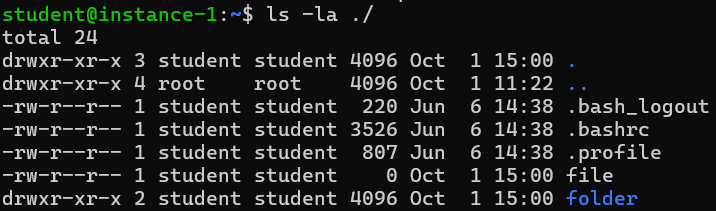
cd
change directory
切換工作目錄

cd <dir>
切換工作目錄
touch
更新檔案時間 / 建立檔案
change file timestamps
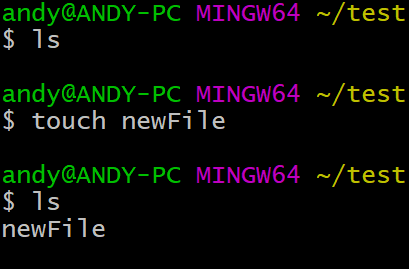
建立檔案
註: 可以一次多個
touch <file>...
更新檔案時間
(Access/Modify)
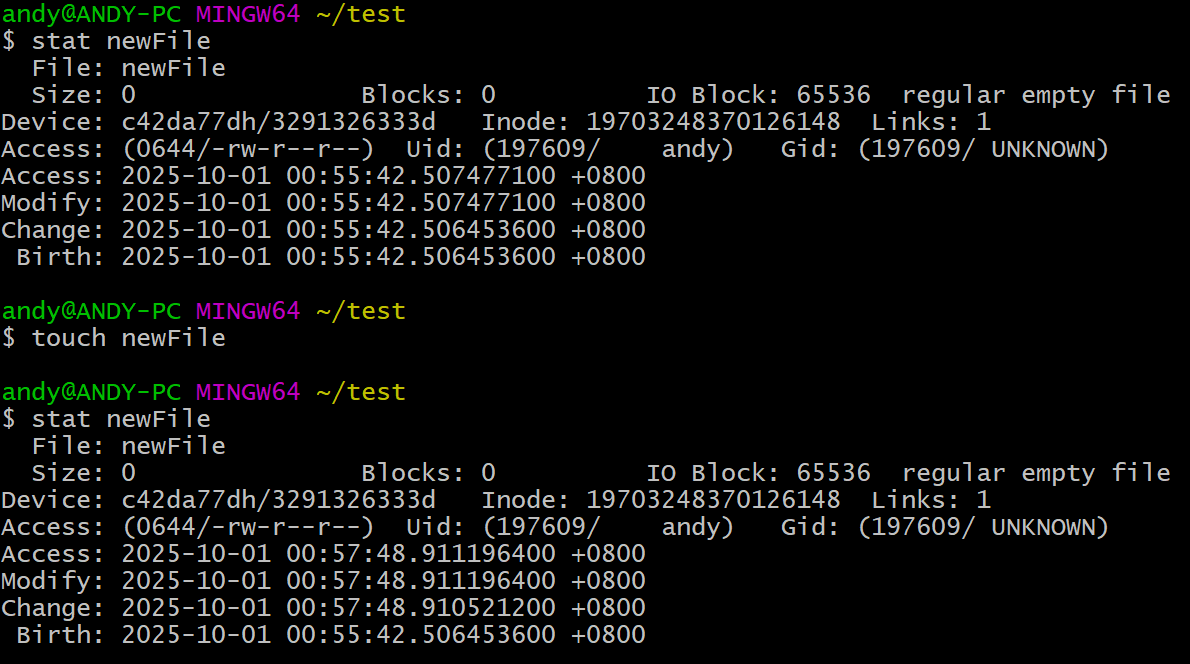
touch <file>...
-a 更新檔案時間
(Access)
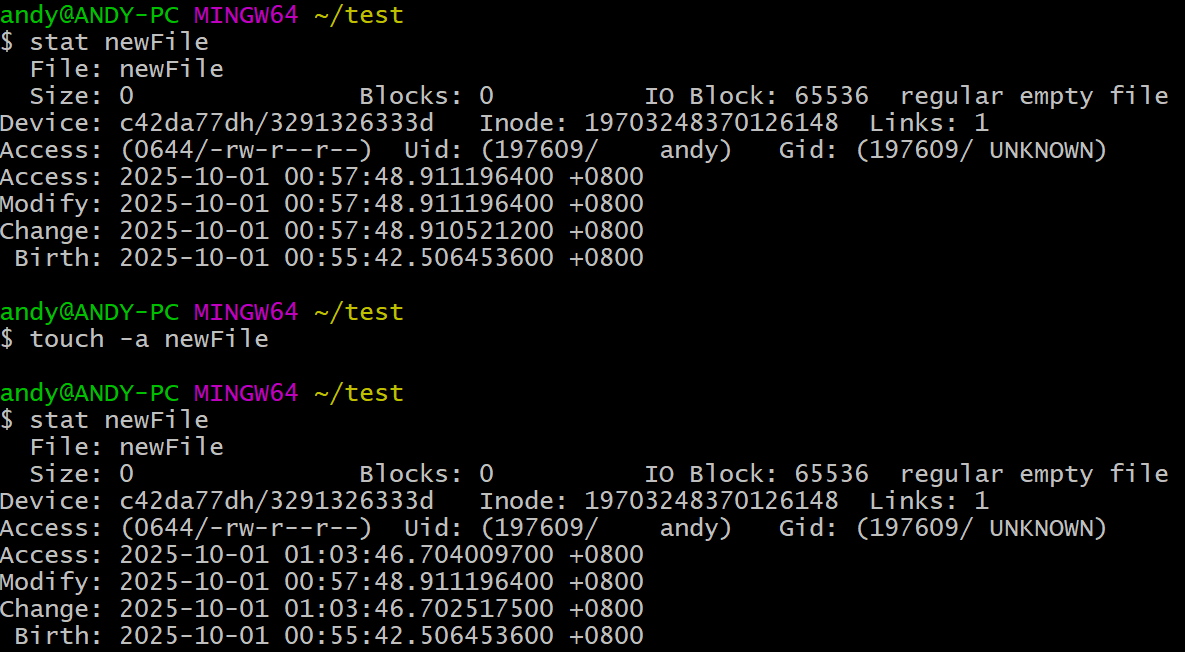
touch -a <file>...
-m 更新檔案時間
(Modify)
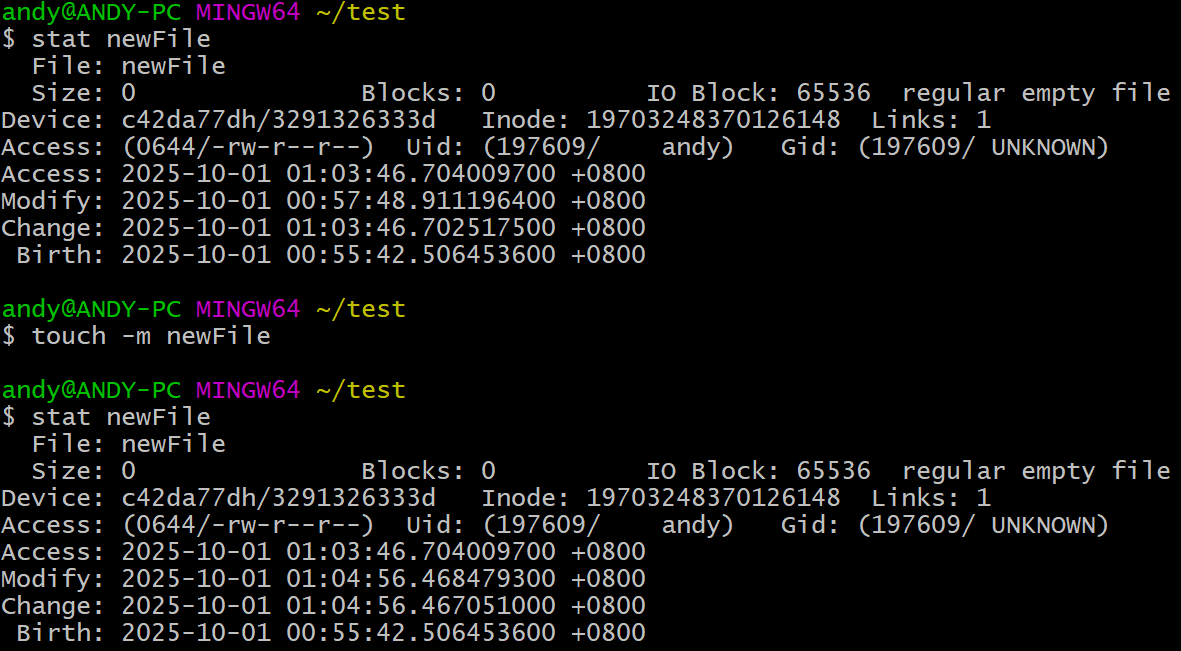
touch -m <file>...
輸出檔案
cat head tail
cat
串接 / 輸出檔案到stdout
concatenate files and print on the standard output
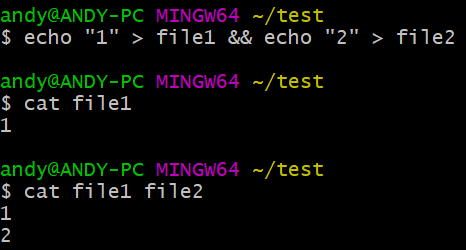
輸出
cat <file>...
修改(建立) 檔案內容
註: 可以一次多個
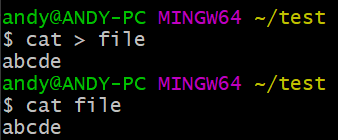
註: Ctrl + D 傳送EOF
cat > <file>
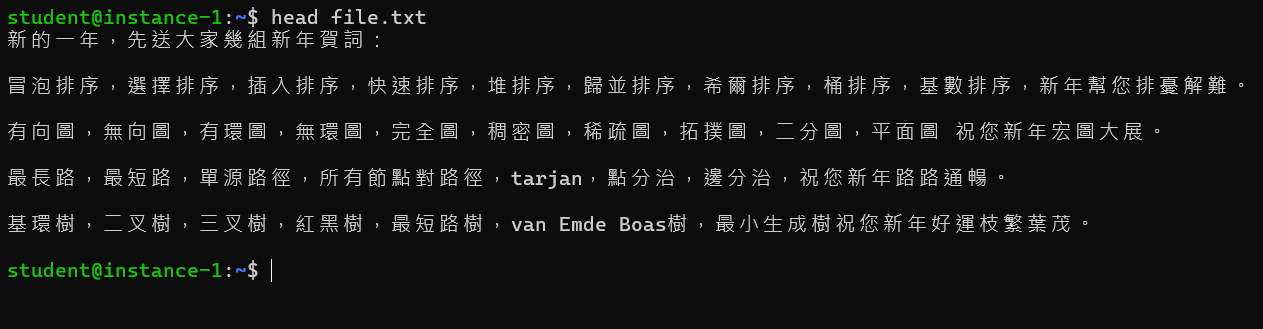
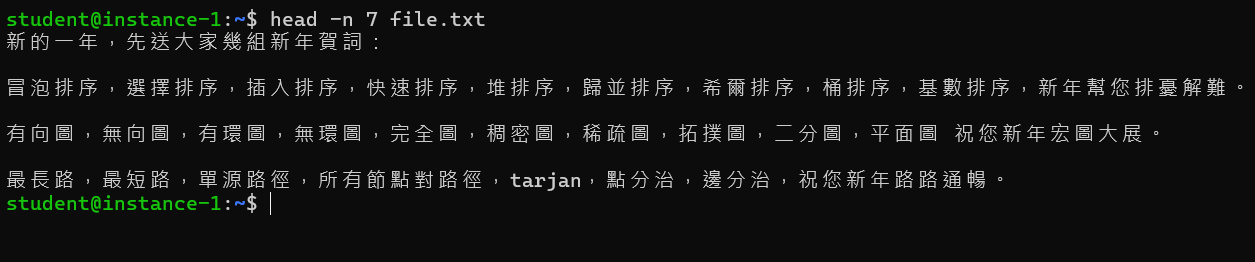
head
輸出檔案前部分
output the first part of files
輸出前10行
head <file>...
輸出前幾行
head -n <lines> <file>...
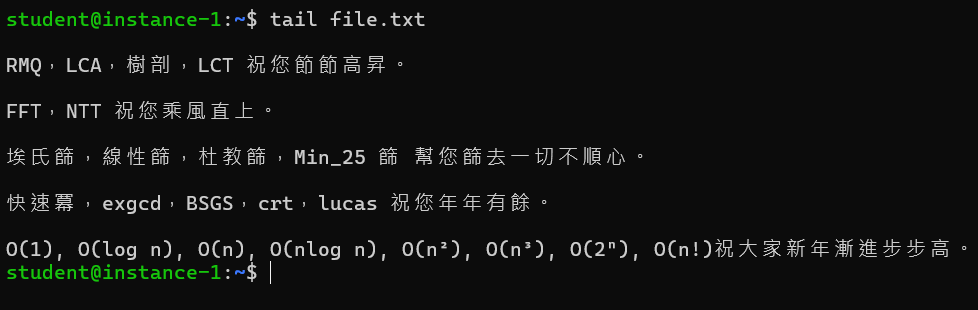
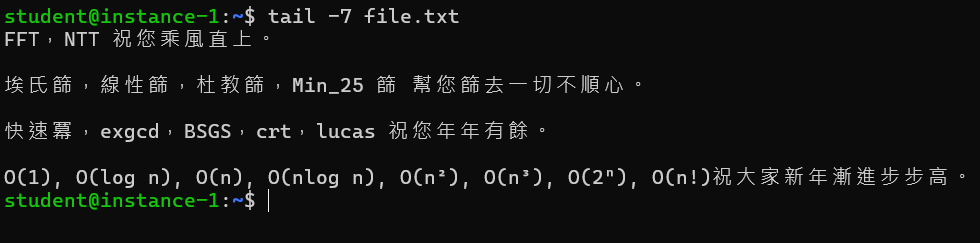
tail
輸出檔案後部分
output the last part of files
輸出末10行
tail <file>...
輸出末幾行
tail -n <lines> <file>...
同步輸出檔案末尾
tail -f <file>...
(可以用於查看log file)
/var/log/kern.log
/var/log/syslog
建立/刪除資料夾
mkdir rmdir
mkdir
建立目錄
make directories

建立資料夾
註: <dir>需要在已存在的目錄下
mkdir <dir>...
-p 必要時會自動建立parent dir
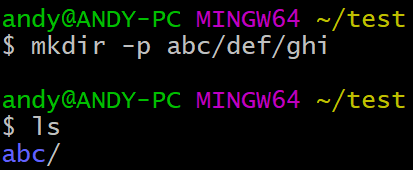
mkdir -p <dir>...
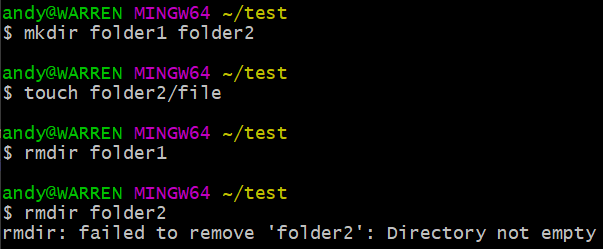
rmdir
刪除"空"目錄
remove empty directories
刪除空目錄
rmdir <dir>...
-p 一路刪除parent dir
rmdir -p <dir>...
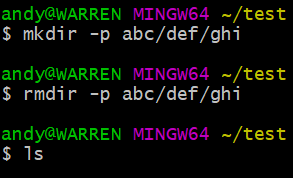
這東西多少有點沒用
刪 移 複製
rm mv cp
rm
刪除檔案 or 目錄
remove files or directories
刪除檔案
rm <file>...
-r 刪除,遞迴 (多用於資料夾)
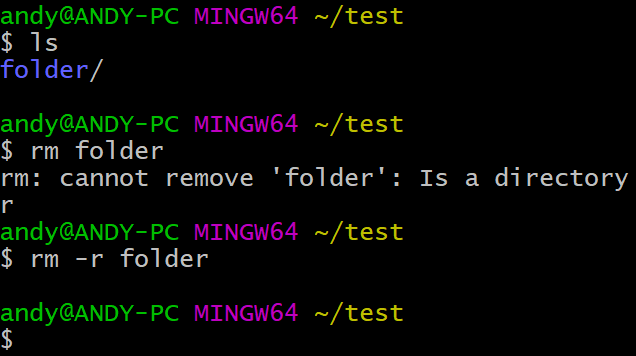
rm -r <file>...
-f 刪除,強制
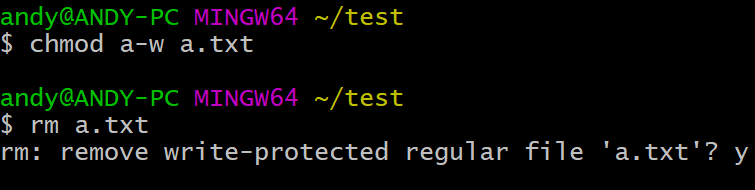
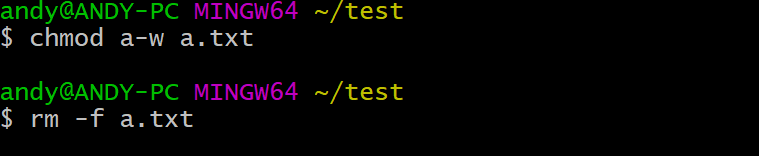
rm -f <file>...
-rf 刪除,強制,遞迴
rm -rf <file>...
mv
移動 (重新命名) 檔案
move (rename) files
- 如果path2不存在,東西會被複製成path2
- 如果path2是目錄,東西會被複製進去path2
- 如果path2是檔案:
- 如果path1是檔案,path2會被覆蓋
- 如果path1是目錄,會出錯
移動
<destPath>不存在: 移動到<destPath>
註: <path2>需要在已存在的目錄下
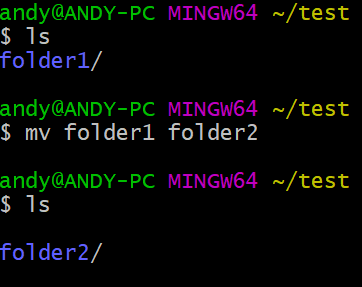
mv <srcPath>... <destPath>
<destPath>是目錄: 移動到<destPath>內
移動
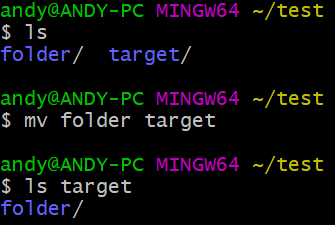
mv <srcPath>... <destPath>
移動
<destPath>是檔案: 覆蓋檔案(<srcPath>得是檔案)
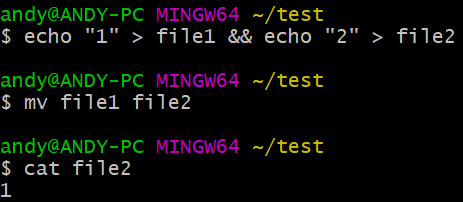
mv <srcPath>... <destPath>
cp
複製檔案 and 目錄
copy files and directories
- 如果path2不存在,東西會被複製成path2
- 如果path2是目錄,東西會被複製進去path2
- 如果path2是檔案:
- 如果path1是檔案,path2會被覆蓋
- 如果path1是目錄,會出錯
複製
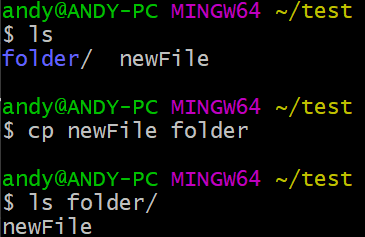
註: <path2>需要在已存在的目錄下
<destPath>不存在: 複製成<destPath>
cp <srcPath>... <destPath>
(-r 複製資料夾)
<destPath>是目錄: 複製到<destPath>內
複製
cp <srcPath>... <destPath>
(-r 複製資料夾)
註: 如果srcPath以/結尾,會把srcPath內的內容複製進destPath內
複製
<destPath>是檔案: 覆蓋檔案(<srcPath>得是檔案)
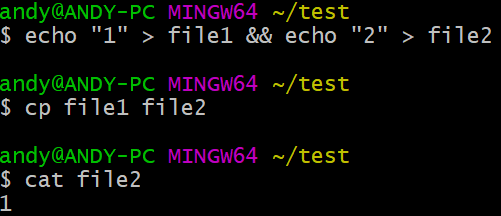
(-r 複製資料夾)
cp <srcPath>... <destPath>
通配符 *
前面看到參數有...的,代表可以有多項。
那他們通常也支援 通配符
ls /home/andy/*
ls /usr/bin/python*
代表/home/andy/內所有檔案
代表/usr/bin/內所有python開頭的檔案
唯一的例題
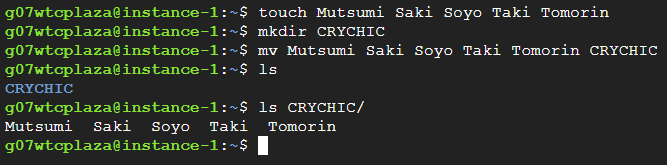
情境
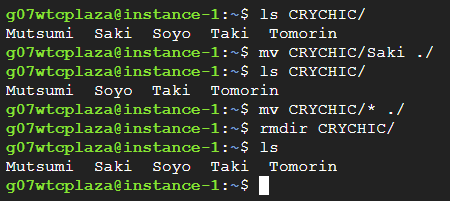
- Mutsumi
- Saki
- Soyo
- Taki
- Tomorin
2. 建立CRYCHIC目錄
1. 建立五個檔案:
mkdir
touch
3. 將前面那些檔案放進CRYCHIC目錄
mv
1. 把Saki移出去CRYCHIC
2. 把CRYCHIC內所有檔案移出去
3. 刪除CRYCHIC
mv
mv
rm / rmdir
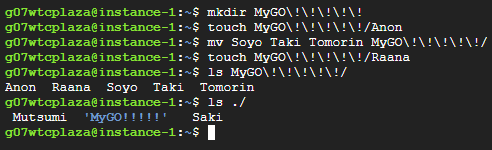
1. 建立MyGO!!!!!目錄
2. 在MyGO!!!!!內建立Anon
mkdir
touch
mv
3. 將Soyo、Taki、Tomorin移進MyGO!!!!
4. 在MyGO!!!!!內建立Raana
touch
| > >> <
pipe |
將前一個指令的輸出
給下一個指令當輸入
command1 | command2
範例
ls -1 | wc -l
把ls -1輸出結果
拿去wc -l輸入
redirect > >> <
指令的輸出 寫入 檔案
command > file
指令的輸出 追加寫入 檔案
command >> file
指令的輸入 用 檔案內容
command < file
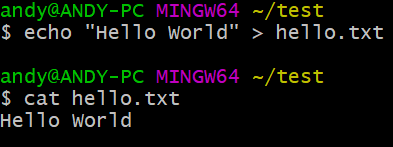
指令的輸出 寫入 檔案
command > file
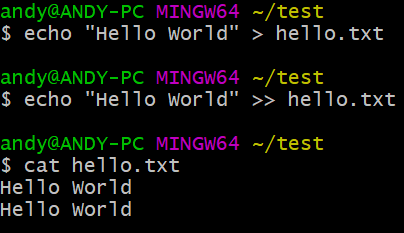
echo "Hello World" > hello.txt
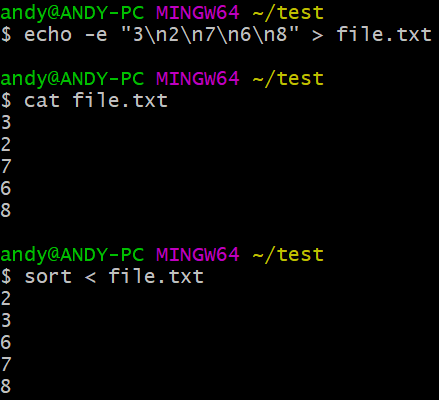
sort < file.txt
指令的輸入 用 檔案內容
command < file
指令的輸出 追加寫入 檔案
command >> file
echo "Hello World" > hello.txt
echo "Hello World" >> hello.txt
-
> / >>
-
2> / 2>>
-
&> / &>>
關於stdout / stderr
stdout
stderr
stdout + stderr (我都要)
shell script
簡單講,就是把指令/邏輯 寫成檔案。
file extension 是 sh
執行:
- ./<file>
- bash <file>
- sh <file>
(指定使用/bin/bash)
(指定使用/bin/sh)
如果沒有x權限,請 chmod +x <file>
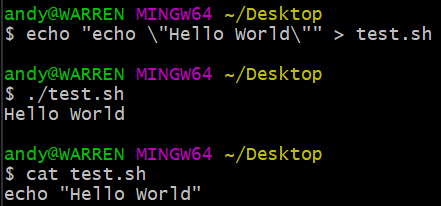
echo "Hello World"file: test.sh
如果沒有x權限,請 chmod +x <file>
shebang
#!
首行可以宣告,告訴系統要用哪個解譯器
#!/bin/bash#!/bin/shbash
sh
語法
#!/bin/bash

# 變數
NAME="Andy"
COUNT=3

# 函數
greet() {
  echo "Hello, $1!"
}

# 條件判斷
if [ $COUNT -gt 0 ]; then
  echo "Count is greater than 0"
else
  echo "Count is 0 or less"
fi

# 迴圈
for i in $(seq 1 $COUNT); do
  greet $NAME
done

# 讀取使用者輸入
read -p "Enter your favorite color: " COLOR
echo "Your favorite color is $COLOR"

# 檢查檔案是否存在
FILE="test.txt"
if [ -f "$FILE" ]; then
  echo "$FILE exists."
else
  echo "$FILE does not exist."
fi
變數、條件判斷、迴圈、函數
這些都能用。
Vim 簡單教學
vim <file>
任何模式 按 ESC 都會來這個模式
普通模式
-
h / j / k / l
-
0 / $
-
^
-
w / b
-
e
-
gg / G
左 / 下 / 上 / 右 (方向鍵也行)
移到行首
移到非空白行首
跳到 下 / 上 一個單字頭
跳到單詞尾
移到文件頭 / 尾
普通模式: 移動
-
x X
-
dd
-
dw
-
d$ (D)
-
yy
-
y$
-
p P
刪除光標 下/前 字元
刪除整行
刪除光標 到 下一個單詞頭
刪除光標 到 行尾
複製整行
複製光標 到 行尾
貼在光標 後 / 前
普通模式: 刪/複製/貼上
-
u
-
Ctrl + R
Undo
Redo
普通模式: undo / redo
-
/文字 ?文字
-
n N
-
f<char>
-
F<char>
-
t<char>
-
T<char>
向 下 / 上 搜尋文字
搜尋 下 / 上 一個match
跳到當前行 該字元位置
向左 跳到該字元位置
跳到 該字元 前一個位置
向左 跳到 該字元 後一個位置
普通模式: search / jump
-
i
-
:
-
a
-
o
-
O
輸入模式
底線指令模式
插入模式
下方插入一行,進入輸入模式
上方插入一行,進入輸入模式
普通模式: 進入其他模式
(還有非常多指令...)
輸入模式 (Insert Mode)
就很正常的編輯模式,方向鍵移動
指令模式 (Command-line Mode)
-
w
-
wa
-
q
-
qa
-
wq
-
wqa
Write File
Write All Files
Quit
Quit All Files
Write and Quit
Write and Quit All
加一個!可以強制
其他指令
-
top
-
kill
-
df
實時查看系統運行狀態
向進程發送信號
查看磁碟分區使用情況
Sys Info
-
ping
-
curl
-
wget
-
ssh
-
nslookup
發送 ICMP Request,監測往返時間
傳送請求 (支援多種協議)
非互動式下載工具
使用 SSH 協議加密連線
正反解析Domain
Networking
- tar
- gzip
Archive
- file
- stat
- find
- wc
- grep
檔案相關
End of File
Shell
By speedcubing