
vitaliy@leanconvert.com

Vitaliy Sobur
Ukrainian
Doing Javascript
R&D Engineer



The #1 software development tool
used by agile teams

Jira Cloud
&
Jira Server
Jira Cloud
- Integrated, hosted versions of all popular Atlassian tools
- Toggle applications on or off
- Works with Google App
- It's secure
- It's affordable (price starts at $10/mo)
Pros
Jira Cloud
- Admin restrictions
- Some add-ons are not available
- No file or database access
- User Cap (no more than 2000 users)
- Poor customisation (domain name, themes)
- Disk Storage Limit
Cons
Integrating with JIRA Software Cloud
Atlassian Connect
Building Blocks
Jira Software Cloud REST API
Webhooks
Jira Software modules
for the Integration



Atlassian Connect
Framework
Add-on Descriptor
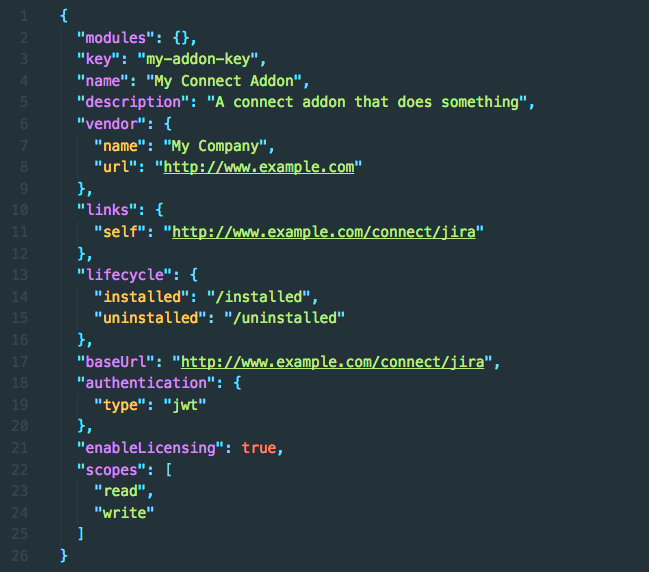
atlassian-connect.json
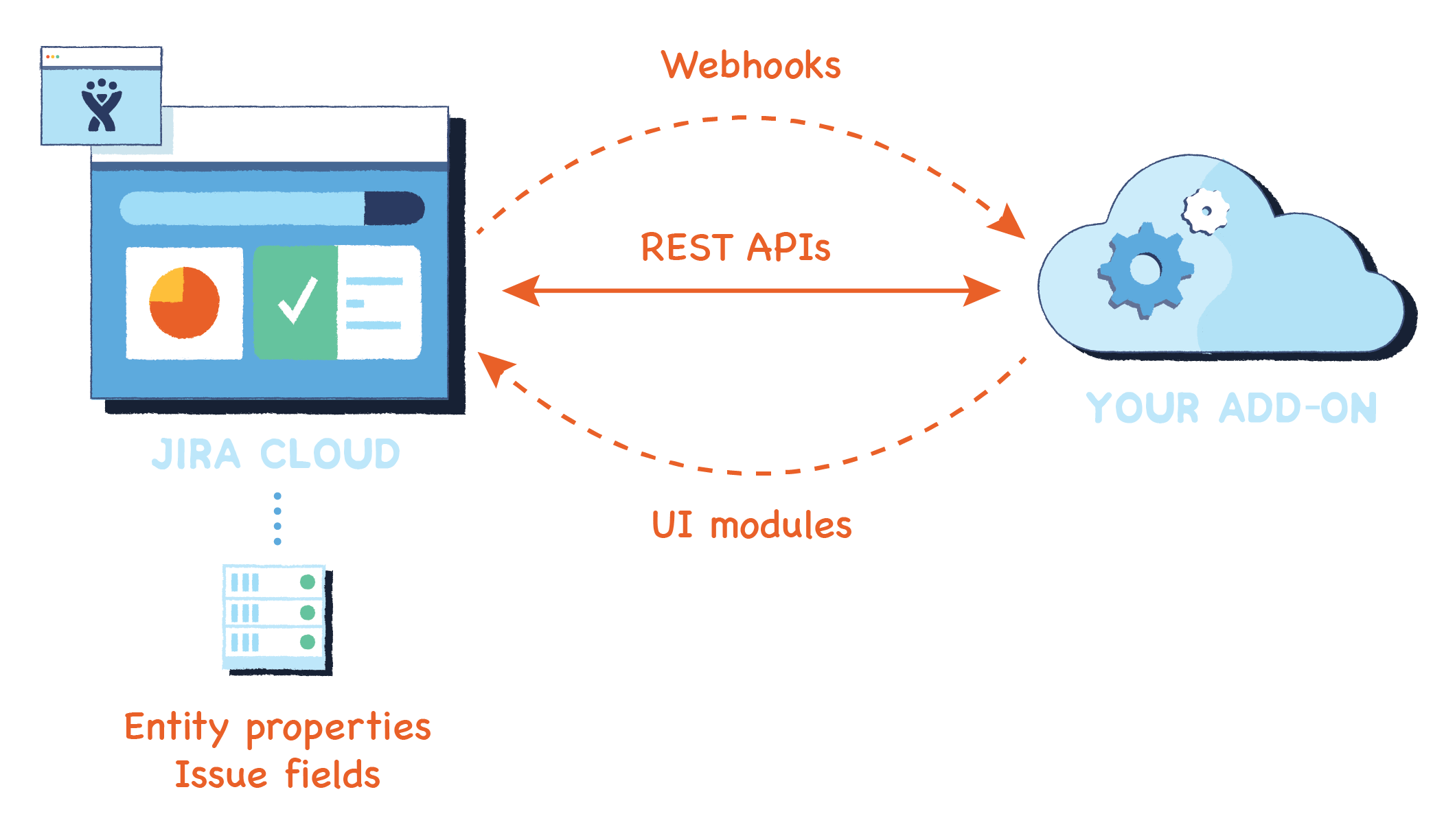
Jira Cloud
Static Add-on
Atlassian Connect
REST API
Webhooks
Modules
Entity Properties
Add-on Descriptor
Recap
Getting Started
Setup
- Get Atlassian Cloud Instance (go.atlassian.com/cloud-dev)
- Sign in and complete the setup wizard
- Enable development mode
- Navigate to JIRA administration (cog icon in the header) > Add-ons > Manage add-ons.
- Scroll to the bottom of the Manage add-ons page and click Settings.
- Select the Enable development mode checkbox.
Development Jira Instance
Setup
- Install node.js
- Install http-server globally
- Install ngrok globally
Development Environment
Build Basic Add-on
Define Descriptor
{
     "name": "Hello World",
     "description": "Atlassian Connect add-on",
     "key": "com.example.myaddon",
     "baseUrl": "https://143853ab.ngrok.io",
     "vendor": {
         "name": "Leanconvert Team",
         "url": "http://example.com"
     },
     "authentication": {
         "type": "none"
     },
     "modules": {
         "generalPages": [
             {
                 "url": "/index.html",
                 "key": "hello-world",
                 "location": "system.top.navigation.bar",
                 "name": {
                     "value": "Greeting"
                 }
             }
         ]
     }
 }
Build Basic Add-on
Create an App
<!DOCTYPE html>
<html lang="en">
 <head>
     <link rel="stylesheet" href="//aui-cdn.atlassian.com/aui-adg/5.9.12/css/aui.min.css" media="all">
 </head>
 <body>
     <section id="content" class="ac-content">
         <div class="aui-page-header">
             <div class="aui-page-header-main">
                 <h1>Hello World</h1>
             </div>
         </div>
     </section>

     <script src="https://vitali-demo.atlassian.net/atlassian-connect/all.js"></script>
 </body>
</html>
    http-server -p 8000
    ngrok http 8000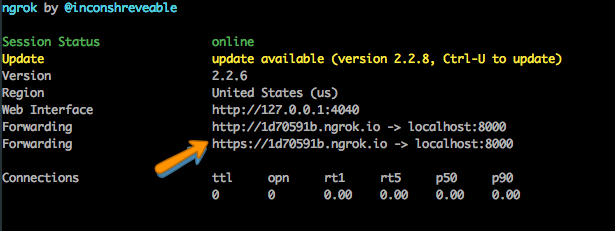
Text
- Run http server
- Run ngrok
{
    "baseUrl": "https://1d70591b.ngrok.io"
}- Update `baseUrl`
Build Basic Add-on
Deploy the Add-on
- Go to Jira and click cog menu > Add-ons
- Click Manage add-ons > Upload add-on
- Paste link to your add-on descriptor
(e.g. https://<ngrok-url>/atlassian-connect.json) - Upload
- Reload the page
- Navigate to Greeting
- It's working!
Build Basic Add-on
Install the Add-on
create-react-app

create-react-app
- npm i ngrok -g
- npx create-react-app my-addon
- Create atlassian-connect.js descriptor within the public/ directory
- Add all.js script to public/index.html
- npm start
- ngrok http 3000
- Update baseUrl with ngrok generated one
- Install the add-on
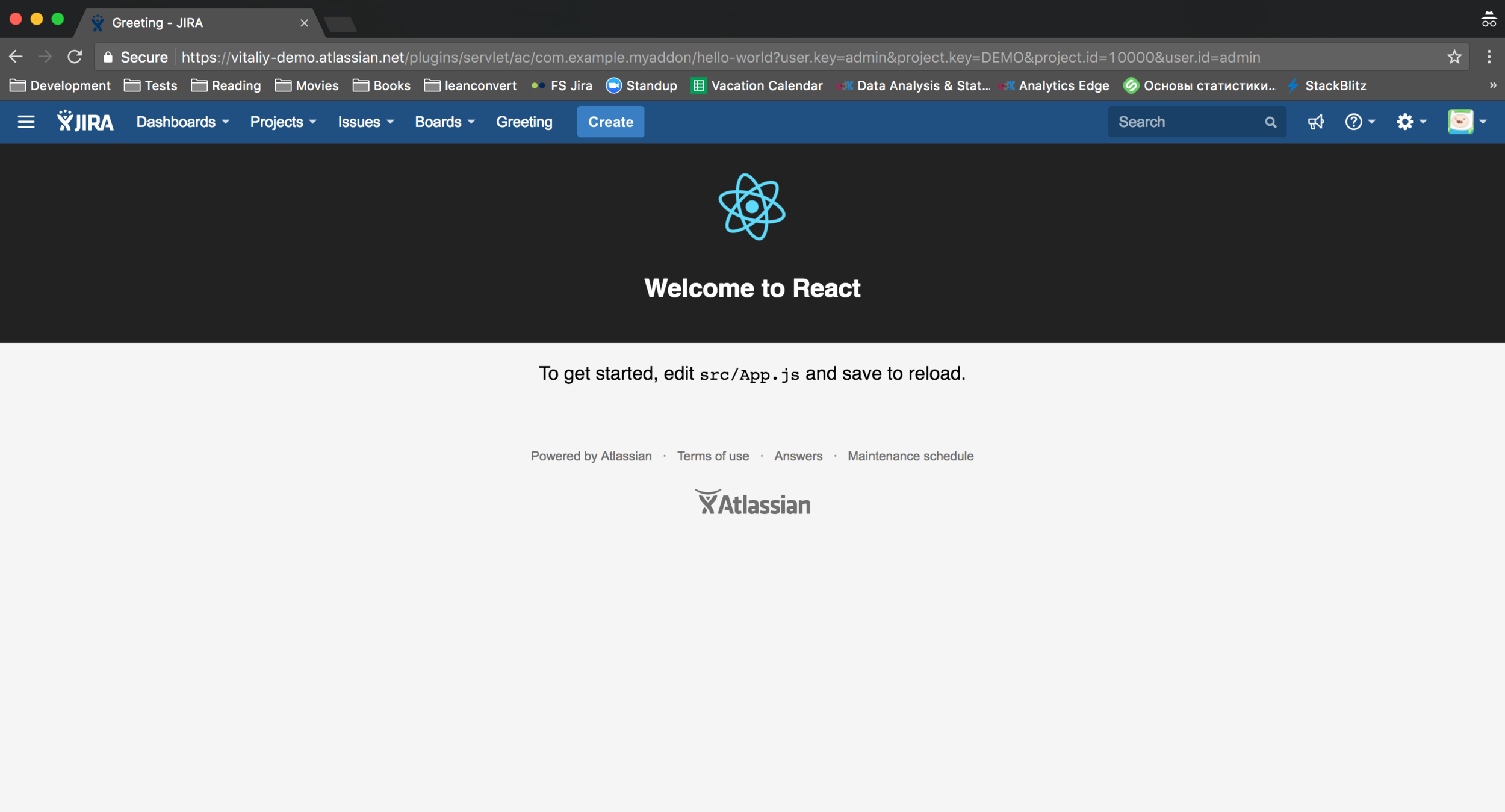
create-react-static-atlassian-connect-addon

Building Jira Addons with Atlassian Connect and React
By workslon