HTML & CSS WORKSHOP
WEEK 1
Before we start
GOAL
content
-
HTML
-
CSS Basics
-
CSS Layouts
-
CSS Classical Layouts
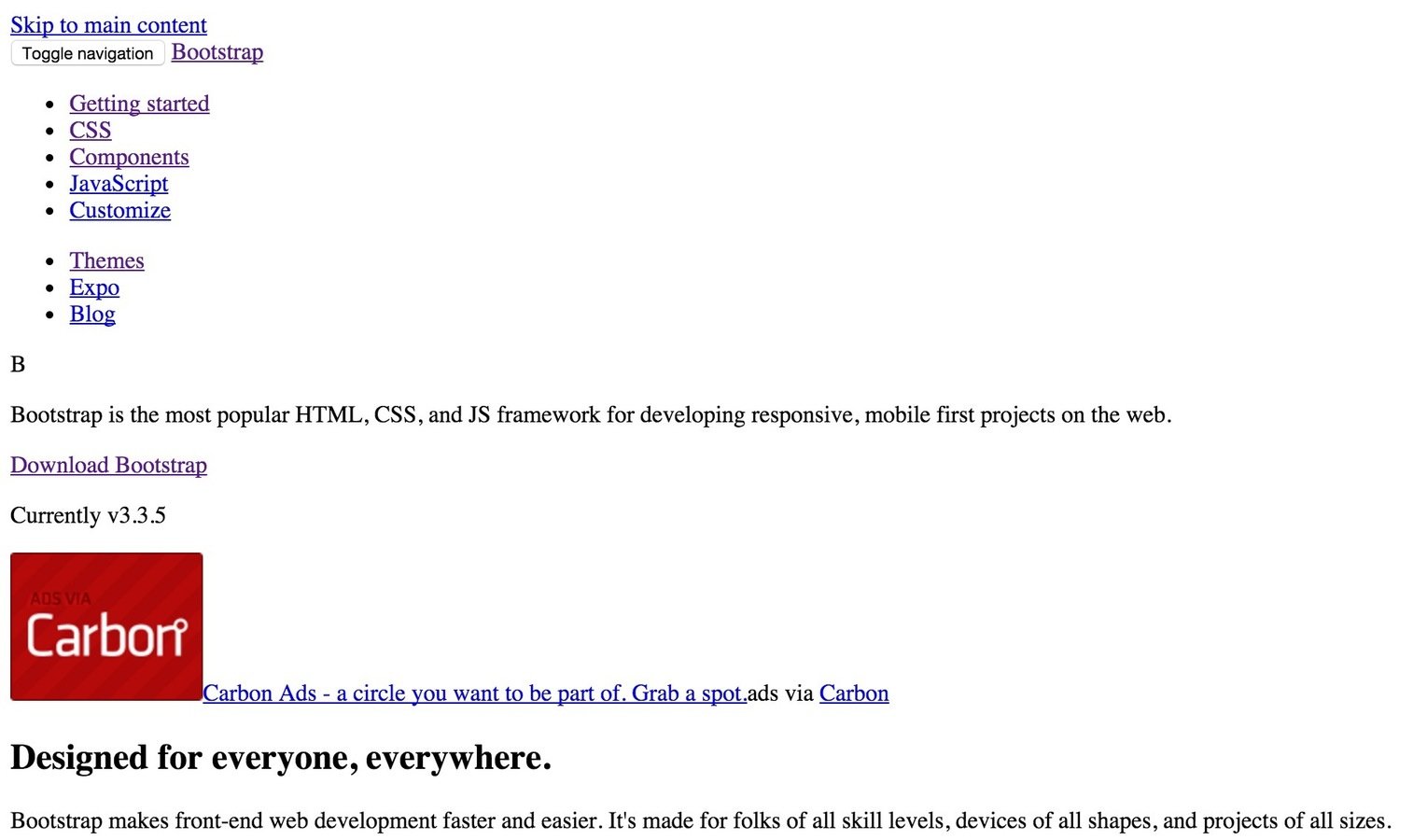
Hyper Text Mark-up Language
- html>head^body
- title
- script
- link
- div
- ul, ol>li
-
table>thead>tr>th^^tbody>tr>td - span
- a
- p
- img
- form
- label
- input
- button
- select>option
- ......
HTML5 ELEMENTS
-
HEADER
-
NAV
-
ASIDE
-
MAIN
-
SECTION
-
ARTICLE
-
FOOTER
MAIN
HEADER
SECTION/ARTICle
SECTION/ARTICle
ASIDE
FOOTER
NAV
NAV
IT'S ALL ABOUT SEMANTICS
CSS BASICS
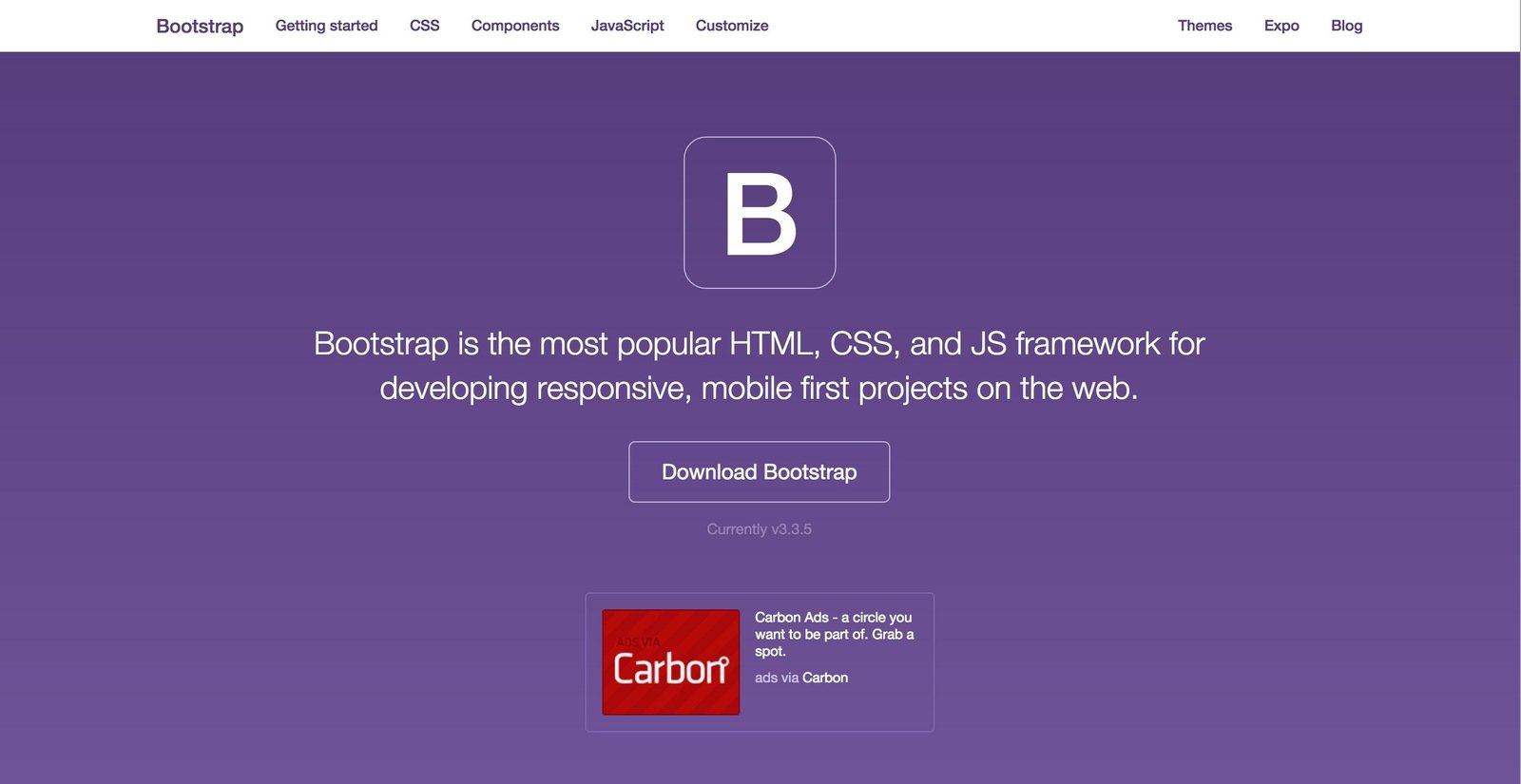
cascading style sheets
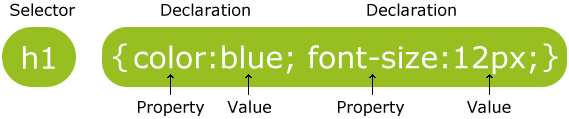
CSS Syntax
div {
    width: 700px;
    height: 30px;
    line-height: 30px;
    padding: 15px;
    margin-bottom: 20px;
    text-align: center;
    color: #3c763d;
    background-color: #dff0d8;
    border: 1px solid #d6e9c6;
    border-radius: 4px;
    font-size: 20px;
}
<div>
Hello! Hope you enjoy this workshop!
</div>

| Selector | Example | Example description |
|---|---|---|
| .class | .info | Select all elements with class="intro" |
| #id | #firstname | Select all elements with id="firstname" |
| * | * | Select all elements |
| element | p | Select all <p> elements |
| element,element | div, p | Select all <div> and <p> elements |
| element element | div p | Select all <p> elements inside <div> elements |
| element > element | div > p | Select all <p> elements where the parent is a <div> element |
| element + element | div + p | Select all <p> elements that are right after <div> elements |
| element1~element2 | p ~ ul | Select <ul> elements that are preceded by a <p> element |
| [attribute] | [target] | Select all elements with a target attribute |
| [attribute=value] | [target=_blank] | Select all elements with target="_blank" |
CSS SELECTORS
- Color
- Background and Borders
- Basic Box
- Flexible Box
- Text
- Text Decoration
- Fonts
- Writing Modes
- Table
- Lists and Counters
- Animation
5
- Transform
- Transition
- Basic User Interface
- Multi-column
- Paged Media
- Generated Content
- Filter Effects
- Image/Replaced Content
- Masking
- Speech
- Marquee
5
CSS PROPERTY GROUPS
<head>
<link rel="stylesheet" type="text/css" href="mystyle.css">
</head>
<head>
<style>
h1 {
color: maroon;
}
</style>
</head><h1 style="color:blue;">This is a heading.</h1>-
External style sheet
-
Internal style sheet
-
Inline style
HOW TO INSERT CSS
CSS LAYOUTS

block

<div>
<h1> - <h6>
<p>
<form>
<header>
<footer>
<section>
<span>
<a>
<img>Inline

BOX MODEL
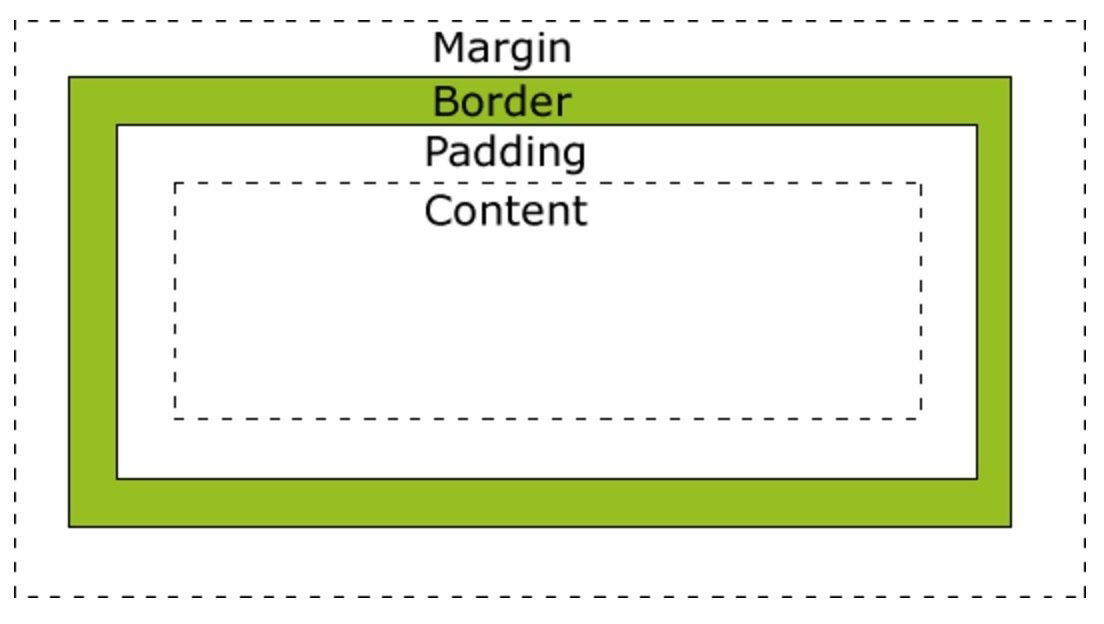
div {
    width: 320px;
    padding: 10px;
    border: 5px solid gray;
    margin: 0;
}
POSITION
-
static
-
relative
-
absolute
-
fixed
FLOAT
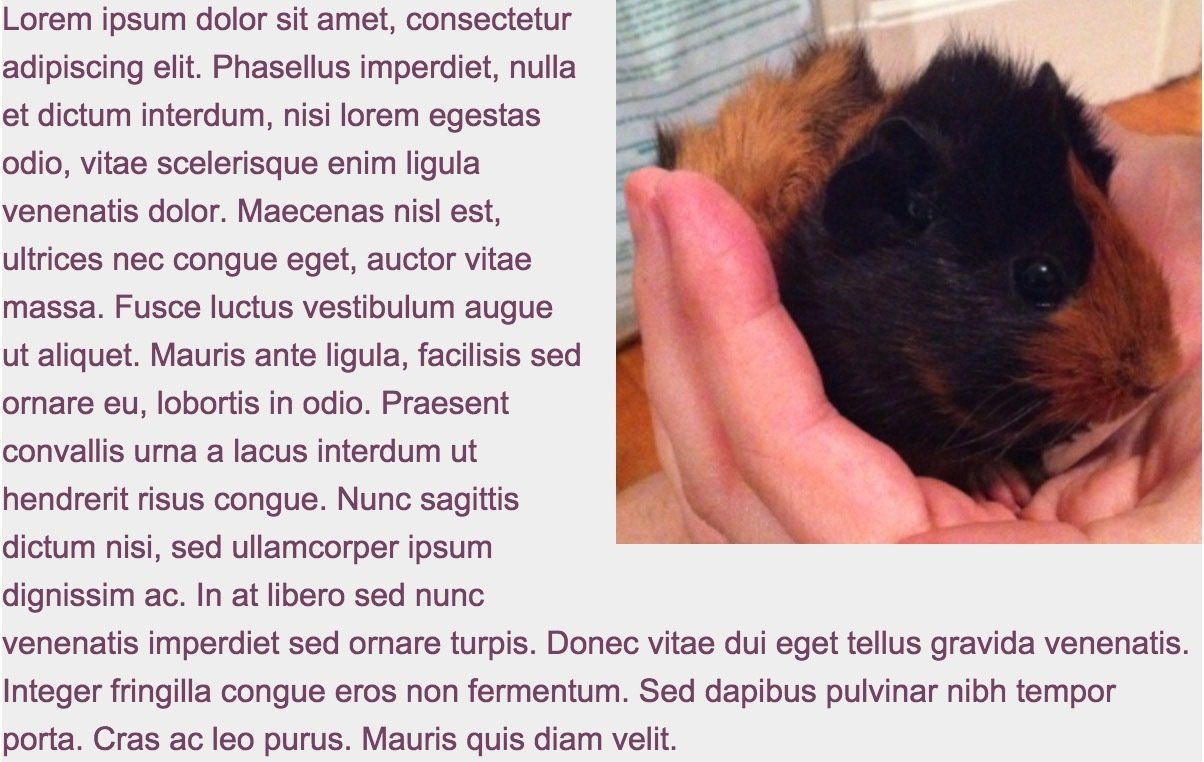
img {
  float: right;
}
clear

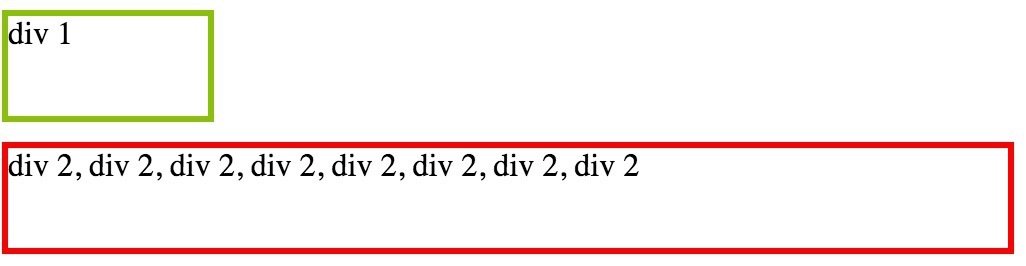
<div class="div1">
    div 1
</div>
<div class="div2">
    div 2, div 2, div 2, div 2, div 2, div 2, div 2, div 2
</div>
.div1 {
float: left;
}.div1 {
float: left;
}
.div2 {
clear: left;
}overflow: auto
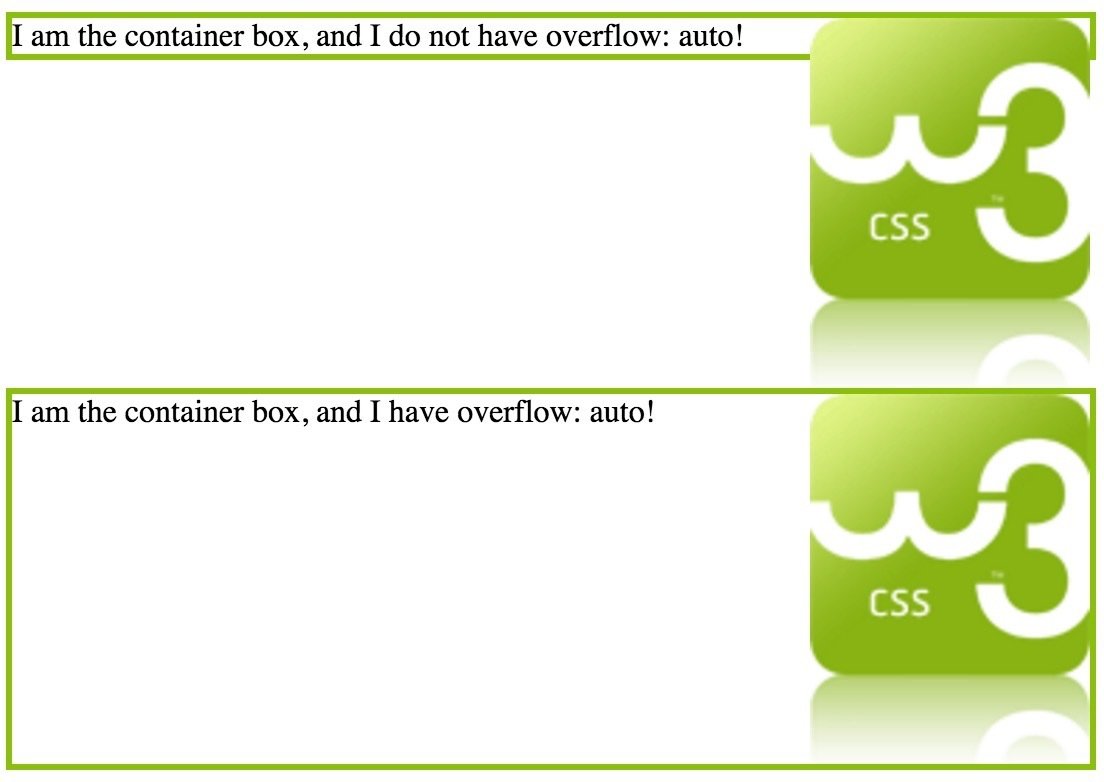
<div class="no-overflow">
    <img class="img1" src="../images/w3css.gif">
    I am the container box, and I do not have overflow: auto!
</div>

<div class="overflow">
    <img class="img2" src="../images/w3css.gif">
    I am the container box, and I have overflow: auto!
</div>
img {
width: 100px;
height: 140px;
float: right;
}
.overflow {
overflow: auto;
}Z-INDEX
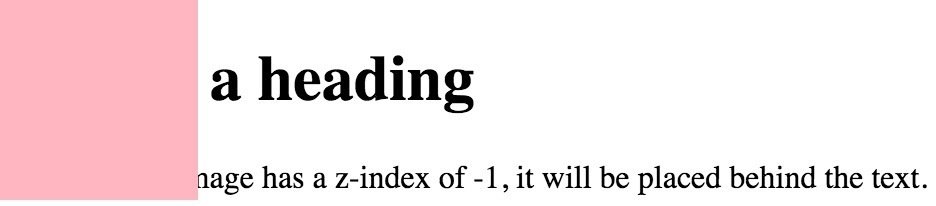
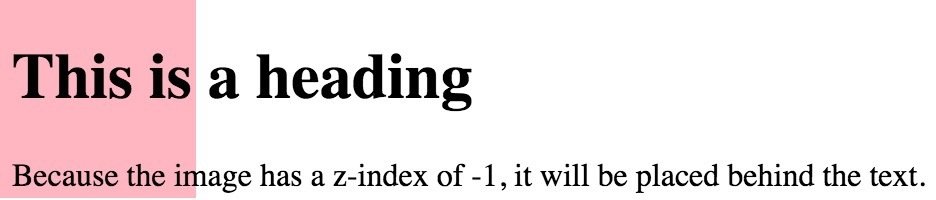
<h1>This is a heading</h1>
<div></div>
<p>Because the image has a z-index of -1...</p>
div {
position: absolute;
left: 0px;
top: 0px;
width: 100px;
height: 100px;
background: lightpink;
} div {
z-index: -1;
position: absolute;
left: 0px;
top: 0px;
width: 100px;
height: 100px;
background: lightpink;
}CSS CLASSICAL LAYOUTS
fixed width
Fixed width
Single column
fixed width
1-2-1 POSITION
fixed width
1-2-1 float
fixed width
1-3-1 float
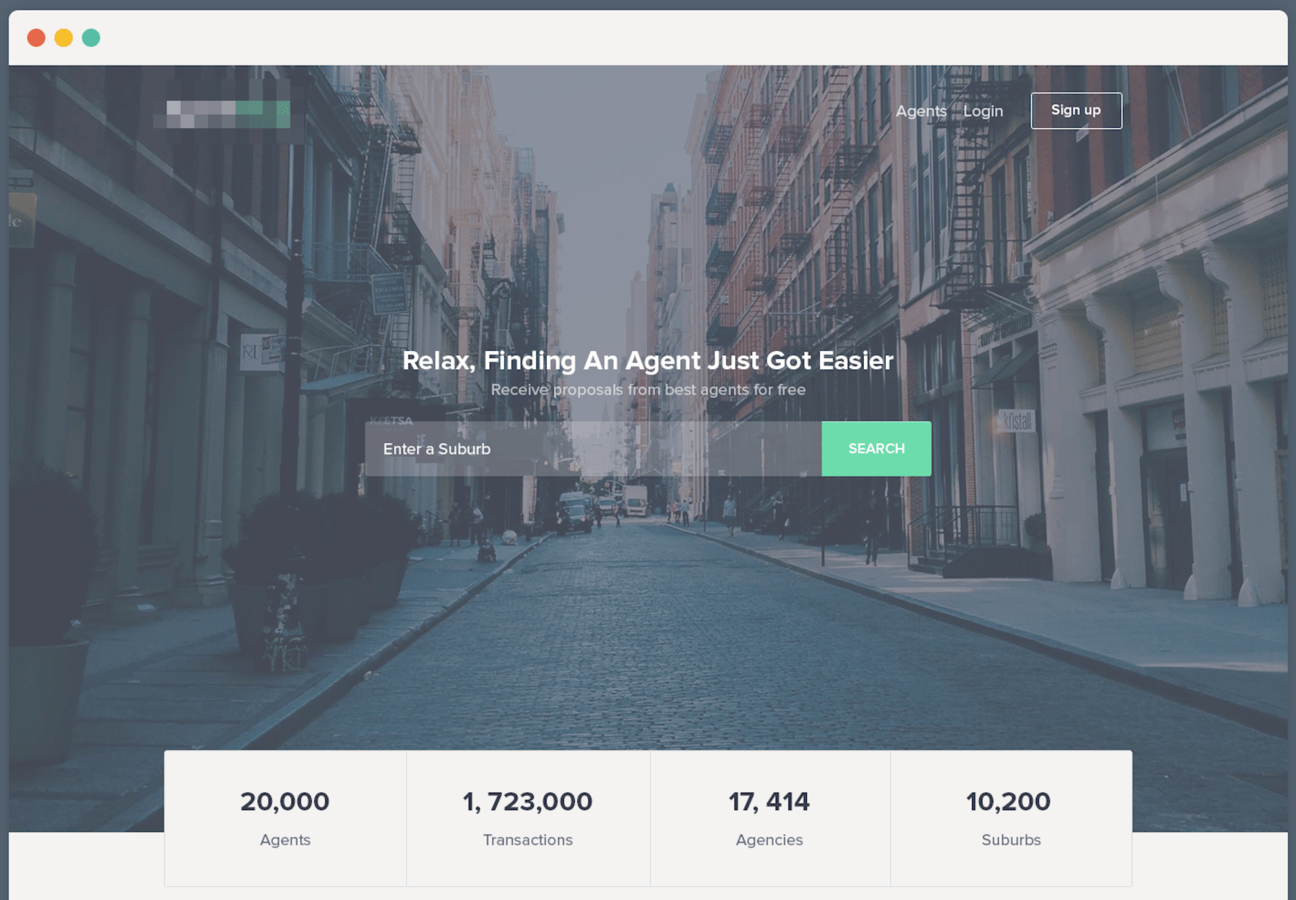
find an agent
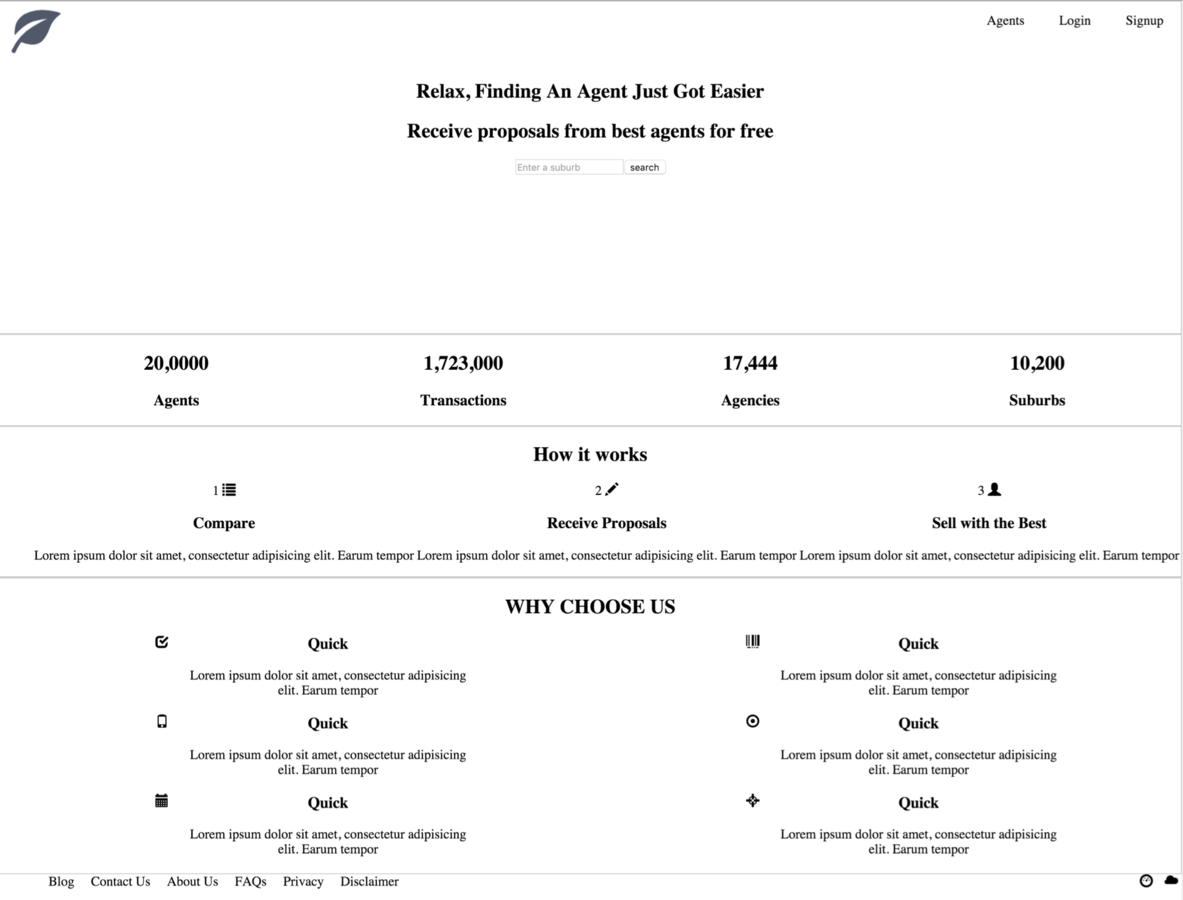
Step 1
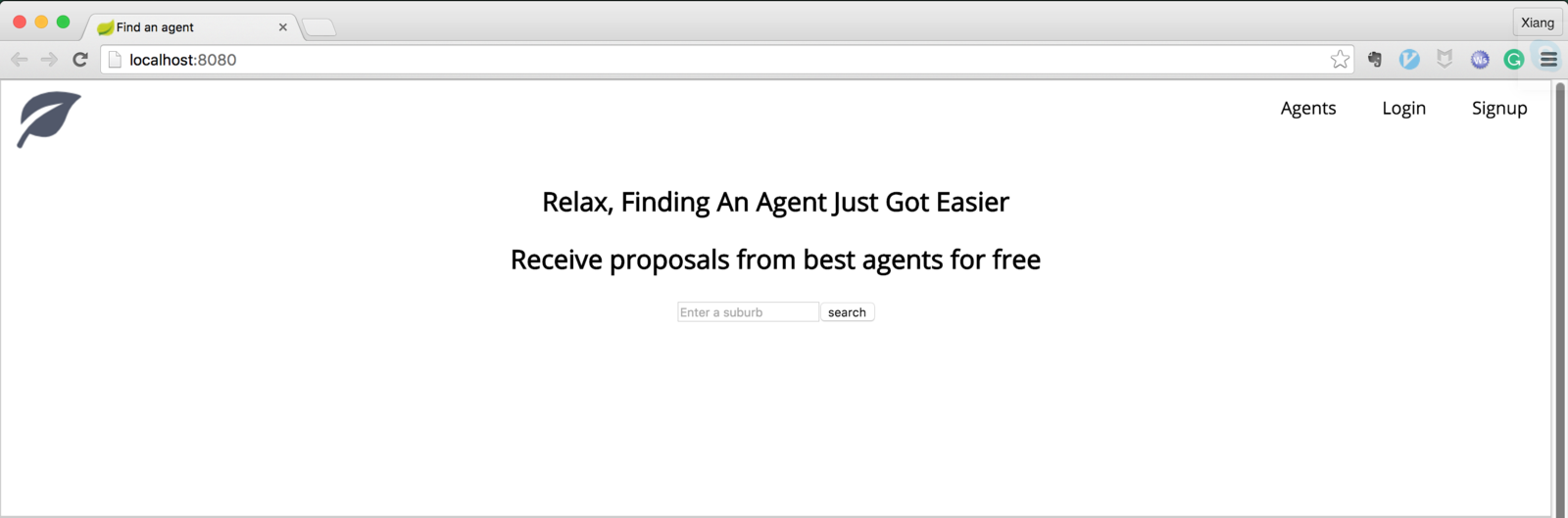
Step 2
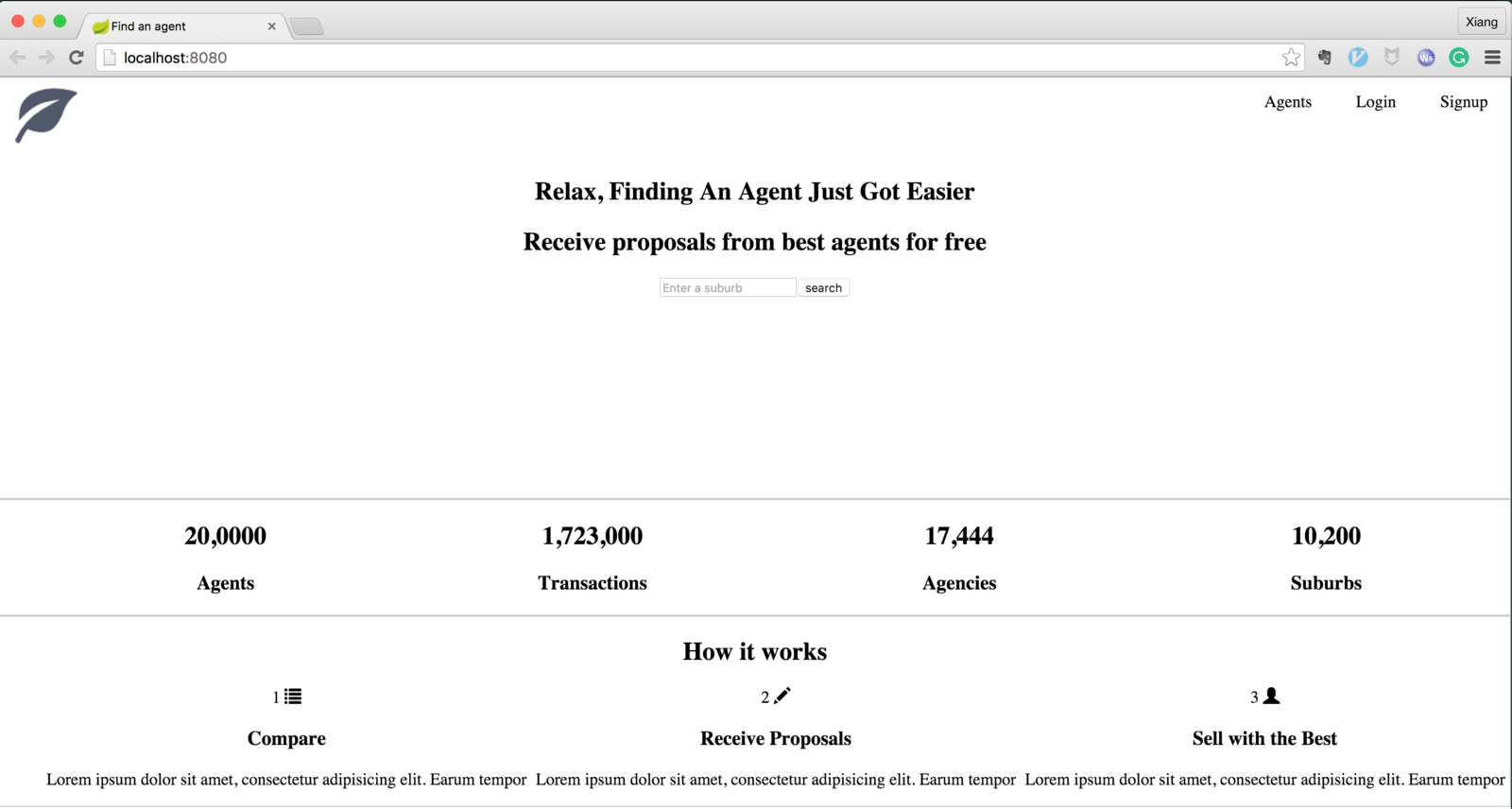
THE END
HTML & CSS Week 1
By xzhang