Stage 1
Key Link
32 Slides
Key Link

Dashboards
Terminology
Accounts
Contacts
Leads
Projects
Appointment
Opportunities
Dashboard

Key Link dashboards show all relevant activity for your sales team of choice. By viewing either the Southern or Northern Dashboards you can keep track of current activities and opportunities specific to each region.
Setting your appropriate dashboard as your default automatically brings up all your information as soon as you log in.
Dashboard
Home
This is the view of your Key Link Homepage
Select Followed by 'Dashboards'
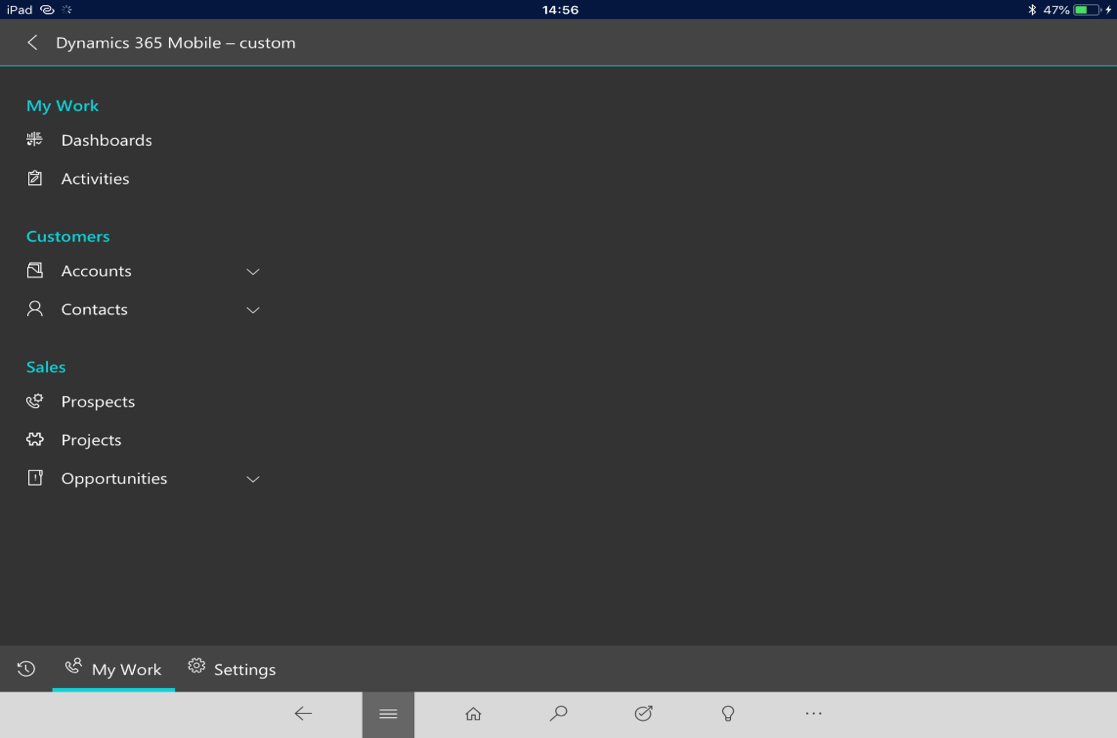

Select Followed by 'Keylite UK
Activity Dashboard'
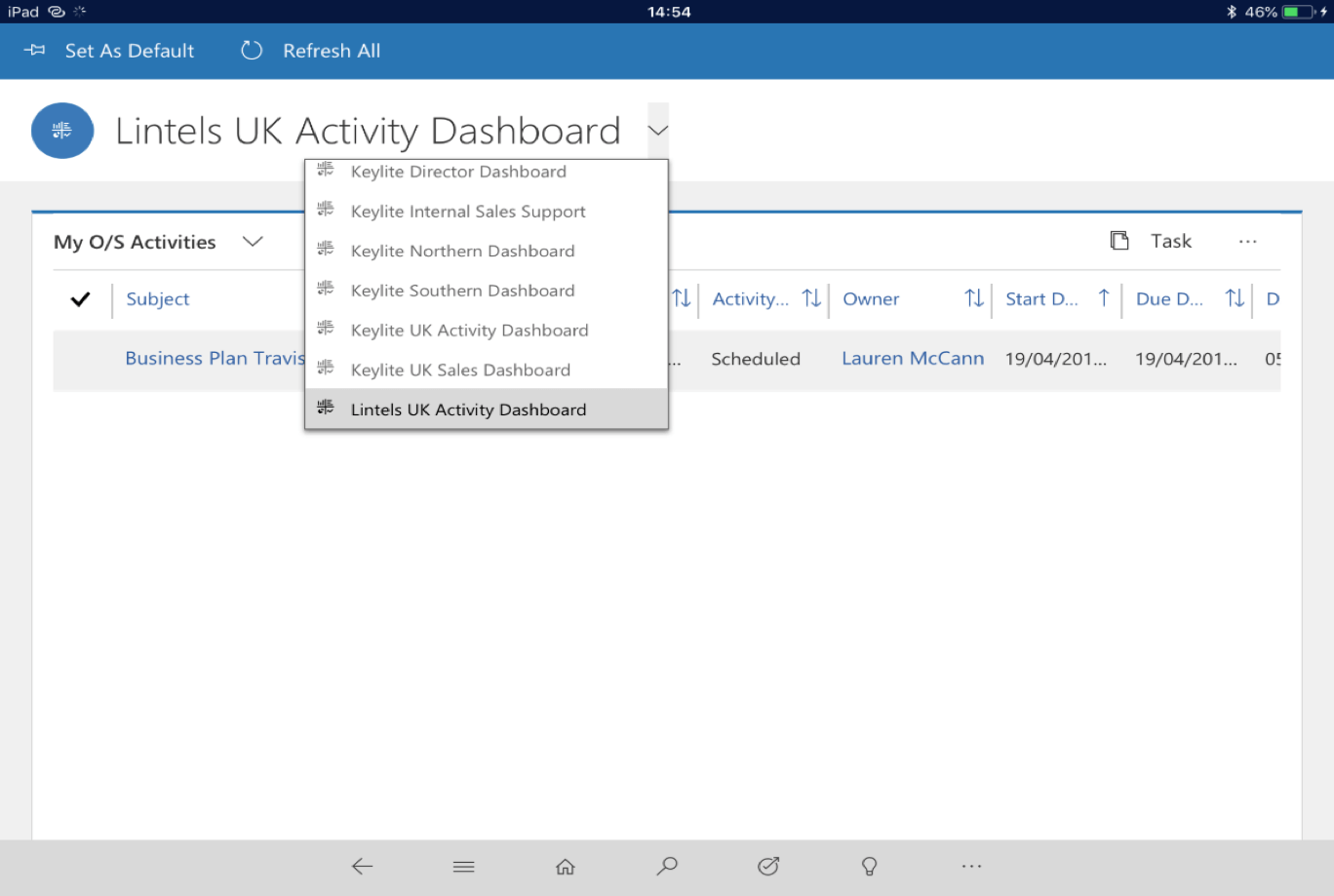

Default Dashboard
Select to 'Set as Default'
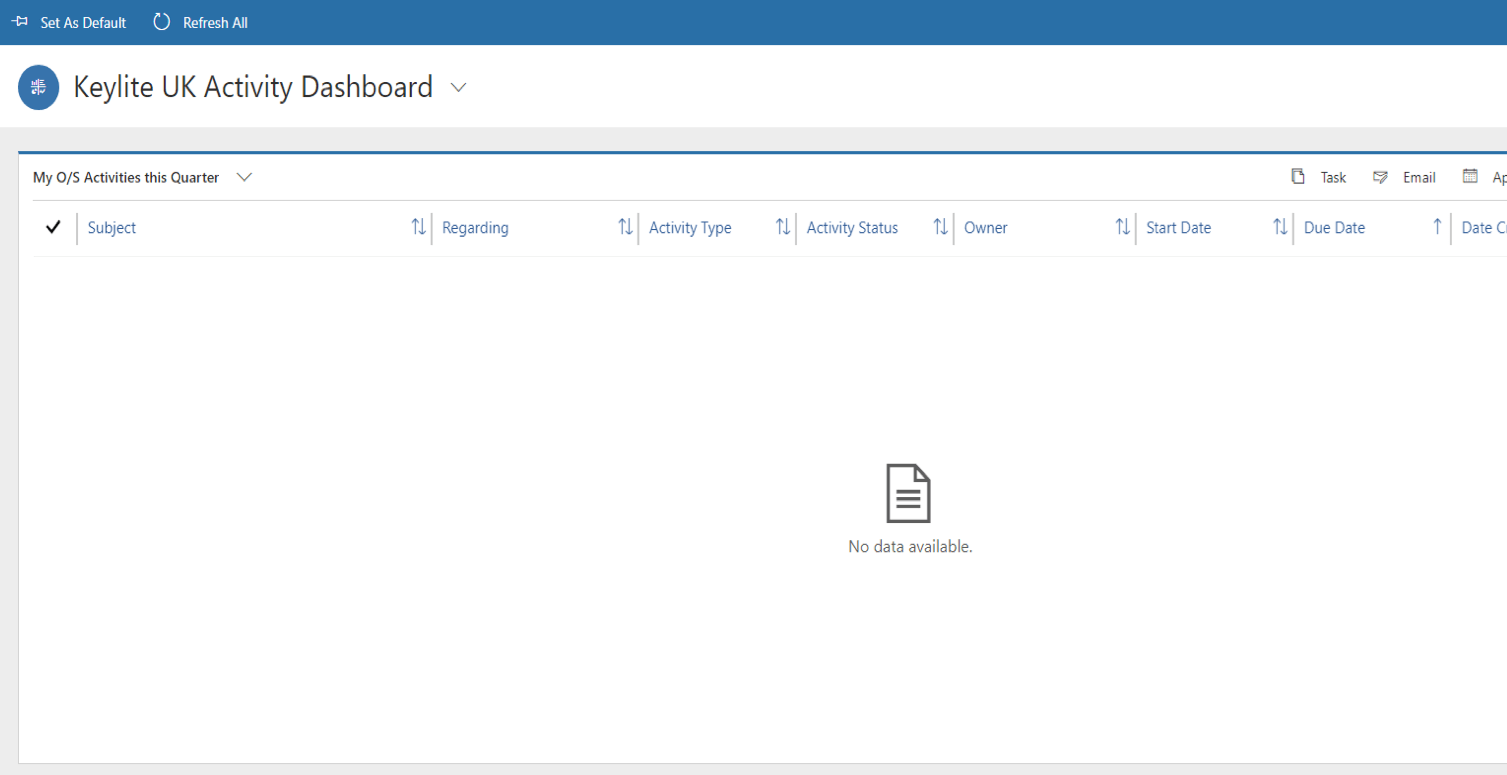

Everytime is selected 'Keylite UK
Activity Dashboard' will appear

Terminology
Lead
A lead is a record of any information you receive regarding a potential sale. This could be a:
- Builder
- Merchant
- Architect
- Account Name
- A new contact
- Road name for a new site
Opportunity
There are two kinds of Opportunities:
- Quoted
- To Be Quoted
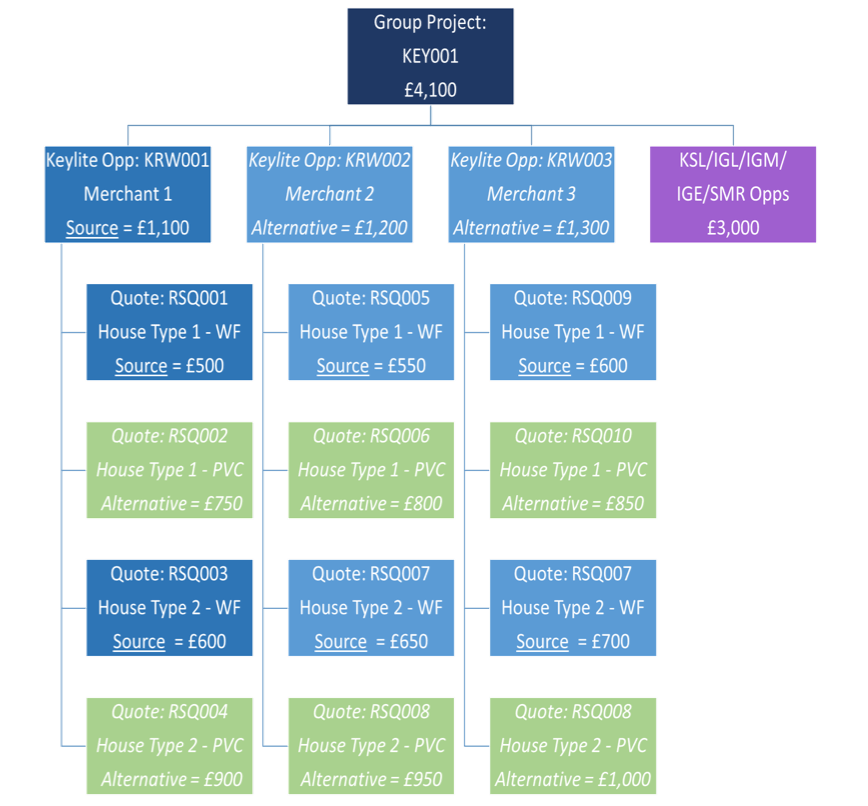
The opportunities that have been created through adding new projects will have already been quoted when directly received by the sales office. This will attach to the opportunity within Key Link as the 'Source Quote'.
To be quoted opportunities are generated through lead qualification.
An opportunity is never to be created without a project that it is attached to.
Opportunities can be won or lost.
Projects
The project is the site we're selling our products to and is a grouping entity for all the opportunities across the Keystone Group. By tying all the opportunities together, we have the ability to foresee the potential value of a single project to the Keystone Group.
Accounts
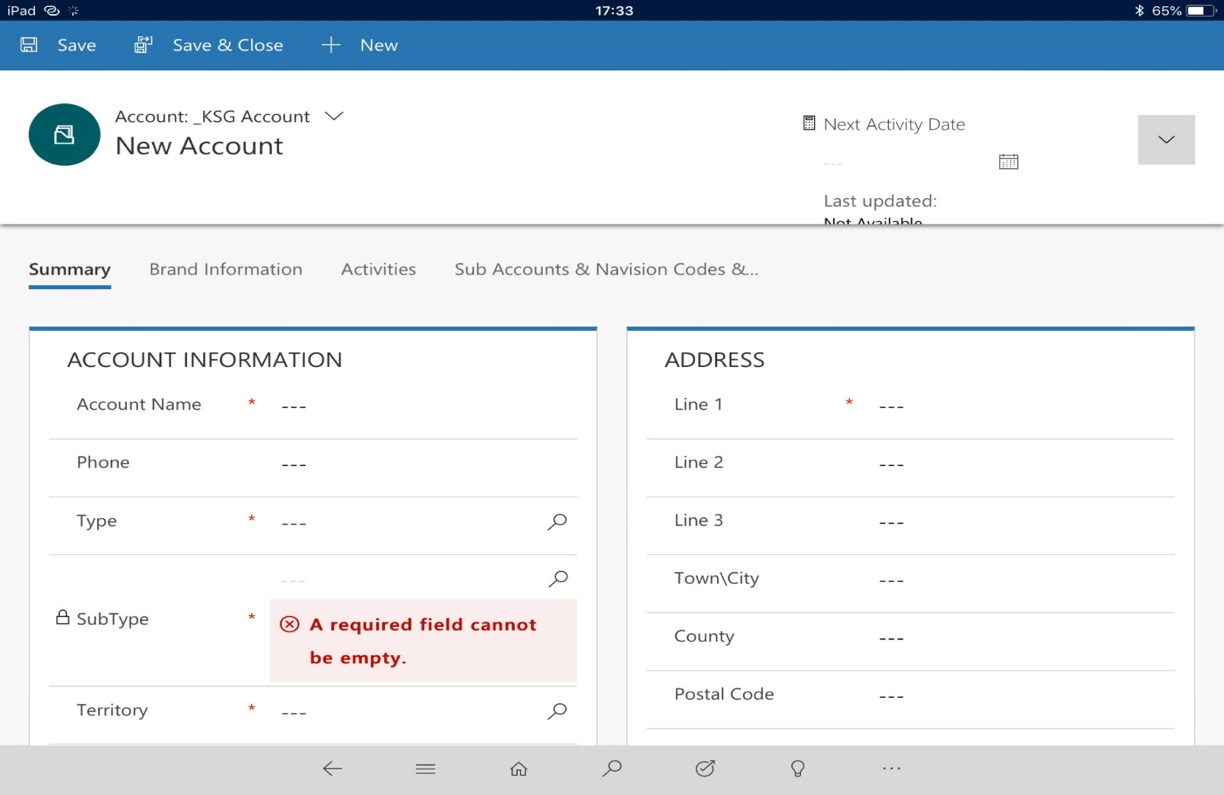
Creating an Account
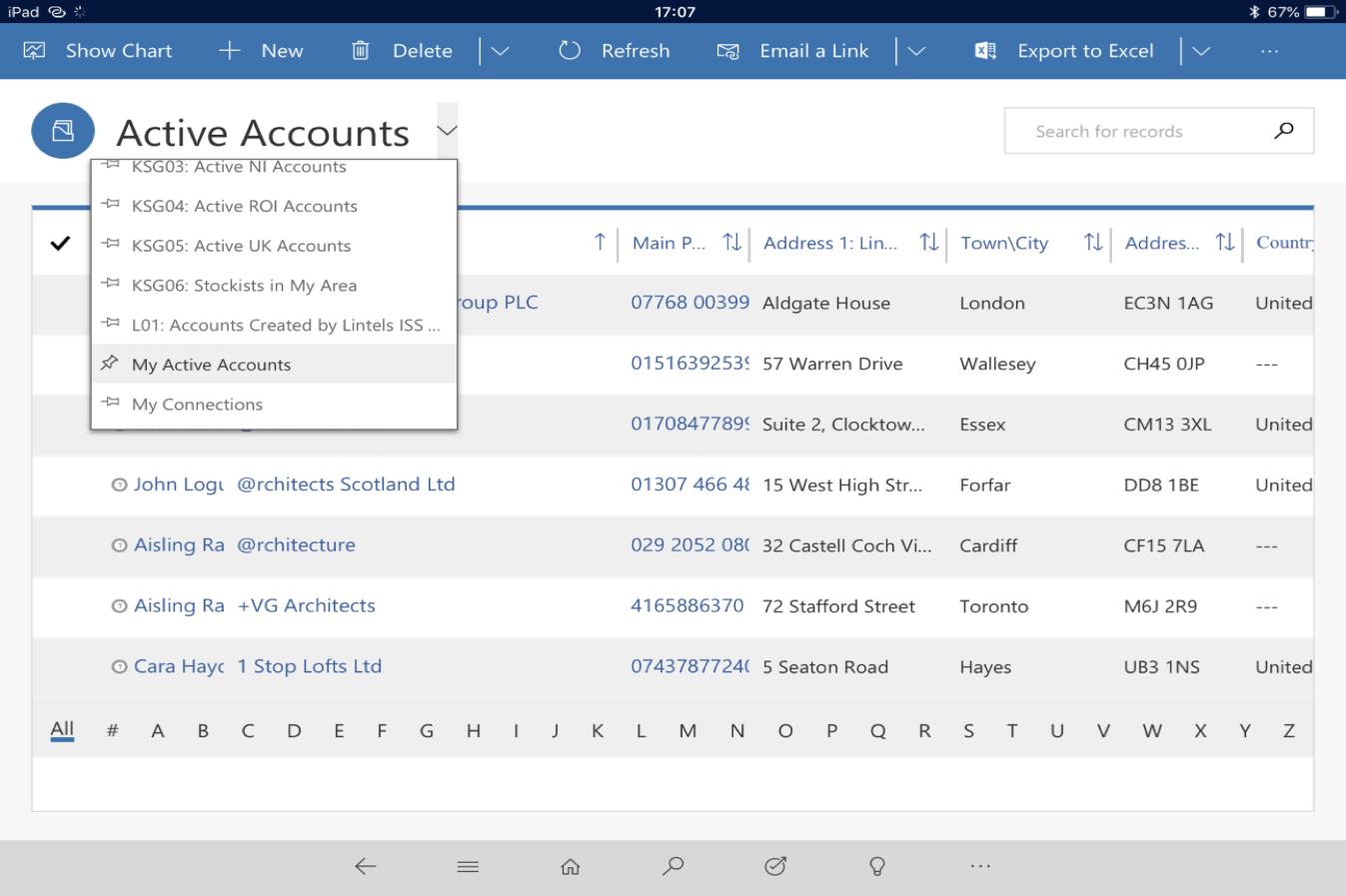
Select followed by 'Accounts'
Select and input all account details

Creating an Account
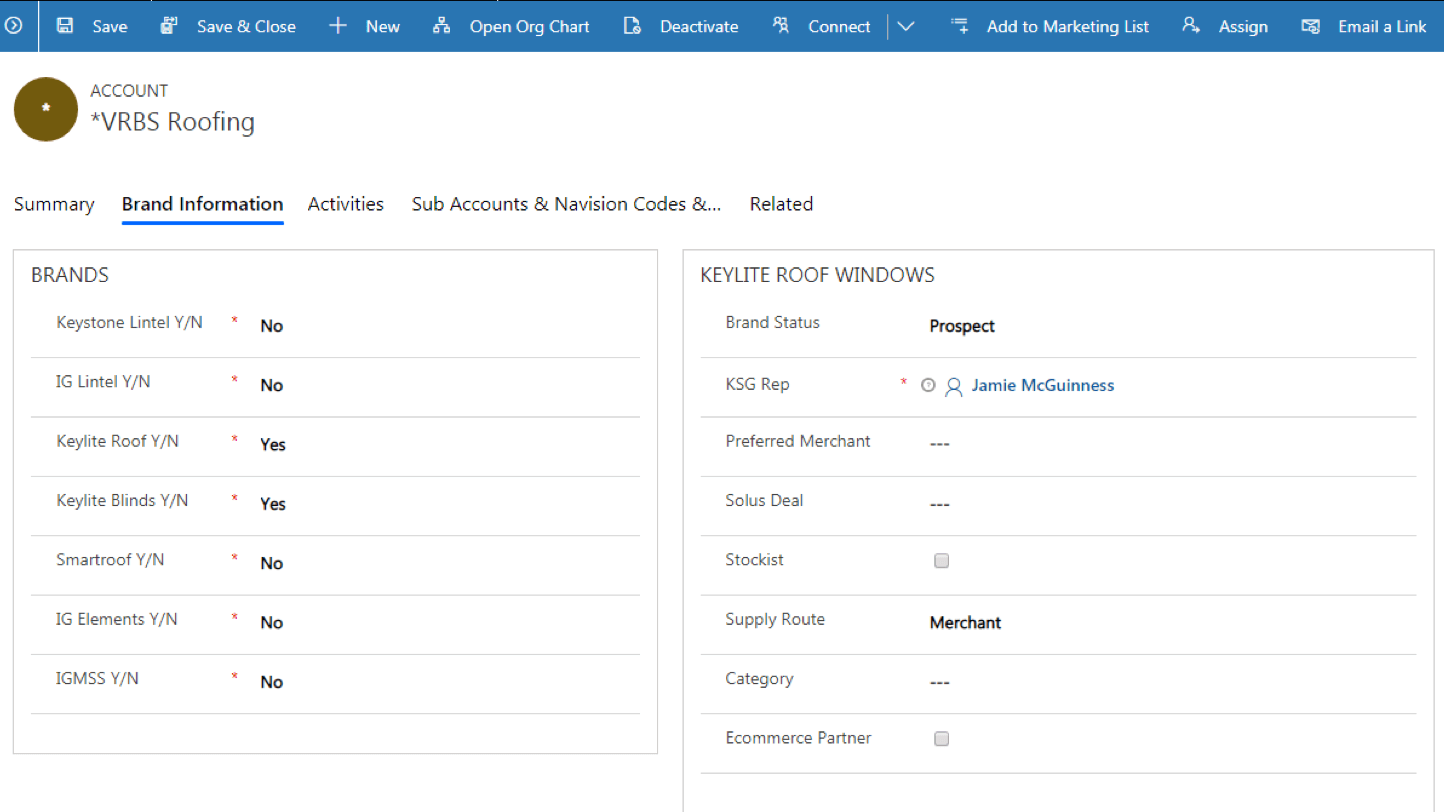
Ensure to select 'Yes' for the Keylite brands only and 'No' for all other brands.
It is also mandatory to select the appropriate Area Sales Manager for the area the account is located.
Select to complete

Contacts
Creating Contacts
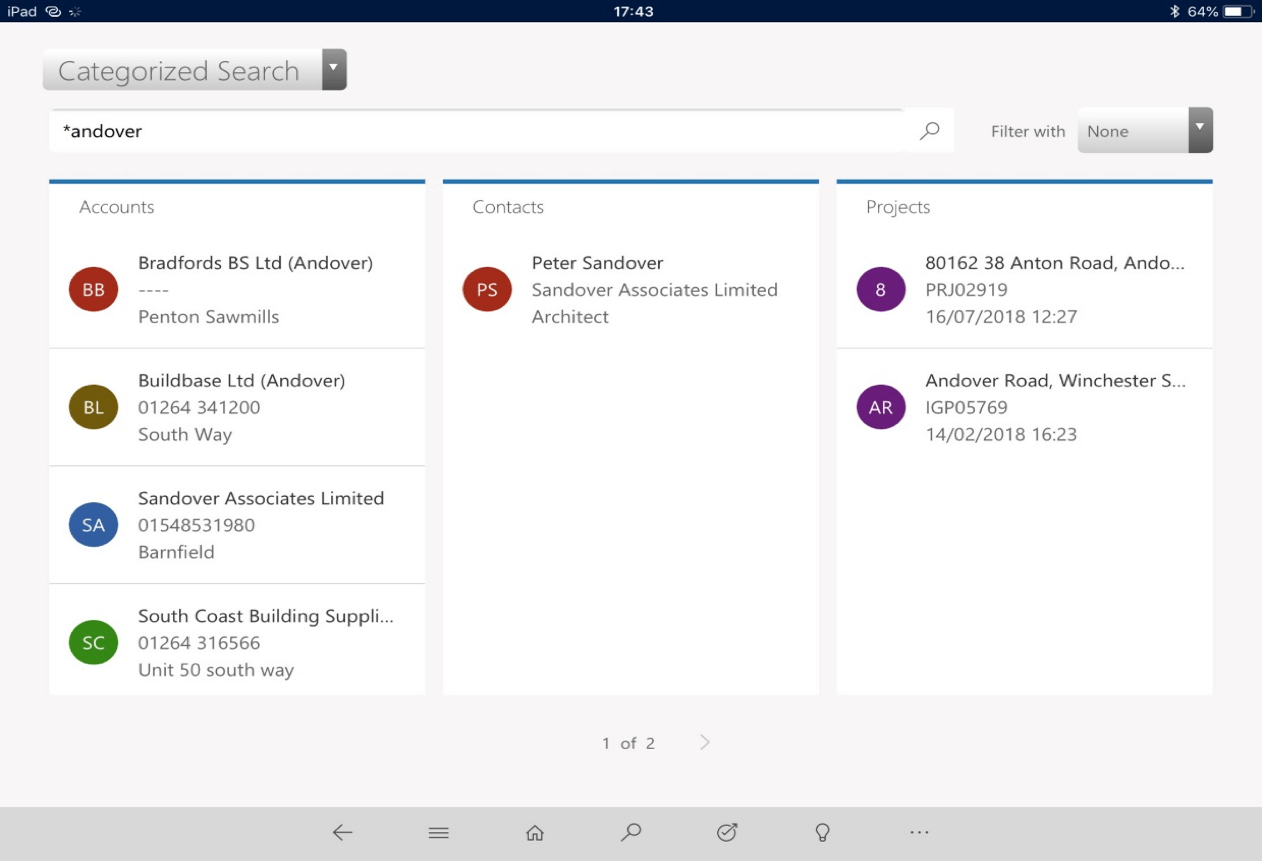
A contact should always be attached to an account. Therefore, you should always search for the relevant account first.
Select to search
Using an asterisk (*) can help define your search.
Creating Contacts
Once you've brought up the account, check the contact you wish to add isn't already on the system.
Select to add your
contact and fill out all mandatory fields.

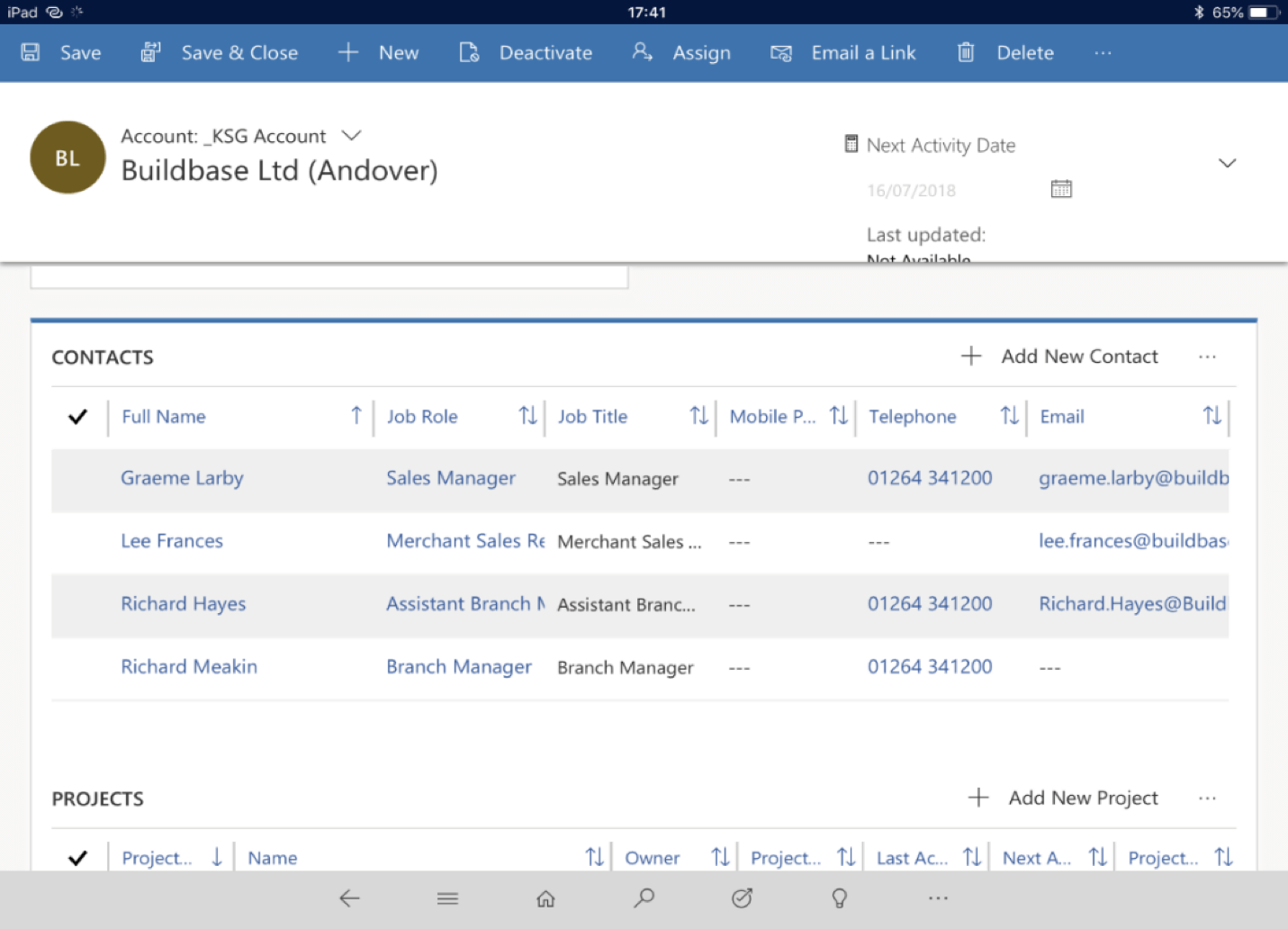
Select to complete.
Deactivating Contacts
When a customer leaves a business, their contact card can be deactivated so they no longer appear as active within the business.
Contacts may change from one account to another, in which case they should only ever be shown as active under one account.
Should a customer choose to return to the company, their contact card can be reactivated.
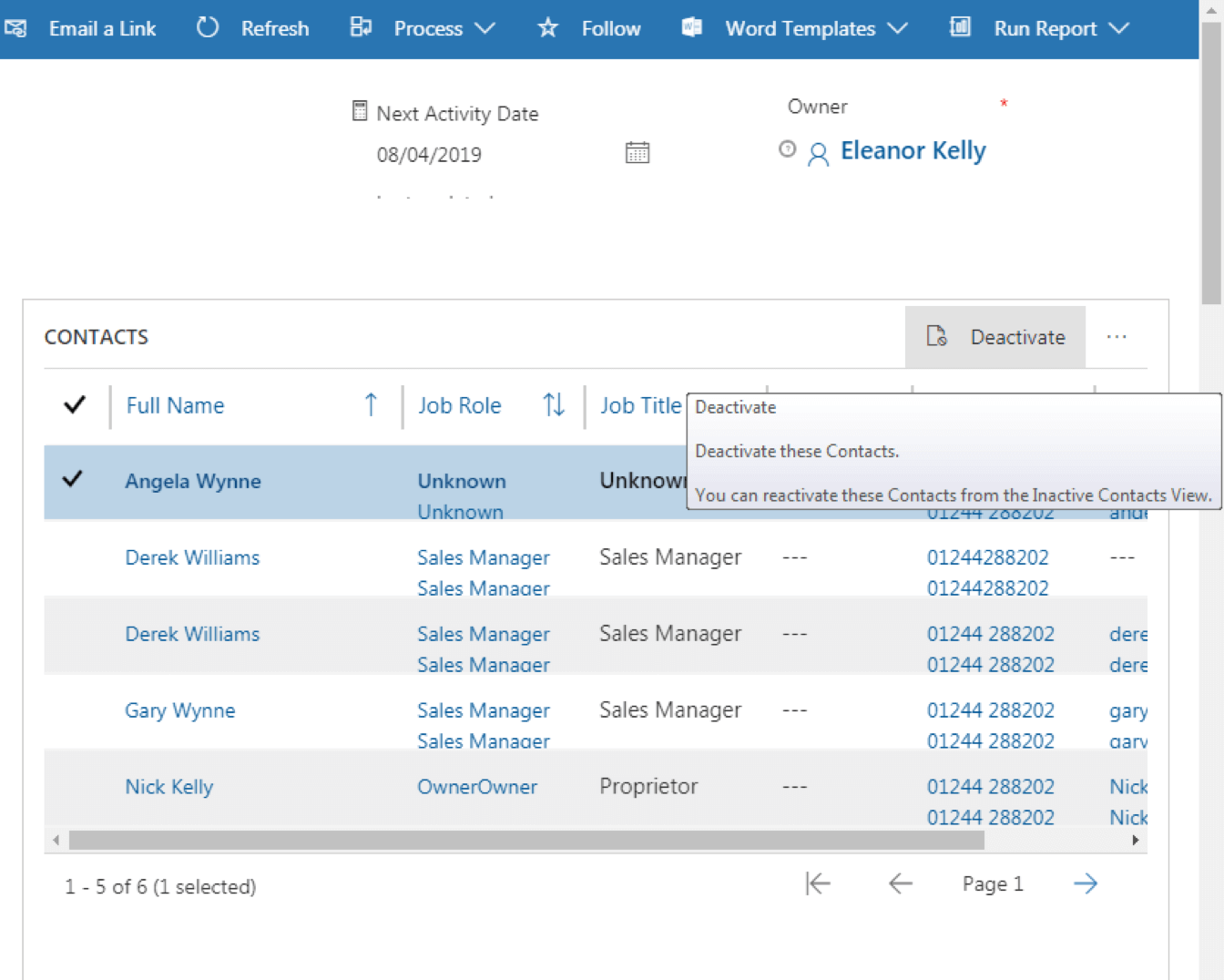
Select to deactivate
Deactivating Contacts
However, if a contact moves from one "Buildbase" branch to another "Buildbase" branch, you do not need to deactivate them.
If they move from a "Buildbase" branch to a "Jewson" branch for example, you must deactivate them. Failing to do so will transfer Buildbase data attached to the contact, to the Jewson account.
Leads
Creating a Lead
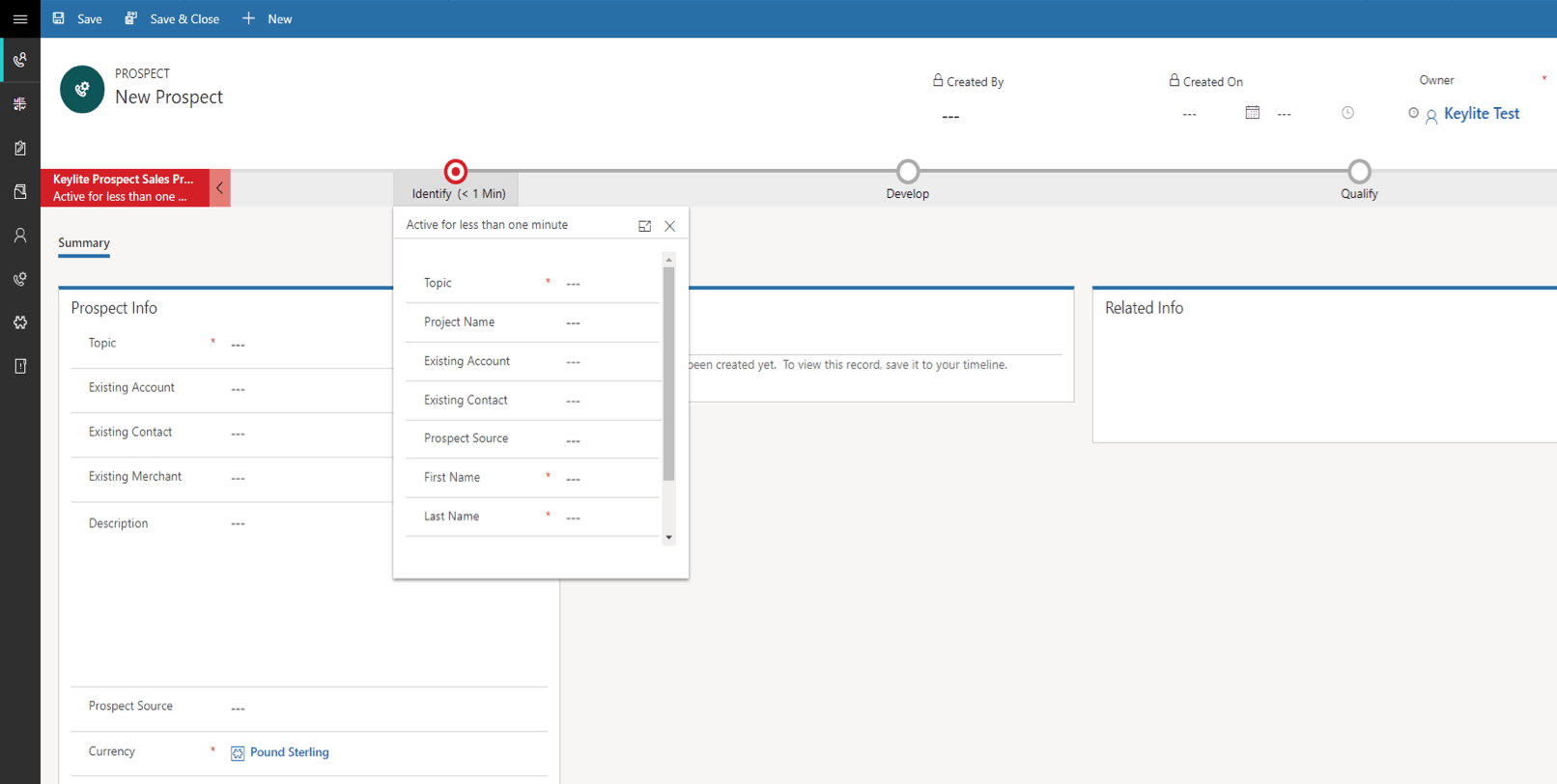
After selecting 'Leads' on
the home page, the following
window will be displayed
You may not have all the
information required in order
to qualify the lead right
away. Therefore, there are
separate stages of a lead:
- Identify
- Develop
- Qualify
You can revisit a lead at anytime to update any additional information.
Qualifying a Lead
A Lead should only be qualified once all stages have been completely filled out.
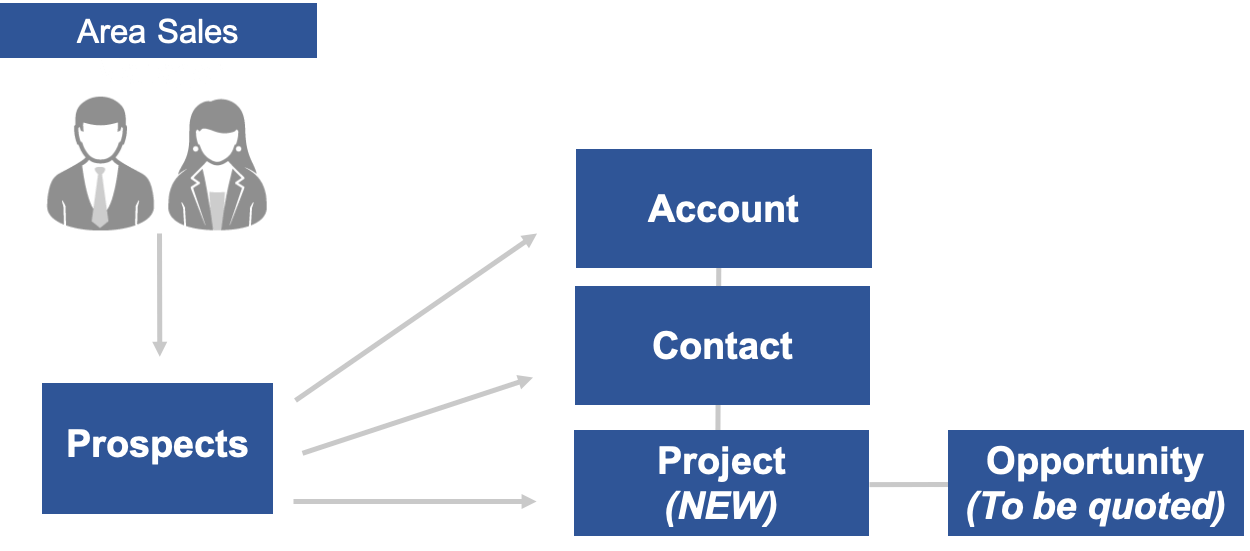
Once a Lead is qualified this will create a new:
- Account
- Contact
- Project
- Opportunity
A Keylite Opportunity is created alongside a 'Project' when the Keylite brand is selected.
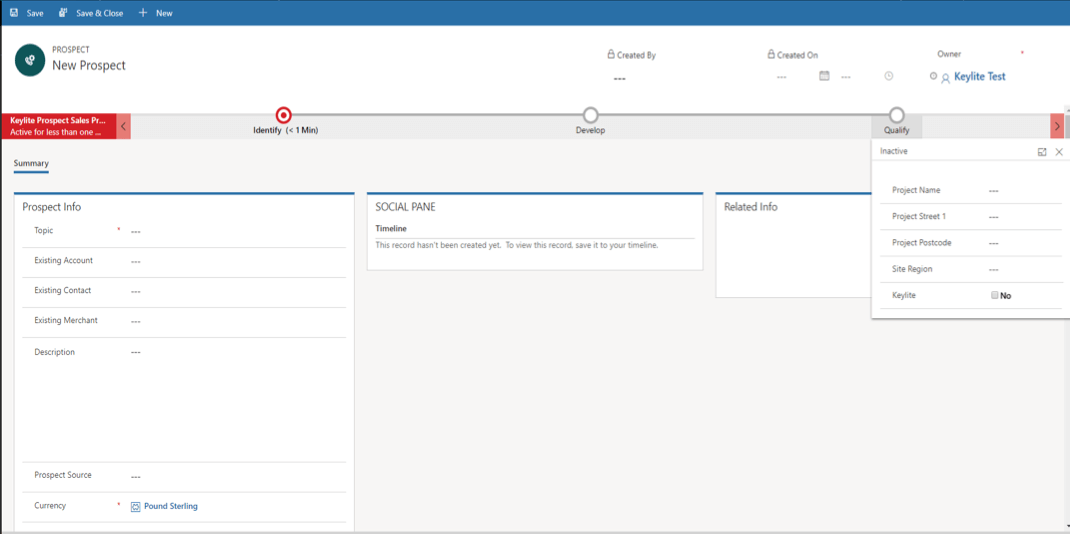
When all fields are completed, select
Lead
Lead
Projects
Creating a Project
A project is created either from a Lead or directly when an enquiry comes into the office.
Updates or amendments can be made to any project at any time. When altering a project, if this is an opportunity shared between two or more brands.
Updating a Project
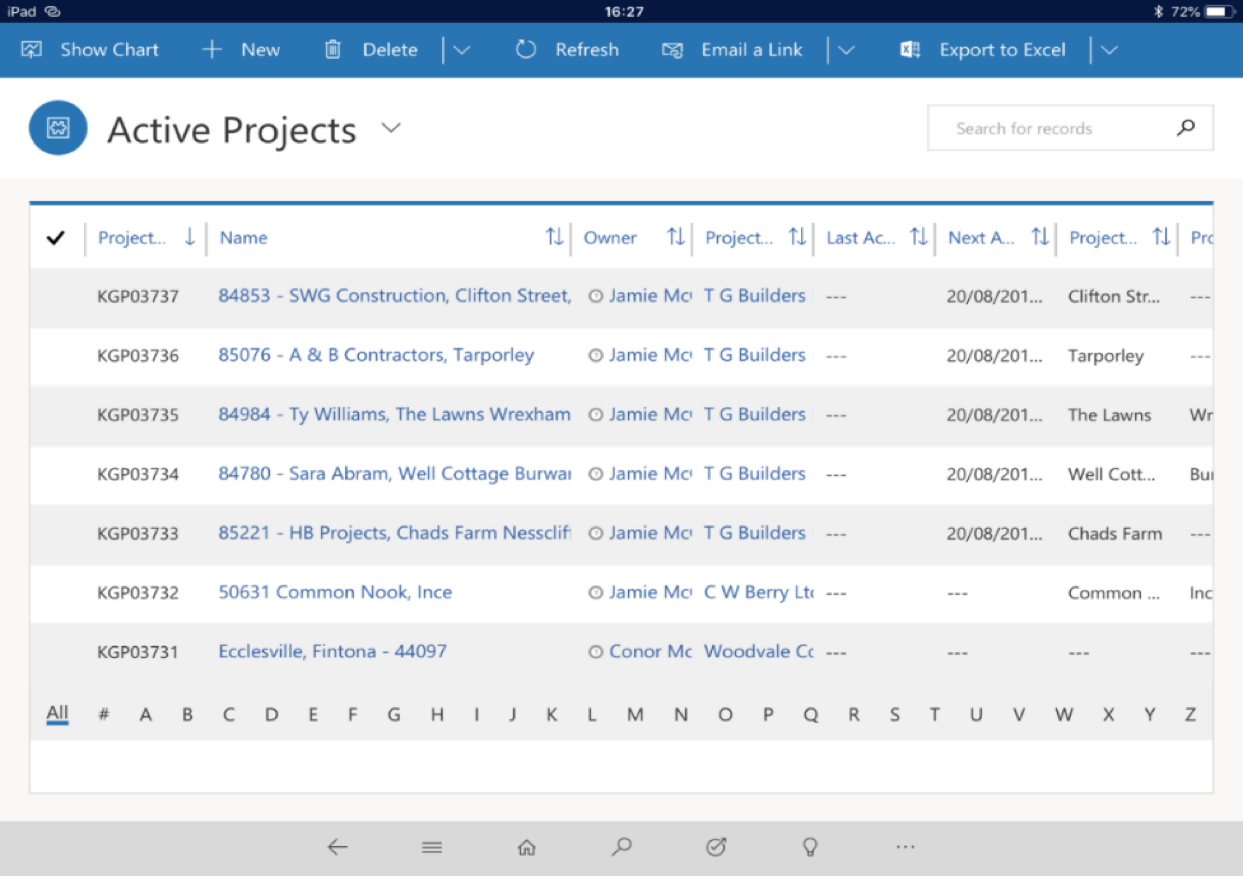
To find a Project, on your dashboard home page, use the dropdown to select the 'Active Projects' dashboard.
Search the project you wish to update
Using an asterisk (*) can help define your search. Entering the KGP number or site name will identify the project you are looking for.
Appointments
Appointments
Key Link appointments must be logged to keep record of all activity and conversation we have with our customers.
Appointments can be assigned to accounts so we can easily track any history between their company and any brand across the group.
Creating an Appointment
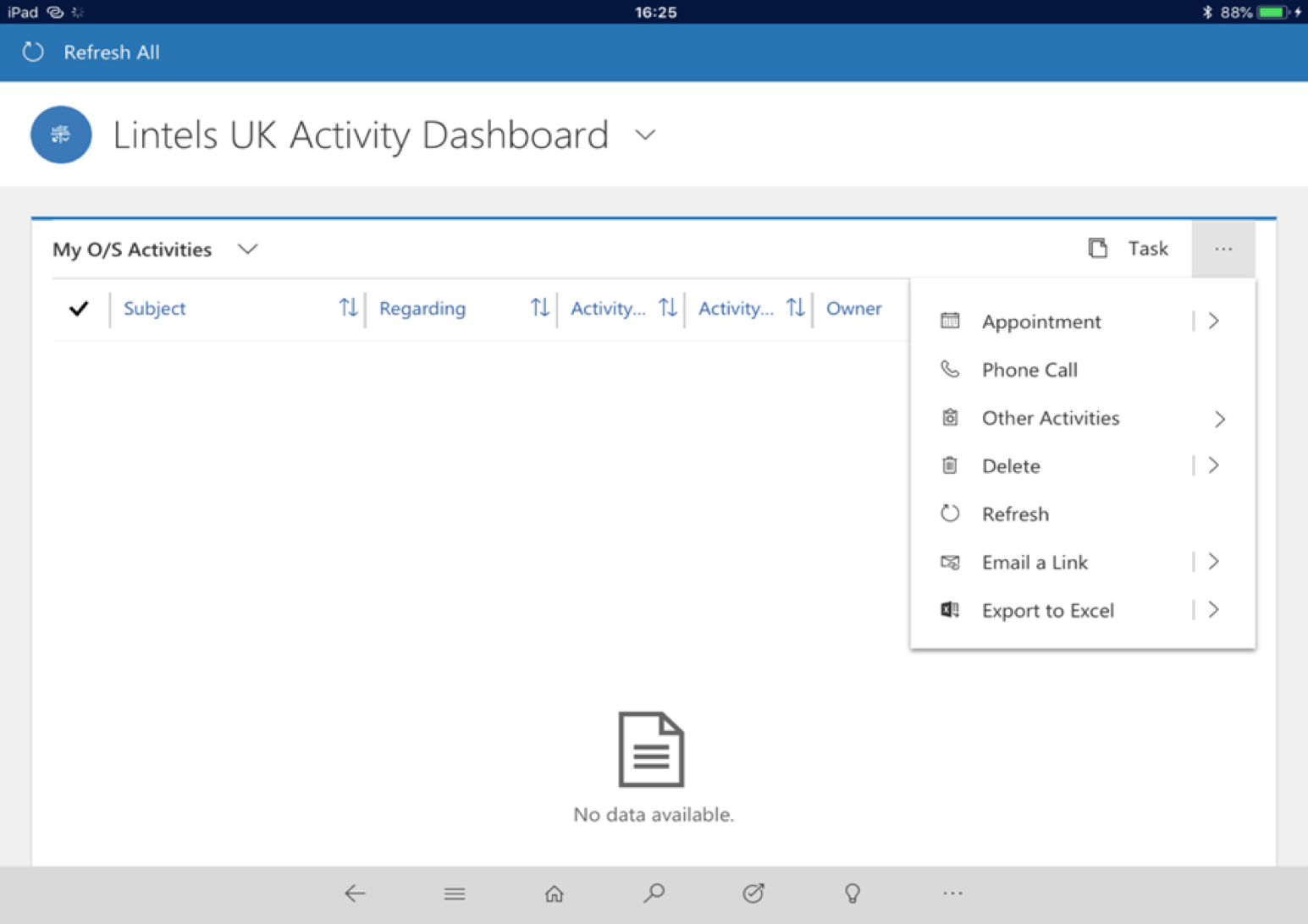
On your activity dashboard select
followed by 'Appointments'

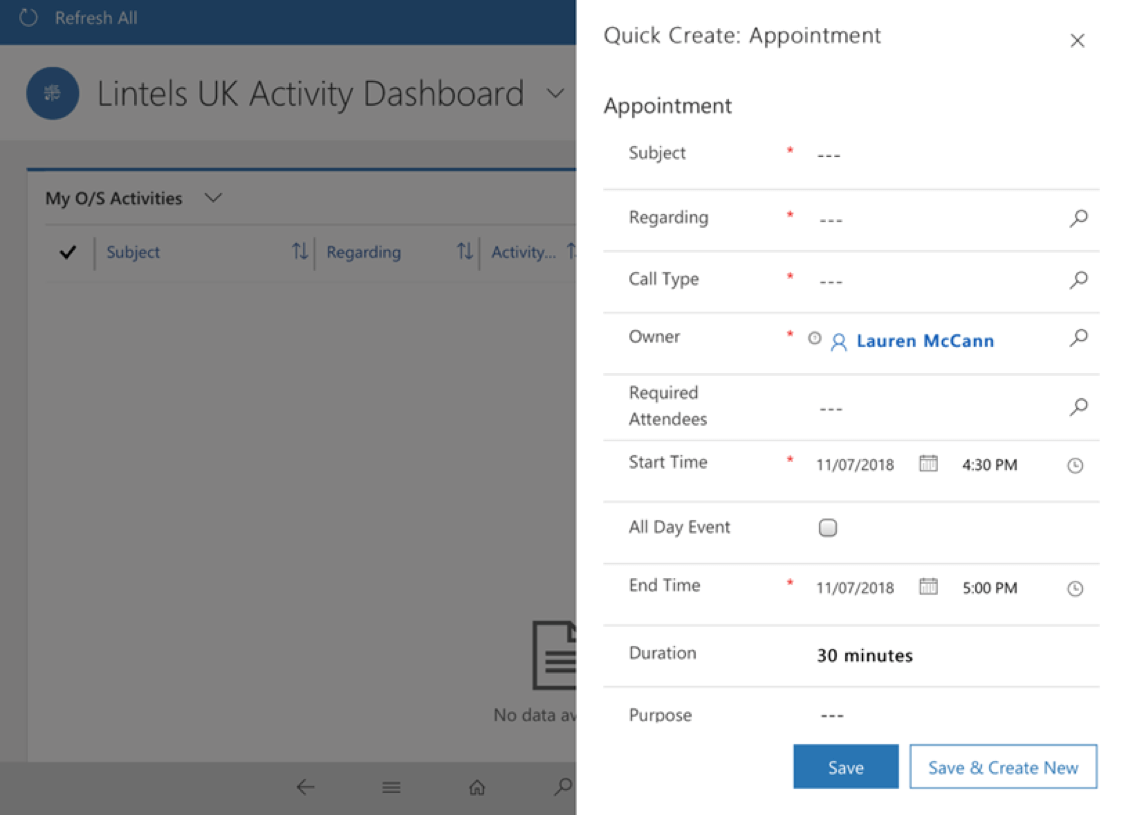
This will bring up 'Quick Create: Appointment' on your dashboard.
All mandatory fields will have to be field out before saving the appointment.
The appointment will automatically save within the account, contact, project, lead or opportunity you have entered under the 'Regarding' field.
Opportunities
Creating Opportunities
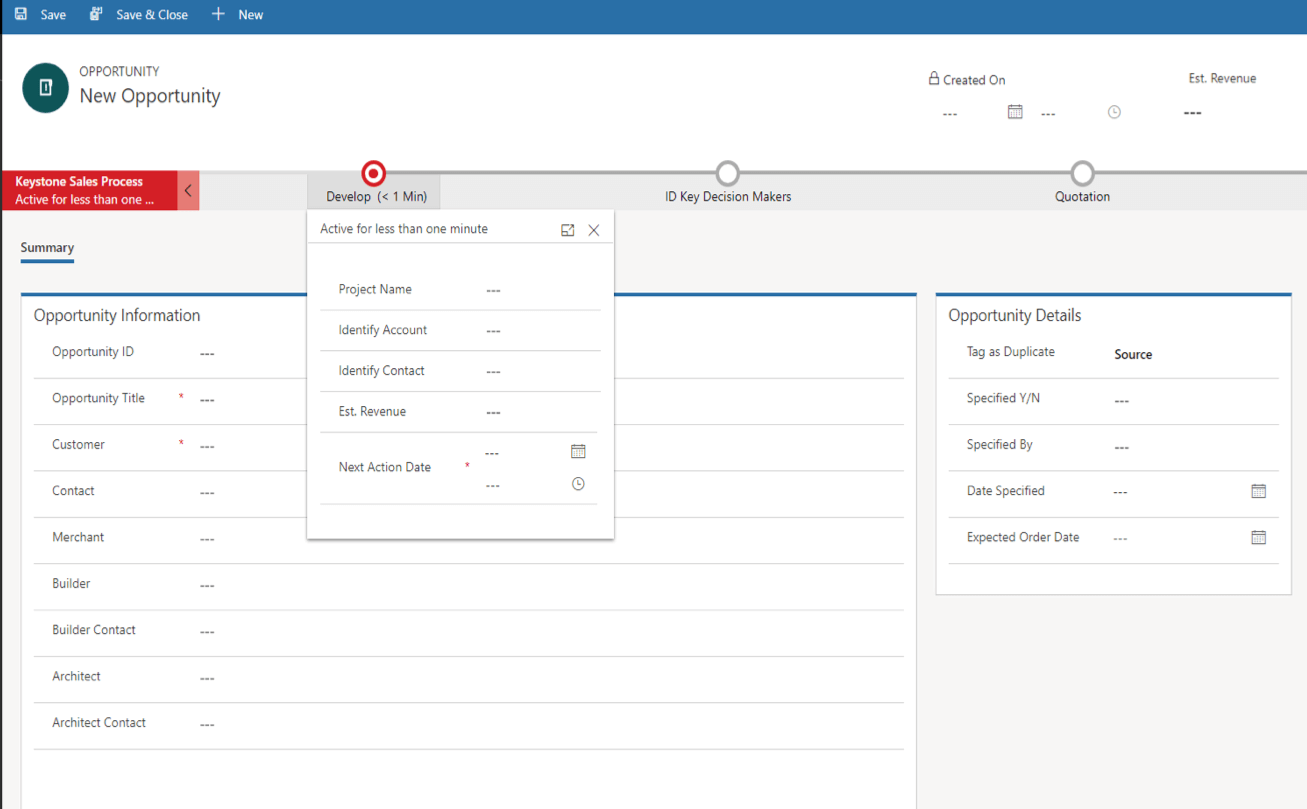
Opportunities can be created in two ways:
- Qualifying a Lead
- Project automatically generates within Key Link when an enquiry is received in the office and quoted on Navision.
Opportunities should always be attached to a Project otherwise the system will delete them after 1 hour.
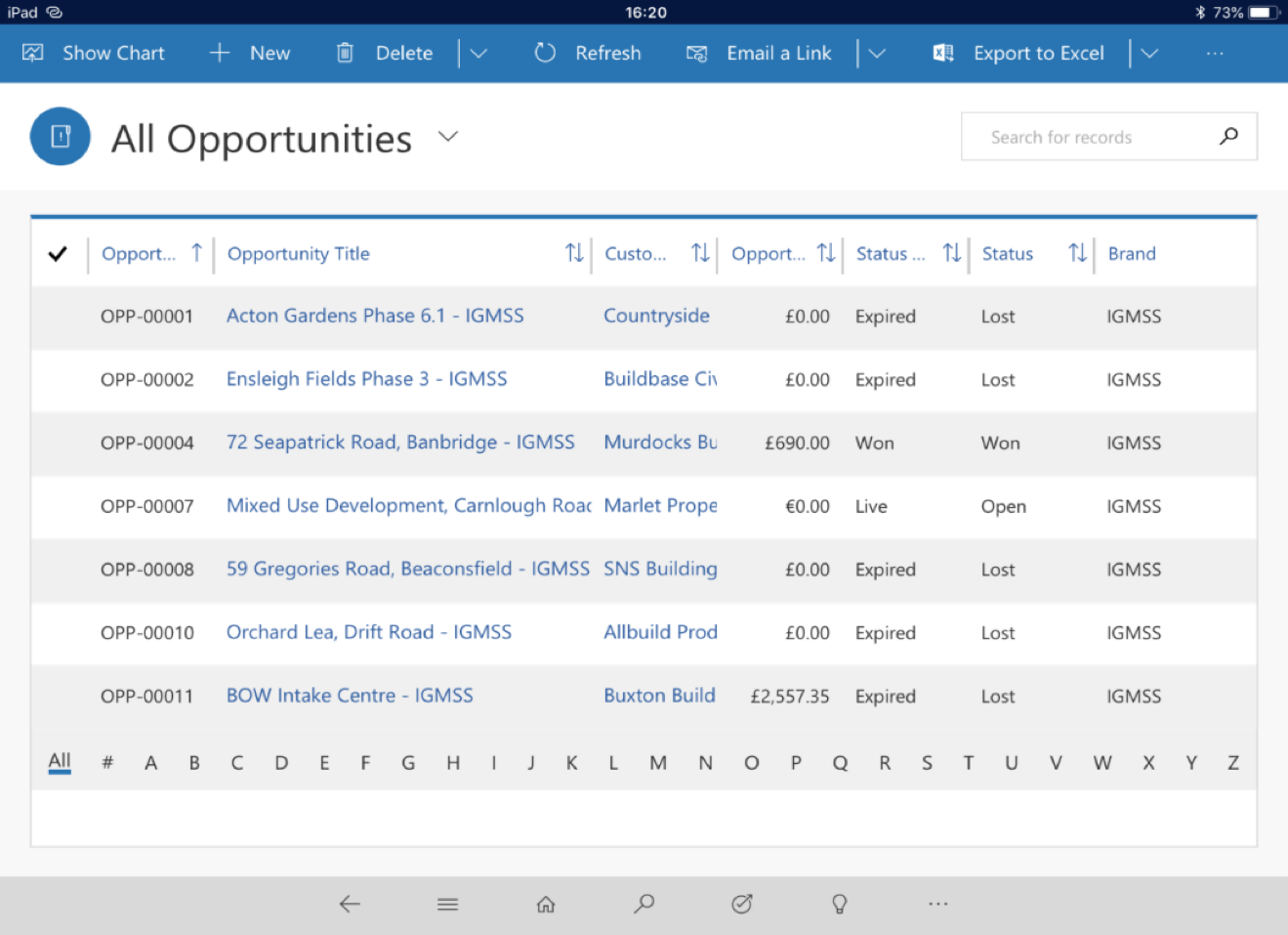
Updating Opportunities
On your dashboard home page, use the dropdown to select the 'Opportunities' dashboard.
Select the Opportunity you would like to update
Similarly to a Lead, an Opportunity will have different stages of development
Opportunities are to be closed as won or lost where appropriate
Updating Opportunities
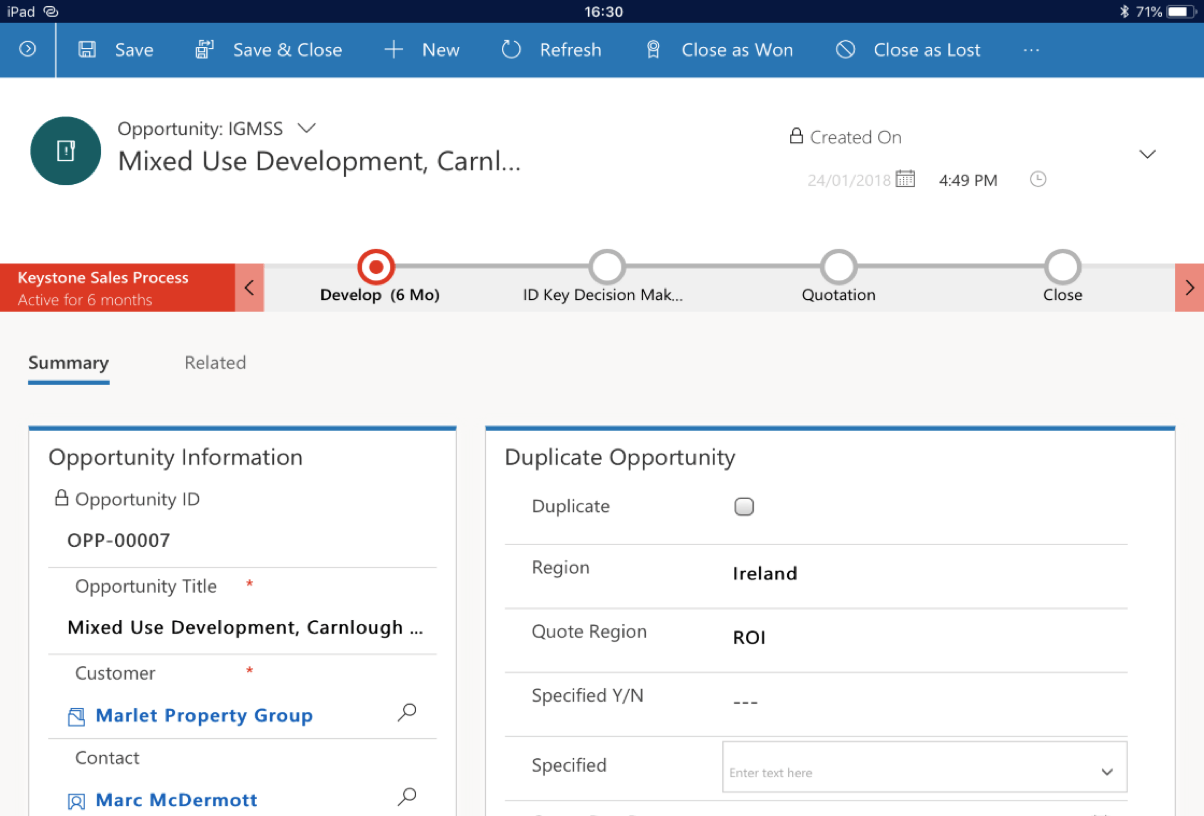
Select "Close as Won" if we have successfully won the opportunity and
supplied the project.
Select "Close as Lost" if we have missed the opportunity to supply the customer on this occasion.

If the opportunity is closed as lost, a dropdown will appear to select the reason why.

Quiz
Please continue to the quiz below
Stage 1 Module 17
By Adam Curry
Stage 1 Module 17
Key Link