Connect in a minute
-
Turn on developer mode
In ChatGPT, open Settings › Security and login and turn on Developer mode.
-
Add Slides
Open ChatGPT Plugins, click + and paste
https://mcp.slides.com/as the public endpoint. -
Sign in
Create the connection, sign in to Slides, choose Full access and click Allow access.
-
Ask for a deck
Add Slides.com from the tools menu in a new chat and try “Create a five-slide presentation about our product roadmap.”
What you can ask ChatGPT to do
-
Create decks from a prompt
Describe the presentation, or paste notes, a report or an outline, and ChatGPT builds the slides.
-
Edit existing slides
Ask ChatGPT to rewrite a slide, add a section or restructure a deck you already have.
-
Find and summarize
“Summarize my Q3 planning deck” or “List my most recent presentations.”
-
Share and export
ChatGPT can create private share links and export decks to PDF.
-
You control access
Choose full or read-only access when you connect, and disconnect at any time.
-
Works in Codex
Run
codex mcp add slides --url https://mcp.slides.com/, thencodex mcp login slidesto sign in.
ChatGPT drafts. You make it yours.
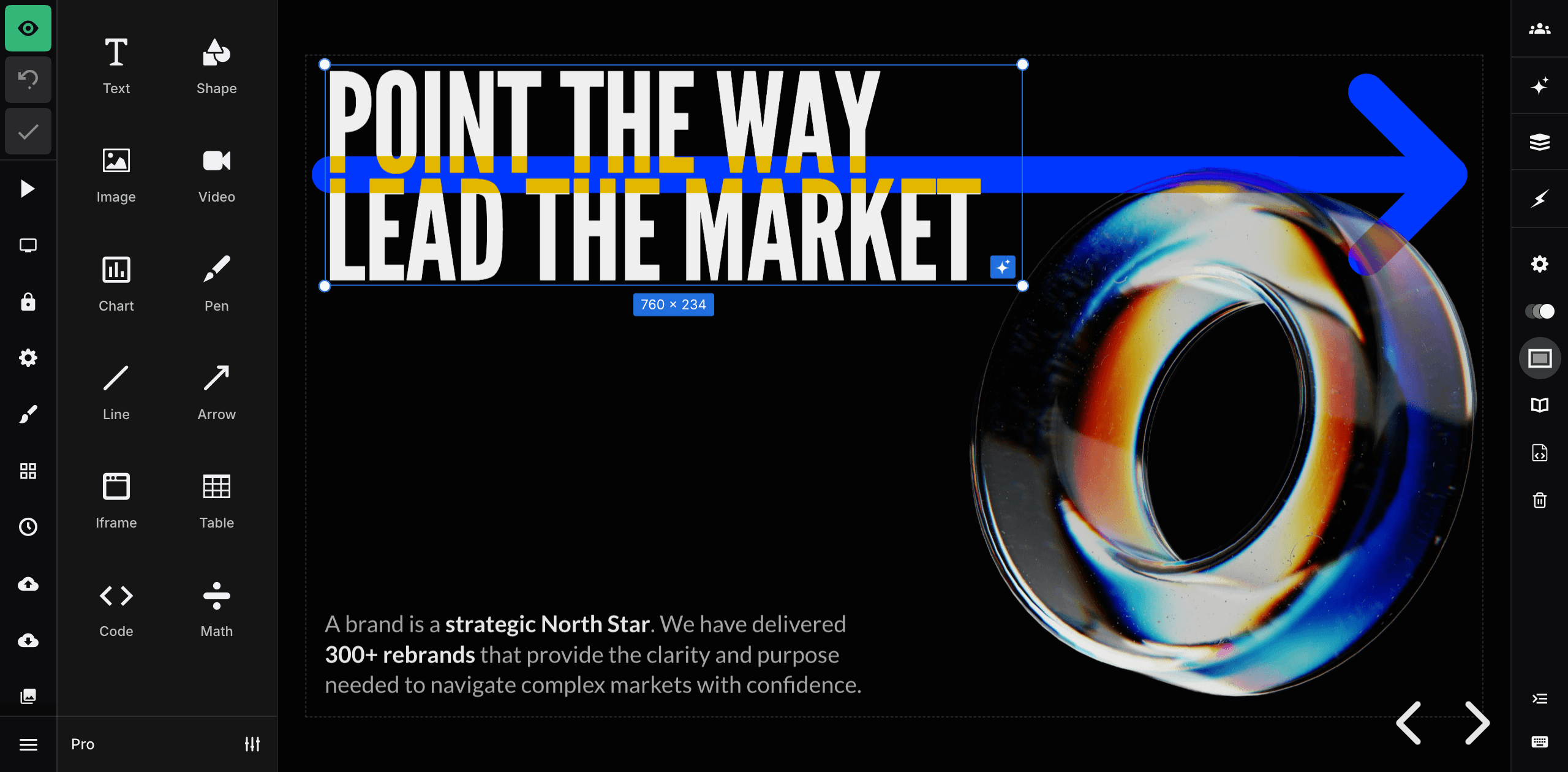
Decks from ChatGPT open in the full Slides editor. Adjust the design, add media and animation, or keep going with the built-in AI agent.
When it's ready, present from the browser with speaker notes, or share it with a link.
- Which Slides plans work with ChatGPT?
-
Connecting AI tools requires a Slides Lite, Pro or Team plan. Compare plans.
- Do I need an API key?
-
No. You sign in to Slides when you connect, and choose whether ChatGPT gets full or read-only access.
- What can ChatGPT access?
-
With Full access ChatGPT can create, edit, share and export your presentations. Read-only lets it view them without making changes. Disconnect at any time in Connected apps.
- Does it work with other AI tools?
-
Yes. Slides works with Claude, Cursor, Codex and any tool that supports MCP servers. See the MCP server docs.