
Content ITV PRO
This is Itvedant Content department
StreamCheck Headless Testing & Execution Strategies
Business Scenario
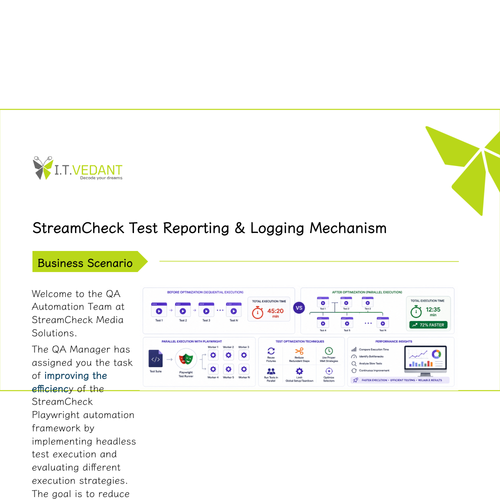
Welcome to the QA Automation Team at StreamCheck Media Solutions.
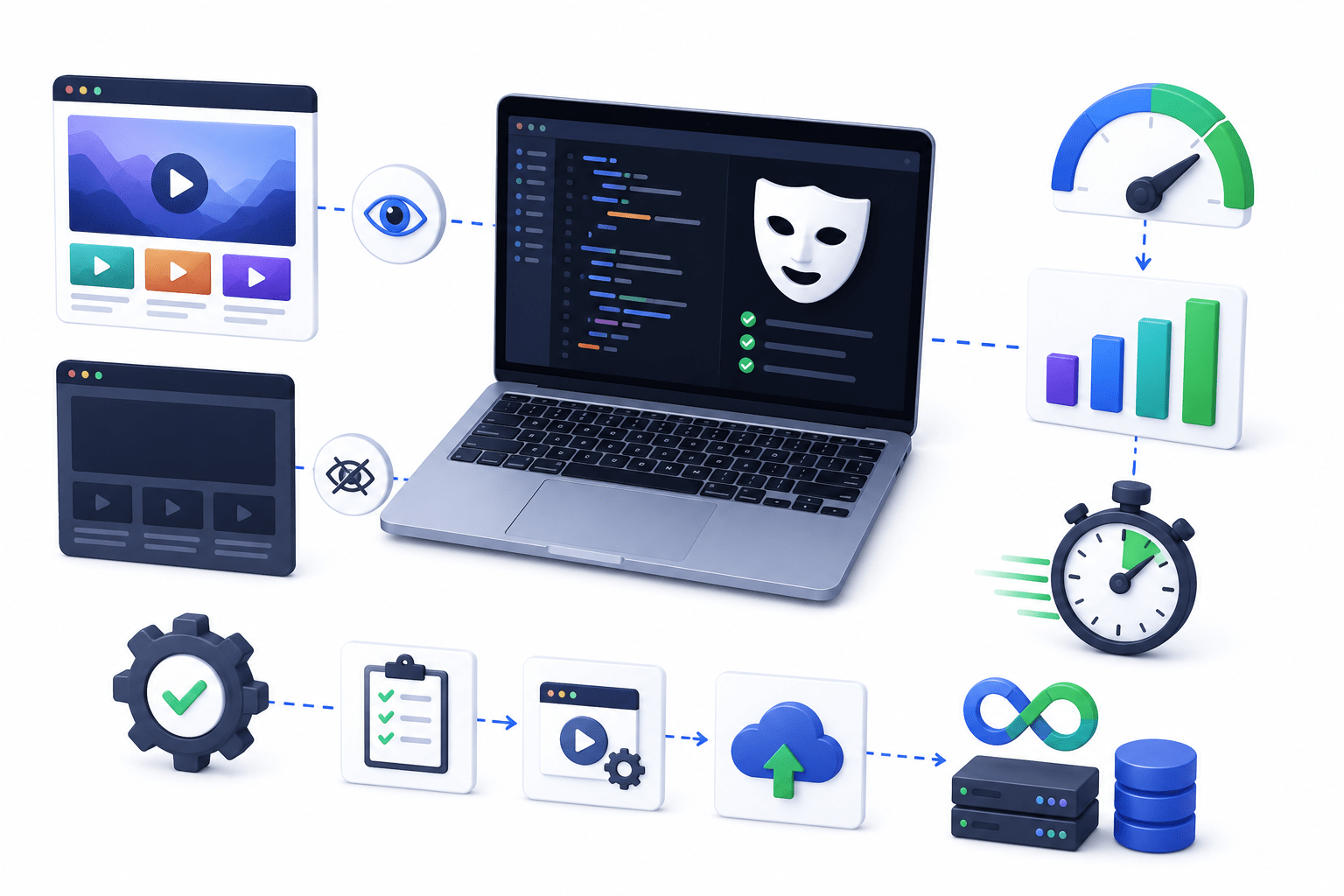
The QA Manager has assigned you the task of improving the efficiency of the StreamCheck Playwright automation framework by implementing headless test execution and evaluating different execution strategies. The goal is to reduce resource usage and speed up automated test execution without affecting test reliability.
Pre-Lab Preparation
In this lab, you will execute tests in both headed and headless modes, compare their performance, and analyse execution results. You will also explore different test execution strategies to improve automation efficiency and support faster feedback during continuous testing and deployment activities.
Topic: Handling Real-World Scenarios, Debugging & Reporting
1)Dynamic elements handling and Alerts & popups
2)Frames & iframes and Multiple windows/tabs
3)File upload & download and debugging failing tests
4)Playwright Inspector and Trace Viewer
5)Screenshots & Video capture and HTML Reports
6)Parallel execution overview
git pull origin branchNameGit Pull
Task 1: Run tests in headless mode
Launch Eclipse IDE.
Open the StreamCheck Playwright automation project.
Ensure the project builds successfully.
Open an existing test script such as LoginTest.
Execute the test normally.
Observe the browser opening and performing actions.
Note the execution time.
Open the StreamCheck Project
1
Run a Test in Headed Mode
2
Open an existing test script such as LoginTest.
Execute the test normally.
Observe the browser opening and performing actions.
Note the execution time.
Open the browser setup or configuration file.
Find the browser launch settings used in the project.
Change the browser launch option from headless = false to headless = true.
Save the changes.
Run the same test script again.
Observe that the browser window does not appear.
Monitor the execution through the Eclipse Console.
Execute the Test in Headless Mode
5
Enable Headless Mode
4
Locate Browser Launch Configuration
3
Check the console output.
Confirm that the test passes successfully.
Verify that all validations are completed correctly.
Run Login, Search Content, and Play Video test cases in headless mode.
Ensure all tests execute successfully without opening the browser.
Compare the execution time of headed and headless runs.
Observe any improvement in execution speed.
Open the generated test report.
Verify the status of all executed test cases.
Check for any failures or errors.
Review Test Reports
9
Compare Execution Results
8
Execute Multiple Tests
7
Verify Test Results
6
Check for any failures or errors.
Record the execution time for headed and headless modes.
Note the differences observed during execution.
Summarise the benefits of running tests in headless mode.
Document Observations
10
Task 2: Compare headless vs headed execution
Open the StreamCheck Playwright project in Eclipse.
Select an existing test script such as LoginTest.
Set headless = false in the browser configuration.
Execute the test.
Observe the browser opening and performing actions.
Note the execution time.
Open the StreamCheck Project
1
Run a Test in Headed Mode
2
Set headless = false in the browser configuration.
Execute the test.
Observe the browser opening and performing actions.
Note the execution time.
Check the test result in the Console.
Record the execution status and execution time.
Change headless = true in the browser configuration.
Save the changes.
Execute the same test again.
Verify that the browser window does not appear.
Monitor the execution through the Console output.
Record Headless Execution Results
6
Observe Headless Execution
5
Run the Test in Headless Mode
4
Record Headed Execution Results
3
Note the execution time and test status.
Verify that the test passes successfully.
Compare headed and headless execution times.
Compare resource usage and execution behaviour.
Identify which mode executes faster.
Create a comparison table showing:
Execution Mode
Execution Time
Browser Visibility
Test Result
Summarise the advantages and limitations of each execution mode.
Document Observations
8
Compare Results
7
Task 3: Optimize execution environments
Open the StreamCheck Playwright project in Eclipse.
Verify that Login, Search Content, and Play Video tests are available.
Execute the test suite using the existing configuration.
Note the total execution time from the Console.
Open Task Manager.
Observe CPU and Memory usage while the tests are running.
Record the values.
Open the browser configuration file.
Change headless = false to headless = true.
Save the configuration.
Open the StreamCheck Project
1
Run Tests with Current Settings
2
Check System Usage
3
Enable Headless Mode
4
Open the browser configuration file.
Change headless = false to headless = true.
Save the configuration.
Open the Playwright configuration.
Set the worker count (for example, 2 workers).
Save the changes.
Run the same test suite.
Observe that tests execute faster and browsers do not open on the screen.
Check Task Manager during execution.
Observe CPU and Memory consumption after applying the new settings.
Step 8: Adjust Worker Count
Monitor Resource Utilisation
7
Execute the Test Suite Again
6
Configure Parallel Execution
5
Increase the number of workers from 2 to 3 or 4.
Execute the tests again.
Observe whether execution becomes faster or slower.
Compare:
Execution time before optimization
Execution time after optimisation
CPU and Memory usage
Identify the worker count that provides the best performance.
Document the final environment settings and execution results for future test runs.
Record the Best Configuration
10
Compare Results
9
Adjust Worker Count
8
Task 4: Validate stability
Open the StreamCheck Playwright project in Eclipse.
Select LoginTest, SearchContentTest, and PlayVideoTest for execution.
Execute the selected test cases.
Verify that all tests pass successfully.
Record the execution results.
Run the same test suite 5 times consecutively.
Check whether the results remain consistent across all runs.
During execution, verify that:
Login is successful.
Content search displays correct results.
Video playback starts correctly.
Ensure the application behaves as expected in every run.
Open the StreamCheck Project
1
Run the Tests for the First Time
2
Observe Test Behavior
4
Execute the Same Tests Multiple Times
3
Task 4: Validate stability
Step 4: Observe Test Behaviour
During execution, verify that:
Login is successful.
Content search displays correct results.
Video playback starts correctly.
Ensure the application behaves as expected in every run.
Look for tests that pass in some runs and fail in others.
Record any inconsistent behaviour observed.
Enable headless = true.
Execute the same test suite again.
Verify that all tests continue to pass.
Configure 2 or more workers.
Execute the test suite in parallel.
Verify that there are no failures caused by parallel execution.
Run Tests in Parallel Mode
7
Run Tests in Headless Mode
6
Check for Random Failures
5
Verify that there are no failures caused by parallel execution.
Open the generated Playwright report.
Compare results from all executions.
Identify any flaky or unstable test cases.
If a test fails intermittently, review waits, locators, or test data.
Make necessary corrections.
Re-run the affected test to confirm stability.
Record:
Number of executions performed
Number of successful runs
Any failures detected
Actions taken to improve stability
Conclude whether the StreamCheck test suite is stable for regular execution.
Document Stability Findings
10
Fix and Re-Test
9
Review Execution Reports
8
Record:
Number of executions performed
Number of successful runs
Any failures detected
Actions taken to improve stability
Conclude whether the StreamCheck test suite is stable for regular execution.
Great job!
You have successfully completed your lab on "StreamCheck Headless Testing & Execution Strategies" where you learned how to execute Playwright tests in headless mode, compare headed and headless execution, optimise execution environments, and validate test stability. You also practised improving test execution efficiency, analysing performance, and ensuring reliable automation execution across different testing scenarios
Checkpoint
Git Push
Next-Lab Preparation
git push origin branchNameTopic: Handling Real-World Scenarios, Debugging & Reporting
1)Dynamic elements handling and Alerts & popups
2)Frames & iframes and Multiple windows/tabs
3)File upload & download and debugging failing tests
4)Playwright Inspector and Trace Viewer
5)Screenshots & Video capture and HTML Reports
6)Parallel execution overview
By Content ITV