ECSE 321 - Tutorial 11
Dominic Charley-Roy
https://github.com/dominiccharleyroy
dominic.charley-roy @ mail.mcgill
Testing Recap
Test Types
- Functional
- Behavioral
- Performance
- Integration
- System
Functional Tests
- Treats a function as a black box.
- Given a set of inputs, you expect a set of outputs.
public void testFibonacci() {
	assertEquals(1, fib(2));
	assertEquals(2, fib(3));
	assertEquals(13, fib(7));
}
Behavioral Tests
- Tests that a function behaves correctly.
- Usually has to do with an object with state.
- Testing whether the state is modified correctly.
public int x;
public int y;

public void moveRight() {
	// ...
}

public void testMoveRight() {
	x = 2; y = 10;
	moveRight();
	assertEquals(2, x);
	assertEquals(11, y);
}
Performance Tests
- Tests how long a certain action takes.
public void testSendRequest() {
	long startTime = System.currentTimeMillis();
	sendRequests();
	long totalTime = System.currentTimeMillis() - startTime;

	// Do something with the time
}
Integration Tests
- Tests that a sequence of actions works correctly.
- Functional/behavioral tests focus on one method/class.
- These focus on more than one.
public void testExplosions() {
    placeEnemies();
    renderEnemies();
    Bomb b = Bomberman.addBomb(10, 10);
    explodeBomb(b);

    int totalKilled = 0;
    for (Enemy e : enemies) {
        if (e.isDead()) totalKilled++;
    }

    assertEquals(3, totalKilled);
}
System Testing
- These test a full end-to-end run through in your system.
- An example of this would be creating a game, saving it, loading it, and making sure it is in the same state.
It's been a while...
JUnit is a unit testing framework for Java.
What does that even mean?!
Unit tests are small tests which are responsible for testing a single rule of your program. JUnit provides classes and methods for writing these tests and runs them automatically.
Motivating Example
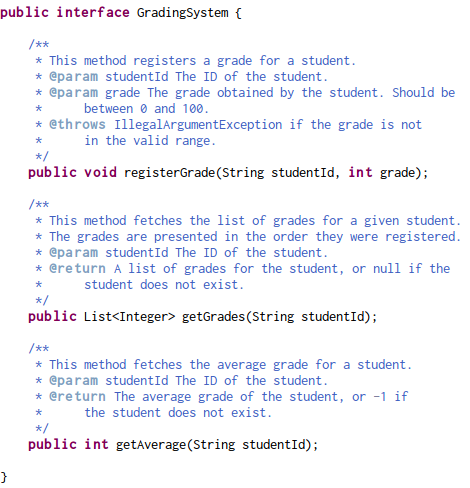
- A Grading System class which lets you add grade, get a list of student's grades, and compute the average.
- You will want to fork https://github.com/dominiccharleyroy/junittutorial in order to have your own copy of this tutorial.

Importing into Eclipse
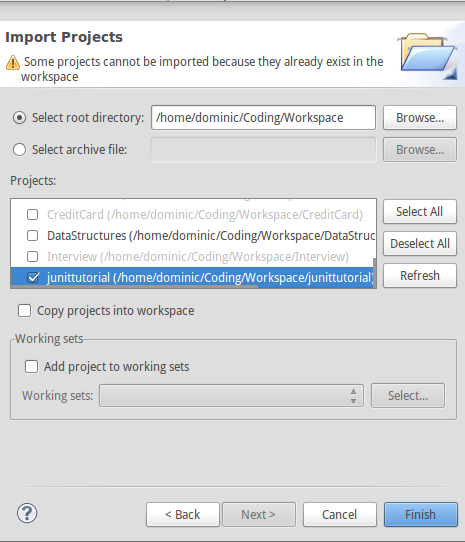
1. Clone your new repository:
git clone url
2. Open Eclipse
3. File > Import > Existing Projects into Workspace
4. Set directory to the directory containing your cloned repository.
5. Select the project an import!
Example Overview
Adding JUnit
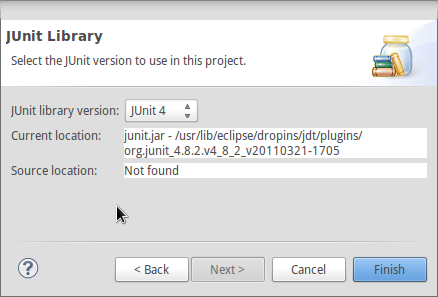
In order to test our implementation, we need to add the JUnit library to our project.
1. Right-click project > Build Path > Add Libraries...
2. Select JUnit and Next
3. Set JUnit version to 4
Non-Eclipse Users
If you aren't using Eclipse, you have to take some extra steps to install JUnit in your project.
1. Go to https://github.com/junit-team/junit/wiki/Download-and-Install
2. Download junit.jar
3. Add junit.jar to your project's class path
Anatomy of a JUnit Test
- A Java class usually has a corresponding test case class. If the class is called A, then the test case class is ATest.
- A test case has tests which are methods. Each test should correspond to one single functionality / logic rule. Usually prefixed with test and describe what is being tested, eg. testGetName or testSetAgeWithNegativeValue.
- Many test cases can be bundled together in a test suite.
- JUnit lets you run either a single test, all tests in a single test case, or all tests in a test suite.
Where are tests stored?
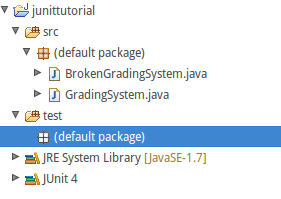
- Tests are usually kept separate from our src/ folder to keep things clean and allow tests to be easily included/excluded from a jar file.
- We store them in a test/ source folder. In Eclipse, we create this like:
- Right-click project and New > Source Folder
- Set Folder Name to test and click Finish.
Creating a Test Case
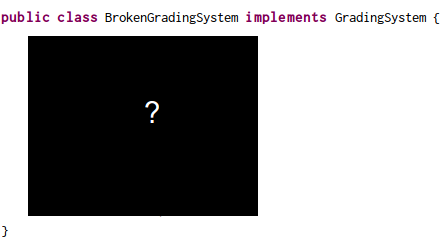
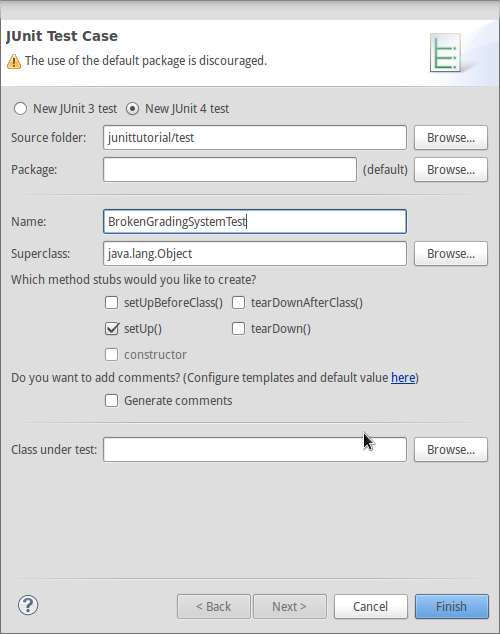
Let's create a test case for BrokenGradingSystem!
1. Right-click test/, New > JUnit Test Case
2. Set the name to BrokenGradingSystemTest.
Running a Test Case
Once we've added tests, we'll want to run an entire test case. JUnit follows a special process for this based on method annotations. These must be imported (eg. import org.junit.Test).
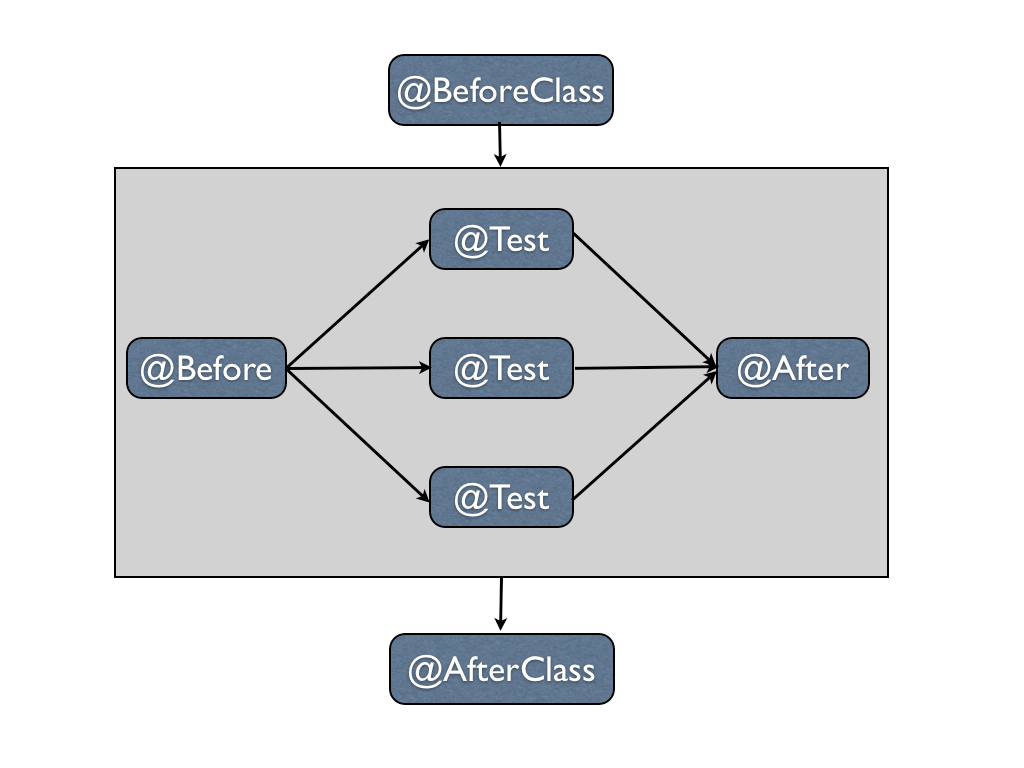
BeforeClass/AfterClass methods should be static and are only run once. Before/After methods should be non-static and are run before and after every test (for setting up / cleaning up).
What's in a test?
- A test is any method annotated with @Test.
- A test runs code and makes assertions about it.
- If any assertions are false in the test, the test fails.
- JUnit provides many different assert statements, including: assertEquals, assertNull, assertTrue, assertFalse.
- JUnit also provides a method for automatically failing, fail.
-
Generally put import static org.junit.Assert.*; to have access to all assert methods without qualifying.
Our First Test!!
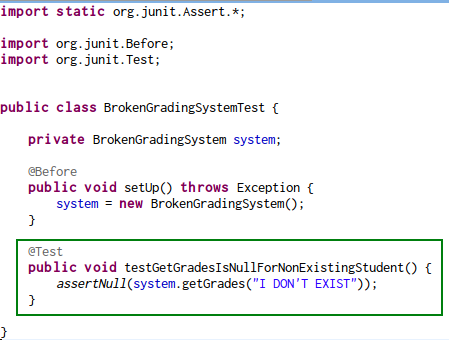
The first test is that getGrades returns null for a student that doesn't exist.
We use @Before to create a new Grading System for each test.
Running our Test Case
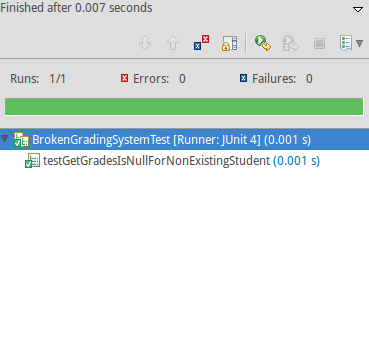
We're now ready to run our test! We do this by either hitting the run button when our test file is open, or by right-clicking on the *Test file and Run As > JUnit Test
Testing getGrades Works!
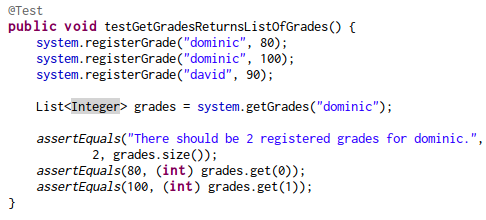
Note that assertEquals, as do most other assertions, have two signatures.
1. assertEquals(expected value, obtained value)
2. assertEquals(message, expected value, obtained value)
Testing Exceptions
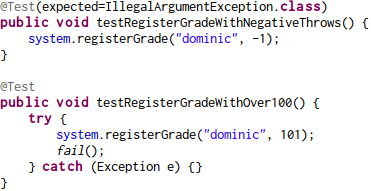
Some tests should only pass if an exception is thrown! There are two ways of testing this.
1. (Preferred way)
@Test(expected=ExceptionName.class)
2. Wrap the code in a try catch and put a fail() after the call which should throw an exception.
Finding a Bug!
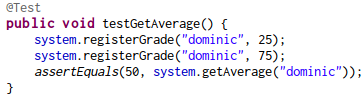
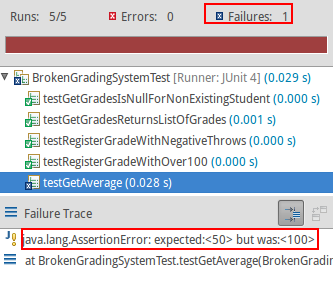
Time to fix our code!
Our test helped us pinpoint a bug in getAverage, so let's take a look at our function.
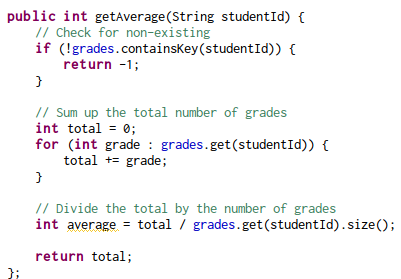
Once it's fixed...
After fixing our bug, we re-run the JUnit tests...
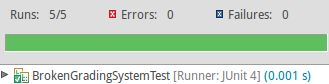

But wait...
How do we know our tests are good enough? Did we test everything?
EclEmma
What's that?!
- EclEmma is an eclipse plugin.
- Lets you do code coverage - see how much of your code is actually run when you run your tests!
Demo
Finding a Missing Test
After running our tests we see:
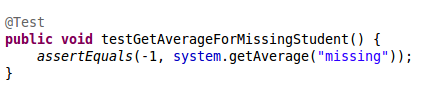
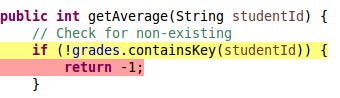
Adding the missing test:
TL;DR
- JUnit lets you write tests which can be run automatically to find bugs in your application.
- EclEmma is a tool that lets you see how much of your code is actually executed when you run your tests.
- These let you find new bugs as well as make sure new features aren't breaking old code (regression bugs).
- Note: Test-driven development works by writing tests first and then coding to make the tests pass.
Copy of Copy of ECSE 321 - Tutorial 3
By dominiccharleyroy