





Gareth Greenaway
Keylite Roof Windows
Keylite Academy
Logging An Enquiry On CRM & NAV Quoting
Key Link
Data Flow
When an enquiry is received directly into the sales/technical office, the enquiry is logged on Key Link and a quote is created on NAV.
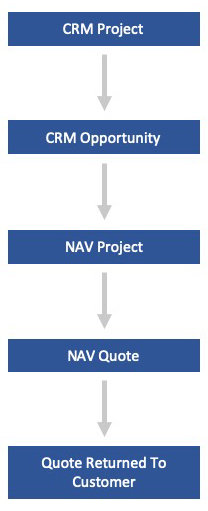
When logging enquiries, and creating quotes, there is a distinct flow of data that must be followed:
The first step is manually generating a Project in Key Link, once completed and saved this will automatically generate an Opportunity in Key Link which, once completed and saved, will automatically generate a Project in the Quote section of NAV. It is this Project that can then be used to create quotations. A project cannot be manually generated in NAV, it can only be done by creating, completing and saving an Opportunity in Key Link.
Key Link
Logging an Enquiry on CRM
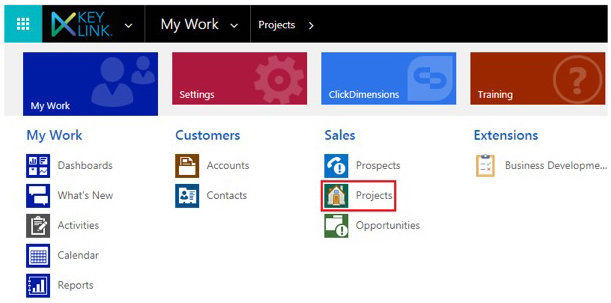
When logging an enquiry that has been received directly into the technical office you start in Key-Link at the project level, to access projects you open up the ‘Work’ drop down menu and select the ‘Projects’ tab.
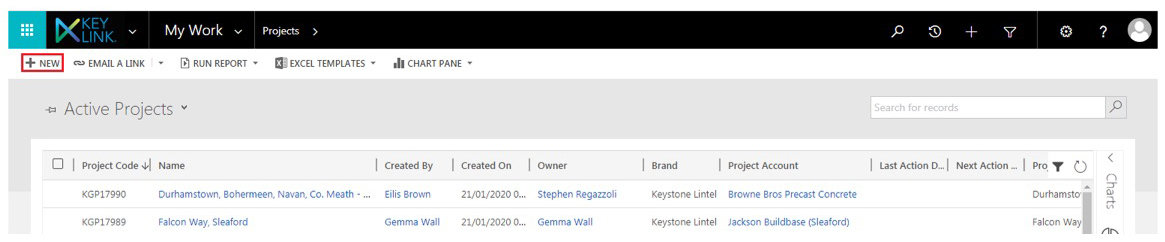
You will then need to generate a new project by selecting the ‘+New’ option in the top left hand corner of the screen, this will take you to a new, completely blank, project page.
Key Link
Logging an Enquiry on CRM
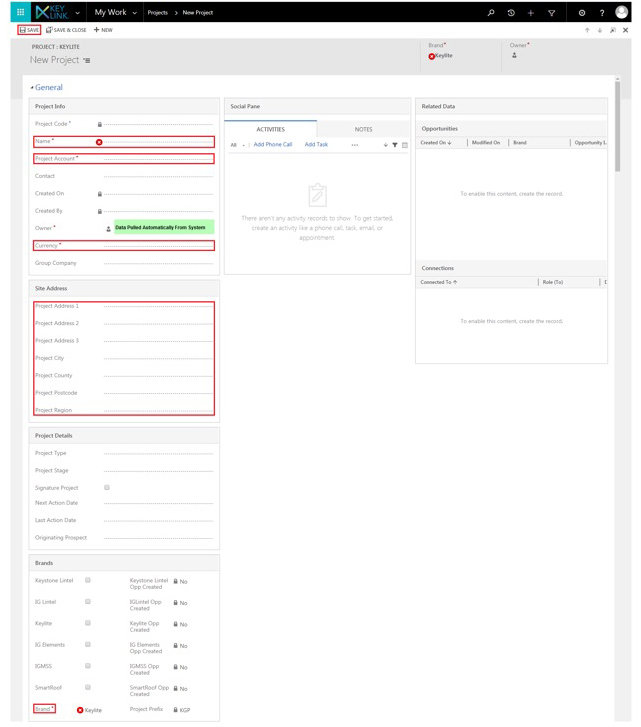
On the newly generated project there are several panes containing fields that will need to be filled in, anything with an asterisks(*) against it is compulsory and if these are left blank the project cannot be saved, however, these are not the only fields that should be populated. When generating an enquiry the fields you should be filling in are:
Name*- This should always be the first two lines of the project address.
Project Account* - This should be the account of the customer who provided the enquiry or the builder.
Contact - The person who sent the enquiry or builder contact.
Currency* - For anyone in this office this should always be pounds, should populate automatically once the project account has been provided.
Project Address - The site address, please provide as much detail as is available.
Project Postcode - The site postcode, this is a piece of critical information and is required to assign the project to the correct KSM.
Brands* - Please ensure Keylite is ticked; the project cannot be saved unless a box is ticked.
Key Link
Logging an Enquiry on CRM
Once this information has all been filled in, please provide as much detail as possible, the project can then be saved by clicking on the ‘Save’ icon in the top left hand corner of the screen, if you exit this screen without saving all entered data will be lost. Once the project is saved it will be automatically assigned a project code and an opportunity will be automatically generated, please note you may need to refresh the screen several times for this to populate.
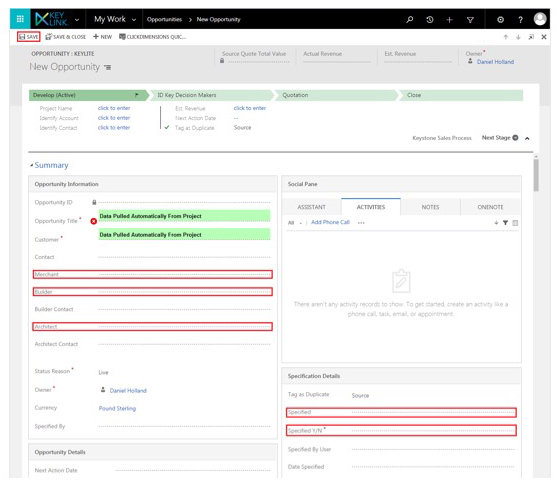
After opportunity has been generated and populated you can move onto the next stage by clicking on the opportunity title, in the opportunities pane, this will take you to a blank opportunity with several fields that will need to be filled in, these are:
Merchant* - This is the merchant the project is going through. If there isn’t a merchant assigned to the project enter ‘GENERIC MERCHANT – UK’, this will allow the opportunity to be saved and generated in NAV.
Builder - The building company assigned to the project. If there isn’t a builder assigned to the project enter ‘GENERIC BUILDER – UK’.
Architect - The architect that produced any drawings provided, if no drawings were provide or this information is not available leave this field blank.
Tag as Duplicate - This should be changed to display ‘Source’
Specified Y/N* - This refers to whether the quote has been specified internally and is simply a yes or no field.
Key Link
Logging an Enquiry on CRM
Once all required information has all been entered, the opportunity can then be saved by clicking on the ‘Save’ icon in the top left hand corner of the screen, if you exit this screen without saving all entered data will be lost. Once the opportunity is saved, assuming all data has been filled in correctly, it will automatically populate in NAV, this may take up to 3 minutes to happen.
Key Link
Nav Quoting
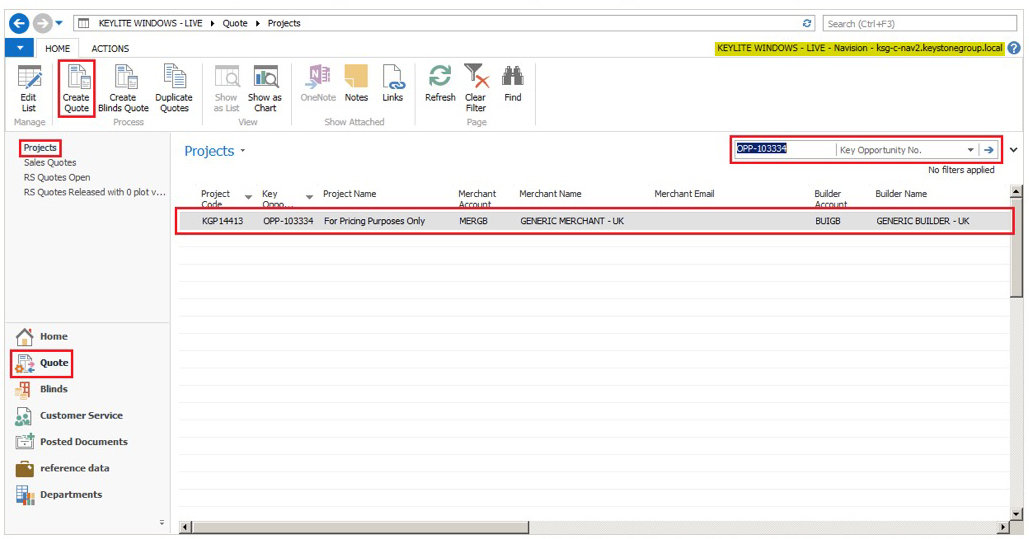
Once the enquiry has been successfully logged on Key-Link you then move on to NAV to generate the actual quotations. Before you start generating quotes, however, you first need to locate the project, to do this you will need to cross reference the OPP (opportunity) number, generated in Key-Link, in the ‘Projects’ page of the quotes tab. This can be done by either using the search function or by arranging the projects by “Project Code”, in descending order, and scrolling through manually. When you’ve found the correct project, click on the ‘Create Windows Quote’ button in the top left hand corner of the screen, this will generate and take you straight into a blank quotation.
Key Link
NAV Quoting
Now you’re in the actual quotation and can begin the process of quote generation. First click into the ‘General’ tab and ensure the fields below are filled in, when applicable:
Delivery Type - Select whether the project is to be delivered to site, yard or to be collected. Please be aware this option can effect the discounts.
House Type - Primarily used if the quote is being produced from drawings or if multiple options are being offered.
Plot Reference - If the house type you’re quoting is for multiple plots enter the plot numbers here. This will be displayed on the final quote.
Pricing Type - Select either list, list less discount or nett depending on the type of price you’re quoting. Please be aware this option does not alter the pricing structure, it creates a note on the quote so the customer is aware of the pricing type they’re receiving.
Alternative - Select this if you’re quoting for multiple options and you have already specified the ‘source’ quote.
Quick Quote - This should always be selected, it enables us to track the turnaround time of a quote.
Date Time QQ Received - Enter the date and time the enquiry was received here.
No. of Plots - If the house type you’re quoting is for multiple plots enter the number of plots here. This carries through to the total value of the quote, allowing the customer to see both the price for a single plot and all plots across the site.
Key Link
NAV Quoting
Once this information has been filled in you can move on to the ‘Lines’ tab, this is where the products we are quoting and the required quantities are entered, and is filled in as you would when inputting an order. When all the products have been input onto the system the quote will need to be released by pressing the ‘Release’ button on the top menu bar.
The quote can now either be printed or an email generated to send to the customer. If the enquiry you are working on has multiple house type or options ‘OK’ out of the quote and you will be returned to the ‘Projects’ page where a new quote can be generated and the procedure repeated.
Please continue to the quiz below
By Gareth Greenaway
Logging An Enquiry On CRM & NAV Quoting