Joel Ross
Autumn 2026 (A)
CSS I
View of the Day
-
Admin, Q&A
-
Option A: CSS Syntax
-
CSS Selectors (lecture + PollEv)
-
CSS Class Semantics (lecture - if time)
-
-
Option B: AI Development
-
Getting started with AI - CoPilot
-
Designing with an Agent
-
Understanding Generated CSS
-
Introducing Tanisha!

Riya had to step away from being a TA for this course, so Tanisha will be taking over as the TA for section AB!
Admin Reminder
When submitting problem sets, do two things:
-
push your code to Github (to the main branch)
-
Submit a link to Canvas
If you fix something later, just resubmit to Canvas and we'll re-score it!
Forming Groups - Lab
This week's lab you'll be forming/finalizing groups for the project. Come to lab to get into a team!
Project groups should be ~3 people (2-4 is fine).
If you want to work with someone from the other lab section, let the TAs know.
Project Proposal
Tell us what you're going to build!
- What are the interactive features (what does it do)?
- Written as simple web page (HTML & CSS)
- All group members need to commit changes
- use good commit messages!
Q&A & Review
Option A
CSS Selectors
/* type selector */
p { } /* applied to <p> */

/* class selector */
.alert { } /* applied to elements with `class="alert"` */

/* id selector -- avoid this */
#navbar { } /* applied to elements with `id="navbar"` */

/* grouping selector */
h2, .alert, #navbar { } /* applied to <h2> OR .alert OR #navbar */

/* compound selector */
p.alert { } /* applied to <p> AND .alert */
.alert.success {} /* applied to .alert AND .success */

/* descendant selector */
header p { } /* applied to <p> anywhere INSIDE of <header>

/* child selector */
header > p { } /* applied to <p> DIRECTLY INSIDE of <header>

/* Pseudo-class selectors */
li:focus, li:hover { } /* applied to element on focus or hover */
CSS Specificity
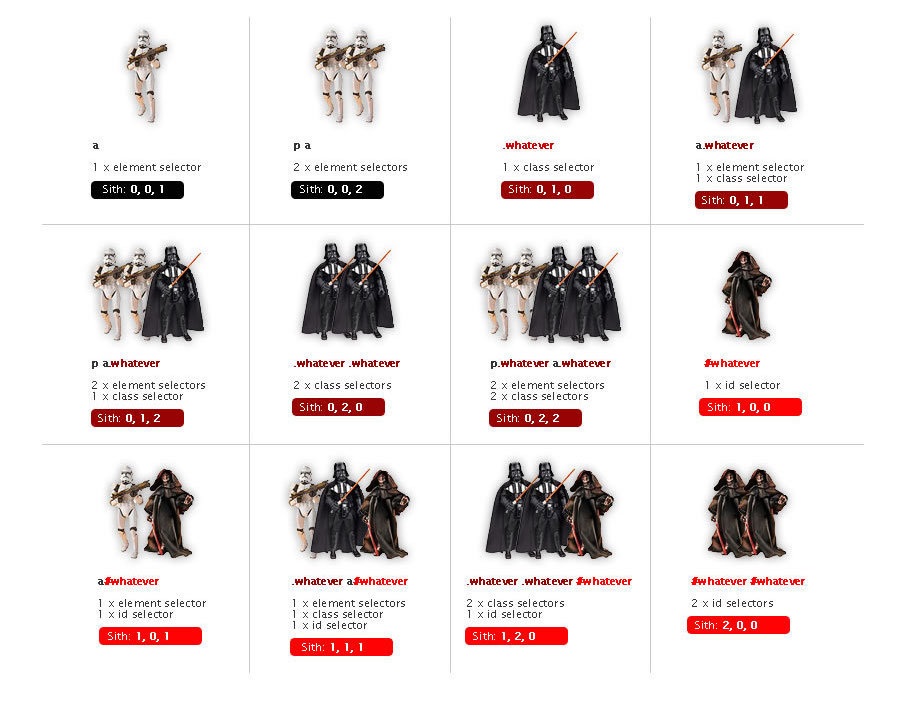
If two rules apply, the more specific rule wins.
How to pick a selector
Some heuristics
- Main rule: be as general as you can, but as specific as you need to be
- "Will this rule apply to all elements of this type?" if not, add a meaningful class to the element
- Are the elements in this part of the page different from others? Use a descendant selector
- Do you want to "call out" an element with style? Add a class
- Rules usually don't have more than 2-3 selectors
- Primarily use class names for styling, not id attributes
- You never need to add more specificity to an id selector
CSS Class Names
There are only two hard problems in computer science: cache invalidation and naming things - Phil Karlton
CSS Class Names
Goals when naming classes (or anything):
-
Understandability: explain what kind of styling is being applied
-
Modifiability: make it easier to change styling later
Semantic Class Names
Name CSS classes based on the semantic meaning (purpose) of the element they are styling.
<div class="forum-post">...</div>

<nav class="side-nav">...</div>

<img class="avatar-icon">...</div>

<article class="breaking-news">...</article>/* can use descendant selectors for more detail */
.forum-post img { ... }
.side-nav ul a { ... }Modular Class Names
Name CSS classes based on the (single) styling they apply. Combine multiple classes to style elements.
<div class="font-large text-red bg-secondary">...</div>

<img class="small rounded shadow">...</div>
.font-large {
font-size: 2em;
line-height: 1.4em;
}
.bg-secondary { background: #bbb; }
img.small { width: 140px; }
.rounded { border-radius: 50%; }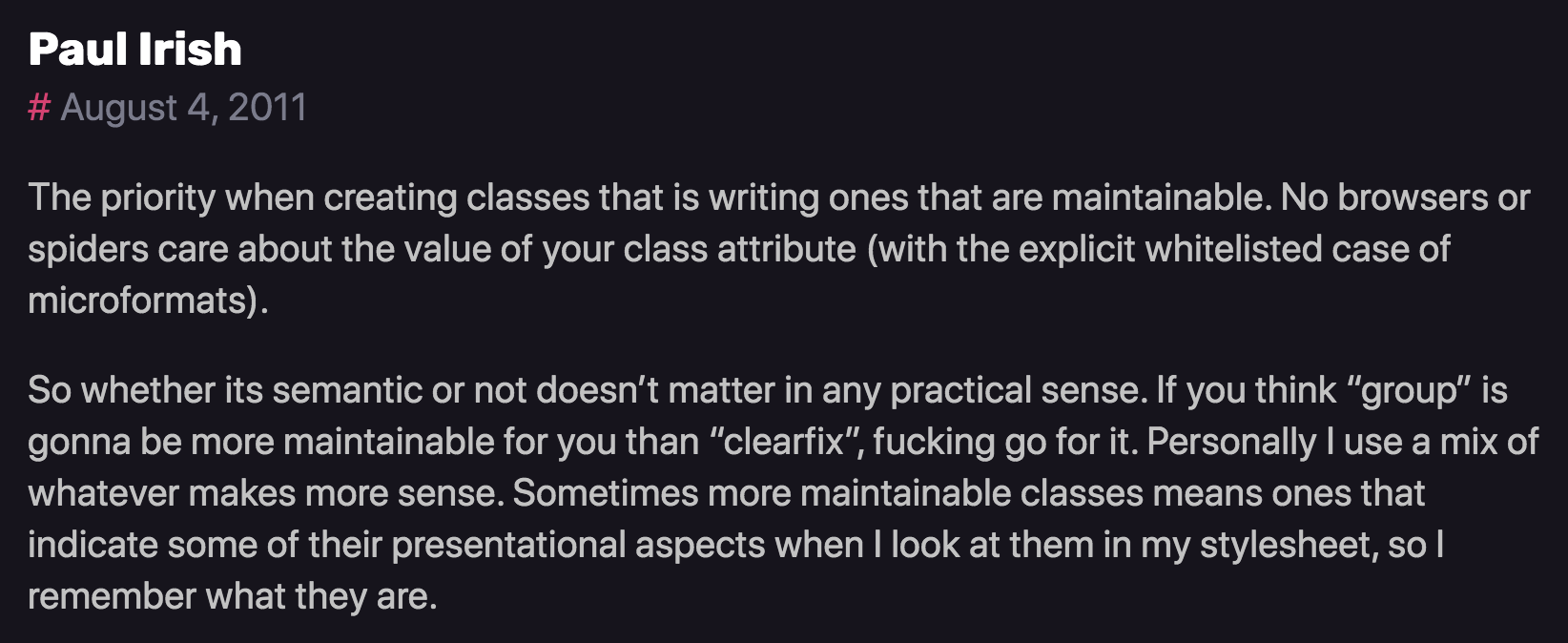
A Naming Schema: BEM
<div class="block__element--modifier"><form class="form form--theme-xmas form--simple">
<input class="form__input" type="text">
<input
class="form__submit form__submit--disabled"
type="submit" />
</form>The "part" of the page
navbar
An element in that block
tab
Flags or types; differentiators
selected
<div class="navbar">
  <div class="navbar__tab">A tab</div>
  <div class="navbar__tab--selected">Selected Tab</div>
</div>Option B
Clone a Repo
We'll try working within this particular repo (which should have correct access set)
Getting Started with AI
There are lots of different AI systems, models, and agents that can be used for software development. We're going to start with CoPilot because it's easy to enable in VS Code and we can get started for free.
Remember to turn off the AI features when working on problem sets!
Generating Code with AI
We're going to practice generating a website using this tool: a personal portfolio site!
- What kinds of details would you want to include in your prompt?
- "Use standard HTML and CSS. Do not include any other frameworks."
- "CSS code should be in a separate file from HTML"
- "Do not include any JavaScript; the site should not have any interactivity yet."
Write down your prompt in a PROMPT.md file before executing it (documentation)!
Generating Code with AI
- Use the agent to generate your portfolio.
- Share what you got!
- Anything you're not happy with in the design? Tell it to update!
- Add addition details to PROMPT.md
- Repeat!
- If you run out of credits... stop!
- What did we produce?
Reading the Code
It wrote us some code. Let's understand what it produced!
- How did it organize rules?
- What selectors did it use to style elements?
- How many different types can you find?
- How many different types can you find?
- What kinds of properties do you see?
- Anything you can't guess at the meaning of?
- More on this tomorrow!
Reading the Code
It wrote us some code. Let's understand what it produced!
- Pick one "section" of the site. Using the developer tools, identify all of the rules used to style that portion.
- What elements are selected? How are rules combined?
Action Items!
-
Work on task list for Week 3
-
Problem Set 03 due Friday
-
Project Proposal due Friday
-
- Pre-read Chapter 7 for Wed
Lab: finalizing groups, discuss work styles & project
Next time: More CSS (properties); optimizing generated code
Fonts
Fonts are installed "per computer", so not every computer has the same fonts (which is why you set a default with font-family).
Fonts are installed "per computer", so not every computer has the same fonts (which is why you set a default with font-family).
p {
  font-family: 'Helvetica', 'Arial', sans-serif;
}
Use this font
If first isn't available,
use this
If nothing else,
use this style of font-face
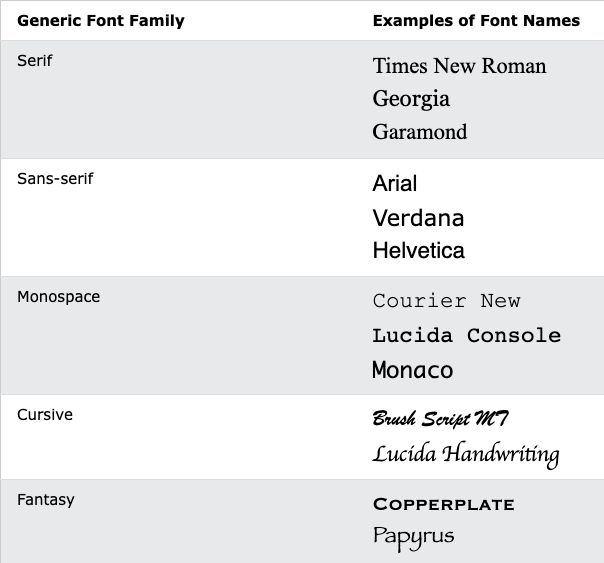
Generic Fonts
All fonts are categories in 1 of 5 different "categories", each of which has a generic style.
Serif vs. Sans-Serif
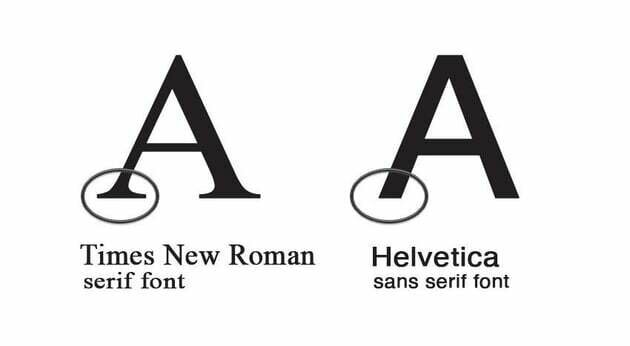
Research (roughly) suggests that sans-serif fonts are easier to read on screens, as well as more accessible for users with e.g., dyslexia.
Font Units
All browsers have a "default" font size--generally 16px. We use relative font sizing in case of variations.
Note that units are "measurement units" (think: inches)
| em | relative to the parent font size | By default 2em = 32px But if the parent's font-size was 20px, then 2em = 40px |
| rem | relative to the root (body's) font size of 16px | 2rem = 32px usually |
| % | relative to parent font size or dimension, can use for width or height | if parent width is 300px, then 50% = 150px |
| px | absolute measurement (do not use for fonts) | 16px = 16px |
It is also possible to specify an online font that the browser will download and display.
Fonts
Fonts are installed "per computer", so not every computer has the same fonts (which is why you set a default with font-family).
Fonts are installed "per computer", so not every computer has the same fonts (which is why you set a default with font-family).
p {
  font-family: 'Helvetica', 'Arial', sans-serif;
}
Use this font
If first isn't available,
use this
If nothing else,
use this style of font-face
Box Model
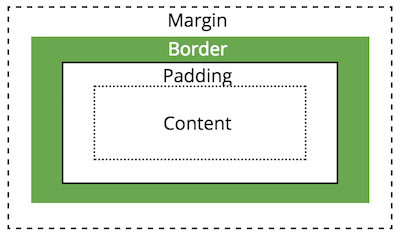
All HTML elements take up space on a page based on their "box size". You can manipulate the box model to change the size and appearance of the element
Display Property
You can customize whether an element is displayed as a block or inline element using the display property.
Choose elements based on their semantics, not their appearance!
/* <li> elements will be inline (an inline list!) */
li {
  display: inline;
}
display: inline-block
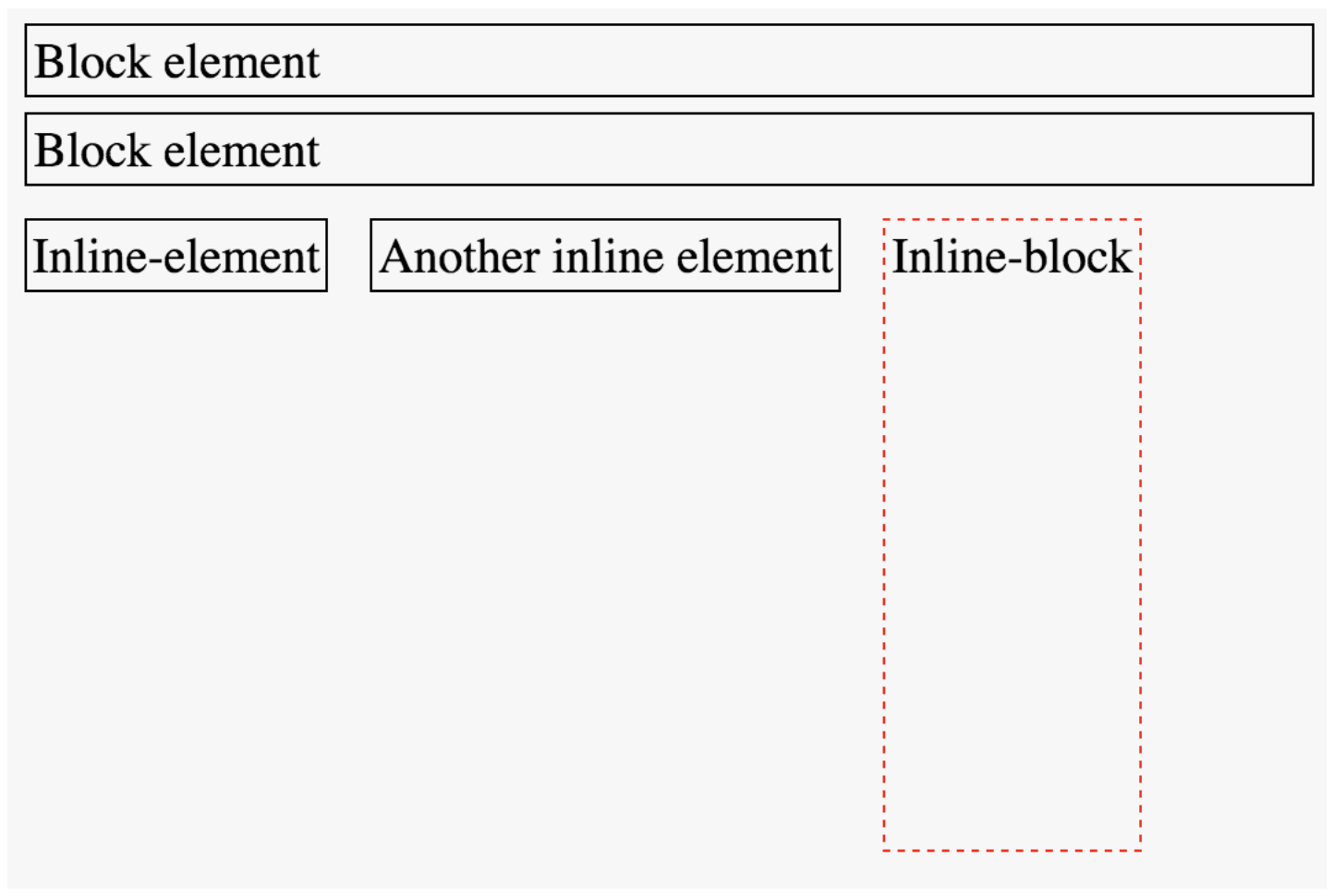
You cannot set the width or height of an inline element, but you can adjust the size of an inline-block element.
Position
You can use the position property to adjust where an element appears on the page from its normal layout. You will also need to set position adjustment values top, left, bottom, and/or right
/* position element 20px up and to the right
 * of where it "normally" would be */
img.badge {
  position: relative;
  top: 20px;
  right: 20px;
}
LIMIT USE OF THE
position AND float
PROPERTIES!
Flexbox
A flexbox is an element that allows you to flexibly customize the layout of its children.
An element is made into a flexbox by giving it the display: flex CSS property.
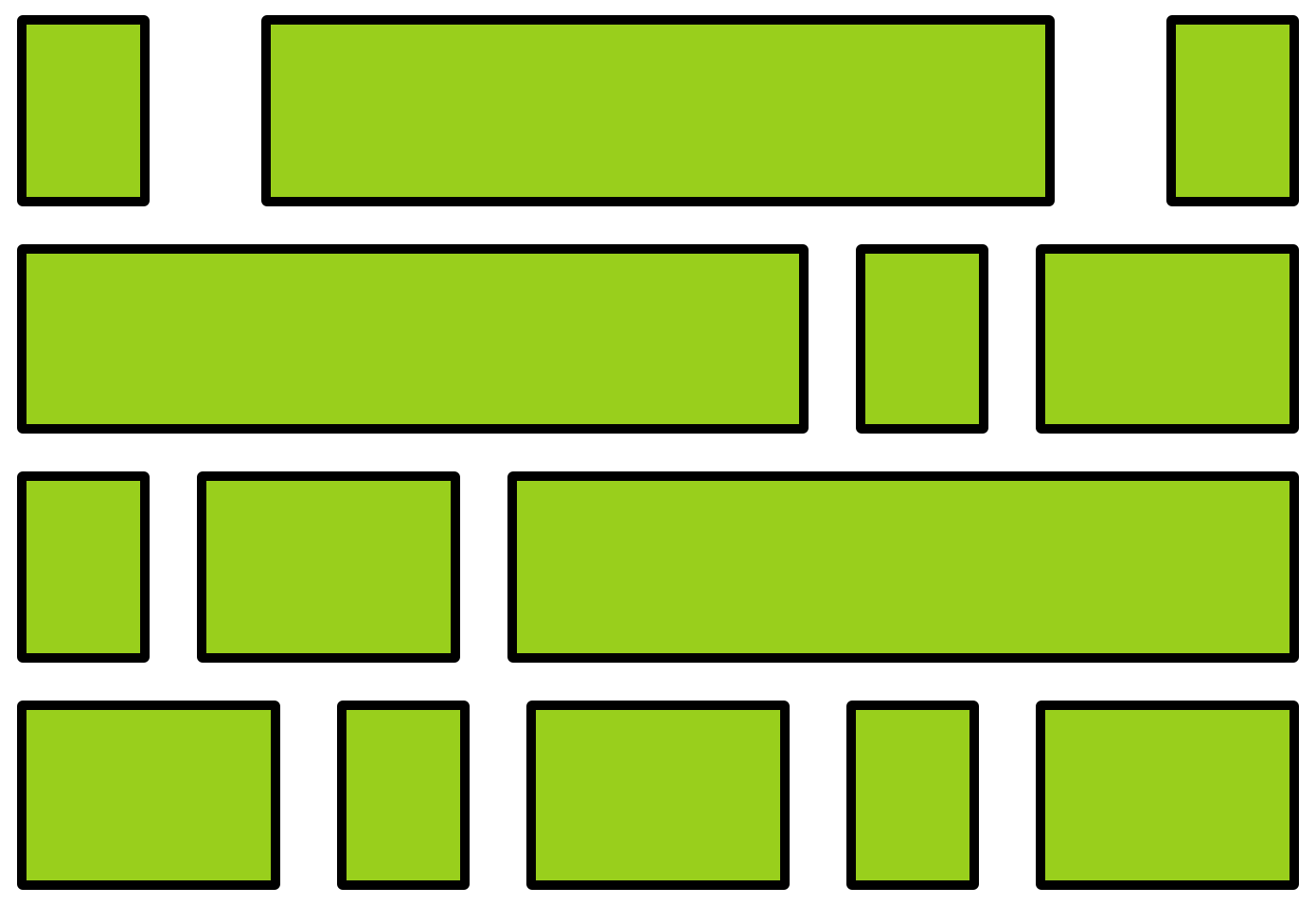
flexbox
child elements
Flexbox Properties
Customize the layout of the flexbox's children by given the flexbox additional CSS properties. For example:
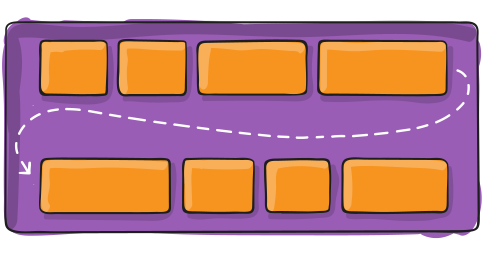
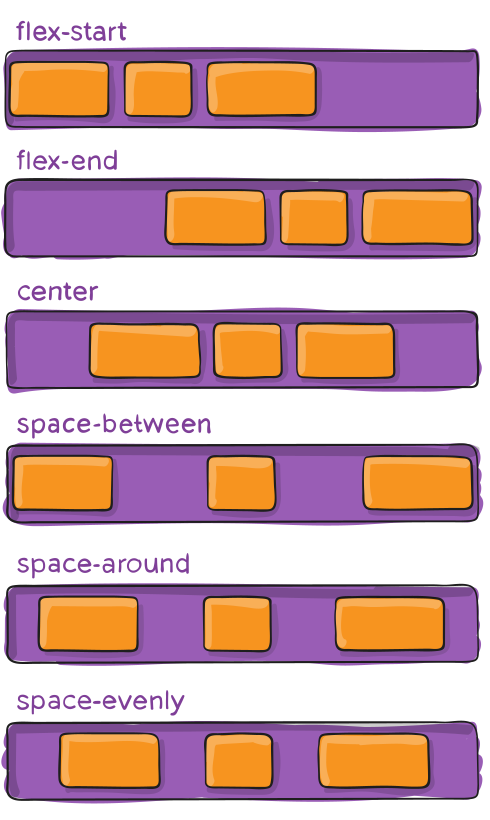
flex-wrap
justify-content
Child Properties
You can also customize the children of the flexbox (the elements that are inside the box) by giving them additional CSS properties. For example:
flex-grow
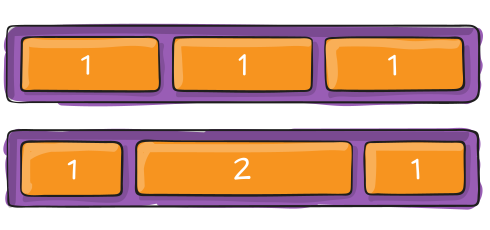
Flexbox vs. Children
Don't get the flexbox (sometimes called the flex container) mixed up with the child elements (sometimes called the flex items) that are inside of it!
- The flexbox specifies how its children are positioned.
- The child elements specify how much space they should take up.
Nesting Flexboxes
A flexbox can contain other flexboxes inside of it!
That is: a child of a flexbox can itself be a flexbox (specifying how its children are positioned).
But a flexbox only influences its children, not its grandchildren! A flexbox lays out its child boxes; what happens inside those boxes is their own business.
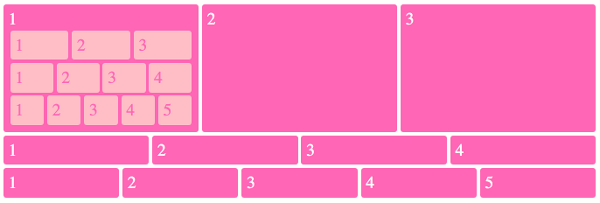
Using Flexboxes
Flexboxes are great solutions for:
- Centering block elements (use justify-content)
- Creating "columns" for a page"
- Making an element fill a space larger than its content (use flex-grow)
- ... and more!
Flexboxes are not great solutions for:
- Having block elements stack on top of each other (just use normal elements!)
- Adding specific spacing between elements (use margin/padding)
- ... doing anything else that the browser does by default!
info340au26a-css-i
By Joel Ross