Chromebooks for Teachers.
Training Agenda
- Why Chromebooks
- Training Schedule
- Logging in
- Username/Password Formulas
- Wifi/Bluetooth
- Chromebook Management Console
Purpose: Explore Chromebooks and learn basic troubleshooting skills to support students
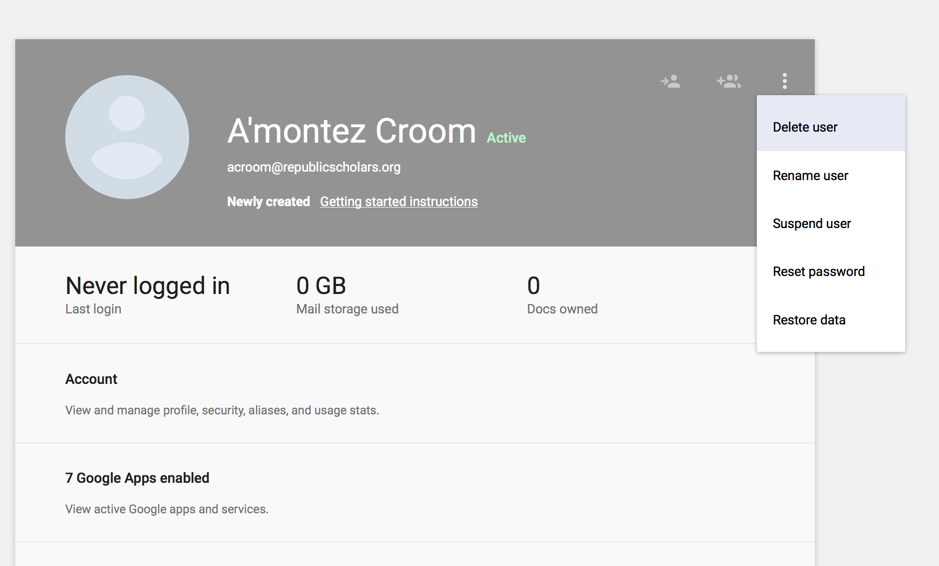
- Removing Users
- Access Drive from OS
- Google Drive Basics
- Google Drive in-depth
- End of Class Routine
- Questions
Why Chromebooks
Chromebooks are highly versatile tools that create a more effective learning environment for both teachers and students
- Fast boot and long-lasting battery life
- Browser-based, not full-functioning OS- all programs are web-based
- Minimal internal storage
- Simple and intuitive management console
- Both teachers and staff can access student accounts to edit or manage access of websites and information
- Price point allows for 1:1 rollout
Training Schedule
HS Back to School Night (led by Operations):
-
- Date:
- Topics: Basic Skills, Expectations, Care and Protection, Usage Agreement, Incidents
-
In-Class Training:
- Introductory training with advisory found here
-
Training throughout year reinforcing above topics and in-depth skill-building
- Intuitive training within all classes along with targeted training during CS course
Logging In
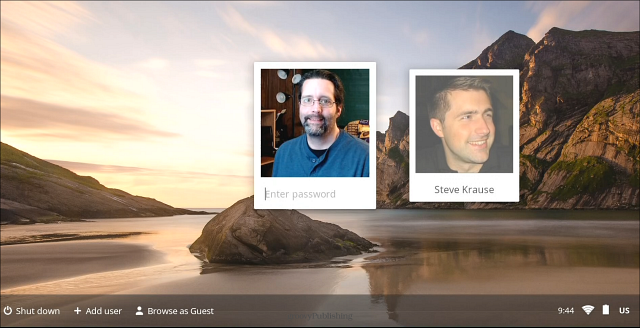
Each user will login to Chromebooks with their individual RePublic Google account (username and password)
- Click Add user on the lower-left corner of the screen.
- Enter your RePublic Account email address and password.
- Choose a picture. You can update your picture after you've signed in.
ACTION: Login to your Chromebook. Note any differences you see on the physical device and on the home screen once logged in (~2 minutes)
Usernames and Passwords
Username:
-
First initial + Last name (Marco Alamo = MAlamo) + email domain
- MAlamo@republicscholars.org
Same first initial/last name combinations shared in campus OneDrive
-
Include incremental increase by 1 at the end
- Jaylen and Jordan Brown would be Jbrown@ and JBrown1@ respectively)
Default Password: Password1234
Student passwords must be changed to match ReThink:
-
Upper case last name first initial, lower case last name second initial, and state ID student number
- Jaylen Brown’s password: Br190######
Connecting to Wifi/Bluetooth
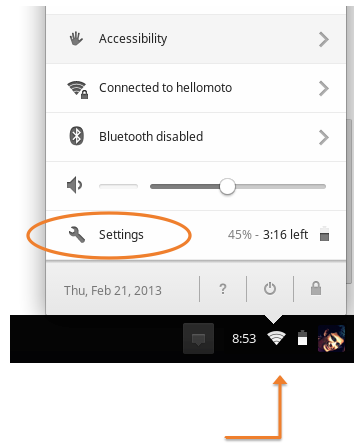
- Access Wifi and Bluetooth settings by right-clicking on the Ash Tray in the bottom right corner
- Select applicable bluetooth connection or wifi network
- Other options: Accessibility (spoken feedback, magnifier, etc), Volume, Settings page to search further
ACTIONS:
- Locate your ash tray and select the appropriate wireless network.
- Open Settings window and note three settings options (~4 minutes)
Management Console
WHAT WILL TEACHERS SEE/HAVE ACCESS TO?
Add users
Edit users
Removing Users
- On the sign-in screen, click the account you want to remove
- Click the downward arrow icon in the upper-right corner of the account picture
- Select "Remove this user"
Removing an account deletes it from the Chromebook but does not delete the Google Account or any data and settings synced with the account.
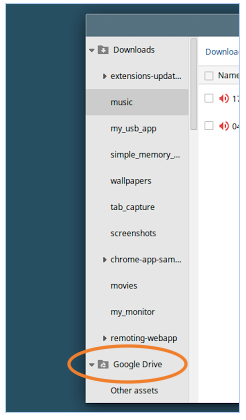
Google Drive via OS
- Open Files via folder icon or keyboard shortcut ALT + SHIFT + M
- Google Drive folder will appear along with Downloads
- All files and folders in your Google Drive account will appear here
- Files may be dragged from Downloads to Google Drive
- Folders may be added/edited from here
- Drive may be accessed regardless of device
ACTION: Open Files and select your Google Drive folder. Select one file to open and add today's date to the document (~3 minutes)
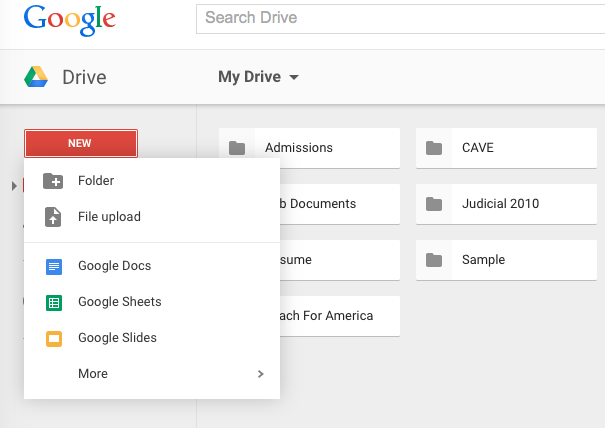
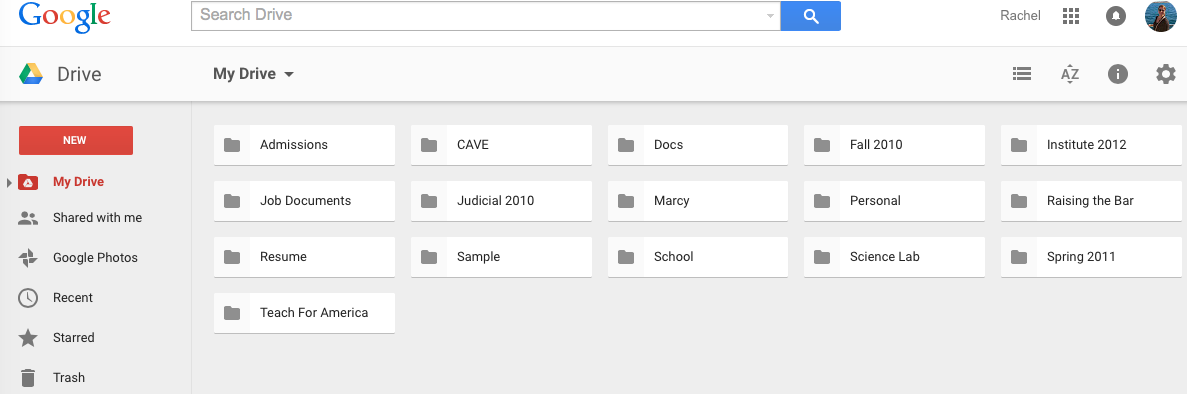
- Primary system for scholars to manage and save work
- Create and edit documents, presentations and sheets all online
- Work is automatically saved to Drive and can be accessed by logging in on any device
- Create folders for each class to better organize files
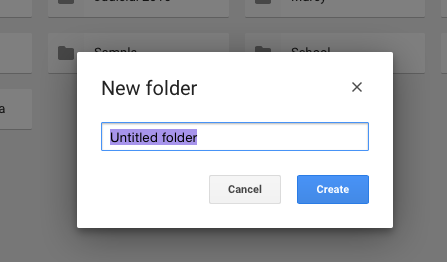
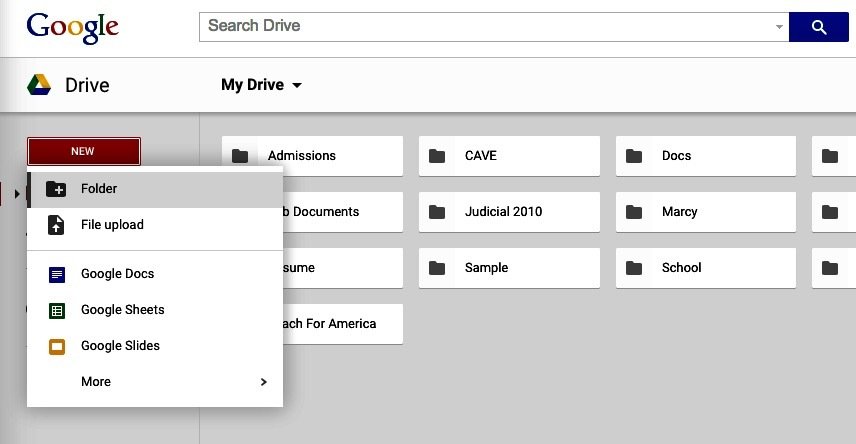
- ACTION: Open Google Drive from App Launcher and create a folder for your Advisory class
Google Drive Basics
Google Drive
Shared Folders/Files:
-
Create folders for each class and share specific docs and folders with students
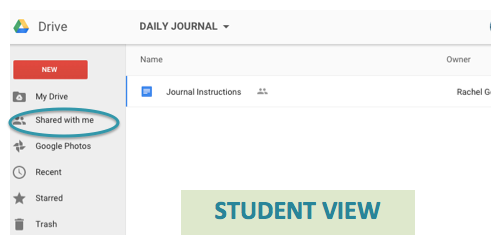
- Only documents/folders shared will be visible to students under "Shared with Me" section
- Students can upload to shared Drive folders or simply view an assignment
What can I do? So many great things!
Drive: Option One
Daily Journal
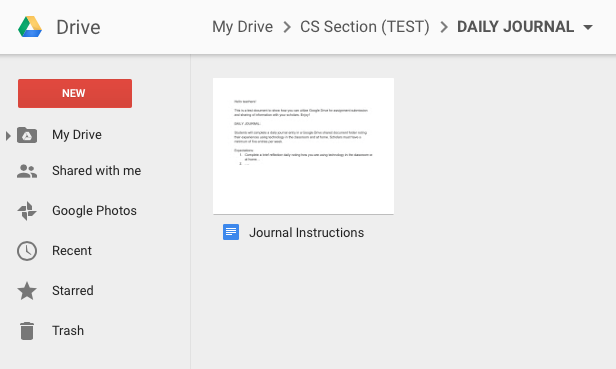
- Create folder for Daily Journal with your instructions document within class folder
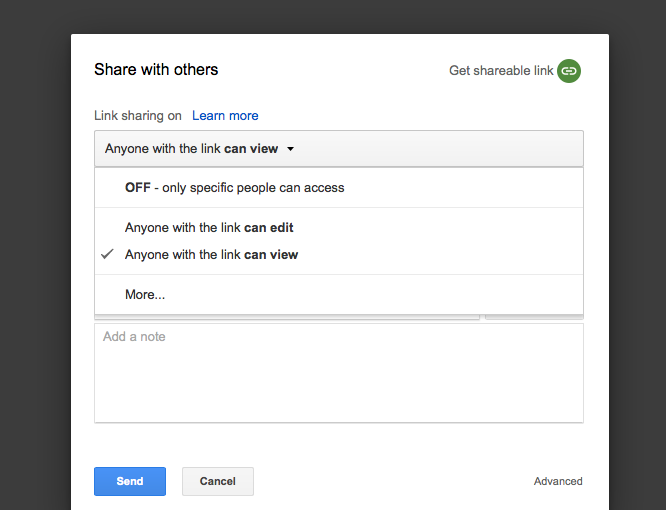
- Share folder with students and set to "can edit" so they may upload (this will not allow them to edit instructions doc or others' work)
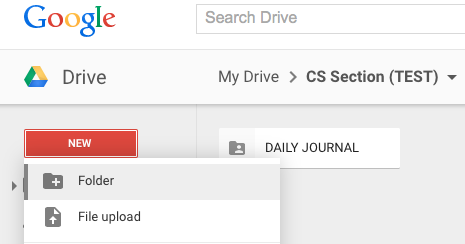
- Direct students to open their Drive and ensure folder is accessible (see Student View photo below)
- Students will upload their specific document to folder which can then be viewed by you
- For comments on docs to be made, student must set file share to "can edit"
Drive: Option Two
Class Survey
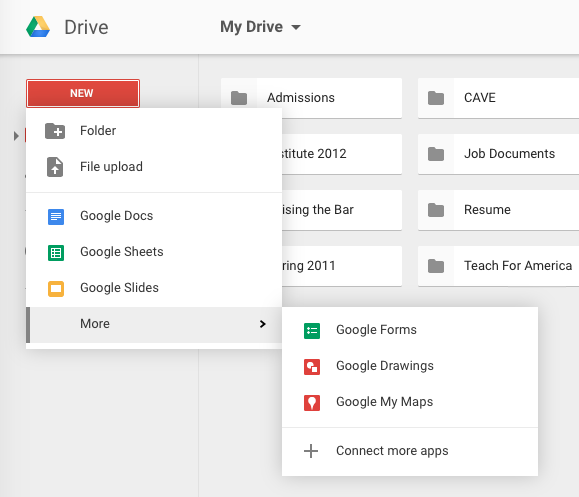
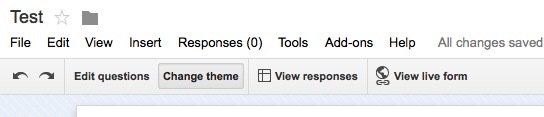
- Create class survey or sign-up for events within Drive
- Select New > More > Google forms
- A new tab will open allowing you to select various options of form style, question/response type
- Change Theme, View Responses and Live form are all available for previewing
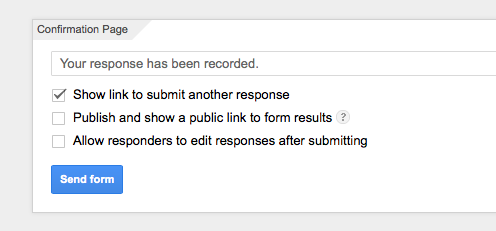
- Review confirmation settings to direct scholars to additional steps or information
- You will see both the survey and response form in your Drive (Students can complete via shared link)
End of Class
Steps all scholars should take as they exit a class after using Chromebooks.
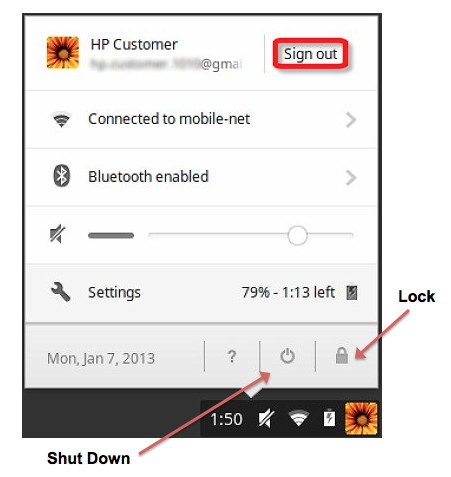
- Complete document edits and bookmark any tabs needed for later
- Lock device and close if expected to use within 3-5 hours
- Shut down device if not being used for more than 5 hours (overnight, etc)
- Place Chromebook inside case for safe transport (all students must have)
ACTION: Sign out of this device and shut down (~1 minute)
Questions?
Chromebooks for Teachers.
By rgoossen
Chromebooks for Teachers.
To be used for teacher training. Breakdown of usage, settings, troubleshooting and more.