Chromebooks for High School Scholars.
Training Agenda
- Why Chromebooks?
- Username/Password
- Logging In
- Settings
- PASSWORD CHANGE?
- Google App launcher
- Google Drive Basics
- Google Drive from OS
- Laptop care
- Daily Expectations
- Going home
- Student work
- Appropriate use
- End of class routine
- Questions
Username and Password
Username:
-
First initial + Last name (Rachel Goossen = RGoossen) + email domain
- RGoossen@republicscholars.org
Same first initial/last name combo?
-
Include incremental increase by 1 at the end
- Rachel and Robert Goossen would be RGoossen@ and RGoossen1@ respectively)
Default Password: Password1234
Logging In
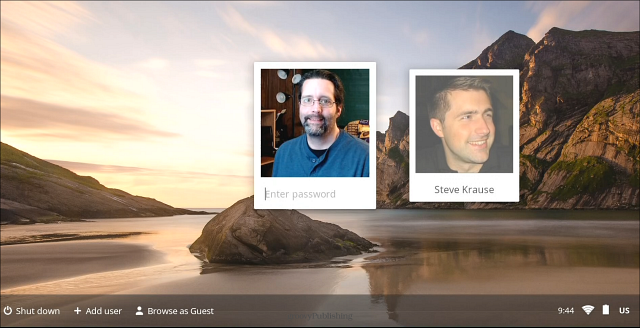
Each user will login to Chromebooks with their individual RePublic Google account (username and password)
- Click Add user on the lower-left corner of the screen.
- Enter your RePublic Account email address and password.
- Choose a picture. You can update your picture after you've signed in.
ACTION:
- Login to your Chromebook.
- Inspect the home screen for any icons that are unfamiliar (~2 minutes)
Settings
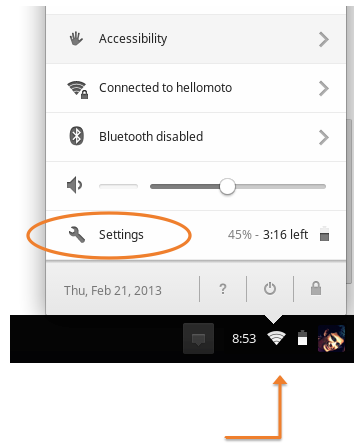
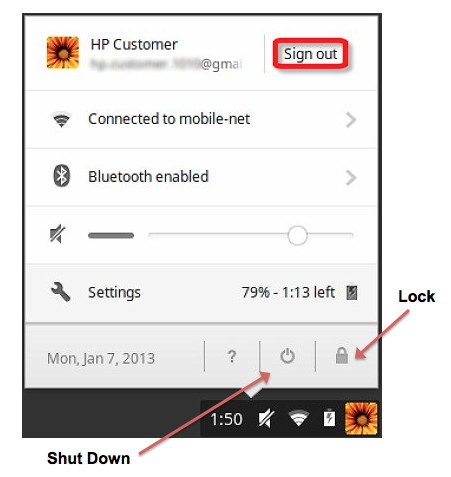
All settings can be accessed from the Ash Tray in the bottom right-corner of the home screen
ACTION:
- Locate your settings and adjust volume to ~25%
- Connect to RePublic wifi network
- Open Settings and note three items you can access
(~5 minutes)
Change Password
ACTION: Change your password to match ReThink:
- Upper case last name first initial, lower case last name second initial, and state ID student number (Go190######)
HOW WILL THEY EDIT PWs? Can you do so from the account settings from the Chromebook home screen? Do you need to open the browser?
Google Apps
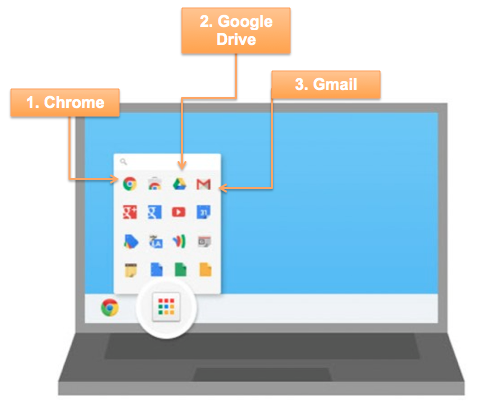
Access all installed applications using the Google App launcher from your home screen
1. Chrome launches web browser
2. Drive opens all student work saved in Google Drive
3. Gmail opens your RePublic email
ACTION:
- Locate the Google App launcher (3x3 grid)
- Open Chrome and Drive
- What other apps are accessible from the launcher?
(~3 minutes)
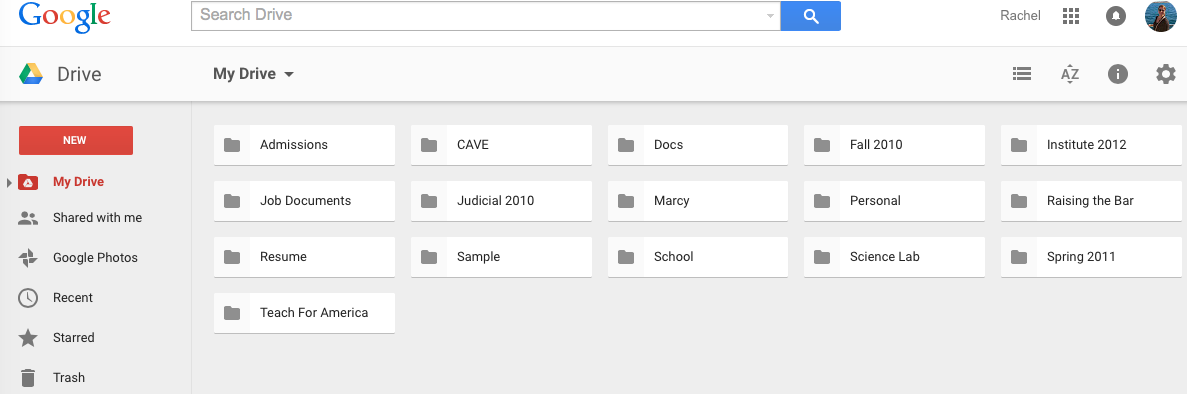
Google Drive Basics
- Primary system to manage and save work
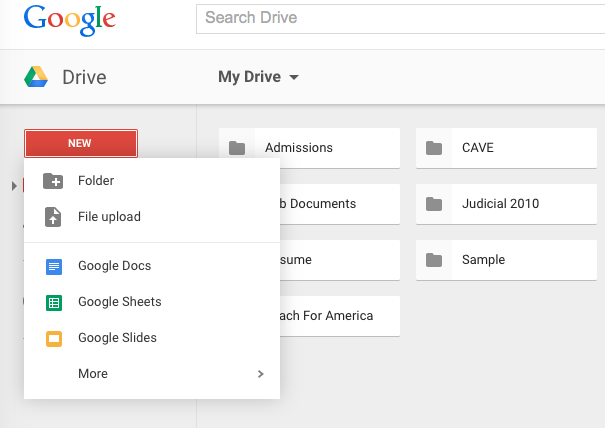
- Create and edit documents, presentations and sheets similar all online
- Work is automatically saved to Drive and can be accessed by logging in on any device
- Create folders for each class to better organize files
- ACTION: Open Google Drive from App Launcher and create a folder for your Advisory class
Google Drive from Homescreen
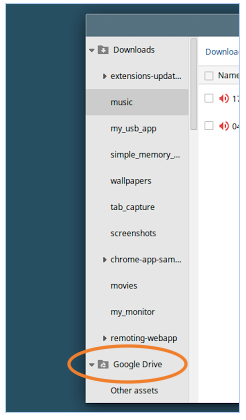
- Open Files via folder icon or keyboard shortcut ALT + SHIFT + M
- Google Drive folder will appear along with Downloads
- All files and folders in your Google Drive account will appear here
- Files may be dragged from Downloads to Google Drive
- Folders may be added/edited from here
- Drive may be accessed regardless of device
ACTION: Open Files and select your Google Drive folder. If you have documents, add today's date to one (~3 minutes)
Proper Care
-
Be careful with your Chromebook
- Carry it only by supporting the base, not by grabbing the screen
- Be aware of your Chromebook even in your bag- don't sit on it, throw it or swing it around
- Never leave your Chromebook unattended- it is valuable!
- Use a proper anti-static screen wipe to clean your screen and keyboard
-
If you notice physical damage to your device, report it to your campus Technology Advisor immediately
- It is better to be safe than sorry- even apparently minor damage can cause major issues
Daily Expectations
- Chromebooks are a mandatory supply to be brought to school everyday
- Chromebooks must be fully charged at start of school
- Food and drinks must be kept separate from Chromebooks
- Chromebooks must be stored in case when not in use
- Chromebooks must remain free of any writing, drawing, stickers, and labels
- Email is to be checked daily and responded to within 24 hours
- Devices are assigned to individual students and should not be loaned to others
Going Home
You may take your Chromebook off-campus after both you and your parent/guardian sign RePublic's Acceptable Use Policy
- Chromebooks should be treated with the same general care and use at home as is expected at school
-
Do not leave your Chromebook unattended in a car or public space
- Theft of a Chromebook will result in serious consequences and possible financial costs
-
Internet use is monitored both on- and off-campus
- Inappropriate or illegal use of internet will result in serious consequences
- Damage due to suspected carelessness or intentional acts will result in consequences and financial responsibility over damages incurred.
Student Work
-
Work will be saved to your individual Google Drive account
- Can be accessed from any device when logged into account
- Save your work regularly throughout edits and changes
- Important documents (final papers, reports, etc) should be backed up to a flashdrive
- RePublic is not responsible for any lost student work
Appropriate Use
- Bullying, threatening or making fun of others online is prohibited
- Chromebooks will be inspected for proper care, maintenance and application use
RePublic Charter Schools staff reserves the right to monitor internet usage and physical condition of Chromebooks at any time. If the internet is used inappropriately, at home or at school, scholars will face severe consequences, including but not limited to suspension or expulsion.
ACTION:
- Review the Acceptable Use Policy carefully
- If any questions arise, ask your advisor to explain further
- With full understanding of the expectations of you as a technology user, sign the AUP document
(~10 minutes)
End of Class
Steps to take as you exit a class after using Chromebooks
- Ensure document edits are saved
- Lock device and close if expected to use within 3-5 hours
- Shut down device if not being used for more than 5 hours (overnight, etc)
- Place Chromebook inside case for safe transport
ACTION:
- Sign out of your device and shut down (~1 minute)
Questions?
Chromebooks for HS Students
By rgoossen
Chromebooks for HS Students
Intro Chromebook training for students taking home devices.