















Content ITV
This is Itvedant Content department
Learning Outcome
5
Validate expected behavior after keyboard actions.
4
Handle keyboard shortcuts and key combinations.
3
Use Playwright’s Keyboard API.
2
Perform typing and key actions.
1
Understand keyboard actions in web automation.
Recall
Locators – Identify web elements
Web Elements – Know inputs, buttons, and dropdowns.
Playwright Actions – Understand click() and fill()
Assertions – Verify expected results.
Java Basics – Know the basic syntax and methods.
Page Object – Understand browser interaction using Page.
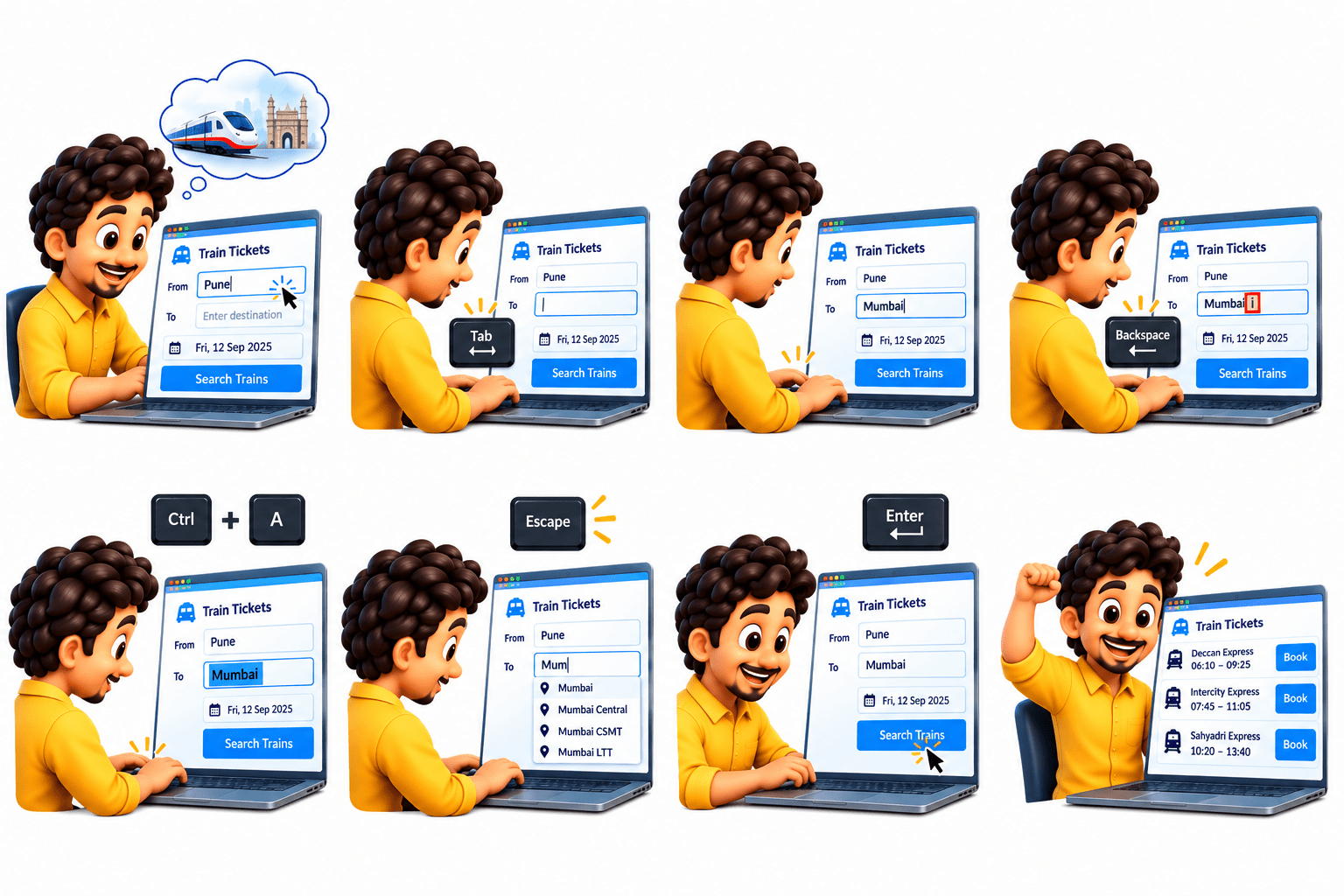
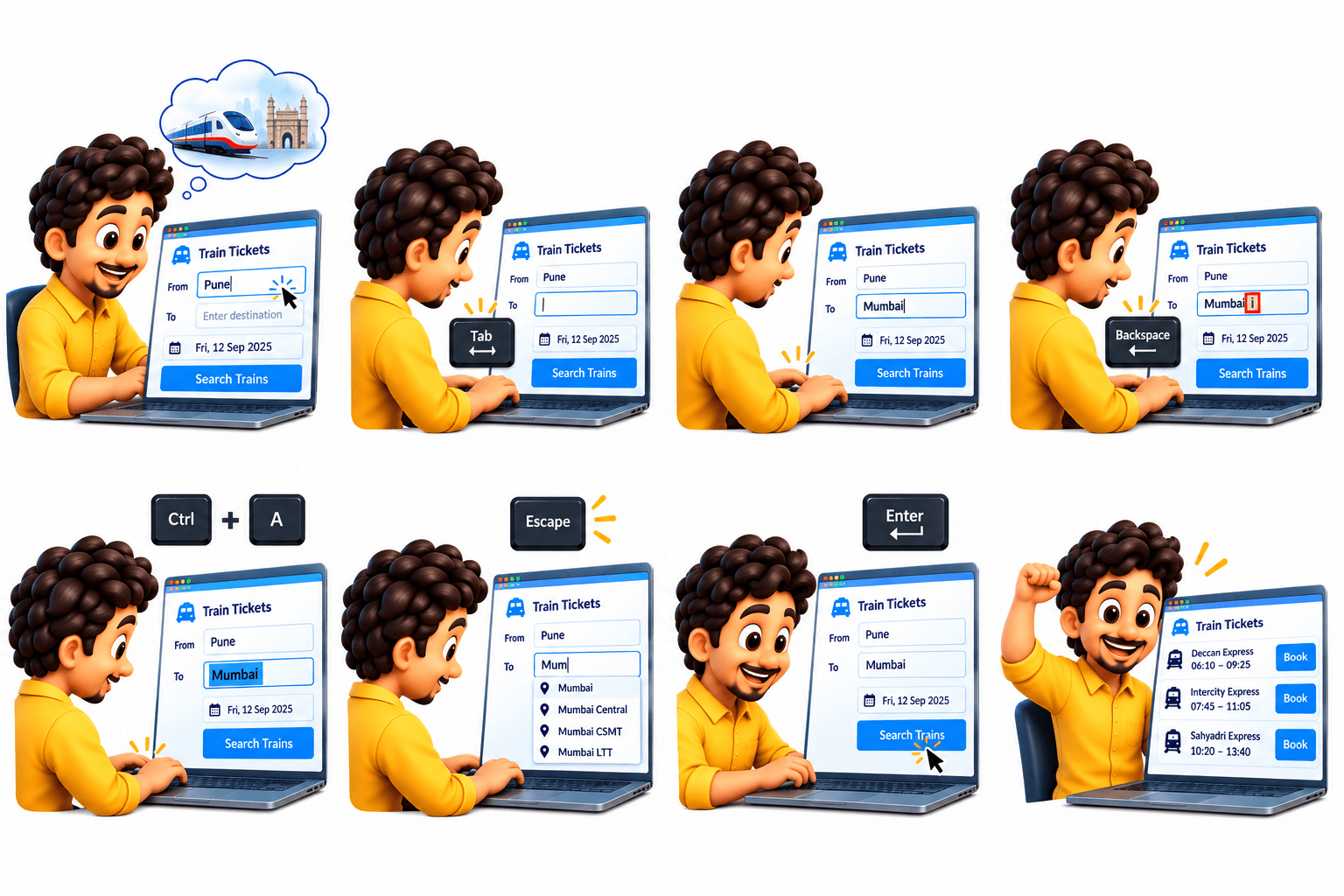
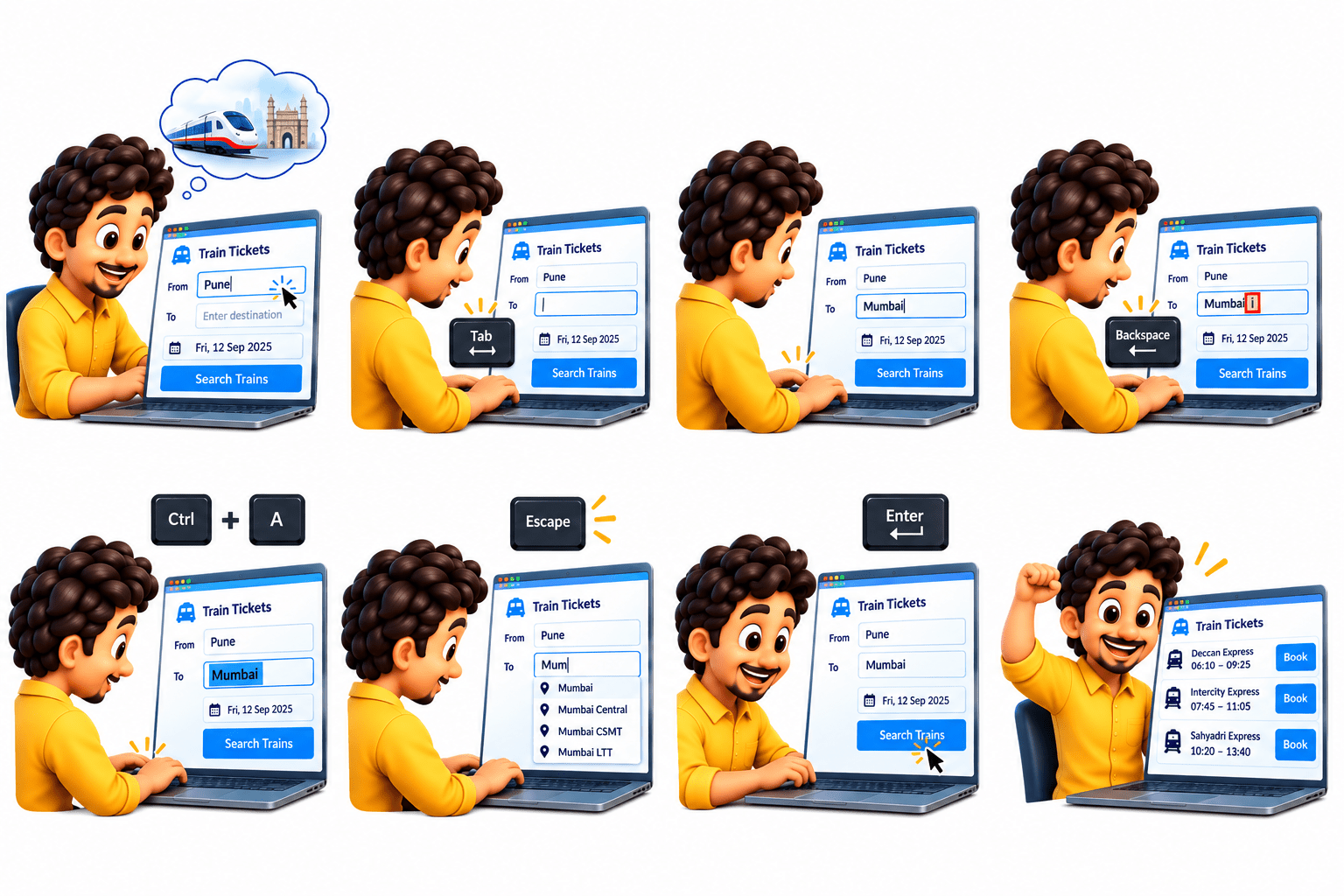
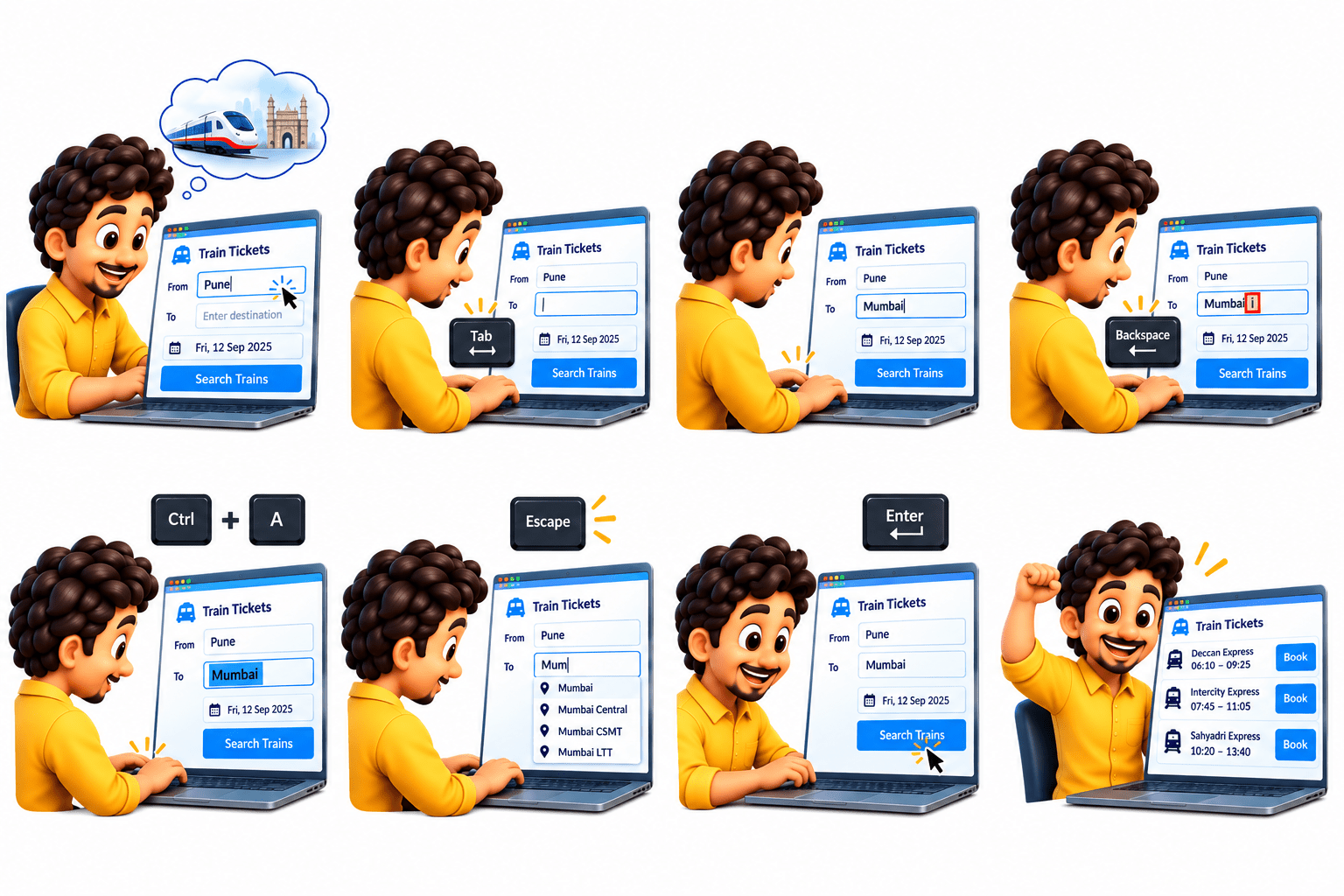
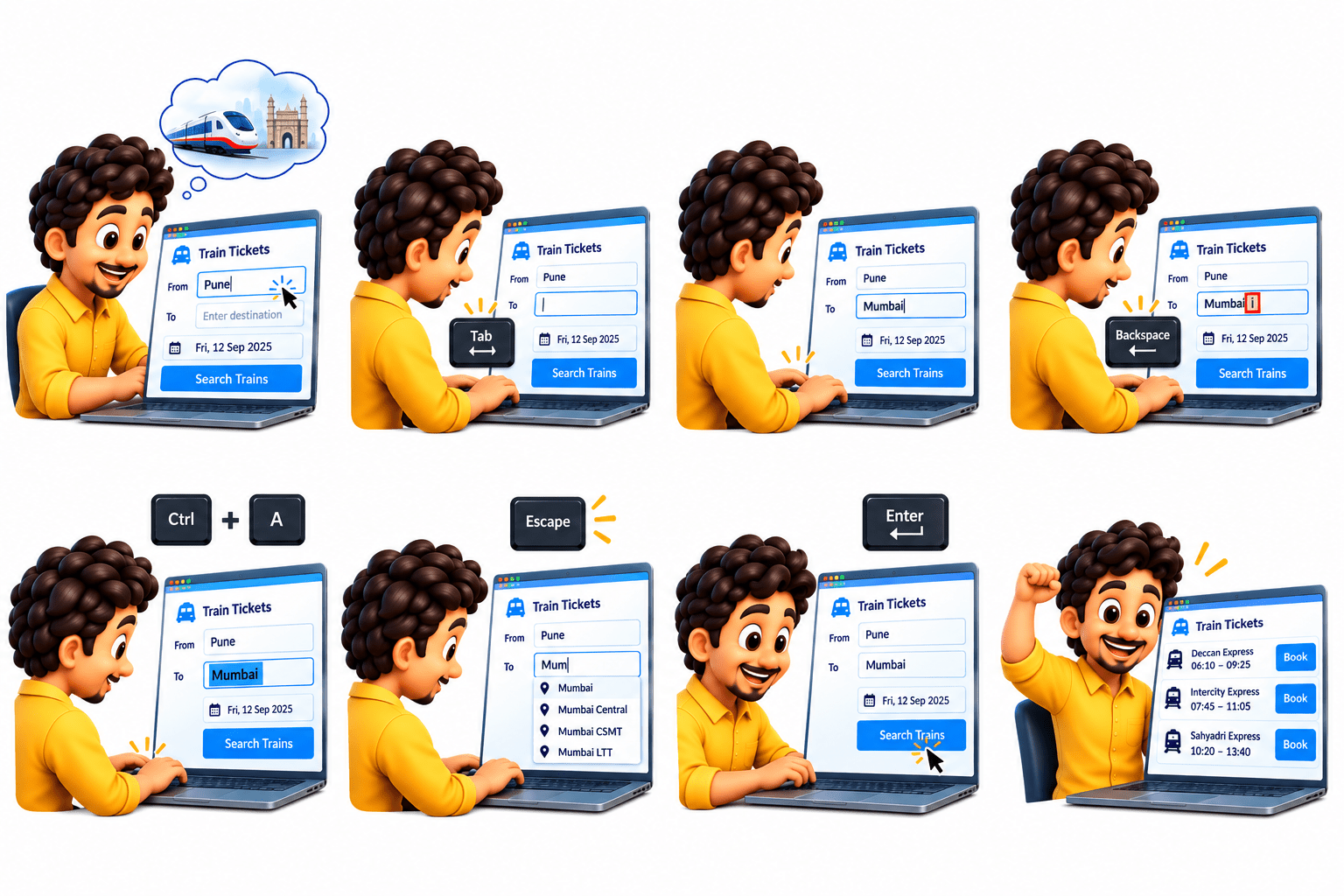
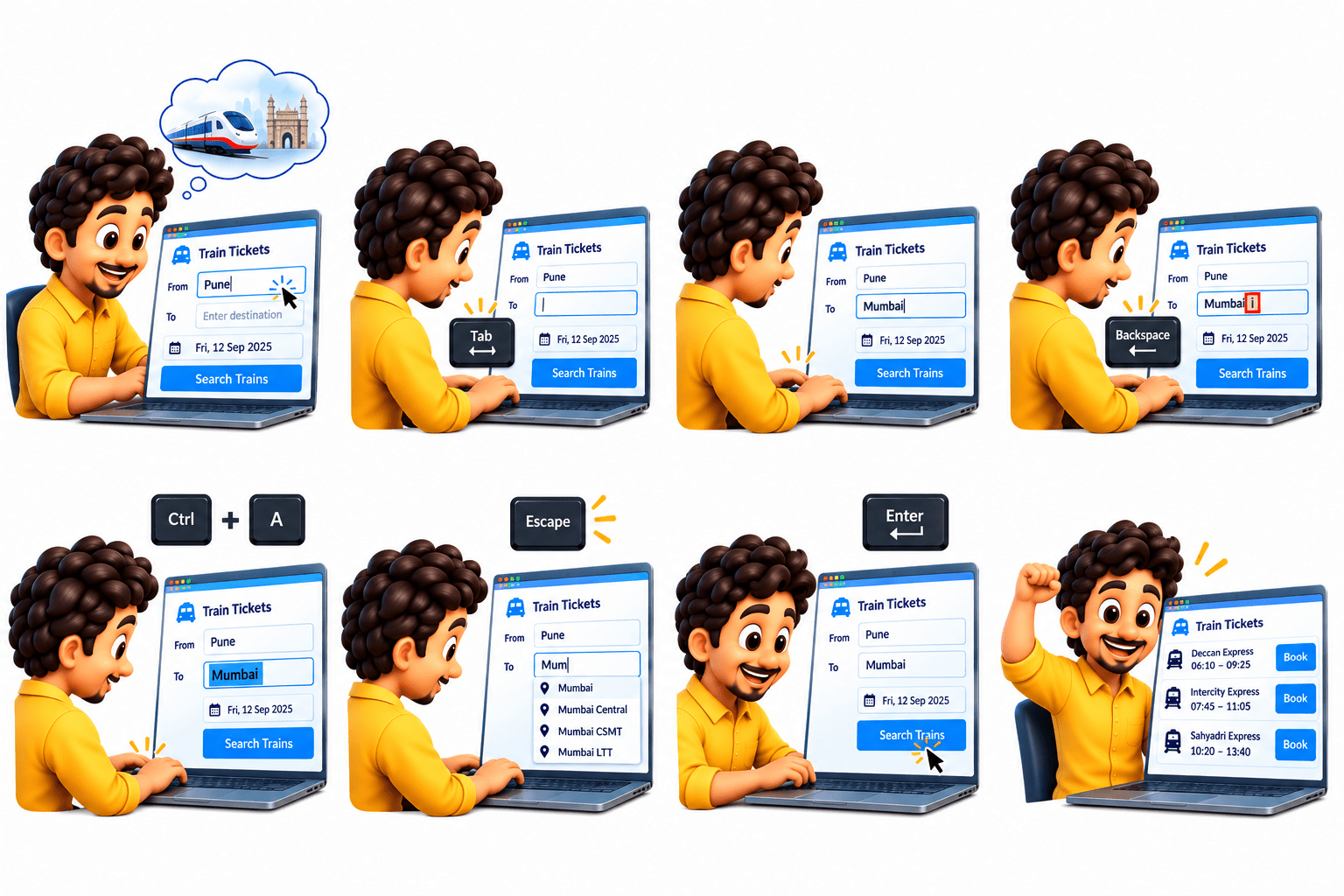
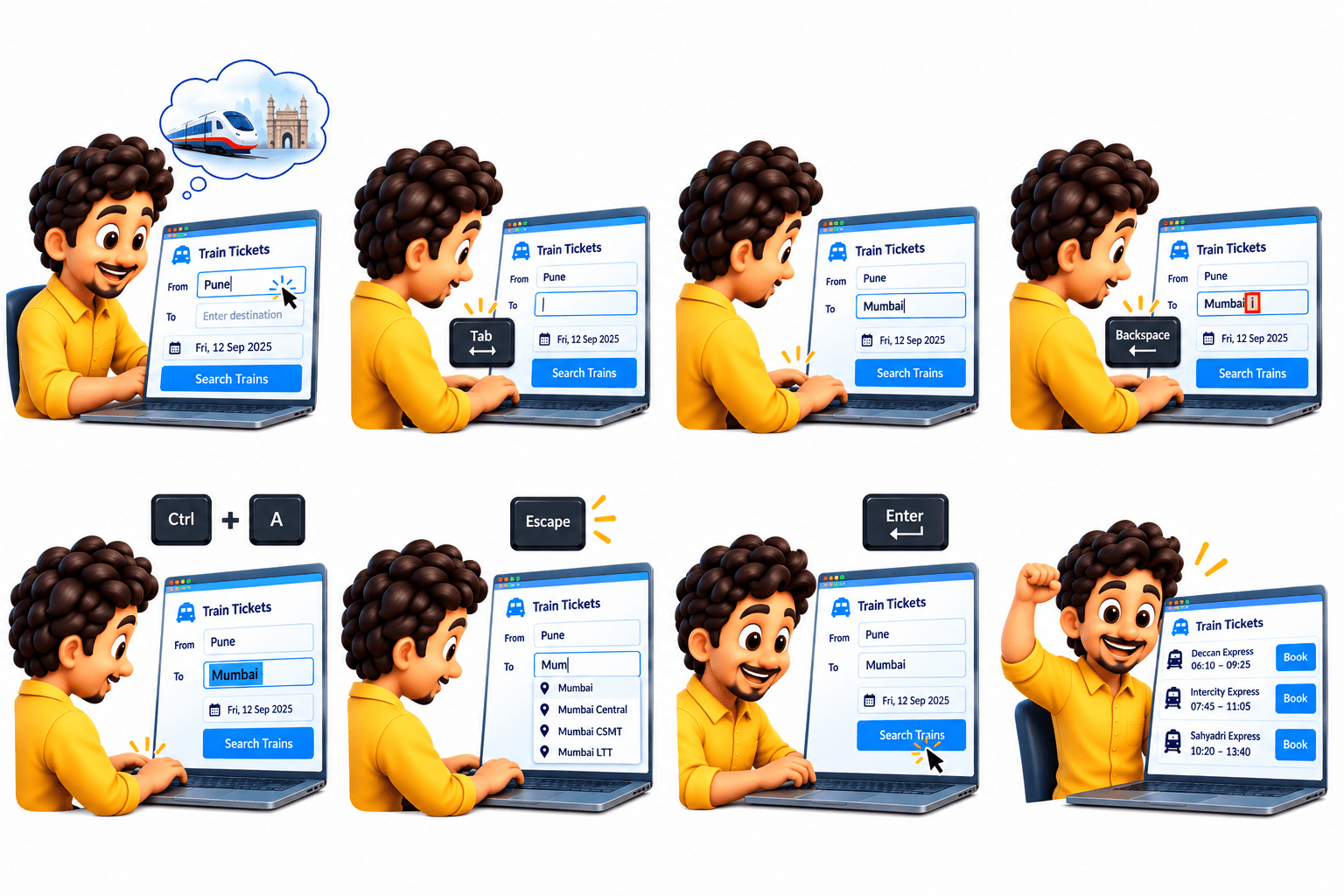
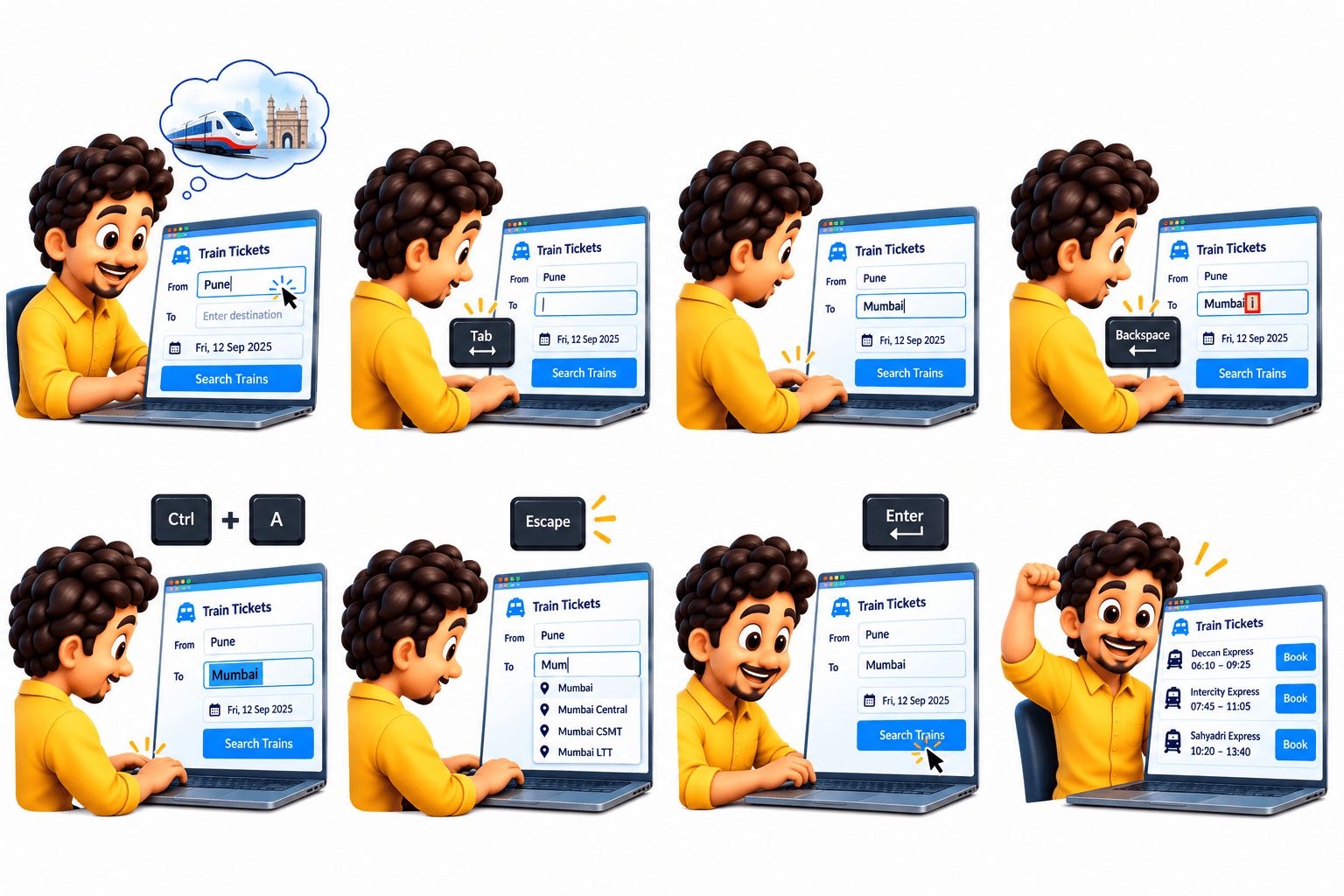
Imagine you are booking a train ticket online:
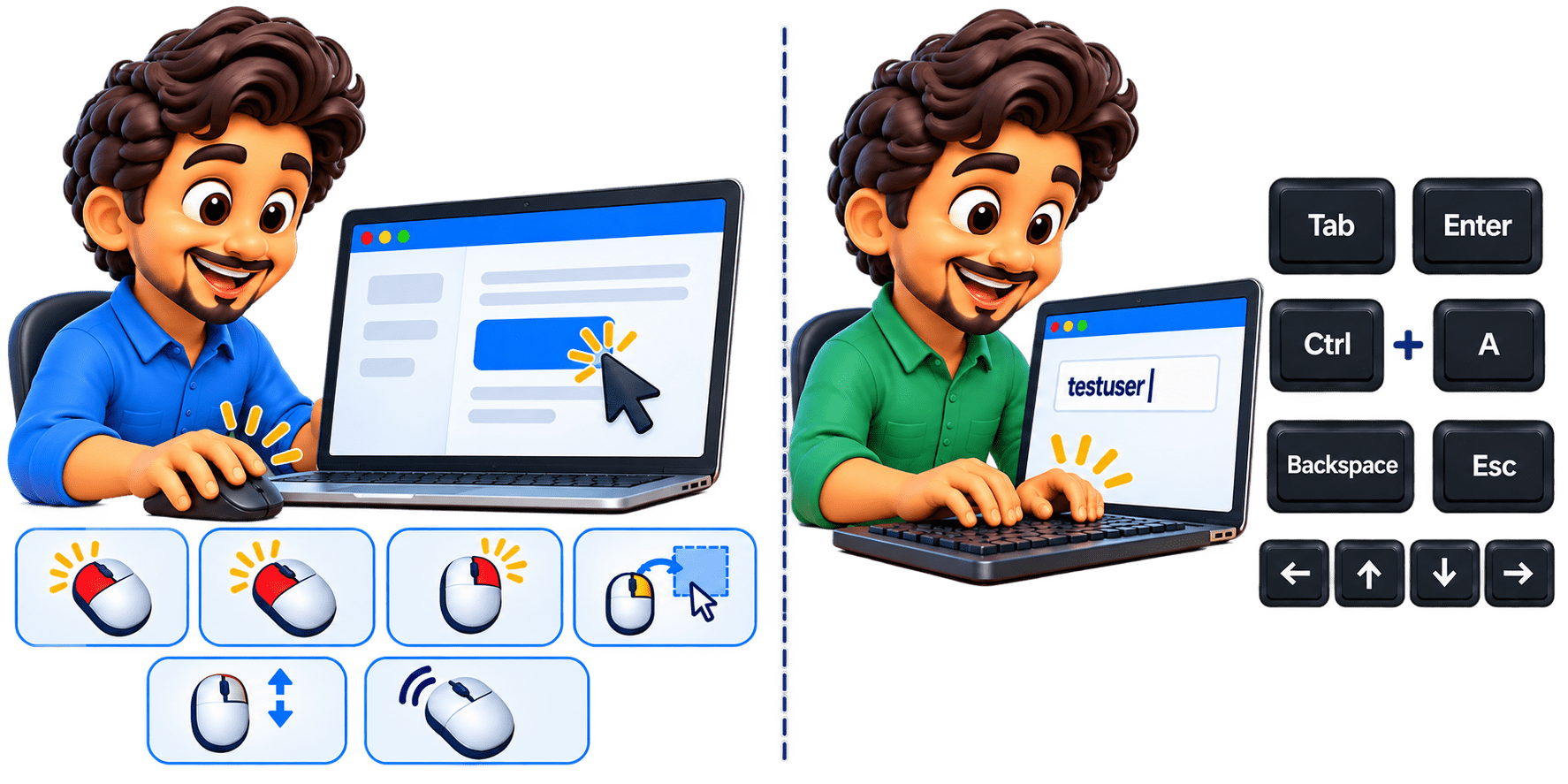
Rahul opens the train booking website and clicks on the From field. He types Pune.
He presses Tab to move to the To field.
He types Mumbai in the To field.
He notices he entered the wrong character, so he uses Backspace to correct it.
He presses Ctrl + A to select all the text in the field.
A suggestion popup appears, so he presses Escape to close it.
Finally, he presses Enter to submit the search.
He successfully finds the trains from Pune to Mumbai!
In Playwright, these real-world keyboard interactions can be automated and tested using keyboard actions, allowing the application to behave as if a real user is operating the keyboard.
Why Keyboard Actions Are Required ?
Keyboard actions are required in automation because many web applications depend on keyboard-based user interactions.
Submit forms using the Enter key.
Navigate between fields using Tab and Shift + Tab.
Enter text into input fields.
Edit or remove text using Backspace and Delete.
Use keyboard shortcuts such as Ctrl+A, Ctrl+C, and Ctrl+V.
Control popups and menus using Escape and Arrow keys.
Test keyboard-dependent functionality without relying only on mouse actions.
Simulate real user behavior for more reliable end-to-end testing.
Keyboard actions help Playwright automate and validate web applications that require typing, navigation, shortcuts, and special-key interactions.
What Are Keyboard Actions ?
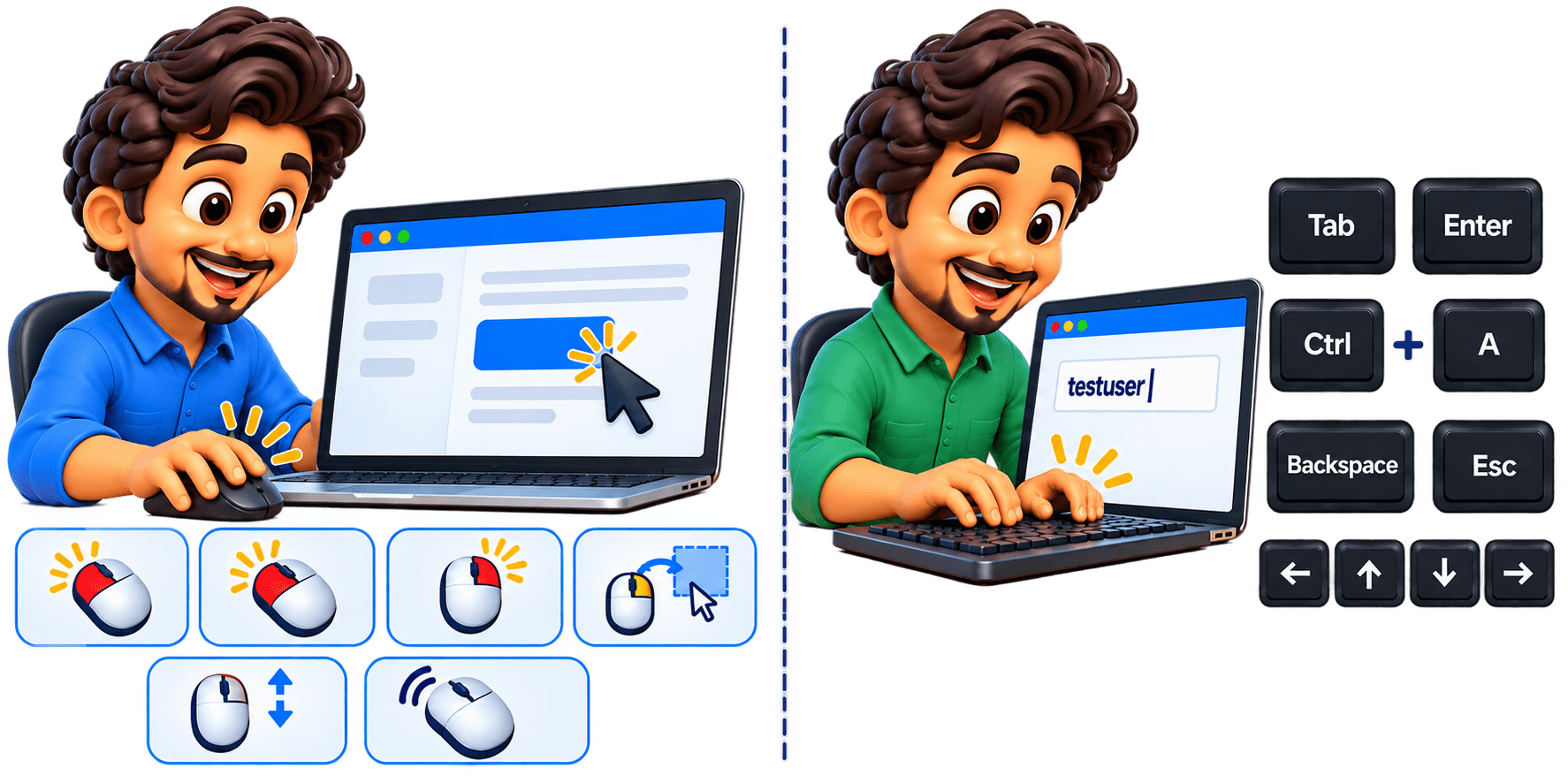
Mouse Actions are the actions performed using a mouse to interact with and control elements in a web application
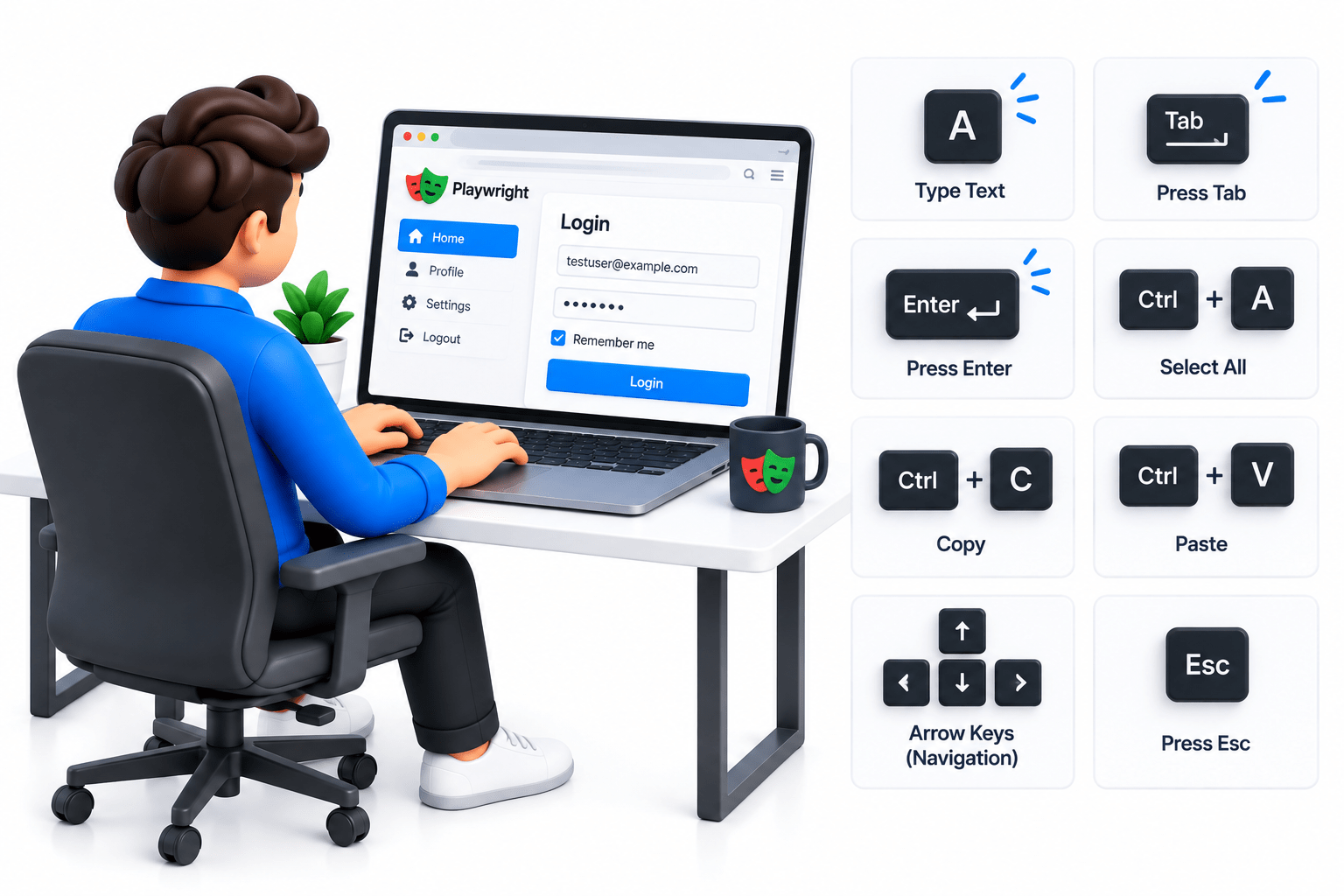
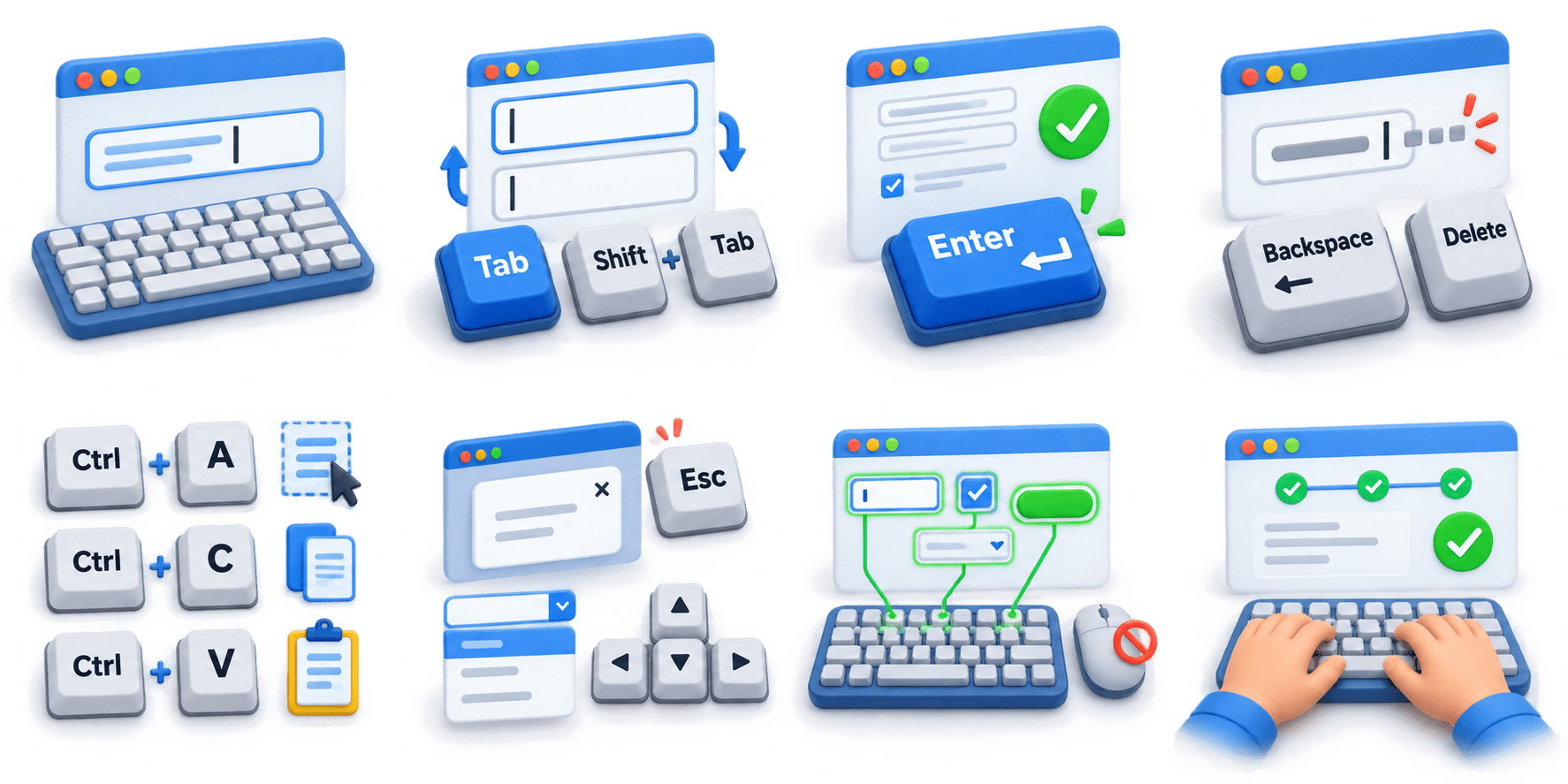
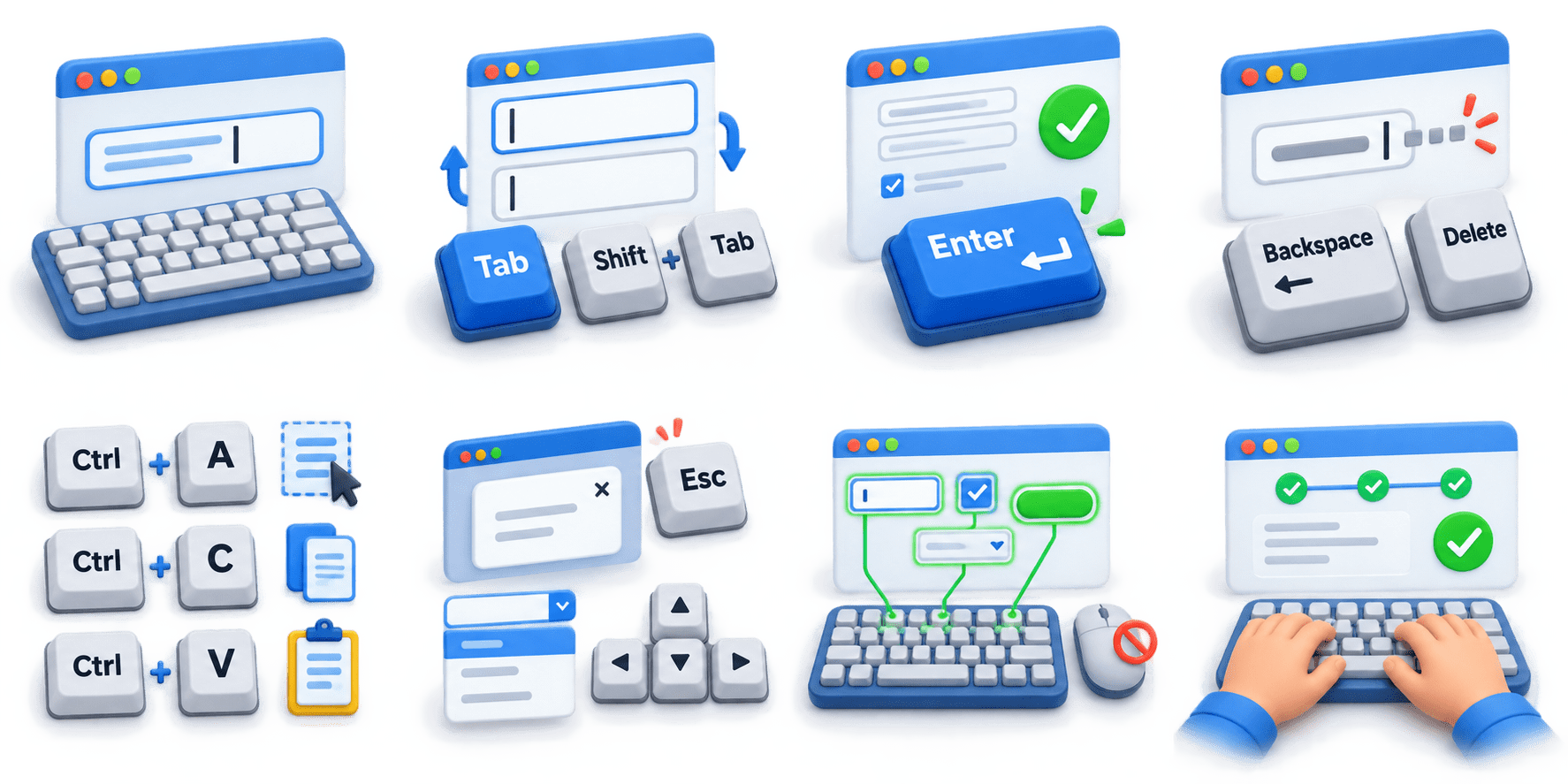
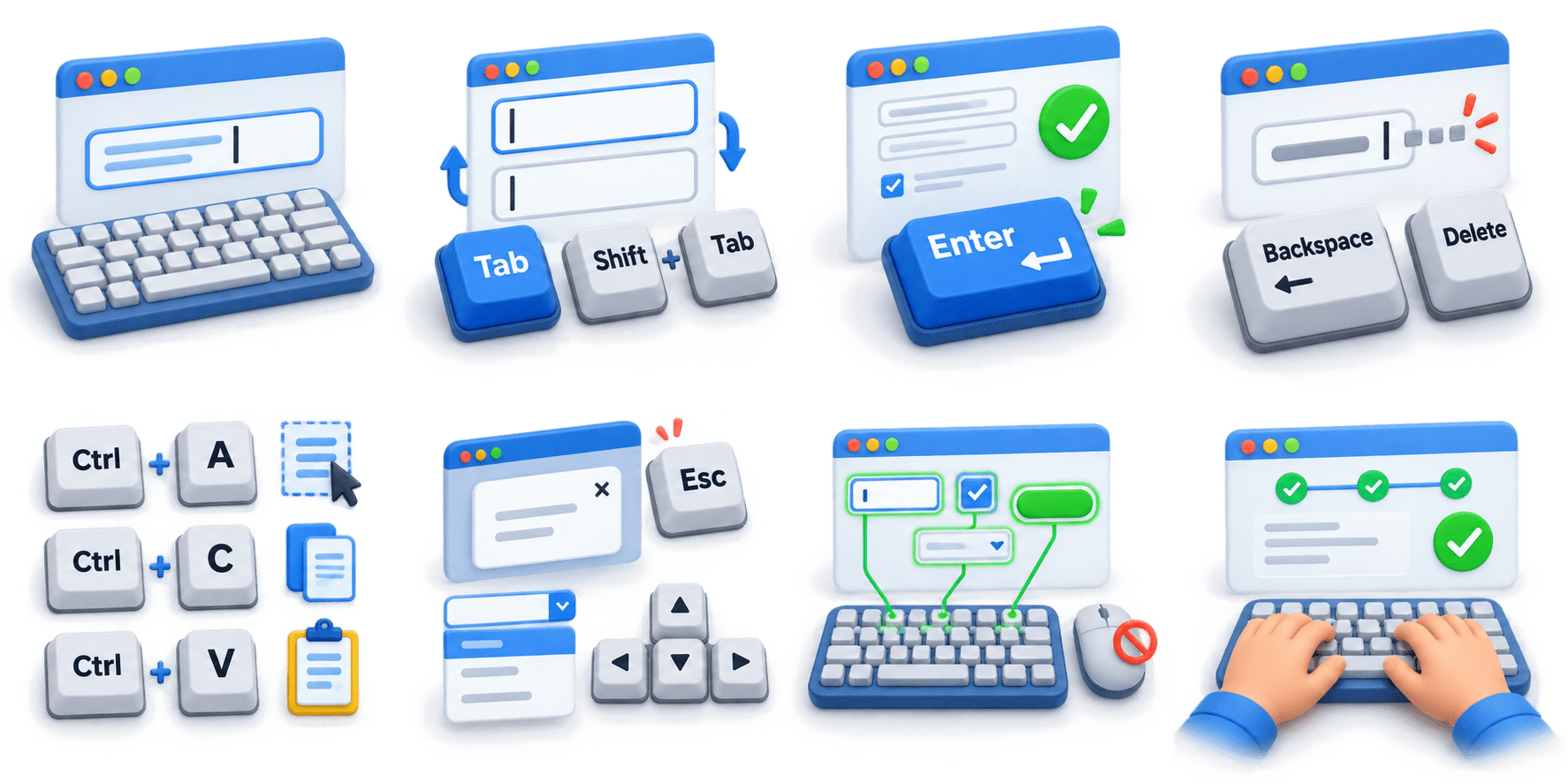
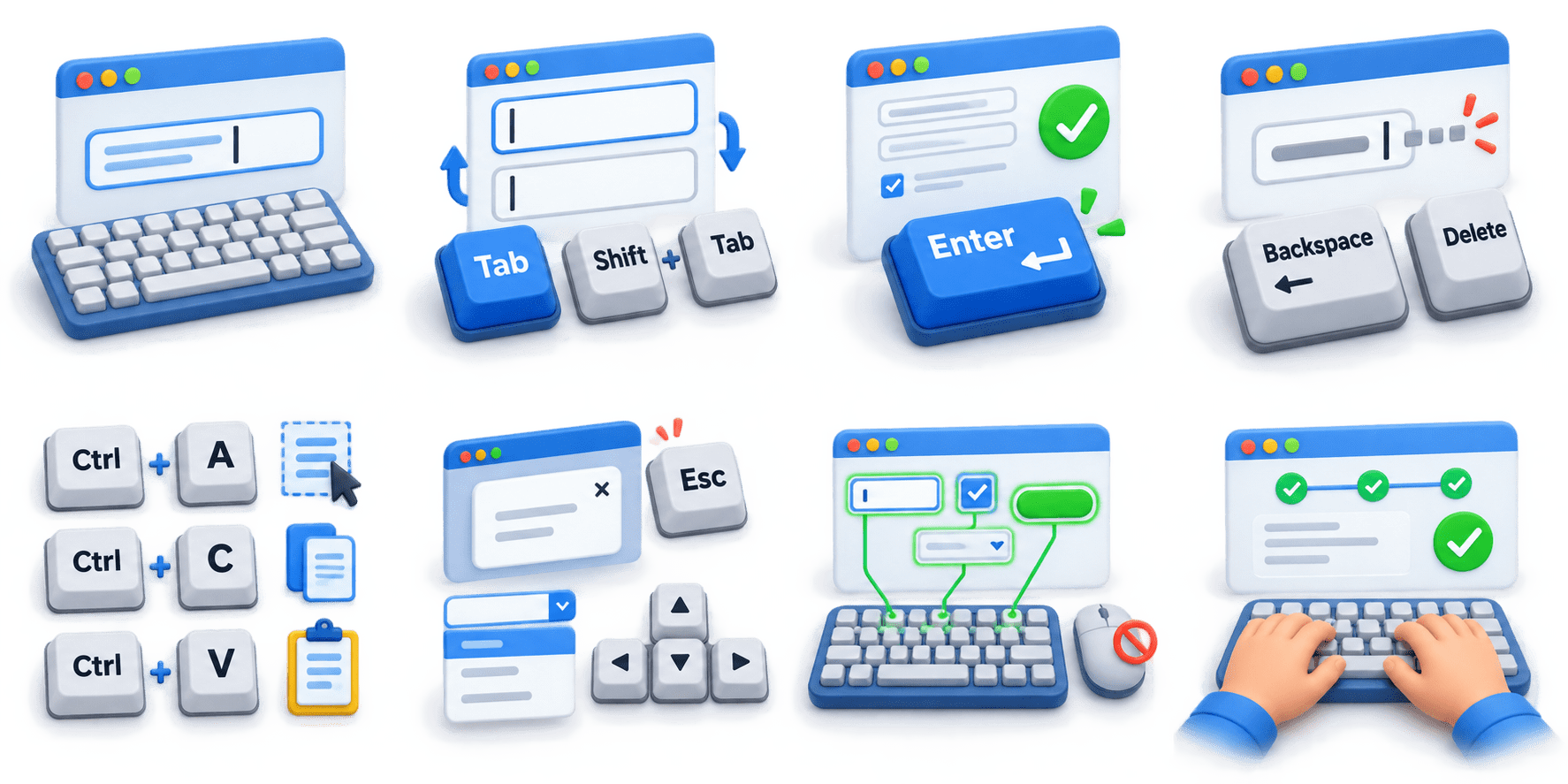
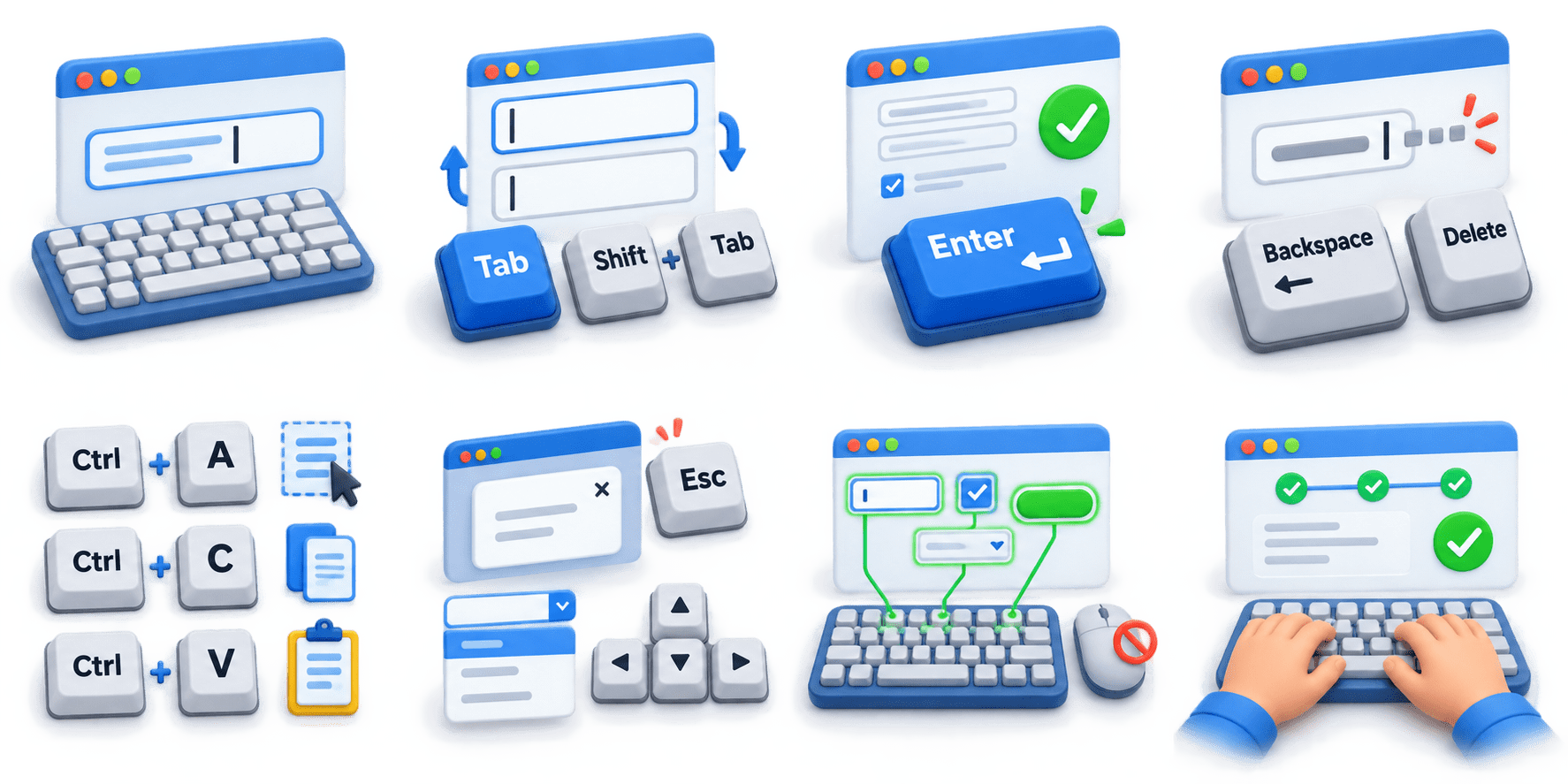
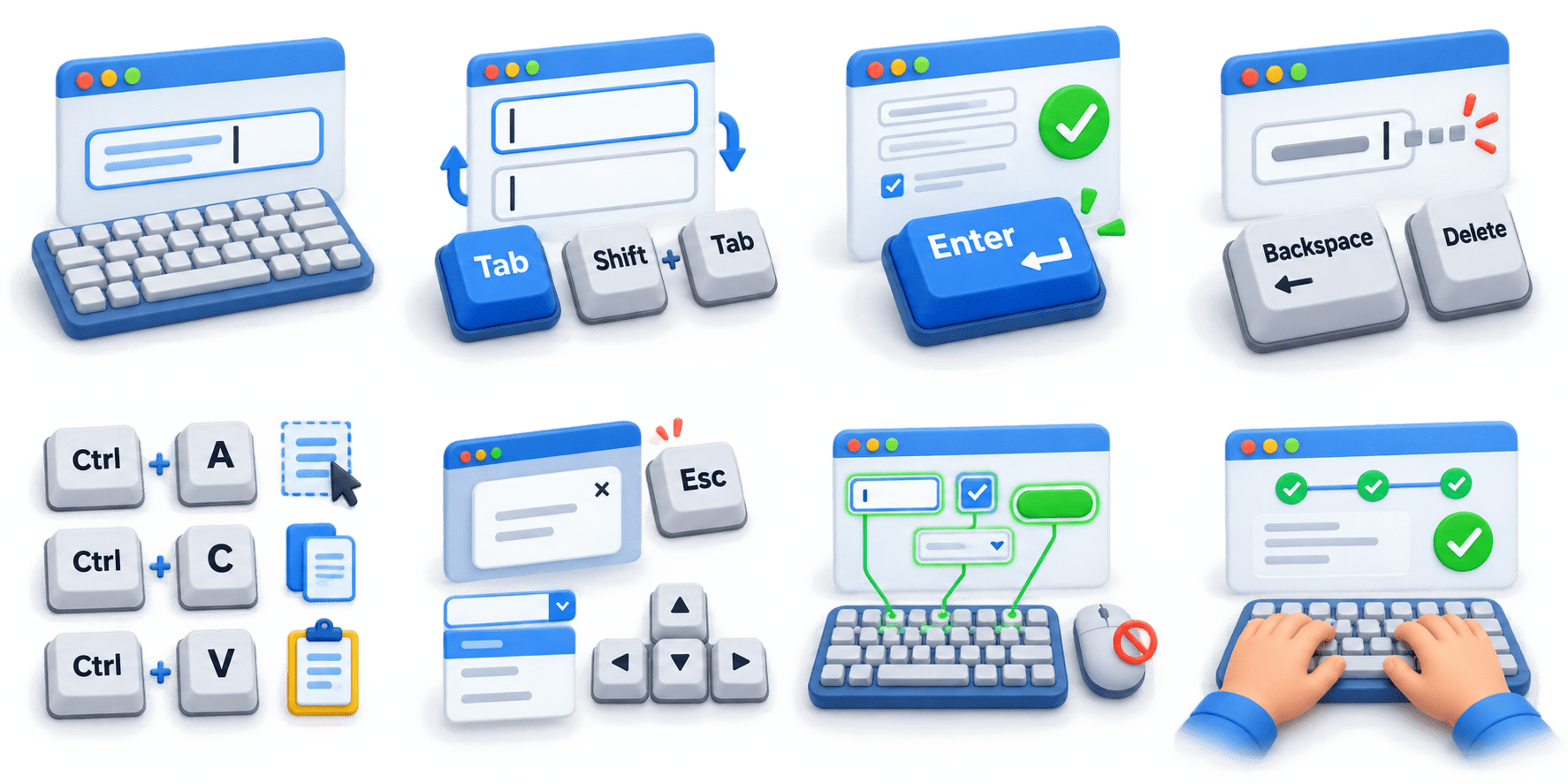
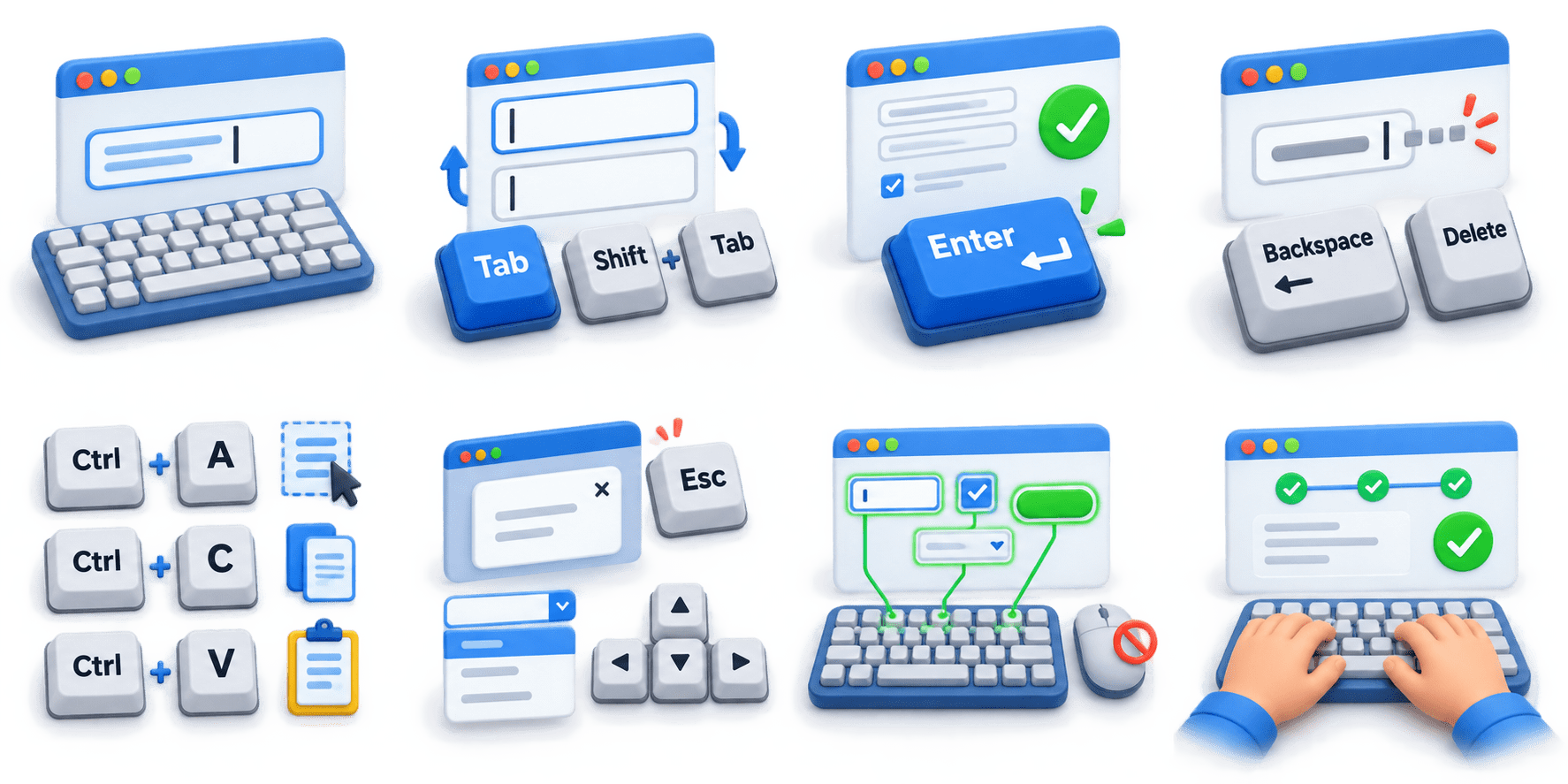
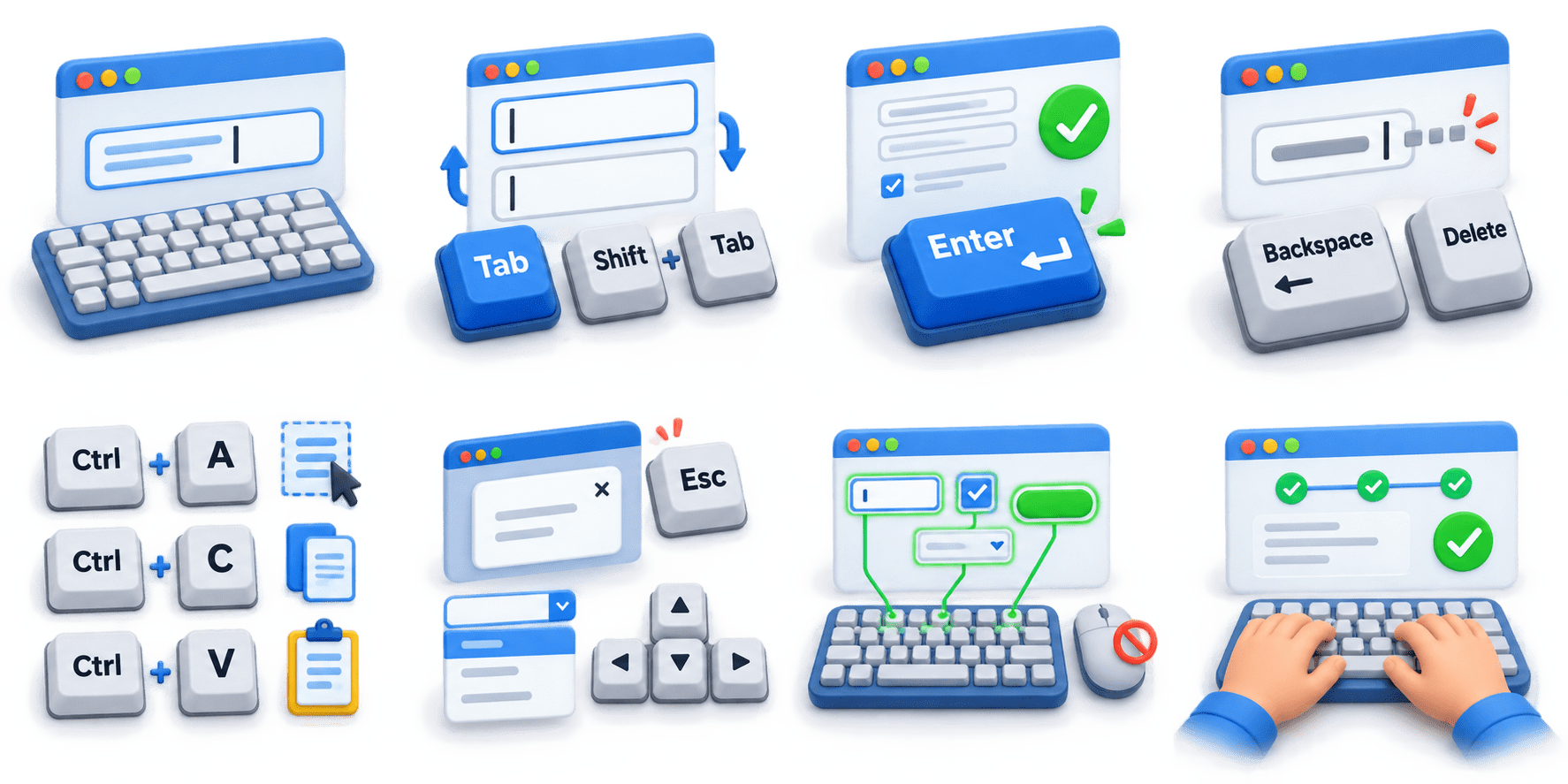
Keyboard actions are interactions performed using keyboard keys to control or operate elements in a web application.
In Playwright with Java, keyboard actions allow automation scripts to simulate how a real user uses the keyboard.
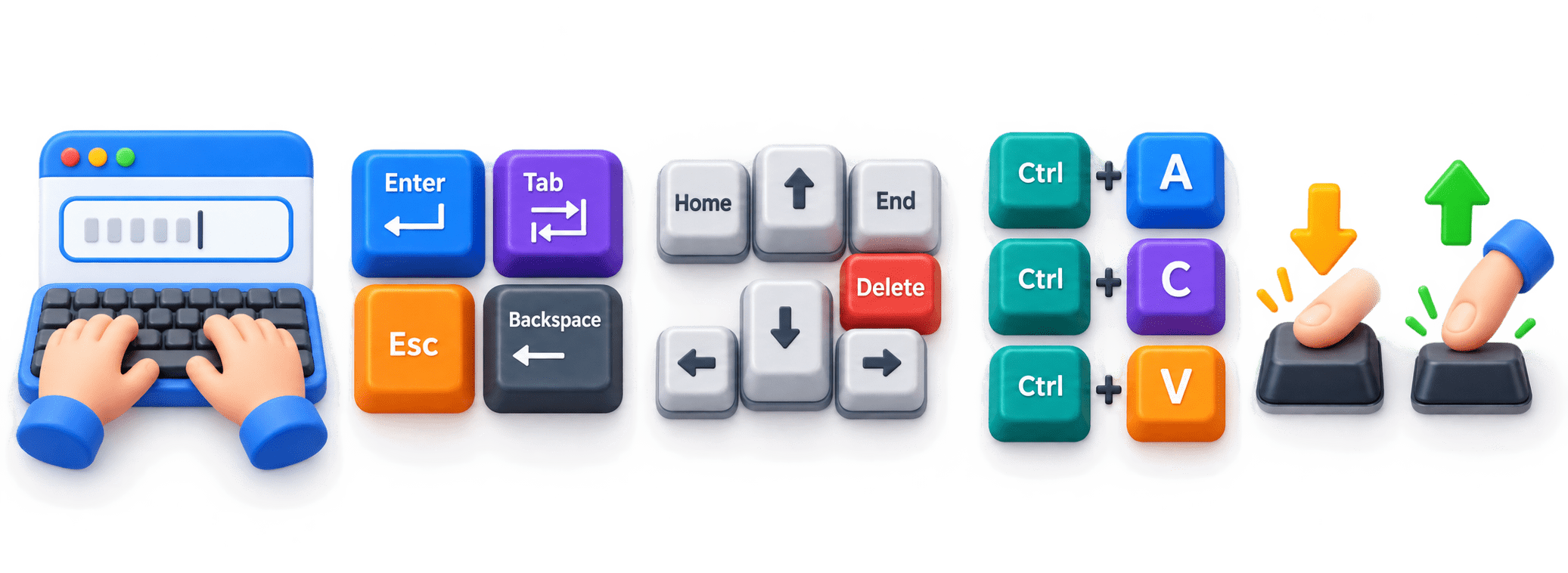
Common keyboard actions
Type text
Press a key
Use arrow keys
Enter data into a text field.
Press Enter, Tab, Escape, Backspace, etc.
Navigate through menus or options.
Perform Ctrl+A, Ctrl+C, Ctrl+V, etc.
Keyboard shortcuts
Use multiple keys together.
Key combinations
Use Backspace and Delete.
Delete or edit text
page.keyboard().press("Enter");
page.keyboard().press("Tab");
page.keyboard().press("Control+A");
Example
Keyboard actions allow Playwright to simulate keyboard interactions performed by a real user during web application testing.
Types of Keyboard Actions
In Playwright with Java, keyboard actions can be grouped into the following types:
Typing Text
Enter text into input fields.
Example:page.keyboard().type("Playwright");
1
Pressing Individual Keys
Perform actions using keys such as Enter, Tab, Escape, and Backspace.
Example: page.keyboard().press("Enter");
2
Keyboard Shortcuts
Perform combinations such as Control+A, Control+C, and Control+V.
4
Key Down and Key Up
5
Special Keys
Use keys such as ArrowUp, ArrowDown, Delete, Home, and End.
3
Keyboard actions allow Playwright to simulate typing, navigation, special keys, shortcuts, and key combinations just like a real user.
Handling Keyboard Actions in Playwright
1.Using keyboard().press()
Used to press a specific key.
page.keyboard().press("Enter");
page.keyboard().press("Tab");
page.keyboard().press("Escape");
2.Typing Text
page.keyboard().type("Playwright Java");
This types the given text character by character.
4.Using Keyboard with a Web Element
First focus on the element and then perform the keyboard action.
page.locator("#username").click();
page.keyboard().type("admin");

page.keyboard().press("Tab");
3.Scroll to Top
page.keyboard().press("Control+A");
page.keyboard().press("Control+C");
page.keyboard().press("Control+V");
Multiple keys can be combined in a single action.
5.Using Special Keys Common keys include:
Key
Purpose
Enter
Escape
Tab
Backspace
Submit Or Confirm
Remove previous Character
Close popup/Menu
Move to next field
ArrowUp
Delete
ArrowDown
Move Downward
Move Upward
Delete selected content
Keyboard Actions with Web Elements
Keyboard actions can be performed on specific web elements such as text boxes, search fields, dropdowns, and forms. .
Playwright allows us to first locate or focus the element and then perform the required keyboard action.
1.Type text into an element
page.locator("#username").fill("admin");2.Press a key on an element
page.locator("#username").press("Enter");3. Move to the next field
page.locator("#username").press("Tab");4.Select all text
page.locator("#username").press("Control+A");5.Delete selected text
page.locator("#username").press("Backspace");6.Use keyboard with dropdowns
page.locator("#country").click();
page.locator("#country").press("ArrowDown");
page.locator("#country").press("Enter");
keyboard actions
directly with web elements makes automation more realistic and helps test forms, dropdowns, search fields, menus, and other keyboard-dependent interactions.
Validating Keyboard Action Results
After performing a keyboard action, validation is used to confirm that the application responds as expected.
Verify that the expected text is entered.
Check whether the correct field receives focus after pressing Tab.
Verify that pressing Enter submits the form or performs the expected action.
Check whether a popup, menu, or message appears after a key press.
Validate changes using Playwright assertions.
page.locator("#search").fill("Playwright");
page.locator("#search").press("Enter");

assertThat(page.locator("#result")).isVisible();
Example
Validation ensures that keyboard actions produce the expected application behavior.
Summary
5
Build strong branding
4
Use different marketing channels
3
Target the right audience
2
Create and communicate value
1
Understand customer needs
Quiz
Which Playwright method is appropriate for pressing the Enter key on a specific input field?
A. page.keyboard().type("Enter")
B. page.locator("#search").press("Enter")
C. page.locator("#search").fill("Enter")
D. page.keyboard().insertText("Enter")
Quiz-Answer
Which Playwright method is appropriate for pressing the Enter key on a specific input field?
A. page.keyboard().type("Enter")
B. page.locator("#search").press("Enter")
C. page.locator("#search").fill("Enter")
D. page.keyboard().insertText("Enter")
By Content ITV