Jean Wang
Some slides for Nehemiah 9 Design
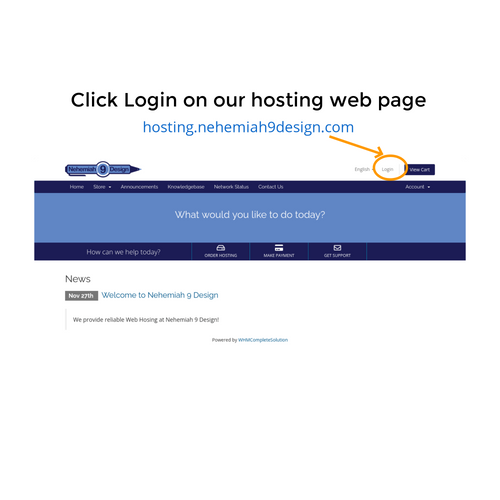
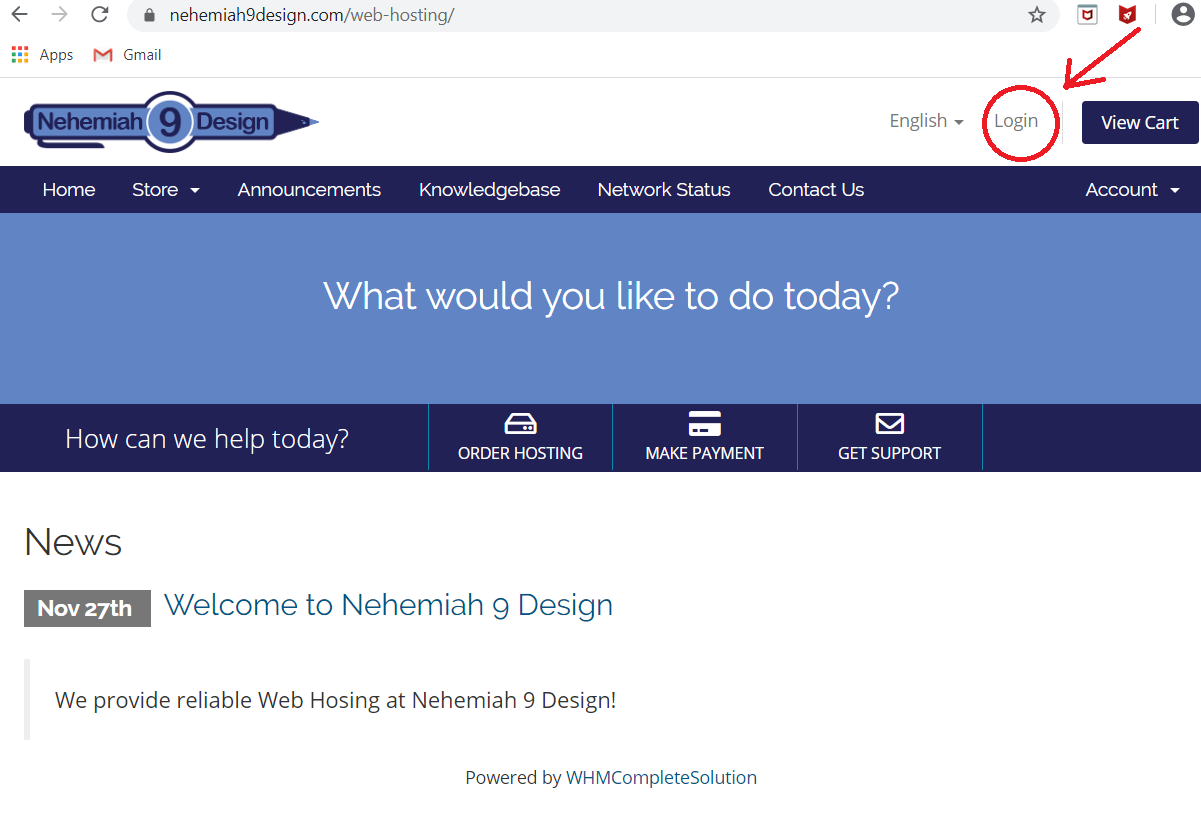
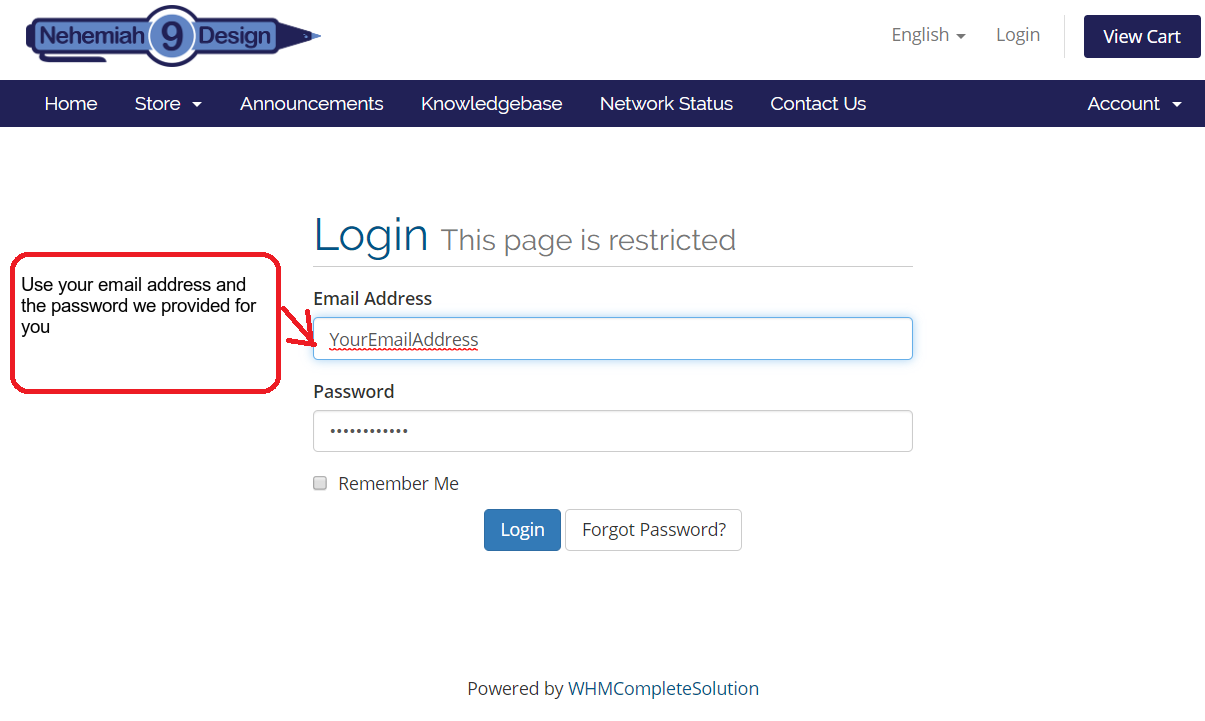
Go to https://nehemiah9design.com/web-hosting and Click "Login"
Login with your email address and the initial password we provided to you
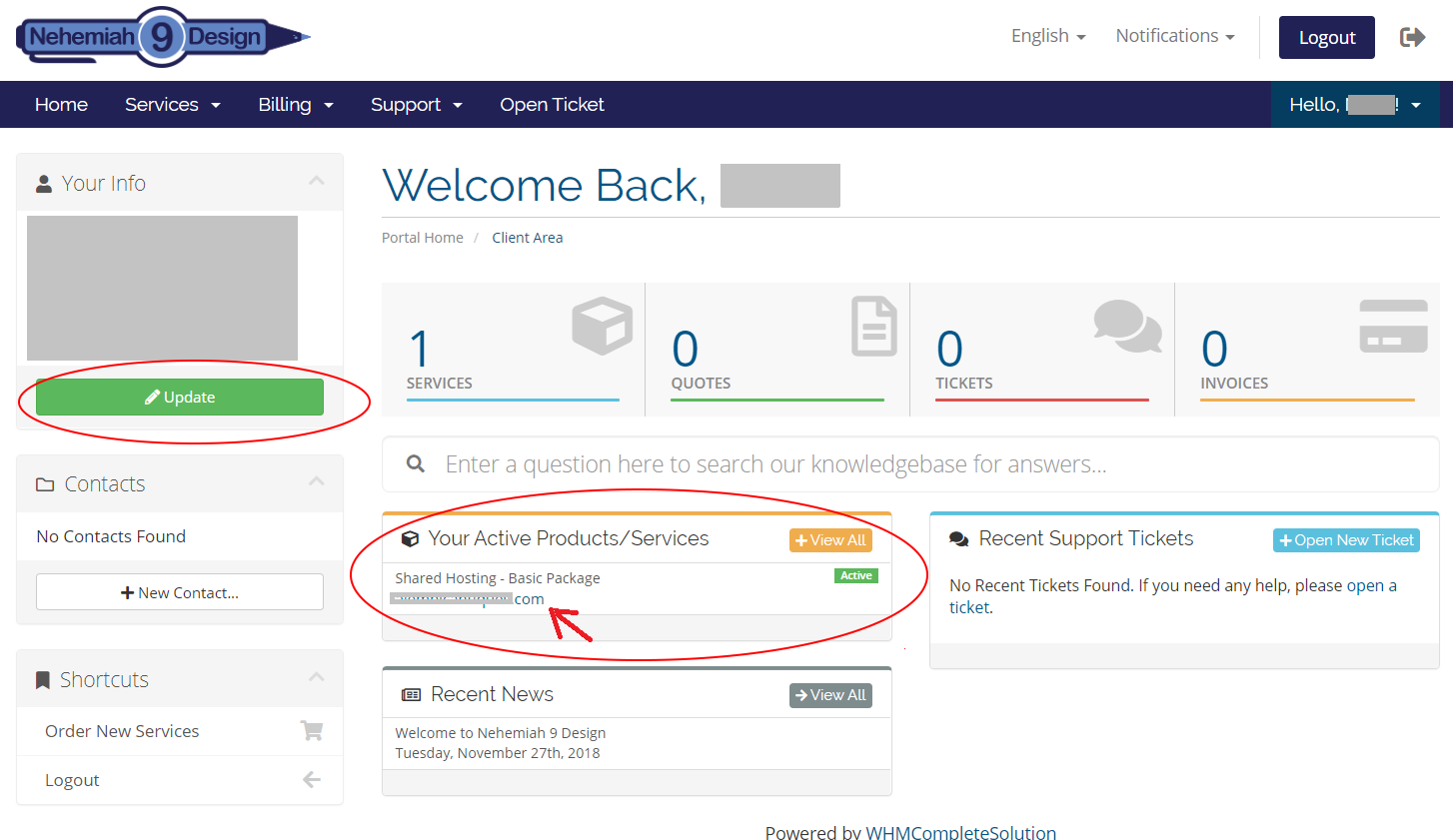
After you loged in, you can see the hosting service you've taken over. Now click the "Update" button to update your account info
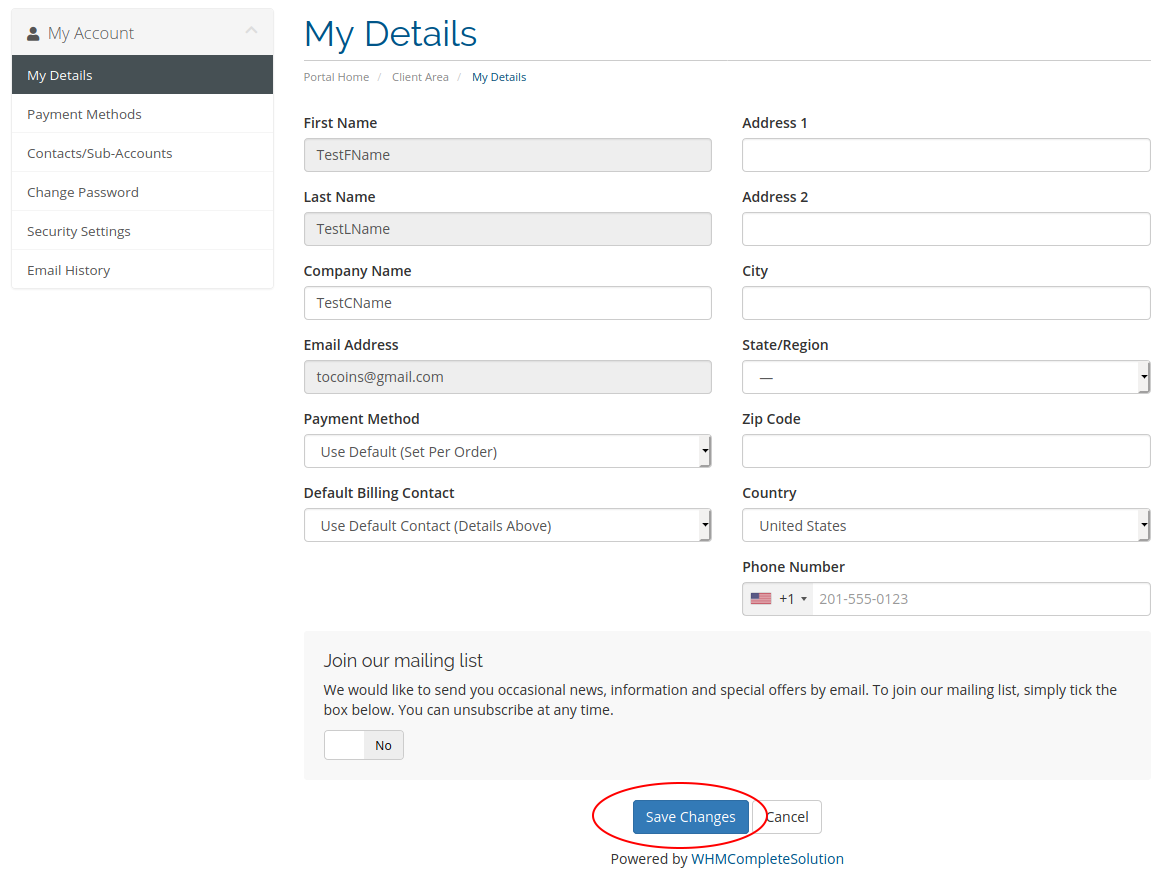
Fill in your Address and Phone Number then Click "Save Changes"
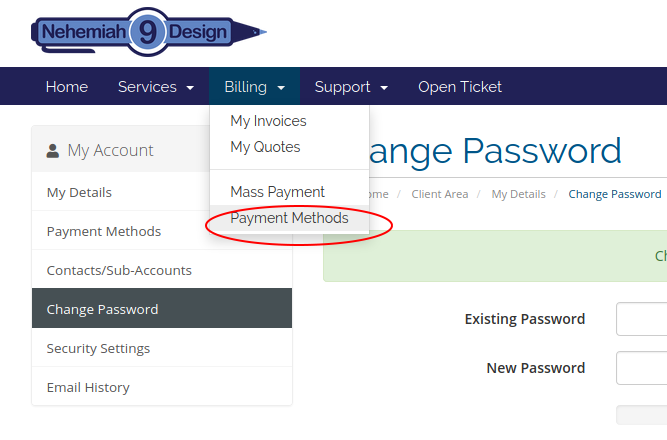
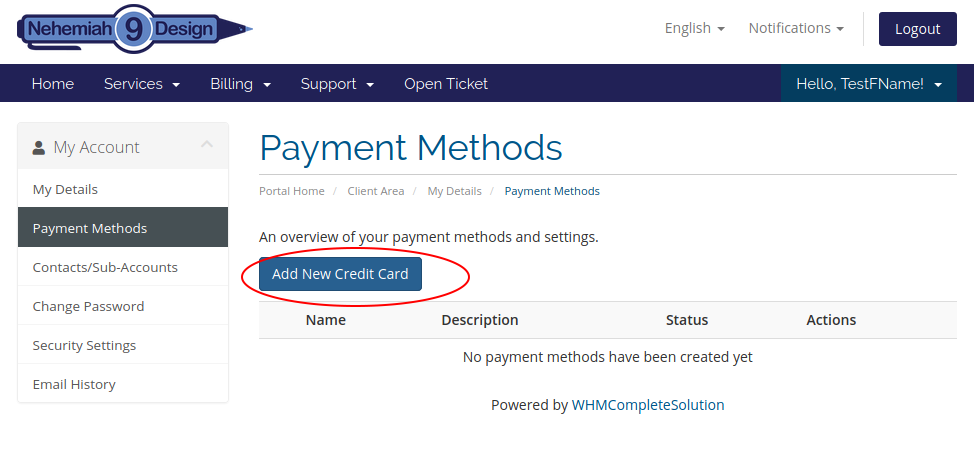
Click the "Payment Methods" under Billing on menu bar
Click the "Add New Credit Card" Button to add payment method
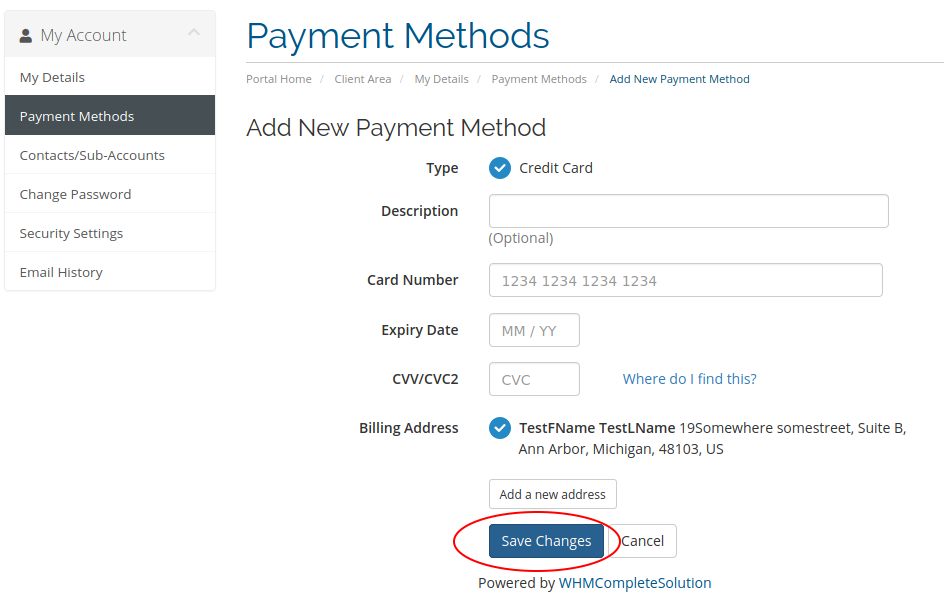
Fill in your credit card info and billing address then Click "Save Changes"
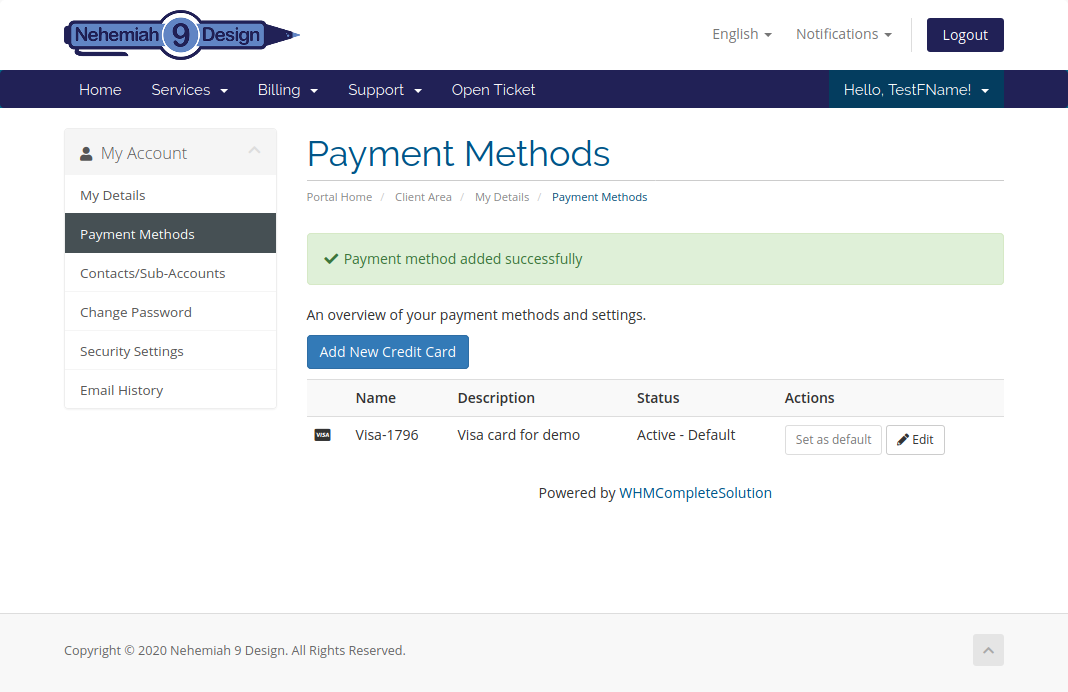
Then you should see the page for "Payment method added successfully"
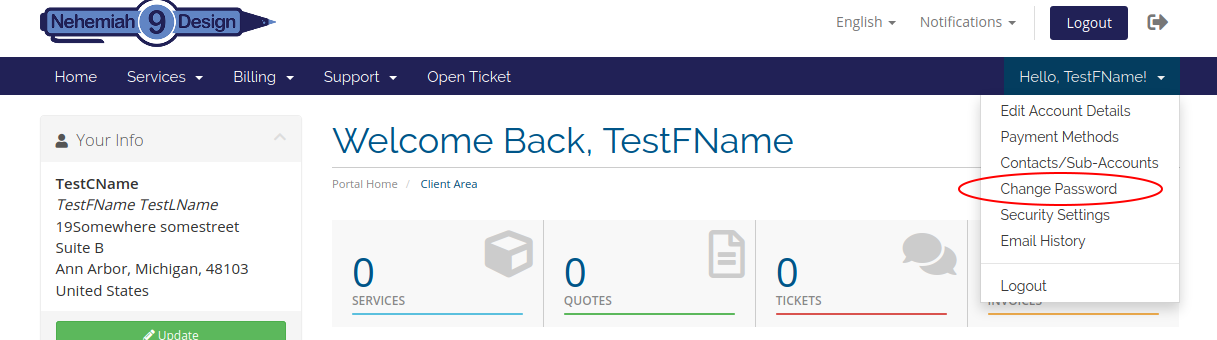
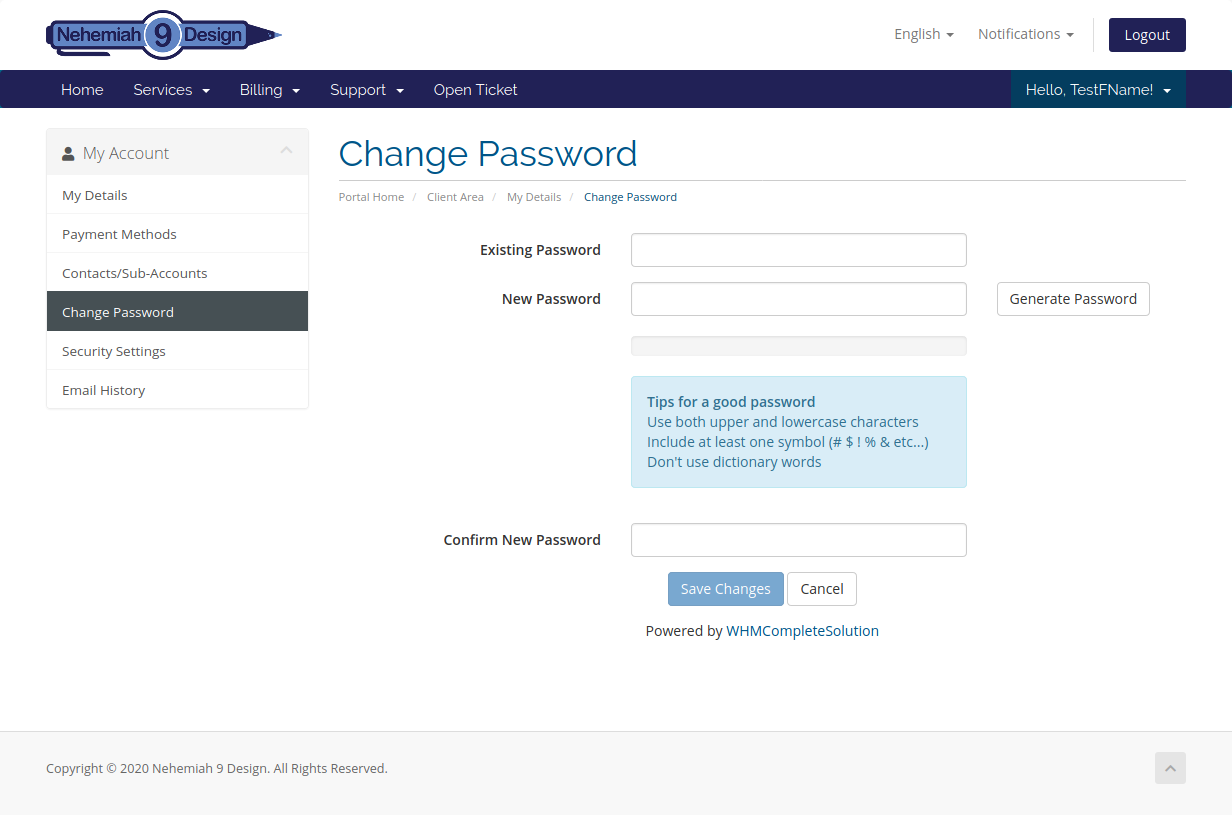
Select the "Change Password" by clicking the greetings on the right side of the menu bar
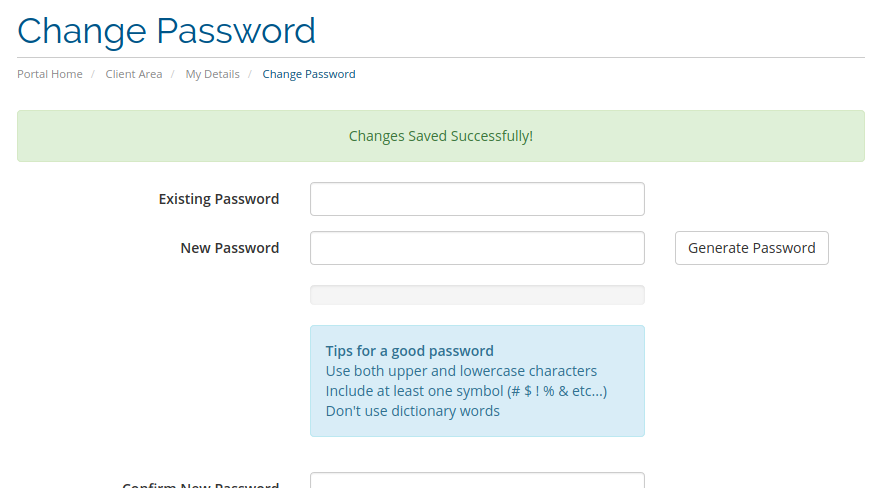
Fill in the intial password and your new password then confirm it, click "Save Changes"
You've successfully changed your Password.
By Jean Wang
from Nehemiah 9 Design