Accessible Documents and Assistive Software
Accessible Technology Workshop Series
Agenda
- Introduction
- General Tips for Accessibility
- Creating Accessible Word Documents
- Creating Accessible PowerPoint Slides
- Creating Accessible PDF Documents
- Accessibility on DC Connect
- Text-to-Speech Software
- Speech-to-Text Software (time permitting)
General Tips for Accessibility
Contrast
- Use high contrast colours to help differentiate text and background
- Otherwise you might end up with sections that look like this
- Black and dark blue are best on light backgrounds
- White and light yellows are best on dark backgrounds
Contrast
- Use high contrast colours to help differentiate text and background
- Otherwise you might end up with sections that are illegible
- Black and dark blue are best on light backgrounds
- White and light yellows are best on dark backgrounds
Font Colour
- Black and white will always be the easiest to read
- If you need colour, restrict it to titles and/or highlights
- Don't convey important information using colour; the colour should not be the message
Colourblindness
- Red-Green: 7 to 10% of men
- Dichromacy: 2.4% of men, 0.03% of women
- Anomalous Trichromacy: 6.3% of men, 0.37% of women
http://www.colour-blindness.com/general/prevalence/

Font Family
- Serif fonts have curly tips and "feet" on the letters
- Simple Sans Serif fonts are genenally easier to read

Font Family
- There is no "perfect" choice for font
- Arial and Verdana are good choices
- Calibri isn't terrible - just a bit small
- Avoid cursive and script fonts

Font Family
Some fonts are more confusing than others for students with learning disabilities.
Letters can get mixed up, turned around, or confused.
Fonts like comic sans have easy-to-distinguish letters.

Font Size
- Try for minimum 12 pt font - this can vary between fonts though
- Consider the purpose and audience when choosing a font size - presentation materials should have bigger fonts
- If the student has access to the raw file, they can change the font size, style and colour according to their preference
Creating Accessible Word Documents
Use Styles

- Using styles improves structure and readability
- It's especially important for people using screen-reading software
- Styles can be customized
- You could even mark things as a certain style and adjust the formatting afterwards
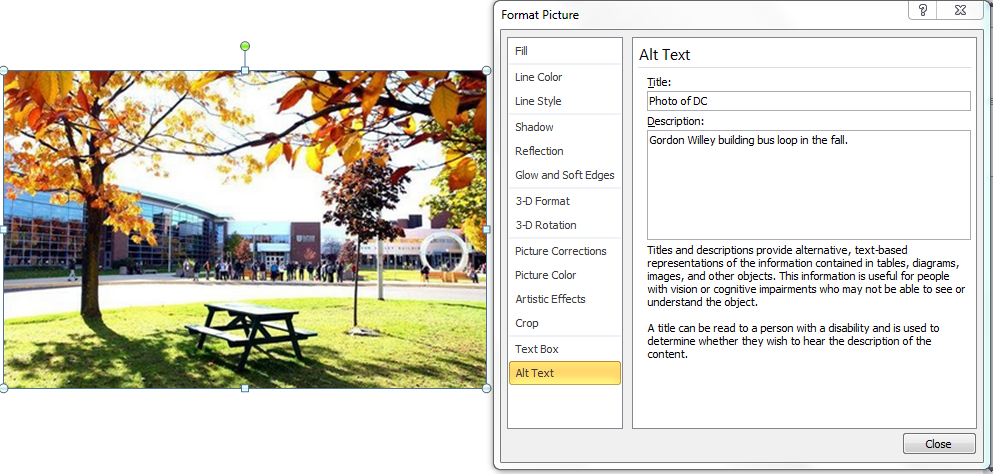
Alternate Text on Images
Right-click the image, choose Format Picture, and click Alt Text
Other Image Concerns
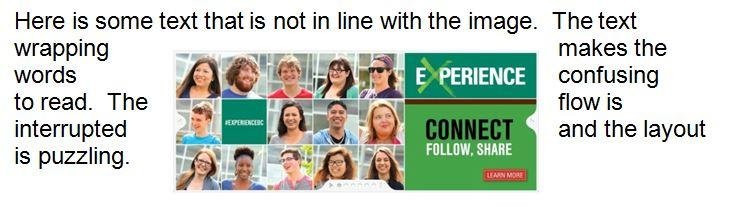
- Be aware of how images, tables, etc. are wrapped
- WordArt/SmartArt is not very accessible
- Watermarks and background images can't be read by screen-readers and can cause contrast problems
Descriptive Links
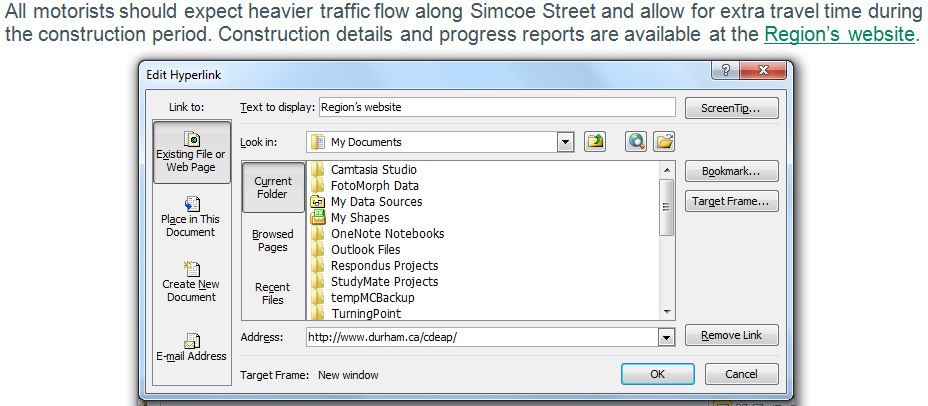
- URLs in Word are usually recognized as a hyperlink
- URLs don't usually make good names for links
- Consider editing the link so it has a descriptive name
- Bad names include click here or this
- Avoid using the same name repeatedly
- Some additional description/context is a good idea
Other Considerations
- Use the built-in list tool for bullets and numbered lists; these maintain structure in the document
- A table of contents is very helpful for long documents; consider the built-in table of content feature
- Avoid text boxes; these "float" over a document and can't be seen by screen readers
- Tables are strongly recommended over repeated spaces or tabs to separate information
- Don't worry about making content "fit better", especially for electronic documents
Accessibility Checker
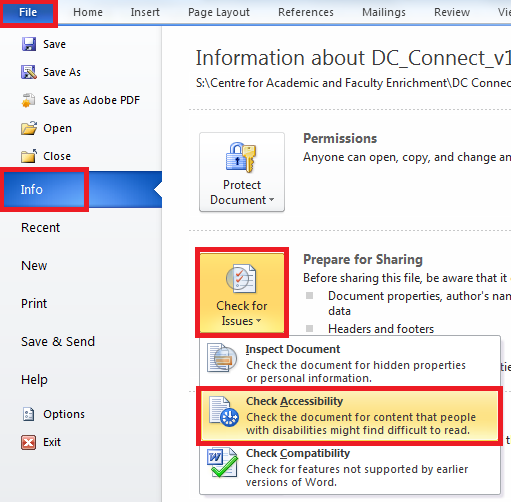
Accessibility Checker
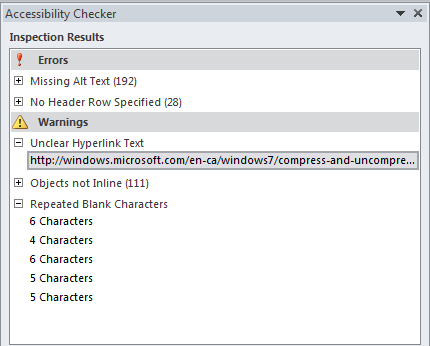
Practice Activity
- If you've got a laptop handy, try opening a document in Word and using the Accessibility Checker
- If you don't have a laptop, work with someone else
- Ideally, choose a document you share with students
- What issues do you see?
Creating Accessible PowerPoint Slides
General Accessibility
- PowerPoint is generally not very accessible
- For a screen-reader to work, it needs to select text, and this is difficult when every text box and image is in a separate space that one must click to access
Working Around This
- When sharing slides with students, consider also (or instead) saving as a Word or PDF document
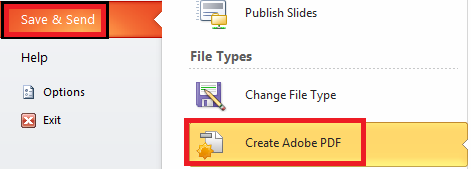
- The handouts option for Word doesn't solve every problem, but it helps
Similar to Word...
...use styles and headings
...put alternate text on images
...give links descriptive names
...try the Accessibility Checker
Text Format
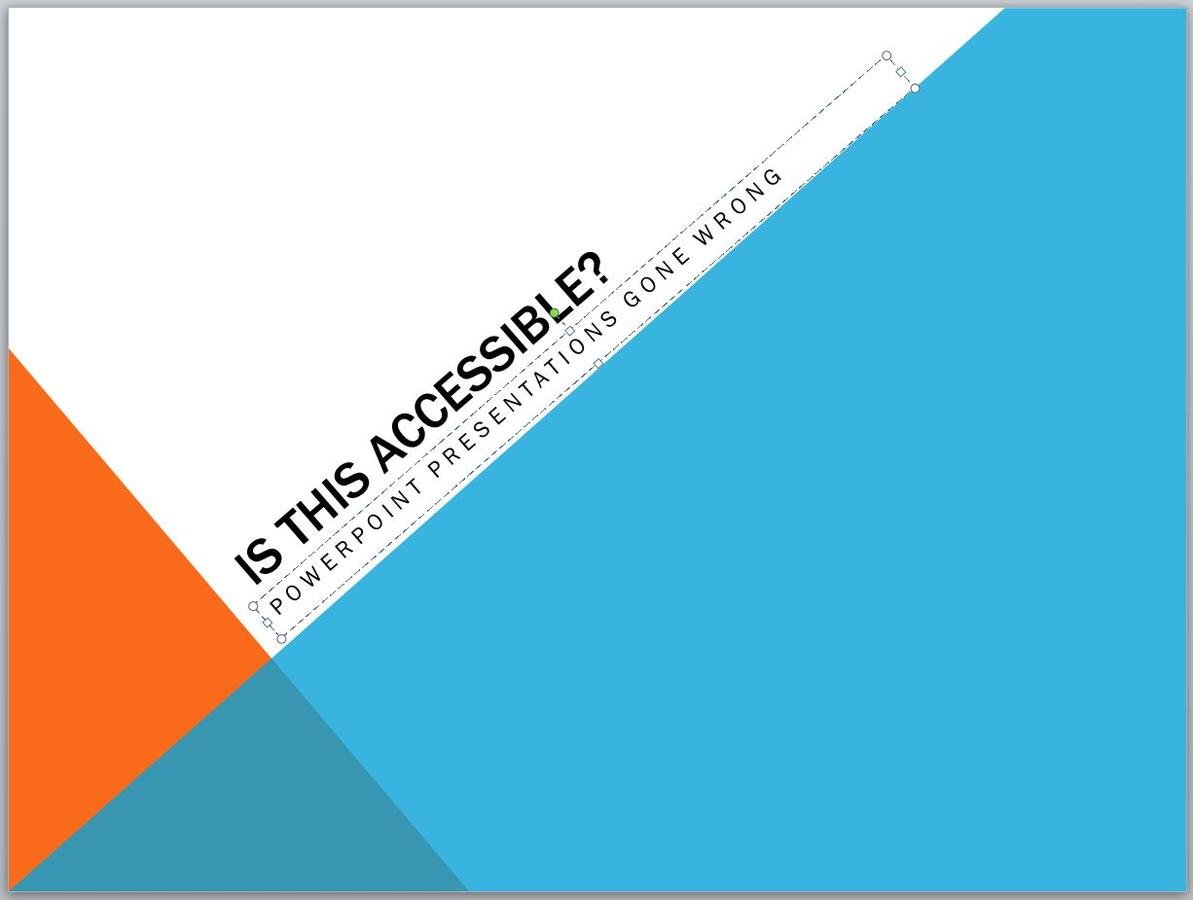
- Some screen-readers, like Kurzweil 3000, may have trouble with angled text
- It's also harder to read
- Use a large font size
- If you need a small font size, you have too much text on the slide!
Contrast
- Contrast is often a bigger issue for presentations
- Certain projectors can make contrast problems more obvious
- Black and white is usually best (unless there's a good reason that won't work)

Animations/Transitions
- Avoid
Presentation Concerns
- Don't completely avoid text on slides
- Consider students with difficulty understanding auditory information (LD, deaf, hard of hearing, ESL...)
- Consider students with difficulty understanding written information (LD, blind, low vision, back of the room...)
- Everyone needs access to your information
Presentation Concerns
- Give students a copy of the PowerPoint before class
- It could be a modified version if you want
Consider:
If you were doing readings in class; would you expect the students to bring their books?
Discussion
- Is it okay to post inaccessible PowerPoint slides?
- Can we expect students to know the information from these slides?
- Can we expect students to know material from slides we haven't posted?
Creating Accessible PDF Documents
About PDFs
- Intended to be portable, meaning they appear the same on any computer
- Generally they're created from another kind of document
- If you've made your document accessible in Word (or another software) and publish to PDF, generally it will be accessible too!
If You're Using Acrobat to Edit a PDF...
...use tags (which are basically styles)
...put alternate text on images/figures
...give links descriptive names
...a table of contents is a good idea
Acrobat Professional can be requested from I.T. for your workstation
Kinds of PDFs
- PDFs can be locked; locked PDFs can't be used with screen-readers and create a huge access issue
- PDFs can be raster; this is usually because they're a scanned document
- Raster PDFs are essentially images and the text on them can't be selected or read; OCR can correct this, but that is complicated and time-consuming
- PDFs can be tagged; this is what we want!
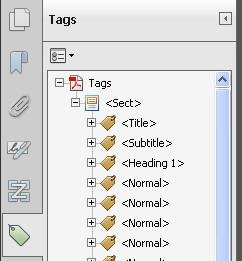
Viewing Tags
The Tags pane allows you to see how your text and other sections have been tagged.
Tags help with navigation, much the same way that styles/headings do.
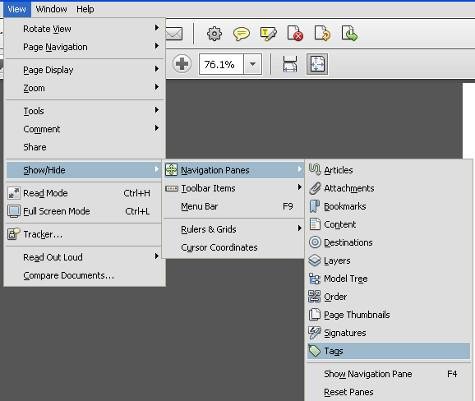
image source: http://www.queensu.ca/accessibility/how-info/accessible-documents/creating-accessible-pdfs-windows
Reading Order
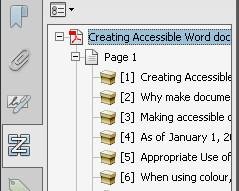
The Order pane allows you to view and specify the order that the blocks of text (or images) should be viewed in.
This is very important for anyone using a screen-reader but also essential for any PDF form that should be filled in.
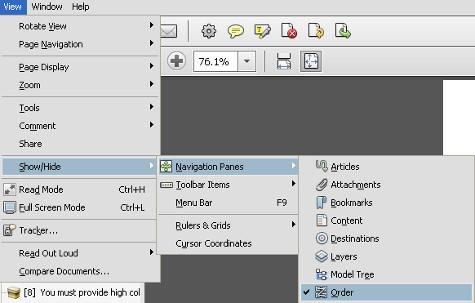
image source: http://www.queensu.ca/accessibility/how-info/accessible-documents/creating-accessible-pdfs-windows
Accessibility Check
You can access this by selecting Tools, then Advanced, then Accessibility, then Full Check
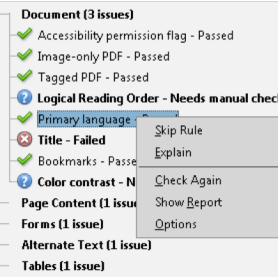
image source: http://helpx.adobe.com/acrobat/using/create-verify-pdf-accessibility.html
Accessibility on
DC Connect
DC Connect
- Any material on DC Connect that isn't a file you've uploaded directly is HTML (web) content
- You could say we're discussing web content accessibility
- The majority of web content we think our participants will need is DC Connect-related, so we are just going to focus on that
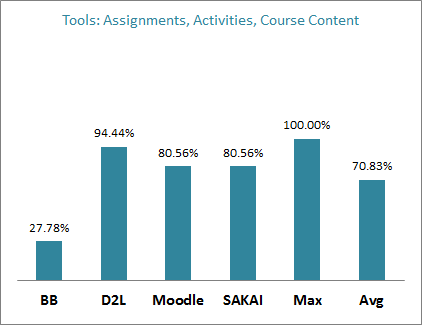
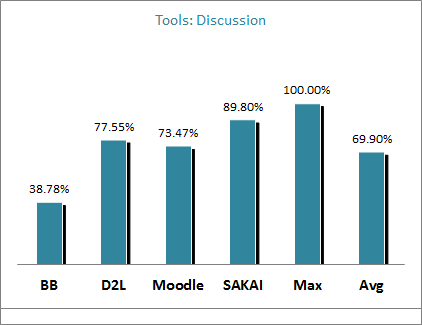
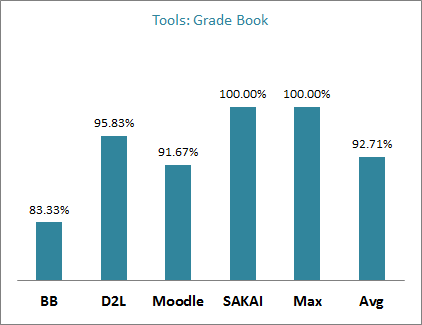
D2L Accessibility
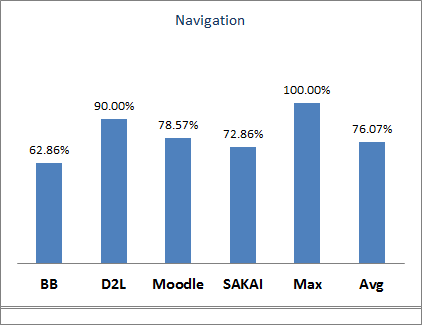
source: http://blog.bargirangin.com/2013/03/a-comparison-of-learning-management.html
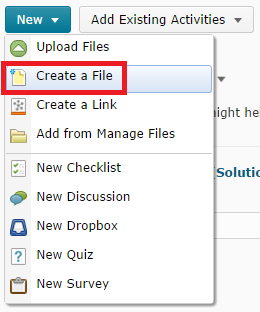
Create a File
Embedded documents are quick and easy to post but
- they load quite slowly
- they may not work on every kind of device
- the text can't be selected
- they don't work with screen-readers
The Create a File option avoids these issues.
DC Connect's HTML Editor
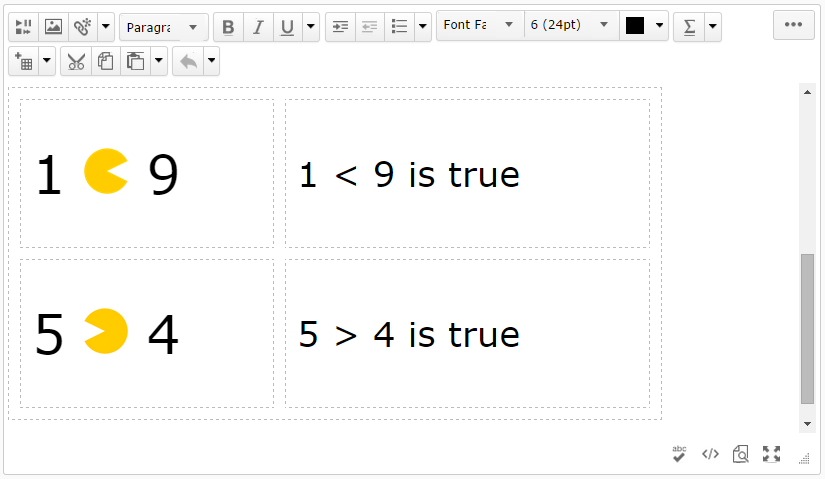
This editor takes fairly good care of big accessibility concerns, so don't panic when you're using it!
Of course, we have tips regardless.
Similarly to Word...
...use styles and headings
...put alternate text on images/figures
...give links descriptive names
...bulleted lists and tables are useful for grouping information
...be aware of font size, style and colour
Create a File
- Posted documents are still useful, especially when they have a lot of complex formatting and/or images
- Otherwise, it can be fairly effective to copy a Word document and paste into DC Connect's HTML editor
- Many features, like tables and headings, are preserved!
- Other formatting (e.g. font styles) can get messed up but you can fix it after if needed
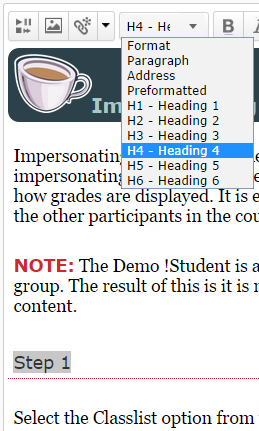
Styles
Styles in HTML work much the same as in Word.
By default, this menu says "Paragraph": that is the name of the default style.
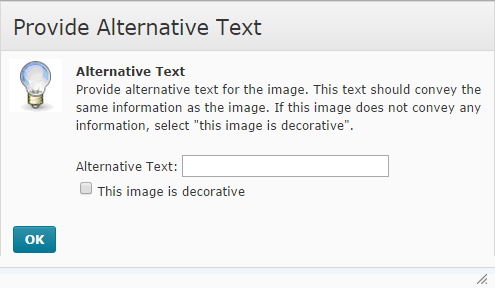
Alternate Text
DC Connect actually forces you to enter alternate text for every image!
You must enter alternative text for an image unless you specify that the image is decorative.
No image that has meaning should be marked decorative!
Contrast in DC Connect
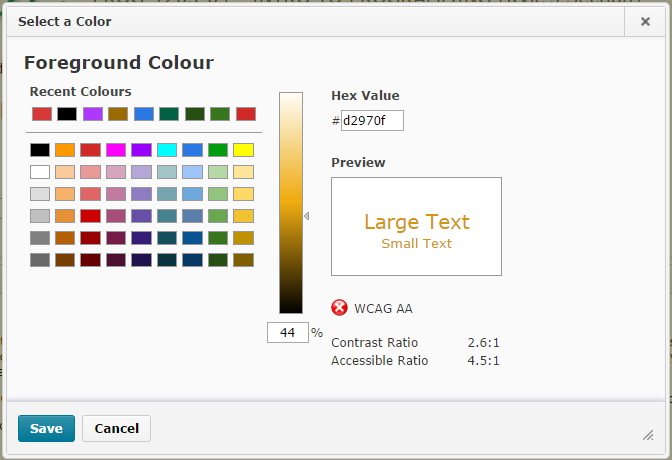
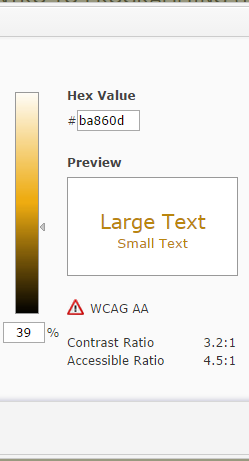
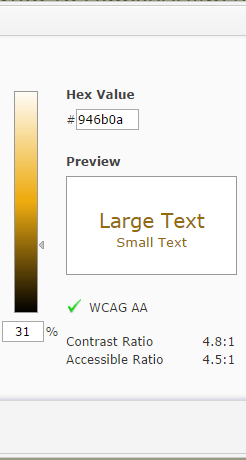
WCAG: Web Content Accessibility Guidelines
Bad Contrast
Better
Good
Practice Activity
- If you've got a laptop handy, try opening the DC Connect HTML Editor, perhaps by using Create a File under Content
- If you don't have a laptop, work with someone else
- Try taking a Word document and pasting it into the HTML Editor
- What changes do you notice?
- What stays the same?
Discussion
- Would you rather create new documents with accessibility in mind, or would you rather "retrofit" your old documents?
- Why?
- Which takes more time?
- Which requires more knowledge?
Assistive Software
There are a number of types of assistive software.
- Text-to-Speech
- Speech-to-Text
- Writing software
- Study skills
- Concept mapping
- Organization assistance
- Time management
We'll just be discussing the first couple in detail.
Text-to-Speech Software
Benefits of Text-to-Speech
- May help users with partial vision
- May help with reading comprehension
- helps with understanding words
- reduces the effort needed to read
- Often helps with reading speed
- May help with concentration
- Very useful for proofing one's own work
TextHelp Read&Write
- A useful reading software with several tools that reinforce study skills
- Works with other applications
- Especially useful with Word documents and the web
- Cost is ~$600 for a single user
- Durham College has a site license; we can install this for all students and it's available on campus

Kurzweil 3000
- A complex and powerful reading software that is also designed to help with the writing process
- Mostly works by reading its own proprietary format or by OCRing another document
- For this reason, it works best with textbooks, PDFs, PowerPoint files, and the web
- Cost is ~$1200 for a single user
- Durham College has a network license; we can install this for many students and it's available on campus

Other Reading Software
- JAWS
- ZoomText
- NaturalReader
- ReadPlease
- ClaroRead
- Talking Word Processor
- Built-in OS tools
...and many more
Speech-to-Text Software
Benefits of Speech-to-Text
- Helps you "type" much faster
- Helps with spelling (and sometimes grammar)
- Some people express themselves better by speaking than writing/typing
- Mitigates physical difficulty with typing
Dragon NaturallySpeaking
- Industry standard dictation software
- Known as Dragon Dictate on Mac OSX
- Very effective for dictating documents as well as controlling aspects of a computer
- Generally marketed to the masses, not just people with exceptionalities
- Cost is ~$199 for a single user

Other Dictation Software
- SpeakQ
- Siri (et al.)
- Built in Dictation
Tools and Resources
WebAIM
- Web Accessibility In Mind (link)
- Training, Information, Resources
- Tools: WAVE toolbar, colour contrast checker, Adobe Acrobat Plug-in
- Simulations
AODA
- Accessibility for Ontarians with Disabilities Act (link)
- Information about compliance
- Guide including terminology, standards, compliance, penalties, and more
- The target date for reaching 100% accessibility in Ontario is January 1, 2025
Other Websites for Accessible Documents
- Office: Creating Accessible Word Documents (link)
- Office: Creating Accessible PowerPoint Presentations (link)
- Adobe: Creating Accessible PDF Files (link)
- W3.org: Making Presentations Accessible to All (link)
- Accessible Campus: Accessible Digital Documents & Websites (link)
Summary Activity
- We're going to go to SW117 and let you try using some assistive software!
- Consider checking out a document (preferably your own) and perhaps some web content with a screen-reader
Accessible Documents and Assistive Technology
By Kyle Chapman
Accessible Documents and Assistive Technology
Discusses general concerns with accessible documents, and a few specific to Word, PowerPoint, PDF and HTML. Also, a bit of assistive technology. For the Accessible Technology Workshop Series. Intended time: approximately 2 hours with demonstrations, moving at a quick pace