Tips for Accessibility Using DC Connect
Agenda
- Introduction
- Inclusive Communication
- Accessible DC Connect Content
- Things to Avoid
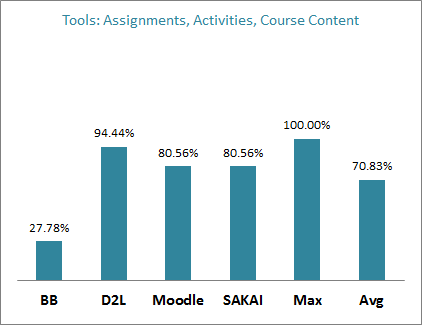
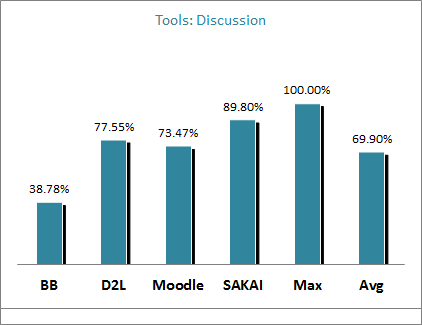
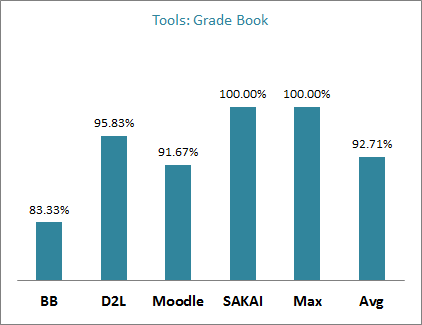
D2L Accessibility
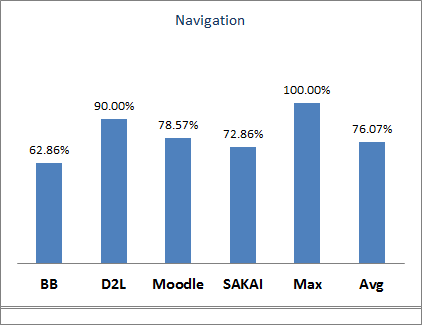
source: http://blog.bargirangin.com/2013/03/a-comparison-of-learning-management.html
Inclusive Communication
The News Tool
- For announcements, the absolute best way to reach students is a News tool post.
- Students with Notifications enabled will get an email.
- Students logged into DC Connect get an immediate "red dot" notice.
- Students will see it immediately when they access your course.
- There's a requirement to use this tool, especially for absences.
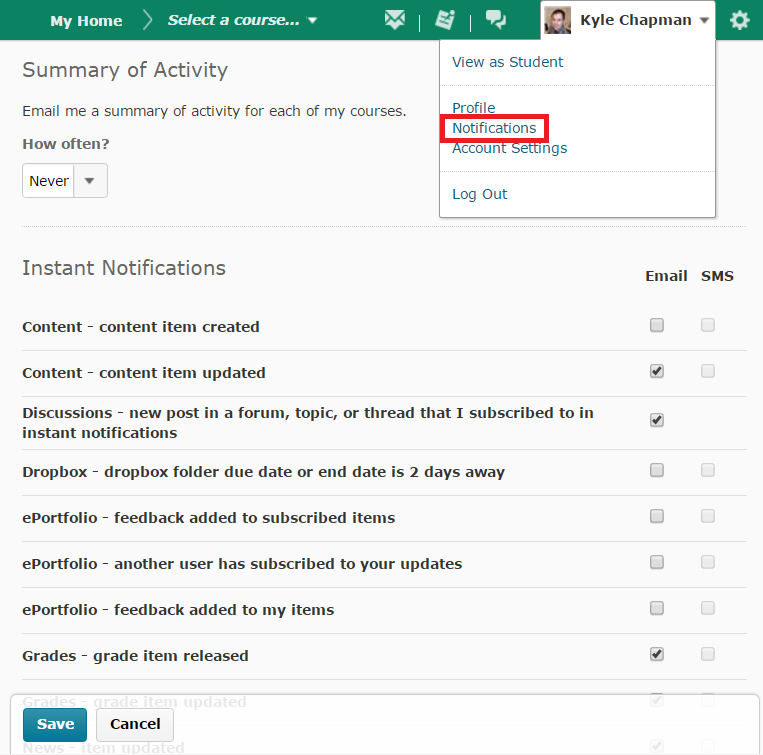
Notifications
- Students are often not made aware of this!
- If you have first year students, you may want to walk them through this at the start of the semester.
- Allows students to get texts/emails whenever there is something significant in the course.
Redundancy
- With a Twitter widget, you could mass communicate with students via DC Connect News, email or Twitter.
- Which should we use?
- Is a combination okay?

Presentation Concerns
- Provide a copy of your slides - before the presentation is preferable
- Modified slides are OK, but complete slides are more inclusive
Consider:
If you were doing readings in class; would you expect the students to bring their books?
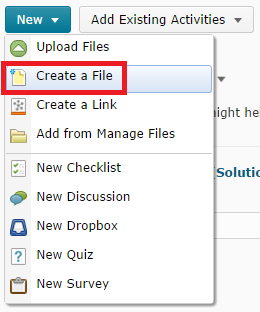
Create a File
Embedded documents are quick and easy to post but
- they load quite slowly
- they may not work on every kind of device
- the text can't be selected
- they don't work with screen-readers
The Create a File option avoids these issues.
Create a File
- Posted documents are still useful, especially when they have a lot of complex formatting and/or images
- Otherwise, it can be fairly effective to copy a Word document and paste into DC Connect's HTML editor
- Many features, like tables and headings, are preserved!
- Other formatting (e.g. font styles) can get messed up but you can fix it after if needed
The PDF Reader
- The PDF previewer was recently changed, and is quite a bit better than the preview for Word and PowerPoint documents
- This makes tagged PDF documents a very reasonable way to provide content
- They're still slower and less well-supported, though
Accessible DC Connect Content
DC Connect's HTML Editor
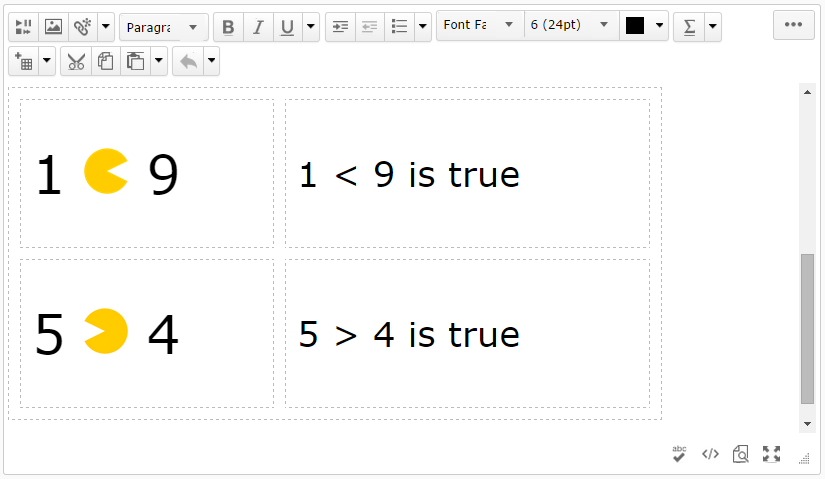
This editor takes fairly good care of big accessibility concerns, so don't panic when you're using it!
Use Styles
- Using styles, like headings, improves structure and readability
- It's especially important for people using screen-reading software
- Style formatting can be customized using CSS, though this is somewhat advanced
Styles
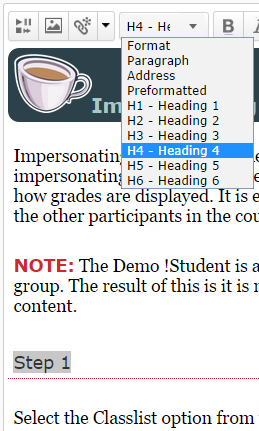
Styles in HTML work much the same as in Word and other applications.
By default, this menu says "Paragraph": that is the name of the default style.
Font Family
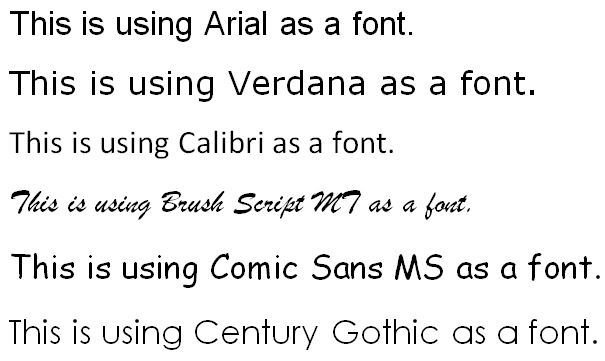
- There isn't a "perfect" choice for font
- Arial and Verdana are good choices
- Comic Sans has advantages, too
- Avoid cursive or script fonts
Font Colour
- Black and white will always be the easiest to read
- If you need colour, restrict it to titles and/or highlights
- Don't convey important information using colour; the colour should not be the message (e.g. "Refer to the text in red above")
Contrast in DC Connect
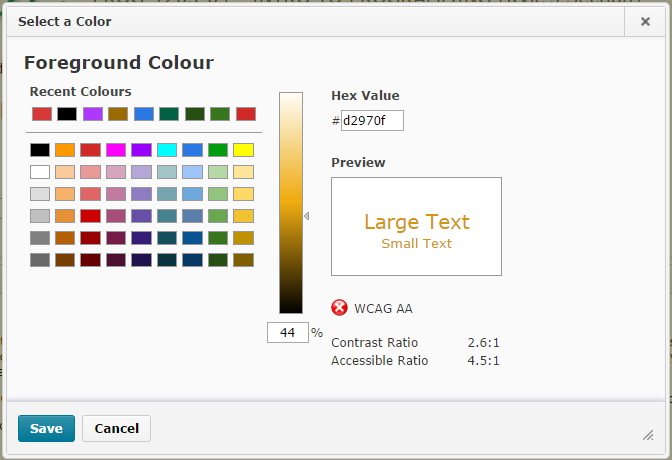
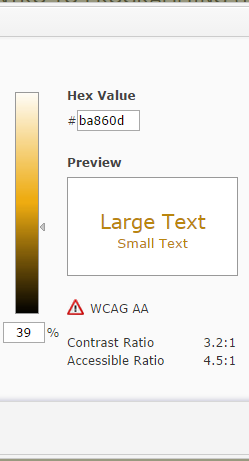
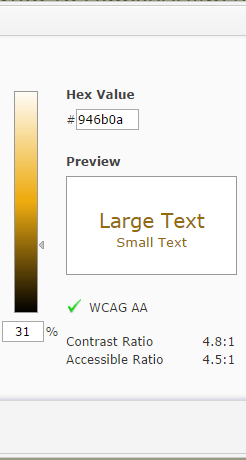
WCAG: Web Content Accessibility Guidelines
Bad Contrast
Better
Good
Pretty and Accessible D2L Templates
- D2L has produced a number of templates that have a high degree of accessibility.
- They can be viewed via the D2L Resource Centre (or just google "D2L accessible template")
- Others on campus have produced some useful templates - try asking Dave or Jordanne!
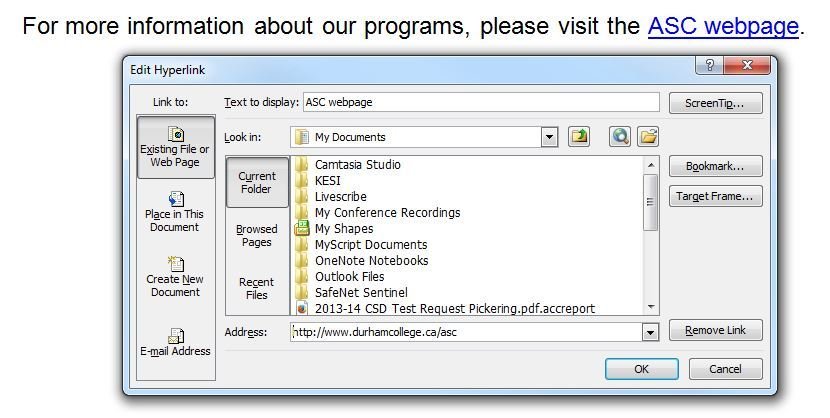
Descriptive Links
- URLs in DC Connect's HTML editor may be recognized as a hyperlink
- URLs don't usually make good names for links
- Consider editing the link so it has a descriptive name
- Bad names include click here or this
- Avoid using the same name repeatedly
- Some additional description/context is a good idea
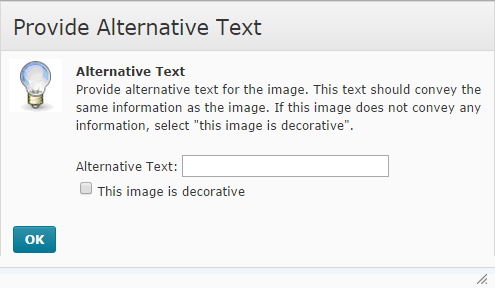
Alternate Text
DC Connect actually forces you to enter alternate text for every image!
You must enter alternative text for an image unless you specify that the image is decorative.
No image that has meaning should be marked decorative!
Things to Avoid
Poorly Supported Tools
- Some infrequently-used tools aren't up to the accessibility standards of more mainstream tools, notably the Chat tool
- The Discussion tool used to have issues (circa 2013) but this has been resolved
- It is impossible to complete D2L Quizzes at a low resolution.
Audio and Video
- The newly-enabled video note feature inserts a video with zero support for captioning
- You must either avoid this or provide a full-text transcript - the same goes for uncaptioned embedded video
- The same applies to audio tools in D2L (Record Audio or an embedded audio file)
Practice Activity
- If you've got a laptop handy, try opening the DC Connect HTML Editor, perhaps by using Create a File under Content
- If you don't have a laptop, work with someone else
- Try taking a Word document and pasting it into the HTML Editor
- What changes do you notice?
- What stays the same?
Tips for Accessibility using DC Connect
By Kyle Chapman
Tips for Accessibility using DC Connect
Slides accompanying a workshop that will discuss tips for ensuring that your course's presence on DC Connect is accessible to all learners. We will discuss ways you can communicate with students, ways to make DC Connect Content accessible, built-in accessibility features in DC Connect, and a few specific tools and options to avoid with accessibility in mind.