Creating and Delivering Accessible Presentations
Agenda
- Introduction
- Ensuring your Slides are Viewable
- Ensuring your PowerPoint file is Accessible
- Accessible Presentation Techniques
- Accommodations for Presentations
Ensuring Your Slides are Visible
Font Size
By default, in PowerPoint:
- Titles have a size of 44pt
- Subtitles and slide text are 32pt
- In PowerPoint, the font automatically shrinks to fit on the slides; this is a cue that you've written too much!
- Size depends greatly on the room and projector, but below 24pt is generally too small
Font Family
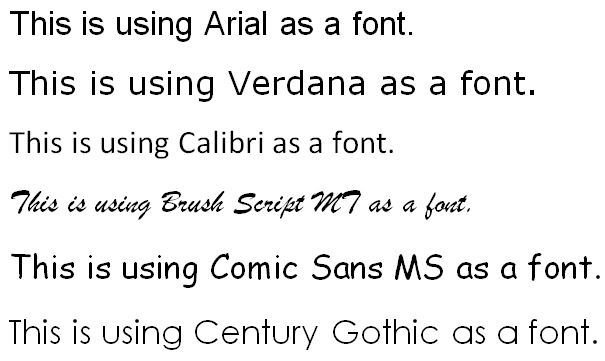
- There isn't a "perfect" choice for font
- Arial and Verdana are good choices
- Calibri isn't bad, but it is spaced less than others
- Comic Sans and Century Gothic have advantages, too
- Avoid cursive or script fonts
Contrast
- Contrast is often an issue for presentations
- Sometimes things will look great on your screen, but there will be colour and contrast differences caused by projectors and other factors

Contrast (2)
- Use high contrast colours to help differentiate text and background
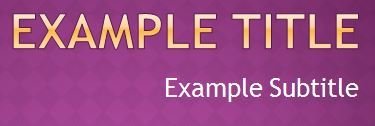
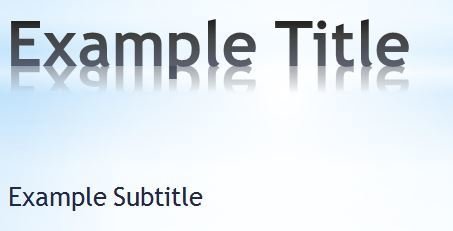
- Otherwise you might end up with sections that look like this
- Black and dark blue are best on light backgrounds
- White and light yellows are best on dark backgrounds
Font Colour
- Black and white will always be the easiest to read
- When using colour to add interest, restrict it to titles and/or highlights
- Don't convey important information using colour; separate the colour from the message
Concerns with Templates
Some of MS Office's default, built-in styles have questionable contrast or other possible barriers that we need to be aware of.

Ensuring Your PowerPoint File is Accessible
Accessibility of PowerPoint Files
- PowerPoint files are generally not very accessible
- For a screen-reader to work, it needs to select text, and this is difficult when every text box and image is in a separate space that one must click to access
- Some web-based presentation tools, like slides.com, are free and accessible!
- Accessible presentation tools will allow you to select all text on the screen at the same time
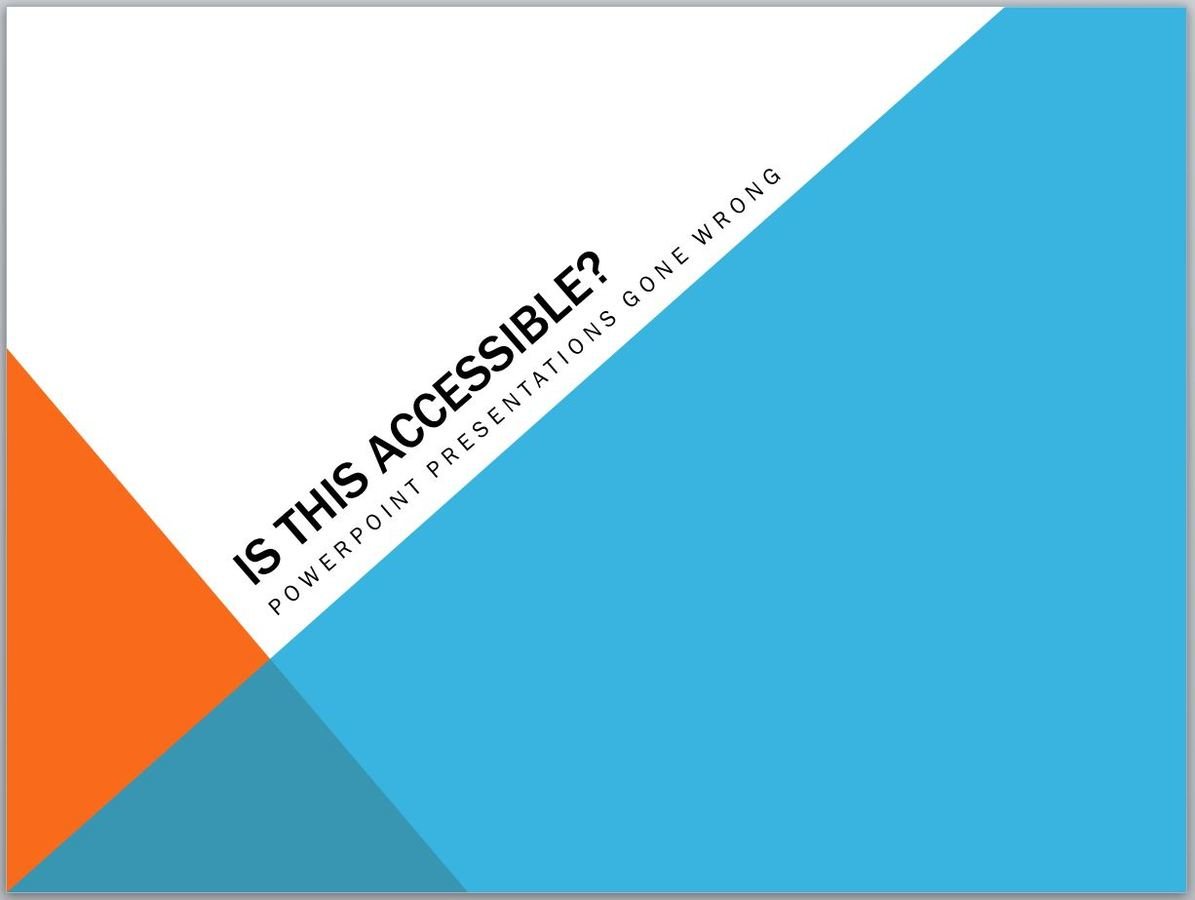
Text Direction
- Some screen-readers have trouble with vertical or angled text
- It's also harder to read in general
- This should be avoided
Descriptive Links
- URLs in most modern applications are usually recognized as a hyperlink
- URLs don't usually make good names for links
- Consider editing the link so it has a descriptive name
- Bad names include click here or this
- Avoid using the same name repeatedly
- Some additional description/context is a good idea
Descriptive Link Example
Which of these three links to the same page is best?
1. Visit https://support.office.com/en-IE/article/Style-basics-in-Word-d382f84d-5c38-4444-98a5-9cbb6ede1ba4 for more information about Styles in Word
2. Click here to view information on Styles in Word
3. For more information, see Microsoft Office introduction to Styles in Word
Animations
- Avoid
Well, that isn't fair:
Animations can be safely used for emphasis and pacing during a live presentation. They aren't ALL bad.
Don't use options that hide or overlap your content, or would prevent the audience from seeing your content when viewing the file, like the "Motion Paths" feature.
If in doubt...
- Avoid
Embedded Videos
- Embedded videos often won't display subtitles
- Often, there are other barriers for students attempting to view embedded videos
- It is usually better to link to a video than to embed it (and ensure that the video on the web has proper subtitles)
Slide Titles
- Some users may navigate your slides by title
- Avoid giving slides the exact same title
- Related slides can be numbered or given titles that show they're related (i.e. "Slide Titles Cont'd")
- This also makes it apparent when the slide has changed during a presentation and makes it easier to follow along
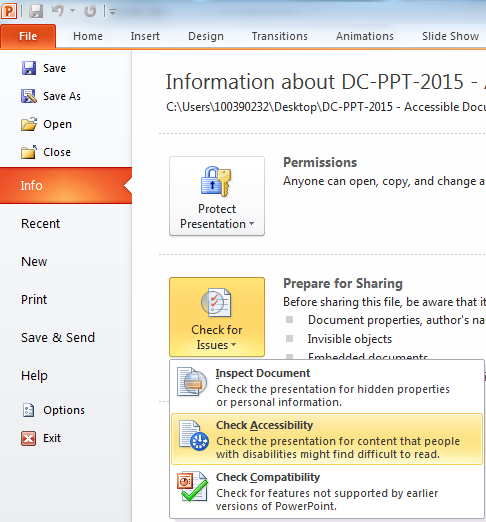
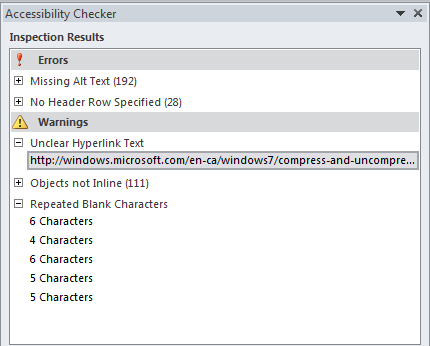
Accessibility Checker
Microsoft has its own tool for checking accessibility:
Accessibility Checker (2)
Accessible Presentation Techniques
Respect the Audience
Even when you know your audience (or class), you can be fully inclusive by recognizing that someone could have:
- become ill (and can't talk or move well)
- forgotten their contact lenses (and can't see)
- attended a loud event (and can't hear)
- had a bad day (and can't concentrate)
- or any number of other factors
Among other considerations, these are all good reasons not to call on unengaged students.
Taking a Break
- Taking a break during a long lecture is often a good idea for many of the same reasons. Learners will work better given the freedom to take a bathroom or coffee break without missing course content.
- During a break, invite questions, perhaps via discussion board, Twitter, or post-its. Allowing indirect questions provides a voice for more reserved people.
What Stops You From Learning?
- On the subject of taking a bathroom break... it is difficult to pay attention or remember effectively when you're stressed or distracted.
- When possible, lecture after the quiz/test, not before.
- If it makes sense, make work due at the start of class.
- Make clear whether you are okay with students eating in class, especially over common meal times.
- For these reasons and others, it is often helpful to be aware of your program's block schedule.
Presentation Concerns
- You can't completely avoid text on slides and you can't completely avoid being redundant with the slides
- Consider students with difficulty understanding auditory information (LD, deaf, hard of hearing, ESL...)
They need to see it!
- Consider students with difficulty understanding written information (LD, blind, low vision, back of the room...)
They need to hear it!
- You must cover all information on the slide, including describing any relevant visuals.
Pause Between Topics
Accommodations for Presentations
Preferential Seating
- Some students have an accommodation for preferred seating.
- This may be due to a disability affecting the student's ability to see, to hear, or to retain attention.
- Be aware of this when group work is planned.
- Though the rooms don't always allow it, do your best to be visible and audible to all students.
Allowing Access to the Slides
- As we said earlier, PowerPoint slides are not very accessible.
- When sharing slides with your audience, consider also (or instead) saving as a Word or PDF document
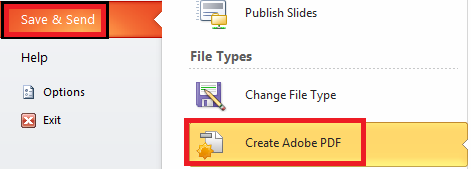
- The handouts option for Word doesn't solve every problem, but it helps
Presentation Concerns
- Provide a copy of your slides - before the presentation is preferable
- Modified slides are OK, but complete slides are more inclusive
Consider:
If you were doing readings in class; would you expect the students to bring their books?
Discussion
- Is it okay to post inaccessible PowerPoint slides?
- Can we expect our audience to know the information from these slides?
- Can we expect our audience to know material from slides we haven't posted?
Using a Microphone
- In some cases, students have accommodations that require the instructor to wear a microphone or another device.
- This is most commonly because they have difficulty hearing or paying attention.
- If you're wearing a microphone, it's usually not hard to wire it into a room's sound system.
- Often, it's also not hard to connect to your computer if you want to record the audio of your whole lecture.
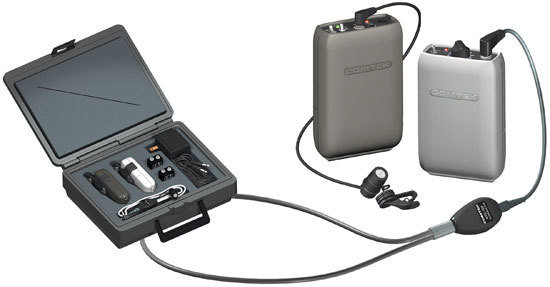
FM System Microphones
- FM Systems are just microphones specifically designed to work with a hearing aid or speaker.
- Though it's possible, generally a student using these isn't recording the lecture.
- Demo hardware is available at the ASC if you want to see or try one!
Recorded Lectures
There's some controversy here. Let's discuss.
Some Resources
- MS Office: Creating Accessible PowerPoint Presentations (link)
- W3.org: Making Presentations Accessible to All (link)
Creating and Delivering Accessible Presentations
By Kyle Chapman
Creating and Delivering Accessible Presentations
Discusses tips for creating presentation files that are as accessible as possible, both while presenting and when being distributed. Accessible design features like font choice and contrast will be discussed, as well as presentation techniques to ensure your audience can retain the most of your message. We will also discuss common accommodations for students with exceptionalities as they relate to your presentations.