Making of my Content Page.
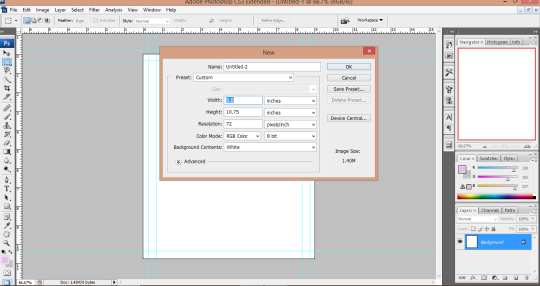
After I made my cover page I started making the content page of my magazine. I chose the same size as my cover page which was 8.3/10.7
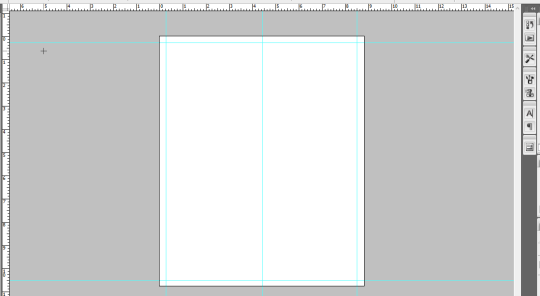
I added these lines by pressing "Ctrl R"
By using the numbers on the left and on the top of the screen I made these margin lines so the composition of my magazine looks perfect. After saving this these lines will disappear and all of the placements on my magazine will be on point!


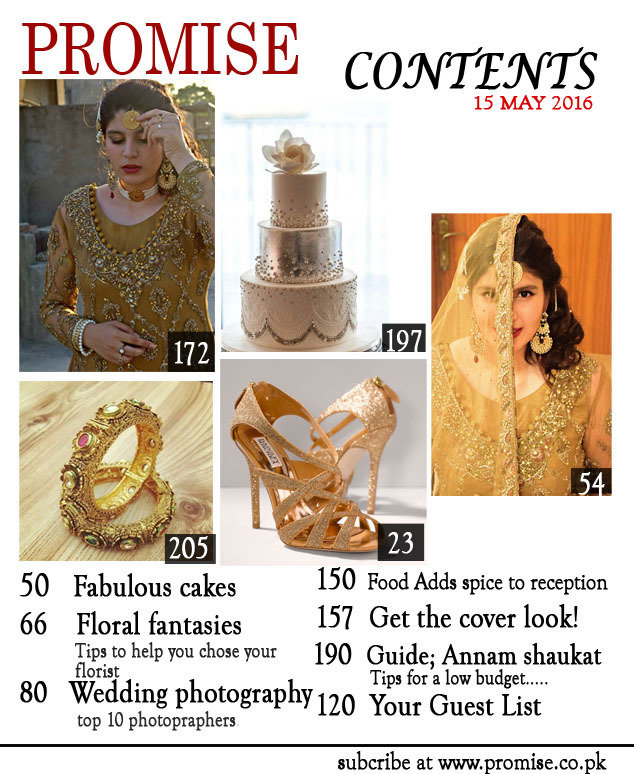
Next I added the same masthead. The easy way I used was that I dragged the same masthead from the cover page file using the move tool which is on the second number in the tool bar.
Then I added the subheading ‘Contents’. I used a different font so the reader finds it attractive!


Then I added the date in red colour which i placed under the content
Then I added the pictures and page numbers on them.


Then I added a black square behind the page number so that its more prominent. I added the square using the shape tool from the toolbar and used the opacity tool above the layers section to lighten the colour.
And this is how it looked like.
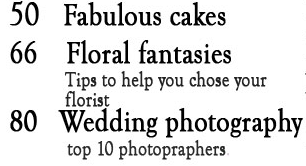
After I was done with the pictures, masthead etc. I finally added the main content that was the last step.
deck
By ramsha