DOM and CSS
In a nutshell :)
DOM
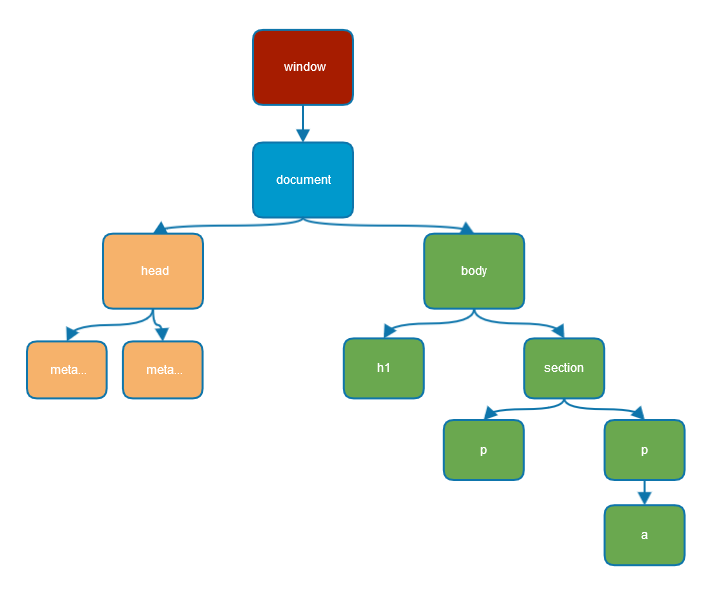
The structure of the page
Content and structure
<body>
	<h1>Some header</h1>
	<section id="smth">
		<p>Hello world</p>
		<p>Lets put some <a href="http://www.google.com">link</a></p>
	</section>
</body>
The DOM tree
Finding a DOM element
document.firstChild.firstChild.nextElementSibling.lastChildelement.getElementById(); //find one element by ID
element.getElementsByTagName() // find collection of elements by tag name
element.getElementsByClassName() // same but by class nameelement.querySelector();
element.querySelectorAll();
element.querySelector('header .subtitle');Manipulating DOM element
var text = document.createElement('p');
text.textContent = 'JS is awsome'; //content (only text) of the element
test.innerHTML = '<span>Some html</span>';
document.body.appendChild(text);
document.createElement(tagName)
parentNode.appendChild(node)
parentNode.insertBefore(newNode, beforeNode)
parentNode.removeChild(node)
parentNode.replaceChild(newNode, oldNode)
node.cloneNode(deep)Object attributes (properties)
//object attributes
el.textContent = 'Pure text';
el.innerHTML = '<b>Some code</b>';

el.id = 'myId';
//"html" attributes
el.setAttribute('class', 'some-css-class');
el.getAttribute('id');HTML Attributes
Working with css classes
pEl.classList.contains('strong');
pEl.classList.add('newcls'); // strong inactive newcls
pEl.classList.remove('strong'); //inactive newcls
Events
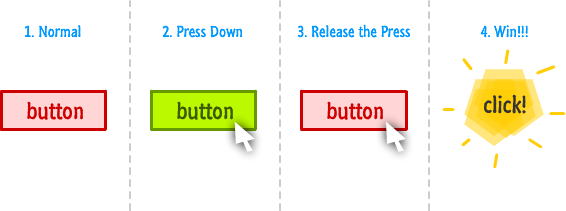
Various user actions cause an event to be emitted
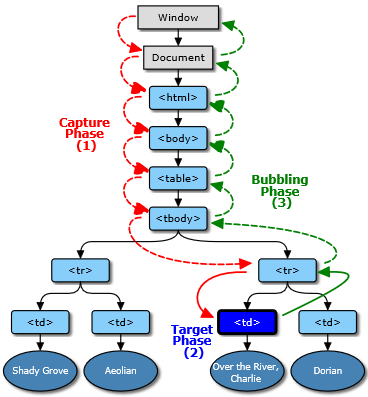
Event phases
Reacting on an event
buttonEl.addEventListener('click', function () {
	alert('I can feel you clicking me!');
});

buttonEl.onclick = function () { alert('DONT!') };
Controling event cycle
el.addEventListener('click', function (event) {
	event.stopPropagation(); // will not bubble!
}, false);

el.addEventListener('click', function (event) {
	event.preventDefault(); // will not perform default action
}, false);
Events delegation
<ul id="list">
	<li>Click me</li>
	<li>Click me</li>
	<li>Click me</li>
</ul>
var listEl = document.querySelector('#list');
listEl.addEventListener('click', function (event) {
if (event.target.tagName === 'LI') {
alert('list element clicked');
}
});Time to code!
tasks/basics/dom_bmi
CSS
How to make your app fabulous
Cascading Style Sheets
- Describing the look and feel of an HTML document
- Designed to enable the separation of document content from document presentation
- Allow the same markup page to be presented in different styles for different render methods
Adding a style
<p style="text-align: center;">Some text</p></code>Inline
<style>
	p {
		text-align: center;
	}
</style>
In page header
//styles.css
p {
	text-align: center;
}
Separated file
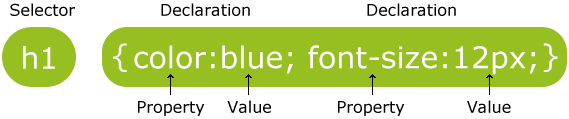
CSS syntax
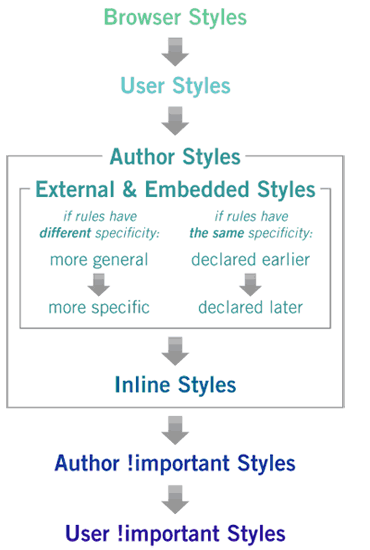
CSS cascade priority
Basic css selectors
Id
<p id="test">Some tekst</p>#test {
color: red;
}class
<p class="test">Some tekst</p>

<p class="test">Some other tekst</p>
.test {
color: red;
}Basic css selectors
Id
<p id="test">Some tekst</p>#test {
color: red;
}class
<p class="test">Some tekst</p>

<p class="test">Some other tekst</p>
.test {
color: red;
}Nested elements
#header {
    font-size: 20px;
}

#header p {
    color: #FF0000;
}
All descendants
#header {
    font-size: 20px;
}

#header > p {
    color: #FF0000;
}
Children
Nested elements
#header {
    font-size: 20px;
}

#header p {
    color: #FF0000;
}
All descendants
#header {
    font-size: 20px;
}

#header > p {
    color: #FF0000;
}
Children
Pseudo classes
a:active {
    color: red;
}

a:hover {
    color: blue;
}

a:first-child {
    color: yellow;
}
a:first-letter {
color: red;
}
a:first-line{
color: blue;
}
Let's play
/tasks/basics/css_selectors
Specificity
If you have two (or more) conflicting CSS APPs that point to the same element, there are some basic APPs that a browser follows to determine which one is most specific and therefore wins out
Specificity
More Specific = Greater Precedence
If the selectors are the same then the last one will always take precedence
p { color: red; }
p { color: magenta; }
Specificity
More Specific = Greater Precedence
If the selectors are the same then the last one will always take precedence
p { color: red; }
p { color: magenta; }
Specificity
<div class="box">
    <p>My paragraph</p>
</div>

.box p { color: red; }
p { color: magenta; }
?
Specificity
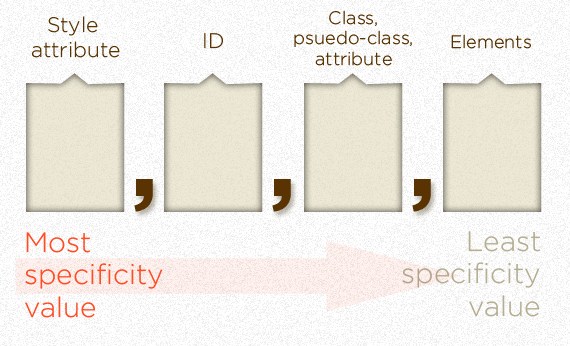
Specificity
- For each element reference, apply 0,0,0,1 point
- For each class value (or pseudo-class or attribute selector), apply 0,0,1,0 points
- For each ID value, apply 0,1,0,0 points
- If the element has inline styling, that automatically1 wins (1,0,0,0 points)
Quiz
What will the color of paragraph?
div#main p.bar { color: red; }

.container p#foo.boo { color: green; }

#main.container p { color: blue; }

<div class="container" id="main">
   <p class="bar boo" id="foo">Something clever goes here...</p>
</div>
Quiz
GREEN
2. (0,1,1,2) div#main p.bar { color: red; }
1. (0,1,2,1) .container p#foo.boo { color: green; }
3. (0,1,1,1) #main.container p { color: blue; }
Some CSS definitions
Box model
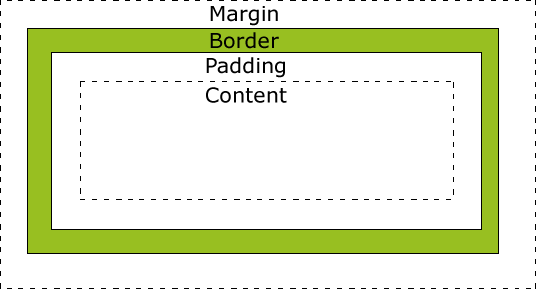
Box model
/* default style as specified by the CSS standard */
box-sizing: content-box;

/* the width and height include the padding size, not the border or margin */
box-sizing: padding-box;

/* the width and height include the padding and border, but not the margin */
box-sizing: border-box;
Box model - Quiz
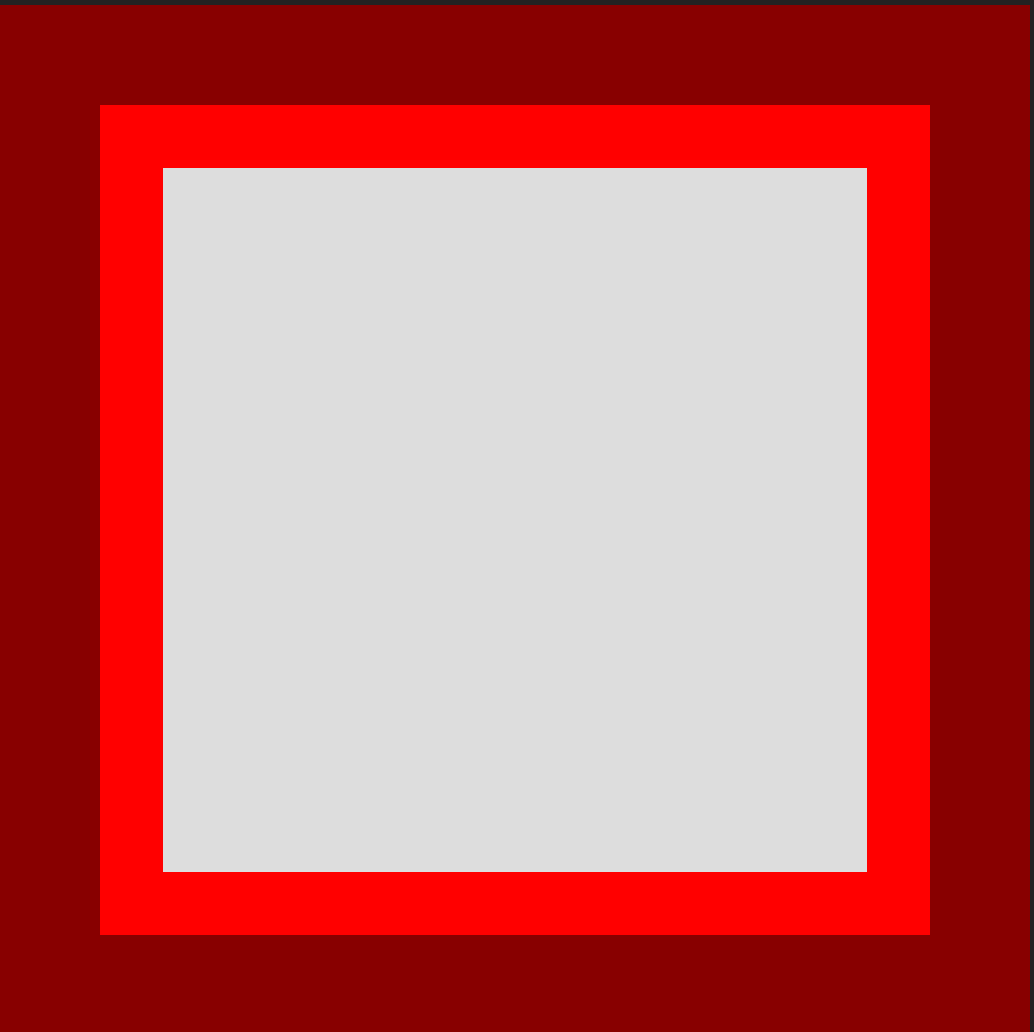
width: 200px;
height: 200px;
border-width: 20px;
padding: 25px;
margin: 5px;
What will the size of the content?
border-box: ?
padding-box: ?
content-box: ?
Display
The display CSS property specifies the type of rendering box used for an element
display: inline
Boxes that are displayed inline follow the flow of a line. Only padding and margin can be applied.
display: block
Makes a box standalone, fitting the entire width of its containing box, with an effective line break before and after it
display: inline-block
Generates a block element box that will be flowed with surrounding content as if it were a single inline box
Positioning
The position property is used to define whether a box is absolute, relative, static or fixed
position: static
is the default value and renders a box in the normal order of things, as they appear in the HTMLstatic
position: relative
is much like static but the box can be offset from its original position with the properties top, right, bottom and leftrelative
position: absolute
pulls a box out of the normal flow of the HTML and delivers it to a world all of its own. The absolute box can be placed anywhere on the page using top, right, bottom and leftabsolute
position: relative
behaves like absolute, but it will absolutely position a box in reference to the browser window as opposed to the web page, so fixed boxes should stay exactly where they are on the screen even when the page is scrolledfixed
Let's play
/tasks/basics/css_tryout
DOM and CSS
By sosnowsd