

RhianaH
Rhiana is a front end developer specialising in making web sites and applications accessible for people with disabilities. Combining her background in educational psychology and a love of computers.
Learning the fundamentals of CSS and applying them in your very own CSS Zen Garden project
Rhiana Heppenstall - Accessibility Lead
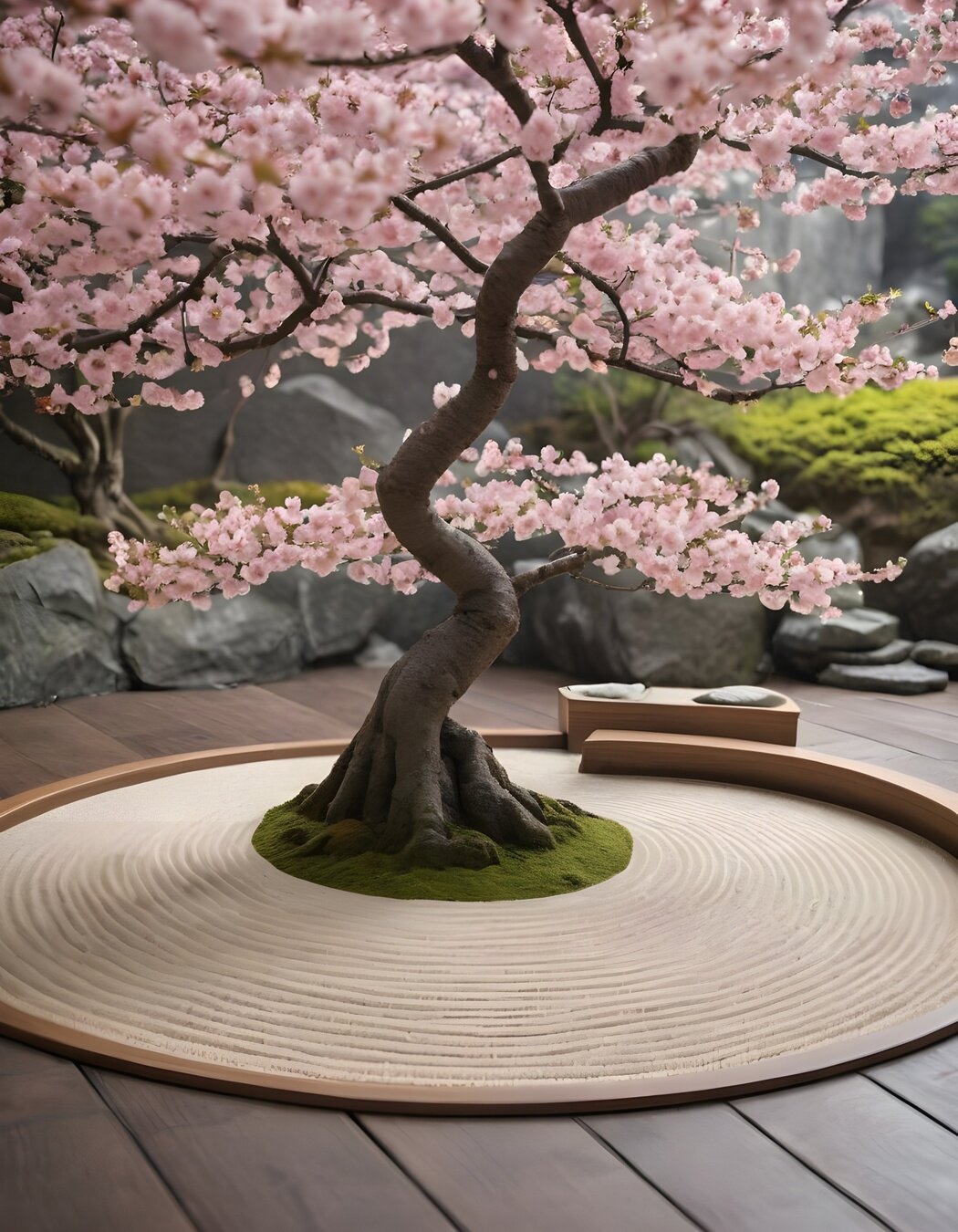
The CSS Zen Garden invites you to relax and meditate on the important lessons of the masters. Begin to see with clarity. Learn to use the time-honored techniques in new and invigorating fashion. Become one with the web.
May jump around a bit
Getting the Zen Garden showing in your browser
How and where to add colour
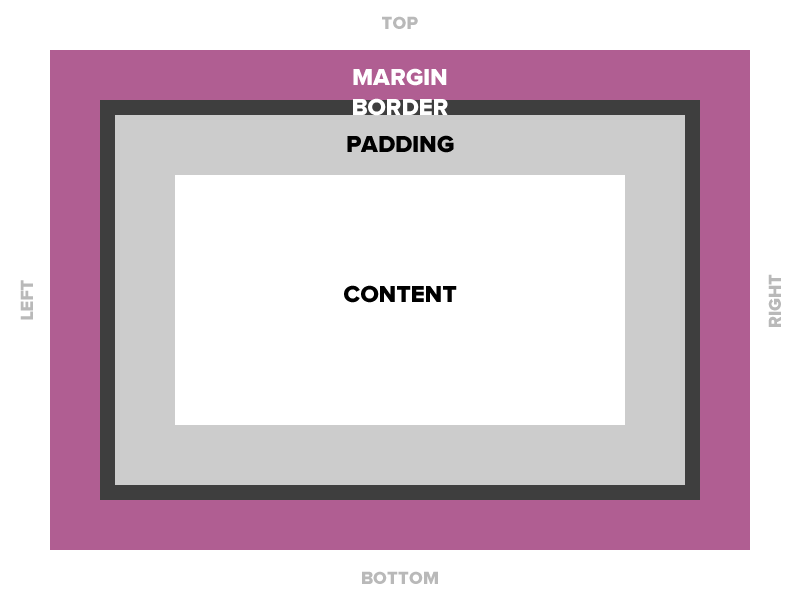
How the browser sees it
How to position elements
Example garden you can follow or make your own!
<!DOCTYPE html>
<html lang="en">
<head>
	<meta charset="utf-8">
	<title>CSS Zen Garden: The Beauty of CSS Design</title>

	<link rel="stylesheet" media="screen" href="style.css?v=8may2013">
	<link rel="alternate" type="application/rss+xml" title="RSS" href="http://www.csszengarden.com/zengarden.xml">

	<meta name="viewport" content="width=device-width, initial-scale=1.0">
	<meta name="author" content="Dave Shea">
	<meta name="description" content="A demonstration of what can be accomplished visually through CSS-based design.">
	<meta name="robots" content="all">


	<!--[if lt IE 9]>
	<script src="script/html5shiv.js"></script>
	<![endif]-->
</head>

<body id="css-zen-garden">
  <div class="page-wrapper">

	<section class="intro" id="zen-intro">
		<header role="banner">
			<h1>CSS Zen Garden</h1>
			<h2>The Beauty of <abbr title="Cascading Style Sheets">CSS</abbr> Design</h2>
		</header>

		<div class="summary" id="zen-summary" role="article">
			<p>A demonstration of what can be accomplished through <abbr title="Cascading Style Sheets">CSS</abbr>-based design. Select any style sheet from the list to load it into this page.</p>
			<p>Download the example <a href="/examples/index" title="This page's source HTML code, not to be modified.">html file</a> and <a href="/examples/style.css" title="This page's sample CSS, the file you may modify.">css file</a></p>
		</div>

		<div class="preamble" id="zen-preamble" role="article">
			<h3>The Road to Enlightenment</h3>
			<p>Littering a dark and dreary road lay the past relics of browser-specific tags, incompatible <abbr title="Document Object Model">DOM</abbr>s, broken <abbr title="Cascading Style Sheets">CSS</abbr> support, and abandoned browsers.</p>
			<p>We must clear the mind of the past. Web enlightenment has been achieved thanks to the tireless efforts of folk like the <abbr title="World Wide Web Consortium">W3C</abbr>, <abbr title="Web Standards Project">WaSP</abbr>, and the major browser creators.</p>
			<p>The CSS Zen Garden invites you to relax and meditate on the important lessons of the masters. Begin to see with clarity. Learn to use the time-honored techniques in new and invigorating fashion. Become one with the web.</p>
		</div>
	</section>
 ...
Base:
</head>

<style>
	body {
		margin: 0;
	}
</style>

<body>
Plus:
Cascading
Style
Sheets
RESET
ELEMENTS
CLASSES
COMPONENTS
!IMPORTANT
p {
  color: blue;
}

p {
  color: pink;
}p.text {
color: blue;
}
p {
color: pink;
}Base:
html, body {
  font-family: Palatino, 'Book Antiqua', Georgia, serif;
}


h1, h2, h3, h4, h5, h6 {
  font-family: Verdana, Geneva, sans-serif;
}
Plus:
html {
  font-size: 16px;
}

h1 {
  font-size: 3rem;
}

h2 {
  font-size: 2.25rem;
}

h3 {
  font-size: 1.5rem;
}
Base:
Plus:
h1, h2, h3, h4, h5, h6 {
  line-height: 1.1;
}

p, ul li, ol li {
  line-height: 1.5;
}
Base:
Plus:
h1, h2, h3, h4, h5, h6 {
  font-weight: bold;
}

p, ul li, ol li {
  font-weight: 400;
}| Key word | Number |
|---|---|
| normal | 400 |
| bold | 700 |
| thin | 100 |
| black | 900 |
Base:
Plus:
html, body {
  color: black;
}

h1, h2, h3, h4, h5, h6 {
  color: #5F1A37;
}

p {
  color: hsl(177, 39%, 32%);
}

a {
  color: rgb(72, 63, 80);
}
Base:
Plus:
html, body {
  background-color: #F5F4F6;
}

header {
  background-color: #9BCFE8;
}

footer {
  background-color: #ACB2D8;
}

aside {
  background-color: #BFEDE2;
}
Base:
Plus:
header {
  border: 1px solid #267EA6;
}

footer {
  border-width: 1px;
  border-style: dashed;
  border-color: #3B447D;
}

aside {
  border-width: 5px;
  border-style: dotted;
  border-color: #288F77;
}
Base:
Plus:
Content
Padding
Border
Margin
header {
  height: 150px;
}

footer {
  height: 3rem;
  width: 80%;
}

.explanation,
.participation {
  display: inline-block;
  border: 1px solid black;
  width: 49%;
}
Base:
Plus:
aside {
  padding: 3%;
}

footer {
  padding: 15px;
}

.main {
  padding: 3rem;
  background-color: #EED2AA;
}

header {
  padding: 20px 0 1rem 0;
}
Base:
Plus:
h1, h2, h3, p {
  margin-bottom: 0.5em;
}

.summary {
  margin: 100px;
}

ul {
  margin: 2rem;
  background-color: #E3E4F2;
  border: 1px solid black;
}
Base:
Plus:
| Property | Size | Padding | Margin | Direction |
|---|---|---|---|---|
| inline | No | Left/Right only* | Left/Right only* | Left to right |
| block | Yes | Yes | Yes | Up to down |
| inline-block | Yes | Yes | Yes | Left to right |
* top and bottom are kind of applied but go outside the alignment of the parent
header {
  position: sticky;
  top: 0;
  left: 0;
  right: 0;
}

footer {
  position: relative;
  bottom: 10rem;
  left: 50%;
}
Base:
Plus:
.main {
  display: flex;
  flex-direction: column;
  align-items: center;
}

header {
  display: flex;
  flex-direction: row;
  align-items: flex-end;
}
Base:
Plus:
aside .wrapper {
  display: grid;
  grid-template-columns: 1fr 20% 250px;
  gap: 1rem;
}
Base:
Plus:
Rhiana Heppenstall - Accessibility Lead 3P Learning
By RhianaH